
Stock, deliveries and losses
You never type a stock level over the old one. Stock is a ledger: every delivery adds a signed entry, every loss subtracts one, and today’s level is the running total. That is how BatchDash can tell you what your stock is worth and show where the number came from. The ledger’s running total is the on hand figure; what you can still promise from it is availability, shown right beside it.
Log a delivery
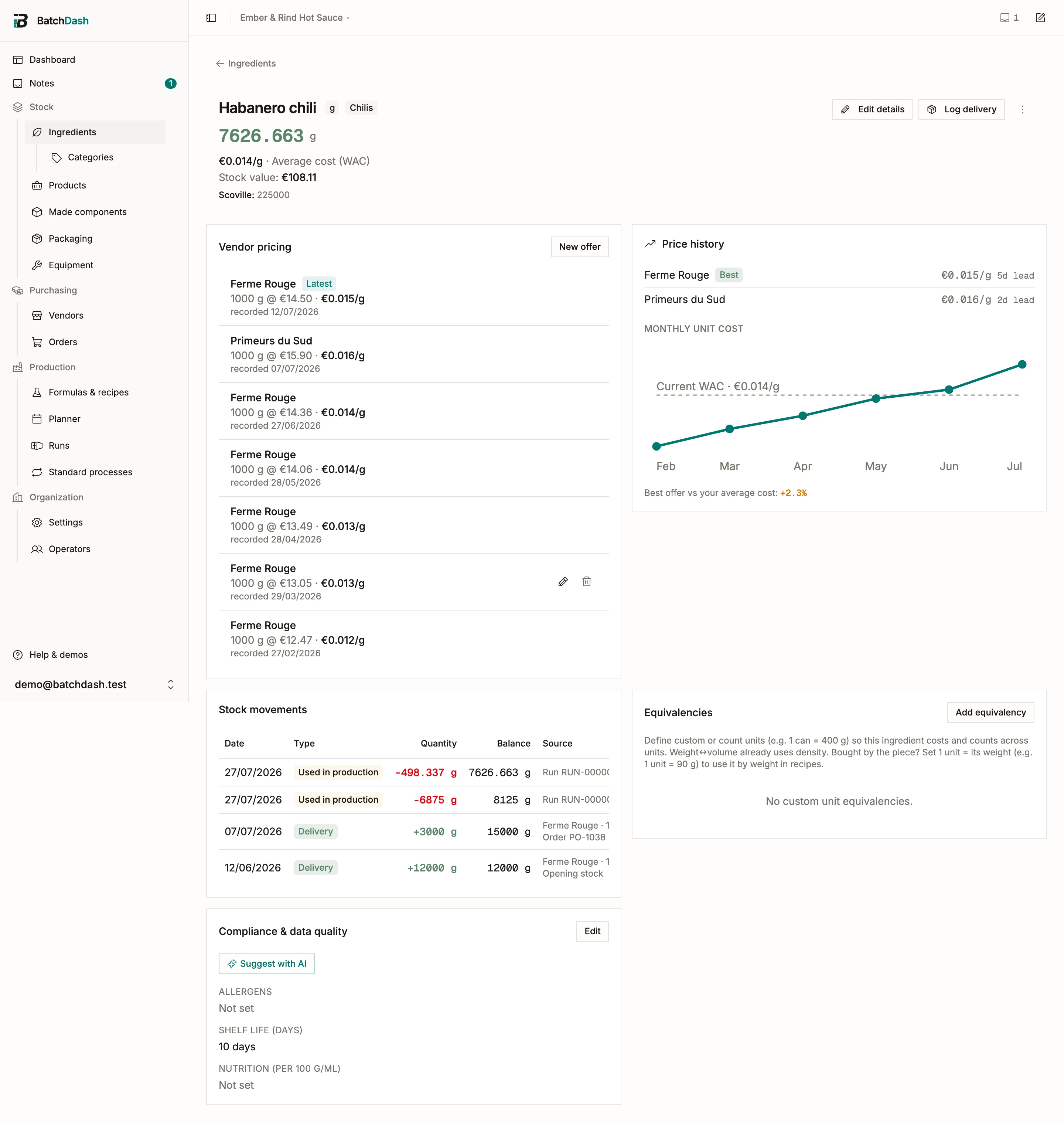
Section titled “Log a delivery”On the ingredient page, click Log delivery:
- Enter the Quantity Received and the Date.
- Pick a Link to Vendor Offer if one matches. The offer’s pack price gives the delivery its cost.
- Add a Lot code and Expiry date if you track lots, and a note (“Invoice #123”).
A delivery without a cost still raises the level, but the ingredient then shows an “Uncosted stock” warning: that quantity cannot be valued. Deliveries created by receiving a purchase order carry the exact amount you paid, delivery fees included, so prefer them for real purchases. With more than one location, the dialog also asks which location the delivery went to, preset to your default.
A vendor who invoices in another currency changes two things. The price is typed in their currency, and the delivery is always recorded as a one-line purchase order booked at the reference rate for the delivery’s date, so its cost reaches your stock in your base currency. Stock only, no order is not offered for them. For a delivery dated today the dialog names the rate under the price; for another day it names the day, and the order shows the figure afterwards. A date with no rate on file on or before it is refused under the date: use a later one, or create the order and type its rate. A vendor name that is new to you gets a Currency field under it, and the price box follows what you pick.
The quantity carries a unit, so you can type what the invoice says rather than converting in your head: 4250 g of something you stock in kilos, or 25 lb of something you stock in grams.
With a purchase order to receive against, the paperwork reader is the faster way in: it takes the note or the invoice and proposes every line at once.
Counting a delivery you bought by weight
Section titled “Counting a delivery you bought by weight”An ingredient stocked in Units / Pieces with a Piece weight (Ingredients you count covers that field) takes the invoice’s weight, then asks how many pieces there were:
Quantity received 4.2 kg That is about 49.4 pieces. How many were there? [ 50 ]
The count is what goes into stock, onto the purchase line and onto the price snapshot: 50 lemons for the money you paid, so the price per piece follows what you actually got. The weight is not lost. It rides along on the price snapshot, which is why the offers section can still read “4.2 kg @ €13.44 · €3.200/kg · €0.269 / piece”. On an ingredient that comes in fixed pieces, the count box steps by the smallest amount you said it can be used in.
When the weight and the count disagree with your stored piece weight by more than 2%, one line appears with the arithmetic and a single action:
4.2 kg over 53 pieces is 79.245 g each. Your piece weight says 85 g. Update it
Pressing it writes the new piece weight through the ingredient itself. The delivery dialog stays open, the count you typed stays as typed, and the page behind it catches up. Nothing happens without the press: a crate of unusually small lemons should not quietly reprice every recipe that uses them. Under 2% the line does not appear at all, because being 1% out is not a question worth asking.
When your plan includes ingredient variants, a count you corrected past that 2% is also kept as a weighing of what one piece weighs, and the confirmation says “Recorded as a weighing.” If the piece weight follows your weighings, there is no button to press: the line says so, and saving moves the piece weight. The confirmation then gives the new figure.
Record stock
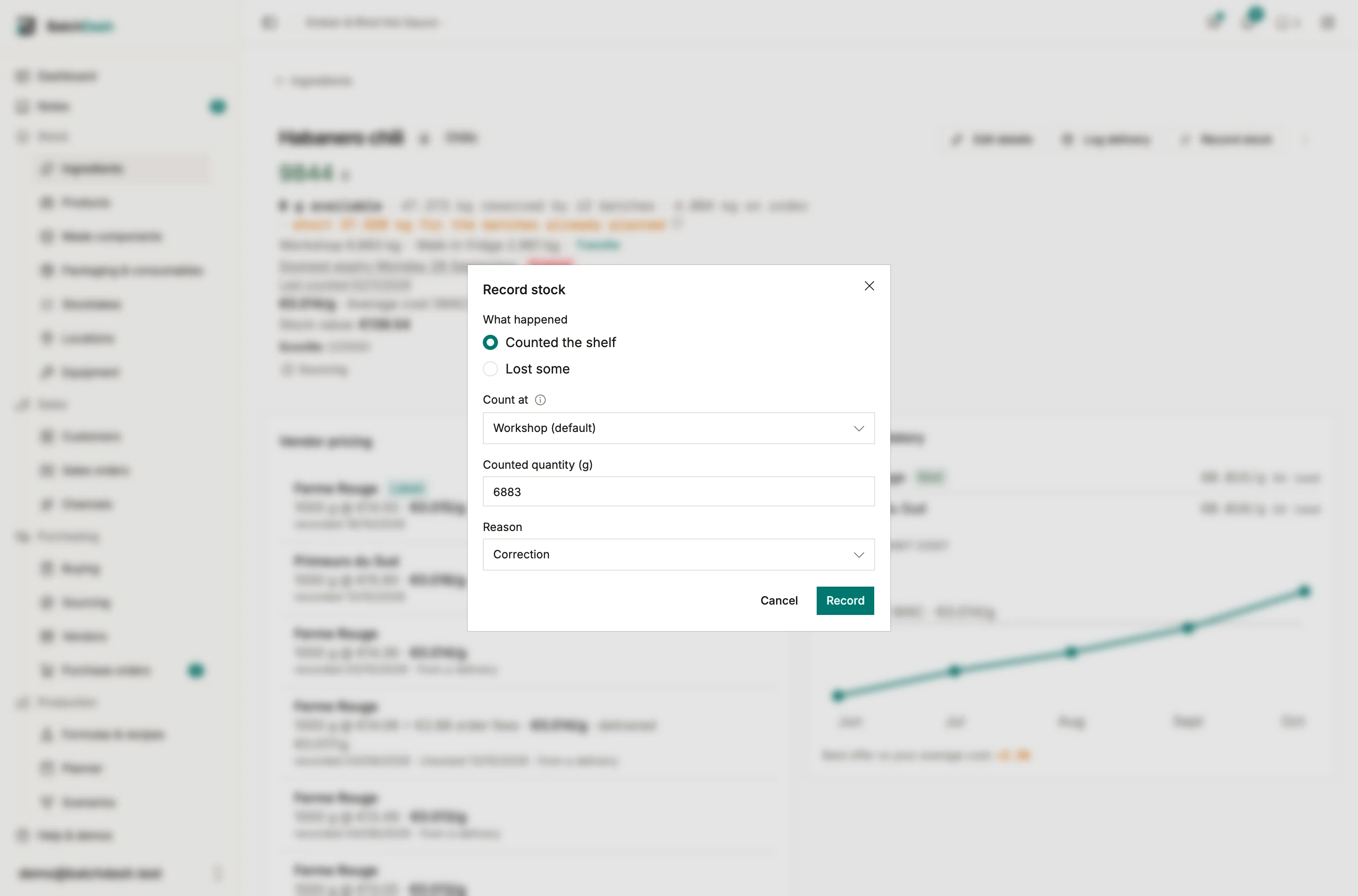
Section titled “Record stock”Record stock, in the page header, is the one dialog for what changed on the shelf by hand. A packaging item and a product have the same one. What happened offers two answers here:
- Lost some: enter the quantity, the date, and pick a Reason: Spoilage, Breakage, Expiry, Theft, Sampling, or Correction. From lot leaves from the lot expiring first, or from a lot you name. Reasons cost two seconds to record and pay off later, when you want to know how much habanero went to mold versus the floor.
- Counted the shelf: type the Counted quantity, what the shelf holds, and the difference is booked as an adjustment. It opens on the figure the page shows.
With locations, both happen at a location, preset to your default: a count is that shelf’s figure, and the total moves by the same difference.
Lots in stock and their dates
Section titled “Lots in stock and their dates”The Lots in stock card lists the lots your stock is made of: the lot code, the day it came in and who supplied it, what is left of it, and its expiry. A lot with no recorded date takes the ingredient’s Shelf life from the day it came in, marked Estimated. Opening stock gets no estimate, because it is dated the day you entered it, which says nothing about when it arrived.
Each lot keeps its own balance. When a batch, a transformation or a loss names a lot, the quantity comes out of that lot. Whatever nobody names leaves from the lot expiring first, and undated lots go last. So the lots you name in a batch’s Lots dialog are the ones that go down, and a delivery the batches used up drops off the card, Today and the Expiring ingredients report by itself.
A lot past its date wears Expired, and one expiring within 30 days shows its date in amber. The line under the stock figure names the soonest, “Soonest expiry Thursday 24 September”, and links to the card. A batch’s Lots dialog shows the same dates and what each lot has left, so a lot past its date says so before you name it.
- Record stock opens on Lost some from that lot, starting on what is left of it and, when the lot is expired, on the Expiry reason. Type what you actually threw out, up to what the lot brought in: a lot you name takes back what the automatic order had counted out of it.
- Correct opens the delivery’s paperwork, described below. Typing the real best-before over an estimated date is often all an alert needed.
Stock a count finds, or a correction adds, is a lot of its own with no date. When a batch used stock before its delivery was logged, the delivery covers that first.
Adjustments
Section titled “Adjustments”A count is the correction: when the shelf disagrees with the ledger, Counted the shelf makes the ledger match it. The pencil beside the stock figure at the top of the page opens Record stock on that count. Its Reason is preset to Correction. Change it when you know better: a jar that broke is Breakage, stock that walked is Theft. That is the difference between real shrink and a bookkeeping fix, and it is the split the shrink figures are built on.
For a whole shelf, run a stocktake instead: its commit books one Count variance adjustment per difference, and the row’s Source names the stocktake it came from.
Count variance is not on any of those lists. Only a stocktake commit books it, so a variance figure always means a real count stood behind it.
On an ingredient with a Smallest amount you can use, every quantity you type here steps by it: a delivery, a loss, a count, a transfer, a stocktake count, and the amount you capture on a batch. Anything between two steps is refused with “Count this in whole pieces.” or “Count this in halves.”, and the inputs step by the amount you chose, so a phone opens on digits for something whole. Choosing does not rewrite a balance that is already between steps: the page says “Stock is 6.47, between two amounts you can use. Count it to correct the balance.” until a count resolves it.
The movements ledger
Section titled “The movements ledger”The Stock movements table lists every entry with its Date, Type, signed Quantity, running Balance, Source, and By. The types are Delivery, Loss, Adjustment, Used in production (a run consumed it), and Made in-house (a run produced it). With ingredient variants, a transformation adds two more: Transformed on the variant it used and Made by transformation on the one it made, each carrying the transformation’s reference; clicking the reference opens the transformation. Each row’s balance is the previous balance plus its quantity, so when a number looks wrong, the ledger shows exactly which entry to blame. A delivery’s Source names its lot and expiry, and a loss thrown out from a lot names the lot it came out of. With locations, every row shows the place it happened at, and a transfer shows as two linked rows, out and in, with no cost figure.
By names the person whose action booked the row: a two-letter chip, and the full name with the time it was recorded on hover or tap. The name is kept as it was at that moment, so a row still reads after the person leaves your team. A row the system booked on its own, like a sale pulled in from a connected shop, shows Auto instead. Rows booked before this column existed show a dash: who booked them was never recorded. The column is hidden on a phone.
Fixing a delivery’s paperwork
Section titled “Fixing a delivery’s paperwork”You logged the delivery and forgot to write the lot code, or you read the expiry off the wrong line. Correct edits the lot code, the expiry date and the note. On a loss or an adjustment you typed, Correct fixes the note.
Quantity and cost are not on that list. Your stock level and your weighted average cost are built on them, so they are fixed another way: an entry you typed is reversed and typed again (below), and a delivery received on a purchase order is undone from the order.
Every correction is kept and shown under the movement: what the field was, what it became, who changed it and when.
Adding a lot code after the fact is worth doing. It is what turns that delivery into something the trace can find.
The same Correct action sits on made stock too, on the product and made component pages. A hand-typed entry owns its paperwork: an opening balance’s lot code, expiry date and note can all be fixed, and fixing the lot code renames that batch everywhere it appears, the trace included. Rows a batch produced are different. The sealed batch record owns their lot and expiry, so the dialog shows those locked and points you at the run sheet. The note stays editable everywhere.
Reversing an entry typed by hand
Section titled “Reversing an entry typed by hand”Typed 20 instead of 2? Take the entry back, rather than typing a second one to cancel it.
- Click Correct on the row: stock you added, a delivery logged without an order, a loss, an adjustment.
- Click Reverse this entry. The dialog says what that changes, for example “This puts 20 jars back in stock and recalculates the average cost.”
- Click Reverse entry, then type the right figure.
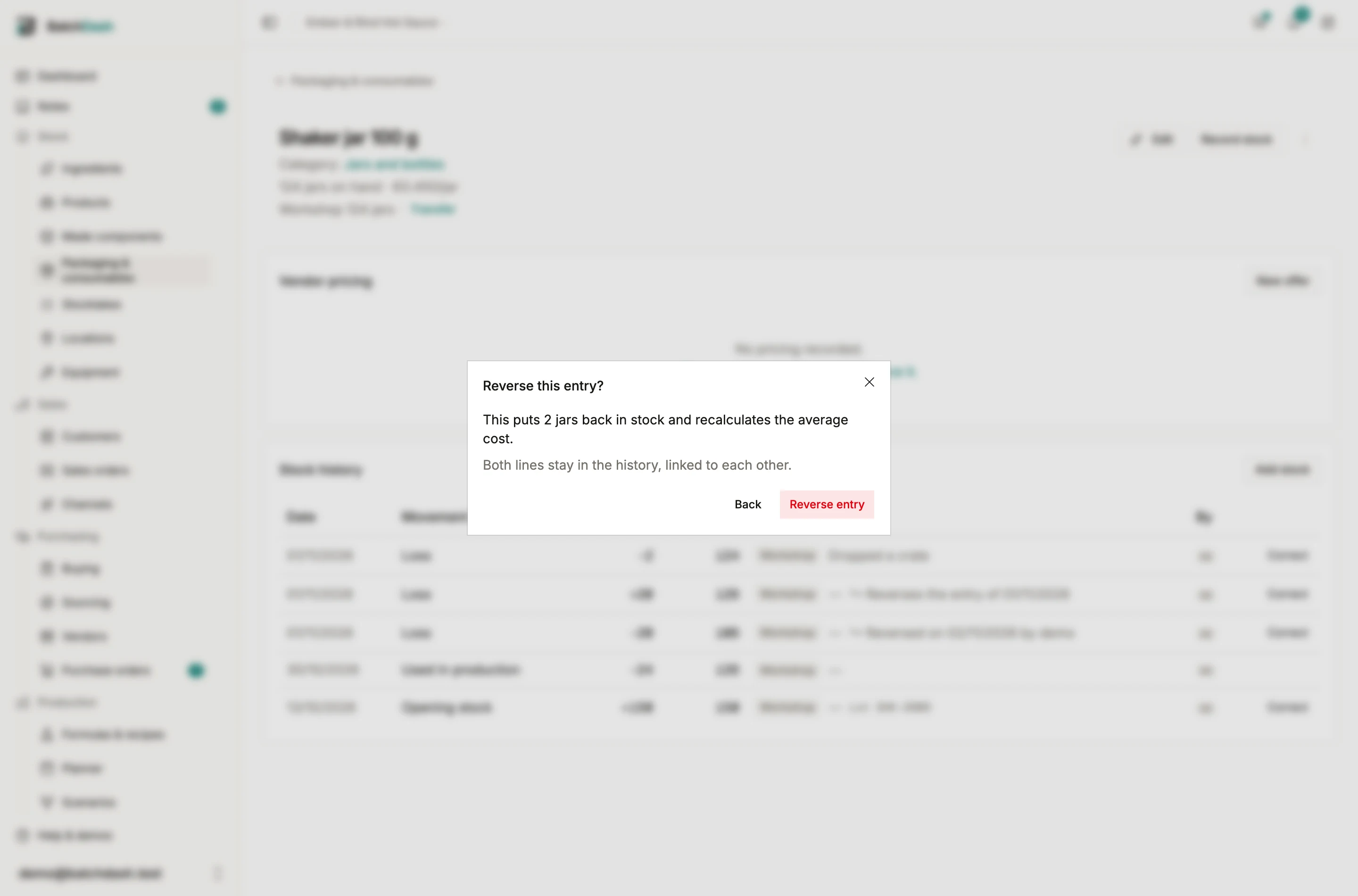
BatchDash books the opposite entry, dated now, at the same place, with the same lot and cost. Both rows stay in the ledger: the first reads “Reversed on 21/10 by Ana”, the second “Reverses the entry of 21/10”. Stock, lots, the average cost and the reports read as if the mistake had never been typed.
An entry is reversed once, and a reversal is not reversed: type the entry again instead. The dialog refuses, and says why, when:
- some of the stock the entry brought in has been used since, by a run or a loss from its lot: record a correction for what is left;
- some of it has moved to another place since: move it back first;
- a stocktake counted the item after the entry: the count already settled it, so correct it with a new count.
Entries other records booked go back with those records: a receipt from its purchase order, a run’s use of stock with the run, a count with a new count. The same Correct works on packaging, products and made components.
How movements set the cost
Section titled “How movements set the cost”Level and cost move separately. Costed deliveries feed the weighted average cost: each arrival blends its price into the average. Losses, consumption, and adjustments change the level but leave the unit cost alone, which is why an ingredient can lose half its stock and keep the same WAC. Vendor offers never touch it either; see Vendor offers and price history for what offers are for.