
Categories and custom fields
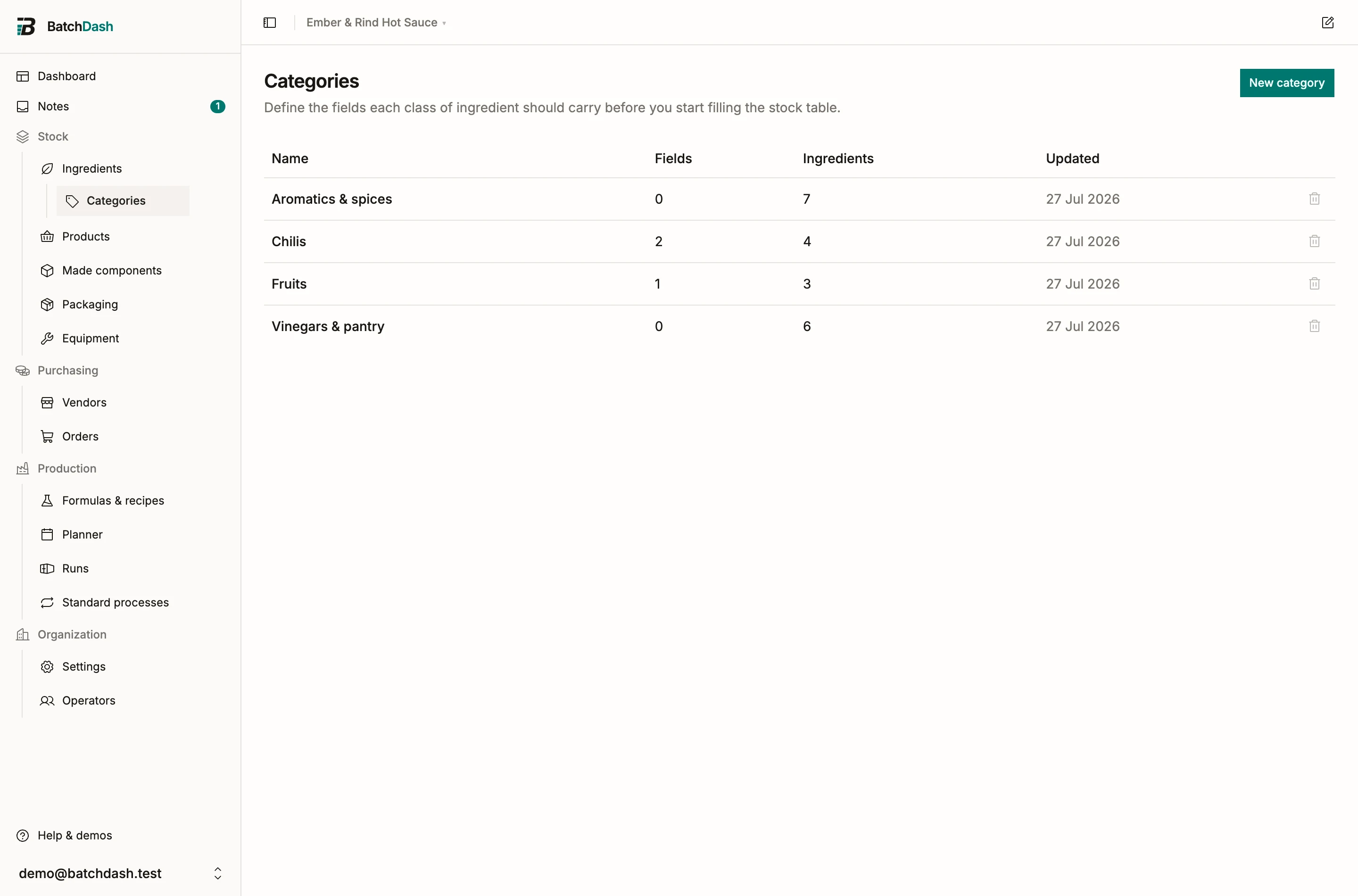
A category groups ingredients that share a shape: chilis, essential oils, dairy. Beyond filtering the list, an ingredient category defines the custom fields its ingredients carry, so a chili record can ask for a Scoville rating and an essential-oil record for a batch certificate number, without either polluting the other. Ingredient categories are the Ingredients tab of the Categories page, under Organization; packaging, products and recipes have categories of their own, described in Categories.
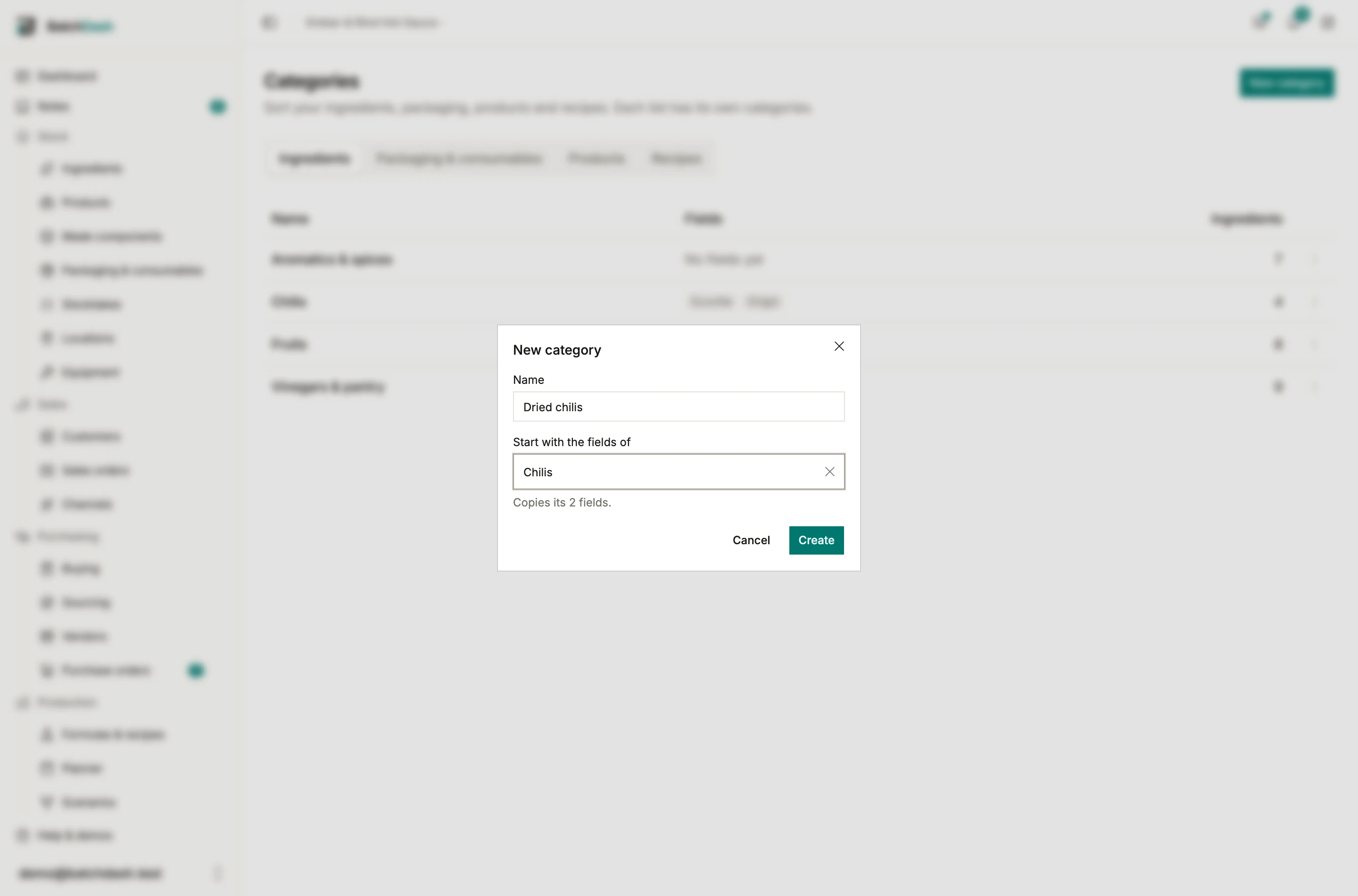
Create a category
Section titled “Create a category”- Open Categories under Organization and, on the Ingredients tab, click New category.
- Name it (“Dried chilis”).
- If it should read like a category you already have, pick that one under Start with the fields of. Its fields are copied in, in the same order.
- Click Create. The toast’s Open it takes you to the category’s page.
Rename and Delete sit in the ⋮ at the end of the category’s row and in the header of its page. A category can be deleted while ingredients still use it: they are left with no category, and the values of its fields are deleted with it. The dialog counts both before you confirm, archived ingredients included.
Add custom fields
Section titled “Add custom fields”On the category page, click Add field and set:
- The Field name: “Scoville”, “Origin”, “Organic”.
- The Type: Text, Number, Yes / No, or Select (one option per line).
- Show in inventory table if the value should appear under the ingredient’s name in the ingredient list and in the pickers.
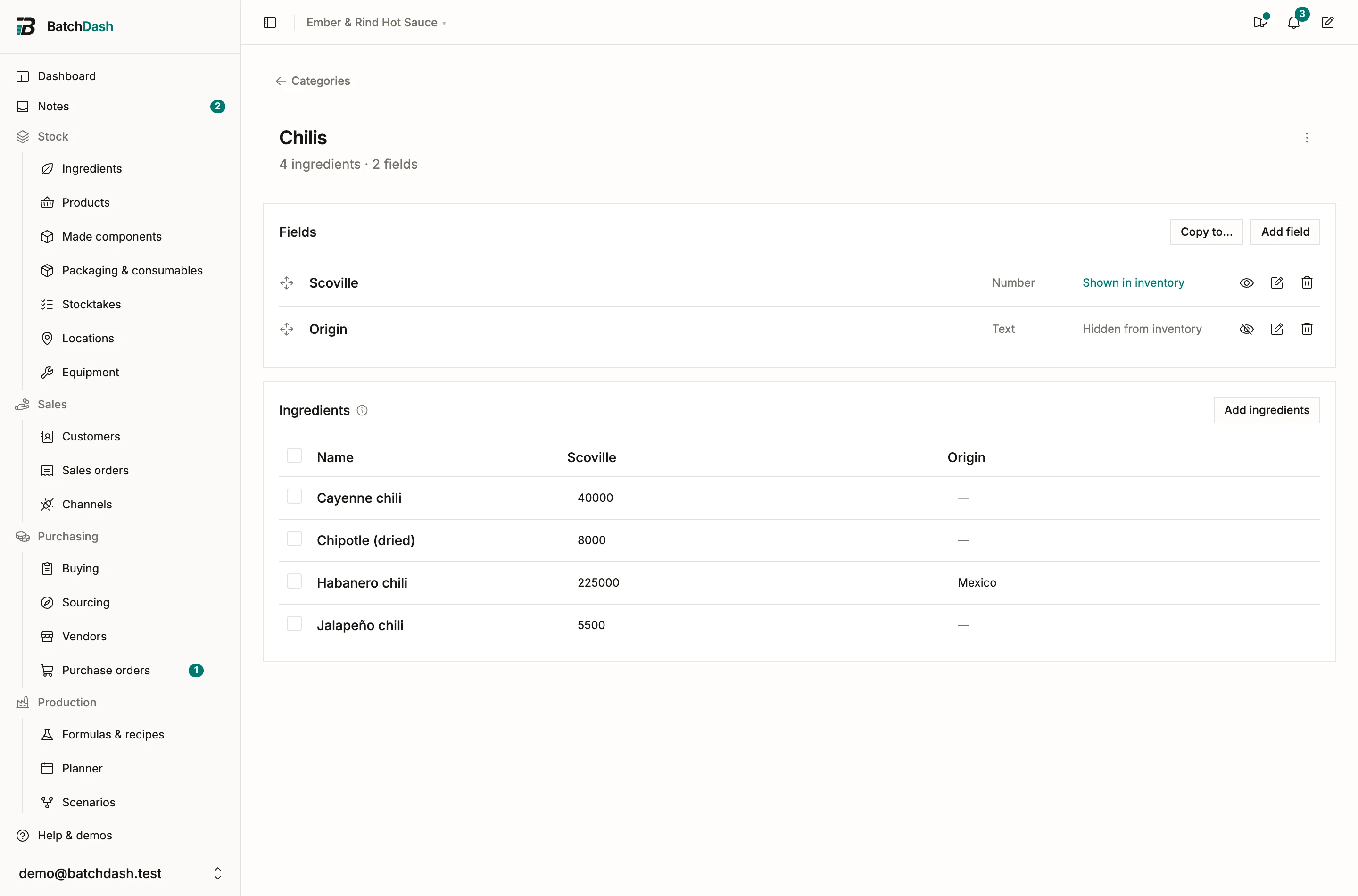
Fields appear on every ingredient in the category, in the order you define. Drag them, or use Move up and Move down on a touch screen. Deleting a field hides existing values on ingredients without erasing them.
Copy fields to other categories
Section titled “Copy fields to other categories”“Origin” and “Organic” tend to matter for most ingredients. Type them once:
- On the category that has them, click Copy to… in the Fields card.
- Untick any field you want to keep here only, and tick the categories that should get them.
- Click the Copy button, which counts the fields you ticked.
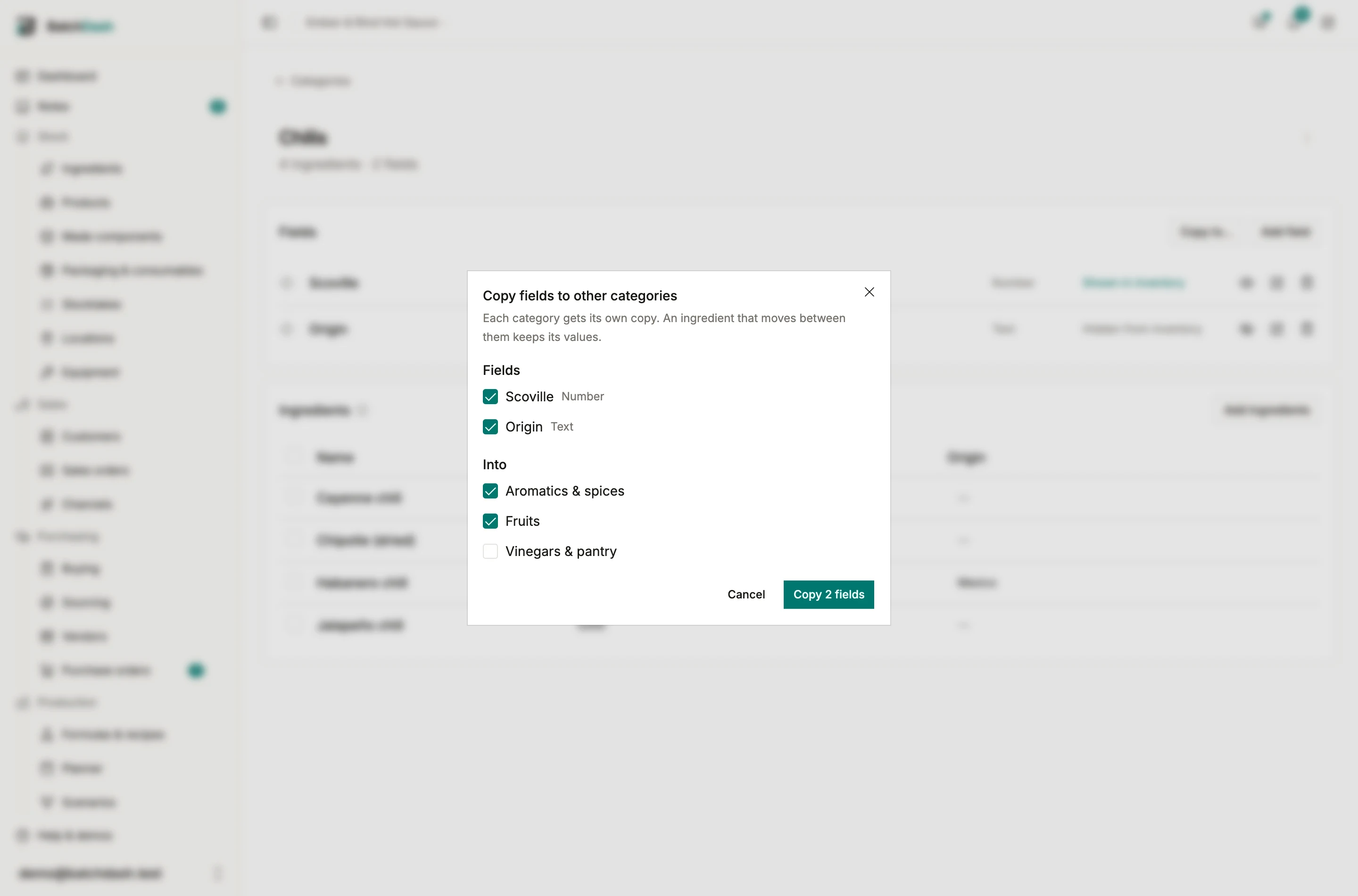
A category that already has a field with that name keeps its own, and the dialog tells you so before anything is copied (“Already has Origin”). A new category with no fields yet offers Copy from another category instead, which does the same thing in the other direction.
Each category gets its own copy, so renaming “Origin” in Fruits leaves Chilis alone. What ties the copies together is the name and the type: an ingredient that moves from Spices to Chilis keeps its origin, because both categories have a text field called “Origin”.
Fill values for many ingredients
Section titled “Fill values for many ingredients”The Ingredients card on a category page lists every ingredient in it, with one column per field. Click a cell and type. The value saves when you leave the cell. Enter moves down to the next row in the same column, Tab moves across, and Escape puts back what was saved. The line beside the card title says Saving…, Saved, or what went wrong.
The table shows 50 ingredients at a time. Search it by name, and page through the rest with Next.
To give several ingredients the same value, tick them and click Fill a field. Pick the field and the value; the dialog says exactly what will happen (“Sets Organic to “Yes” on 12 ingredients.“) before you confirm. Leave the value empty to clear it.
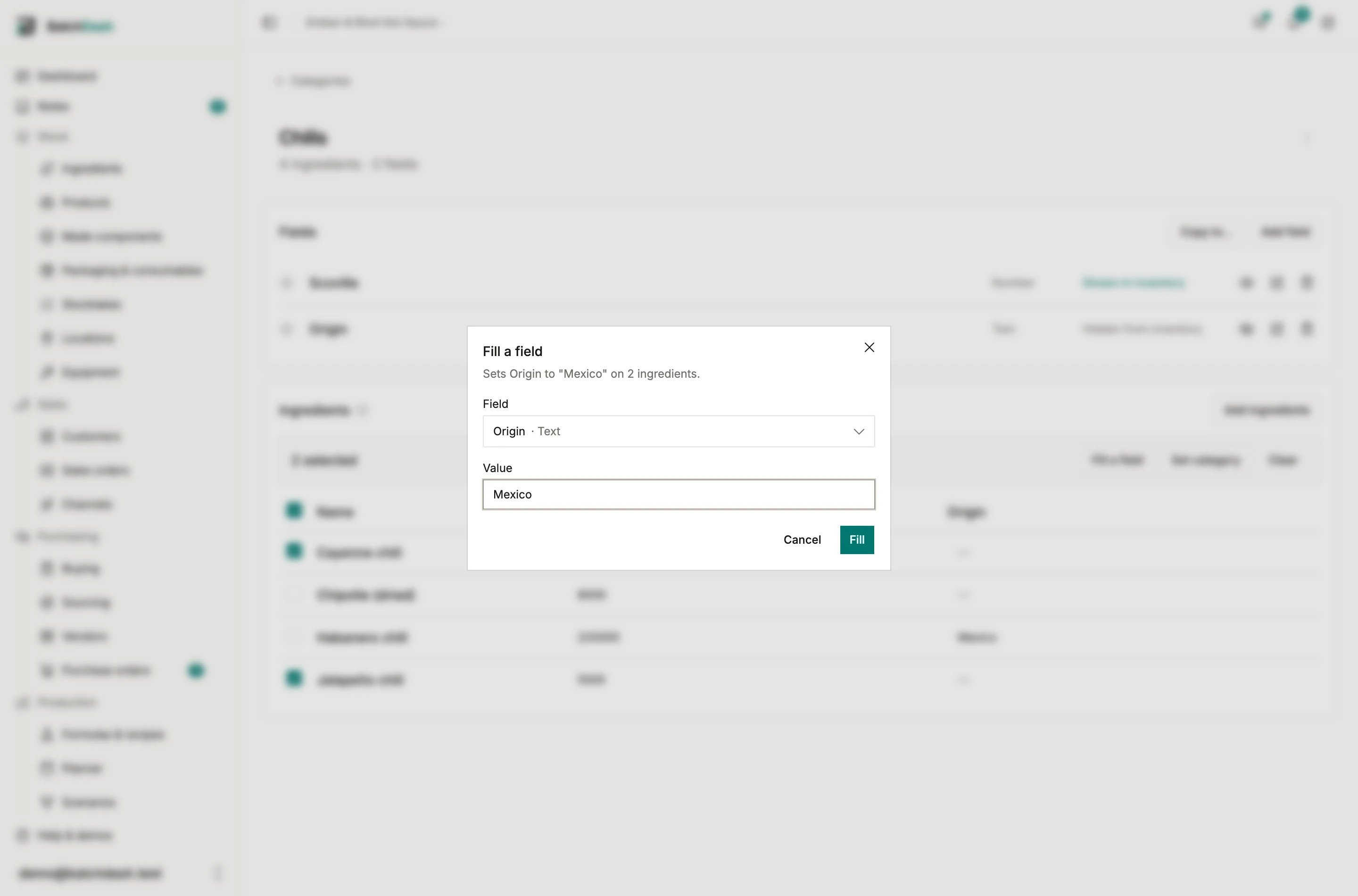
Ticking a whole page offers Select all for every ingredient in the category (or every one your search matches), so a Fill or a Set category reaches all of them, on every page.
The ingredient list has the same Fill a field in its action bar, for ingredients from different categories. It reaches every ticked ingredient whose category has a field with that name and type, and tells you how many it skipped.
Assigning ingredients
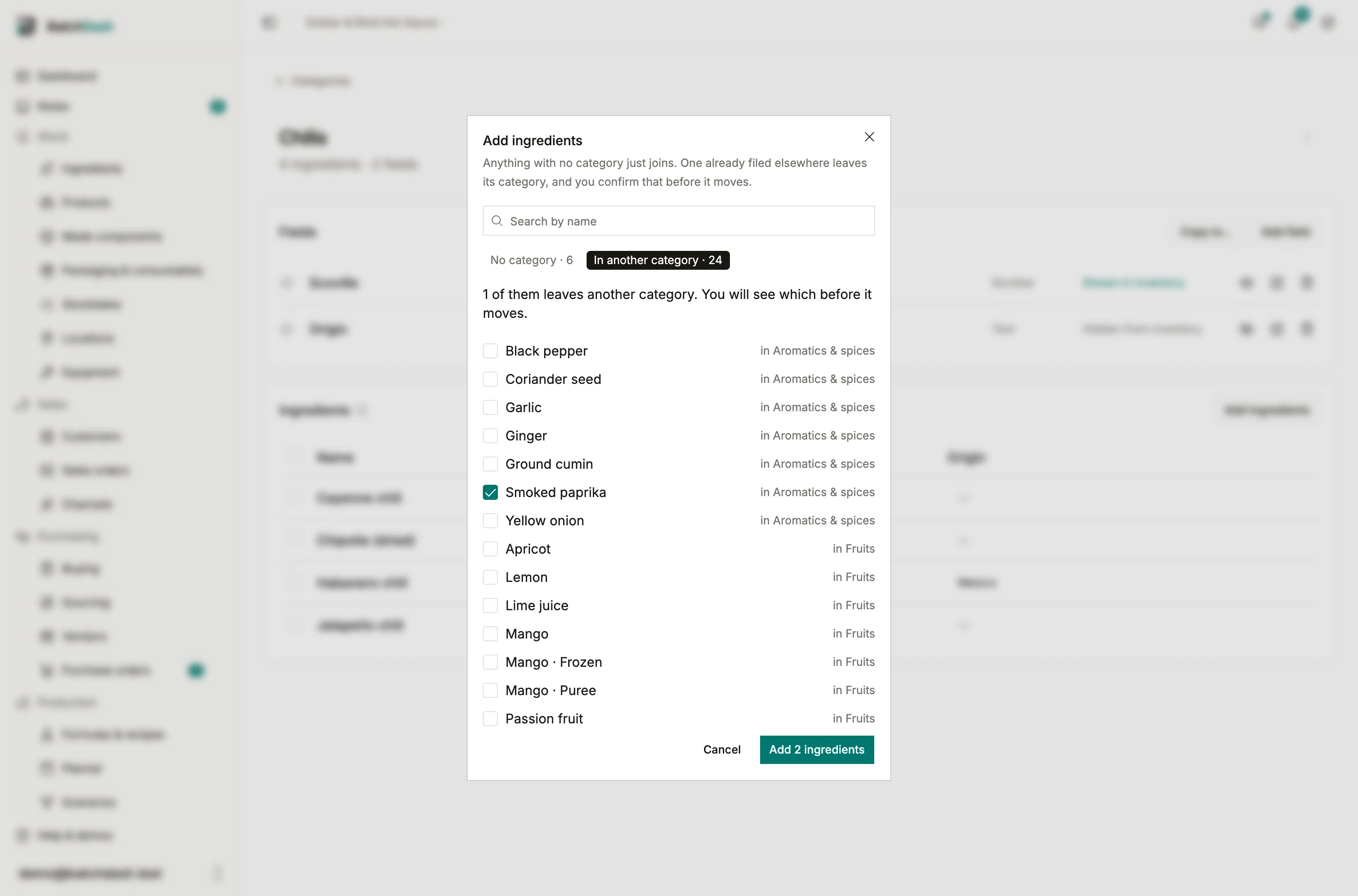
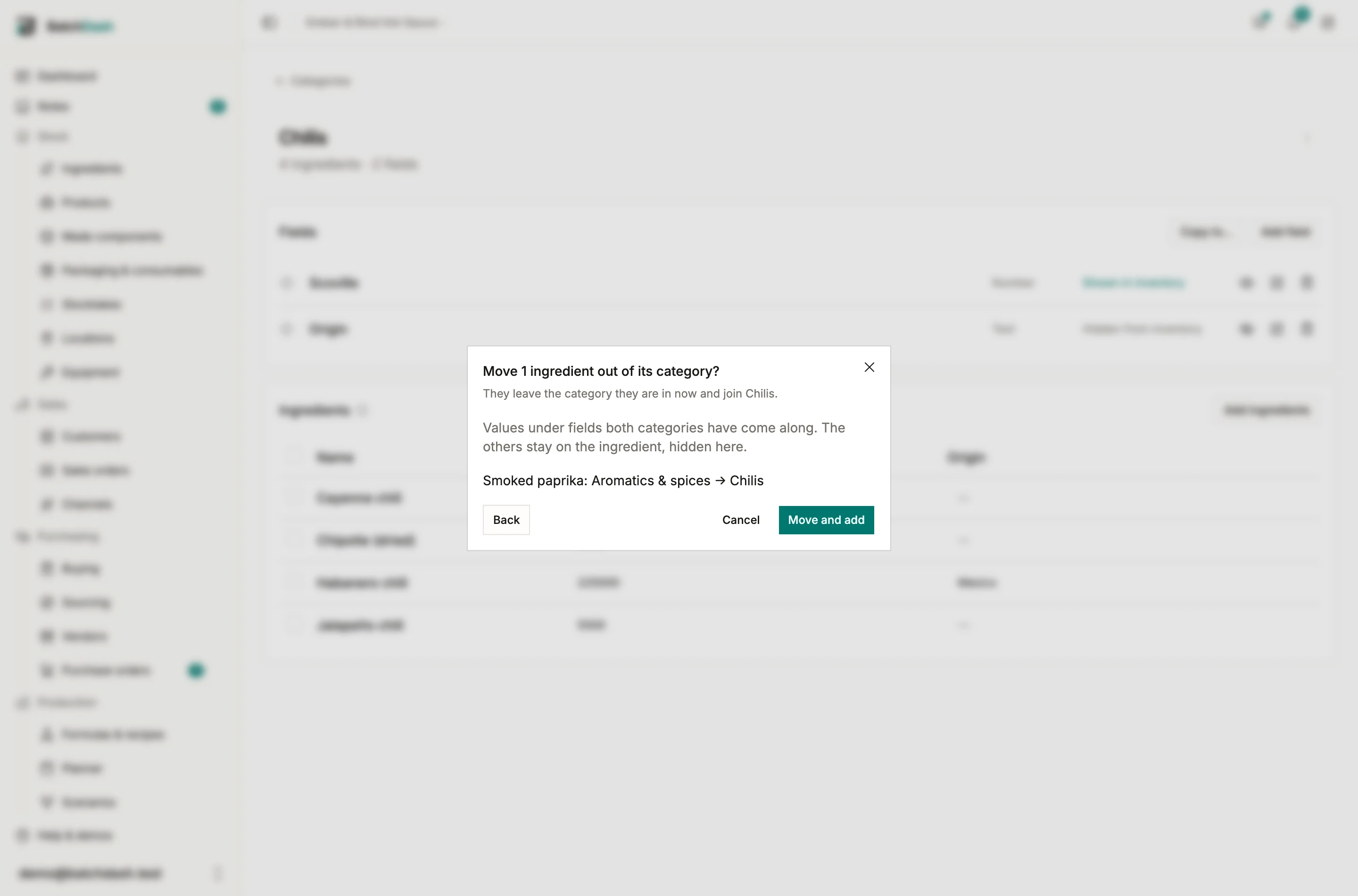
Section titled “Assigning ingredients”On a category page, Add ingredients opens a searchable list with two tabs: No category, and In another category, where each ingredient shows the category it is in now. Tick what belongs here and click the Add button, which counts them. An ingredient with no category just joins. One from another category moves out of it, so the dialog asks first, listing each move (“Smoked paprika: Aromatics & spices → Chilis”).
You can also pick the Category when creating an ingredient, change it later through Edit details on its page, or tick rows in the ingredient list and use Set category, whose toast offers Undo. The ingredient list’s Category: selector, its By category layout and its search by category name work as on every list (Categories). To assign categories while migrating data, see Importing ingredients.
Whichever way an ingredient moves, values under a field of the same name and type come with it. An ingredient without a category simply carries no custom fields.