
Vendor offers and price history
A vendor offer records how someone sells you an ingredient: a price for a pack size. “25 kg of habaneros for €90 from the chili farm” is one offer. An ingredient can hold offers from several vendors, so you can compare them before ordering.
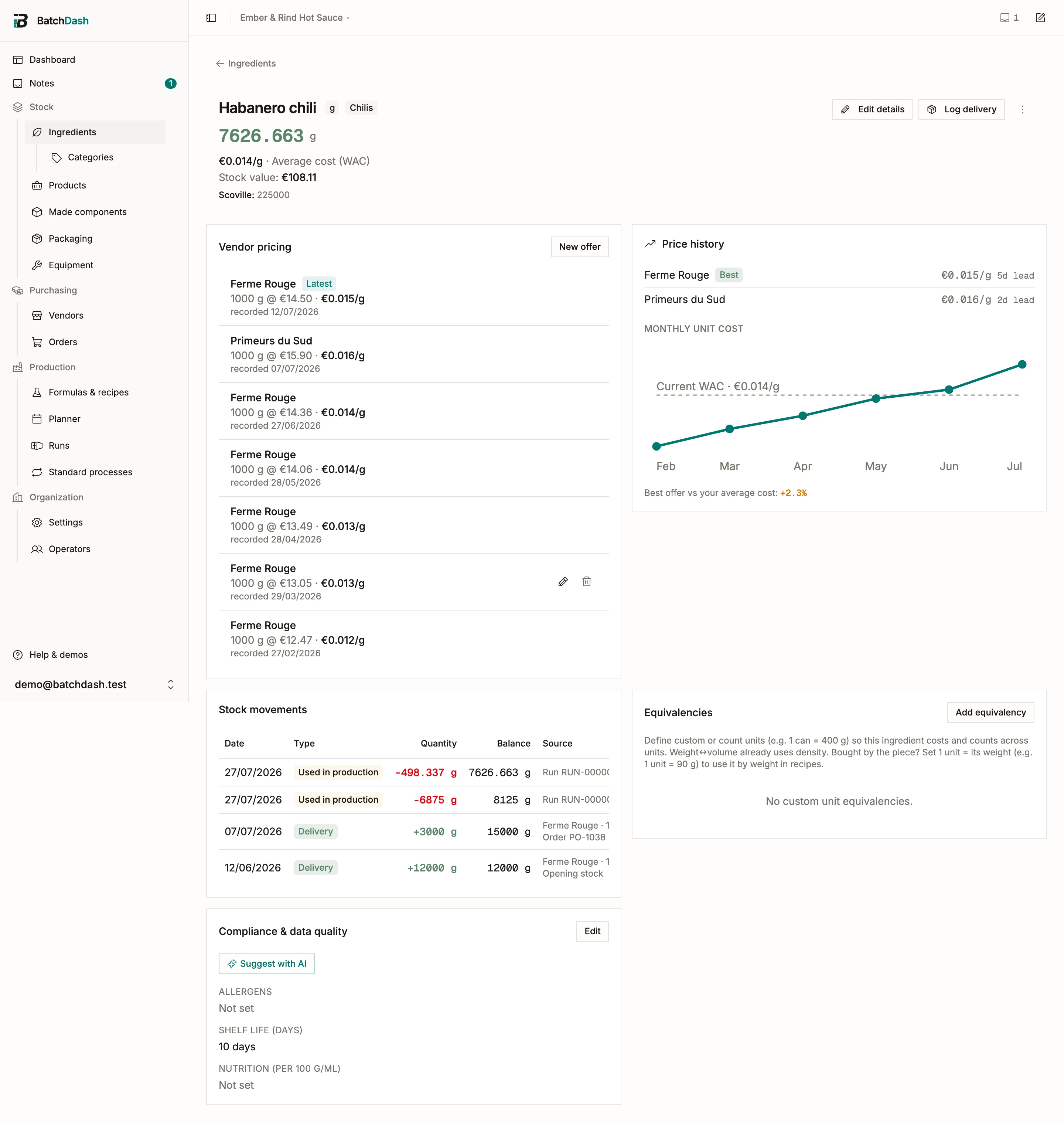
Add an offer
Section titled “Add an offer”On the ingredient page, in the Vendor pricing section, click New offer. A dialog opens:
- Vendor: search your existing vendors and attach one, or type a new name to create it on the spot. When your plan includes buying in other currencies, a new name also asks for the Currency that vendor invoices in, set to your base currency, and the price below is typed in it.
- Price and Pack size: what you pay, for how much. The pack size carries its own unit. It defaults to the ingredient’s unit, so you can record a “25 kg” sack of something you stock in grams and the offer reads back in kilos. A line under the field shows the resulting price per unit as you type.
- Delivery: what delivering this pack adds to its price. It starts from the vendor’s delivery terms, worked out for an order of this one pack, and the label says from the vendor’s terms: a flat charge falls whole on the pack, a charge per kilo or per pack is exact. Type a figure to keep it; clear the field, or click Use the vendor’s terms, to go back to them. A line under it shows the price per unit once delivered.
- Open Purchasing details for the optional extras: a Vendor SKU, a Lead time (days), a minimum order, a URL, and availability notes (“fresh, August to October”).
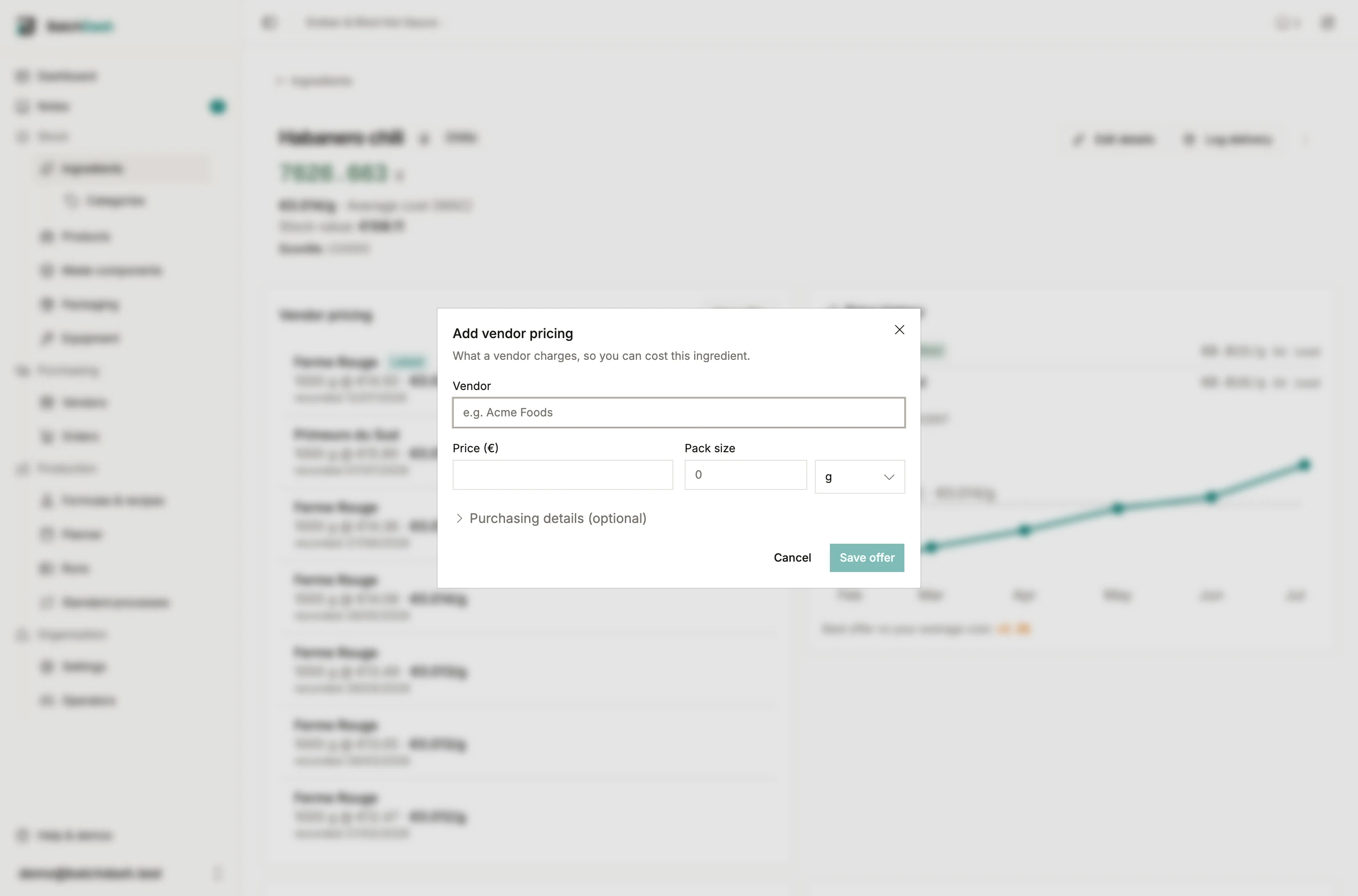
The card computes each offer’s price per unit and tags the cheapest Best, with lead time beside it. Reorder decisions get quick: the farm is €3.60/kg with 5 days of lead, the wholesaler €4.10/kg tomorrow.
Ingredients you count
Section titled “Ingredients you count”An ingredient stocked in Units / Pieces can be priced however the vendor sells it, once you have given it a Piece weight (Ingredients you count covers that field and everything it opens up). The pack-size unit then offers pieces, any pack you have named for it, and the units of the piece weight’s own family. So lemons at 85 g each take an offer of “25 kg for €80.00”, and the row reads back:
25 kg @ €80.00 · €3.200/kg · €0.272 / piece
That second figure is the one that makes two offers comparable. A count cannot be rescaled the way 1600 g becomes 1.6 kg, so 294 lemons for €80 and 100 lemons for €26 need the per-piece price side by side before either looks cheap.
A pack is a named measure on the ingredient: “1 case = 100 unit”, added in the Equivalencies card. Name one and it joins the pack-size units, so an offer is typed as “1 case” and reads back as “1 case (100 pieces)”. On the shopping list, a quote against that offer counts in cases too: “2 case (200 pieces)” rather than “200 unit”, because that is what you ask for at the counter.
Without a piece weight the unit choice does not appear at all, and pricing works exactly as it always has. If a price list import or an adopted sourcing quote arrives in kilos for an ingredient that has none, the refusal says so: Add a piece weight to this ingredient to price it in kg.
Order from an offer
Section titled “Order from an offer”On the vendor’s current offer, open the row’s ⋮ and pick Add to an order…. Type how many packs, then choose the order: one of that vendor’s orders still waiting for its goods, a draft first, or A new draft order. The line arrives priced from the offer, so 4 packs of a 5 kg bag at €120.00 are 20 kg for €480.00. An older price for the same vendor is history, and nothing is ordered from it. On the order itself, Add from offers does the same for several ingredients at once: see purchase orders.
Your preferred vendor
Section titled “Your preferred vendor”A vendor’s row menu offers Set as preferred vendor. It pins this ingredient to that vendor: Buying and a batch’s shopping list start there whenever the vendor has a live offer, whatever your workshop rule would have ranked first. One vendor per ingredient, or none.
Your rule still orders every other vendor and still decides every other line. Where the pin picked someone the rule would not have, the line says so and names what the rule would have chosen, at what price. Nothing is hidden to make the pin look good.
The pinned vendor’s current offer wears a Preferred badge, the row buying starts from; their older rows do not. If that vendor stops carrying the ingredient, the card header reads Preferred · no current offer and the rule takes over until they carry it again. Remove preferred in the same menu clears it.
Use it for the relationship a price cannot express: the farm that saves your allocation in a bad harvest, the supplier whose quality you have stopped checking. For everything else, the rule already knows what you weigh.
A whole price list in one pass
Section titled “A whole price list in one pass”When a vendor sends new prices, the vendor page takes them all at once. Its catalog is searchable and paged, so a supplier with four hundred SKUs is as workable as one with six: search for what changed, tick the rows, and Update prices opens with exactly those. Tick nothing and it takes the page you are looking at, never a page you cannot see.
Type the new pack prices, watch each move as a percentage beside the old one, and apply. Every changed row writes a new offer rather than editing the old one, so the history below stays the record of what you paid and when.
A price that has not moved is worth typing too. Retype what a vendor still charges and the row reads No change: applying files that offer as checked on the list’s date instead of writing a second identical price. The catalog then shows the day you checked it, with unchanged since the day the price was set, and the Old price flag drops. On the ingredient page the same offer reads checked with that day, beside the day it was recorded.
Three other things count as the same check, because each is somebody reading the price again. Importing the vendor’s list with a row that repeats what they charge today (see importing vendor offers). Receiving a later order at a price you already paid. And editing an offer’s price or pack size on the ingredient page: the offer keeps the day it was recorded, so its place on the price history does not move, and it reads checked today.
No longer supplied on a row’s ⋮ takes an ingredient out of Buying and out of the cheapest-vendor race while keeping every past price. Age can tell you a price is old; only a person knows a product was delisted.
Remove from catalog, in the same menu, answers the other case: it deletes every price that vendor has for the ingredient, the history with it. That is what a line typed against the wrong vendor needs. When what they used to charge is worth keeping, take No longer supplied instead.
A line you have received deliveries against stays. Those deliveries name their vendor through these prices, and one logged without an order takes its cost from them, so the menu closes Remove from catalog and tells you how many deliveries are behind it. No longer supplied is how that line retires. The ingredient page follows the same rule one price at a time: Delete offer is closed on a price deliveries were logged against, and Edit is there if the figure is wrong.
Price history
Section titled “Price history”Prices move, and memory flatters them. Each time an order line is received, the price you actually paid is recorded as a row in Vendor pricing, marked “from a delivery” beside its date. Pay the same price again on a later order and no second row is written: the one on file reads checked on the new order’s date, and Buying dates the price from that day. It records what you paid, so a vendor’s own offer, the price they quote today, still wins wherever both exist; a vendor you only ever received from is bought from at that price (see Buying). The Price history section charts the Monthly unit cost by vendor, names the Best vendor among the vendors Buying would buy from, where a vendor you only received from ranks at the price you paid and reads “last paid”, and draws your Current WAC for comparison. A vendor that crept from €3.20 to €3.90 per kg over a season is visible at a glance.
Editing an offer’s price by hand works too; the history keeps the trail of what it was when.
Which price feeds your formulas
Section titled “Which price feeds your formulas”Not the offer, in general. Formula costs are grounded in the ingredient’s weighted average cost, built from what deliveries actually cost you, fees included when they arrive through a received order.
While an ingredient has no stock, a vendor price stands in, delivered: the price plus its Delivery. It is your preferred vendor’s newest price, an offer or the last delivery; without a preferred vendor, the newest price from any vendor. A price paid on an order carries the share of that order’s fees its line took, so an ingredient that runs out is still costed at what it last cost delivered. An offer the vendor stopped selling counts only when nothing else does. The ingredient page then reads Vendor price, delivered beside the cost. A packaging item is costed the same way in a product’s packaging: a bottle not yet received counts at its offer, delivered.
So treat offers as your ordering catalog: they answer “who do I buy from, and at what price”. Deliveries answer “what does my stock actually cost”. Both live on the same page so the two never drift apart unnoticed.
To keep the vendor records themselves tidy (contact details, merging duplicates), see Vendors. To turn an offer into stock, raise a purchase order.