
Map your listings
A Shopify listing and a BatchDash product are two records for the same jar. Mapping writes the pairing down once. From then on, the listing’s orders import by themselves, and stock push knows which shelf figure belongs to it. Orders for an unmapped listing wait; nothing else in the shop is blocked while one does.
The queue
Section titled “The queue”Open the connection and click Open the mapping queue. The To map view is the work list; the pills switch to Mapped, Ignored or All.
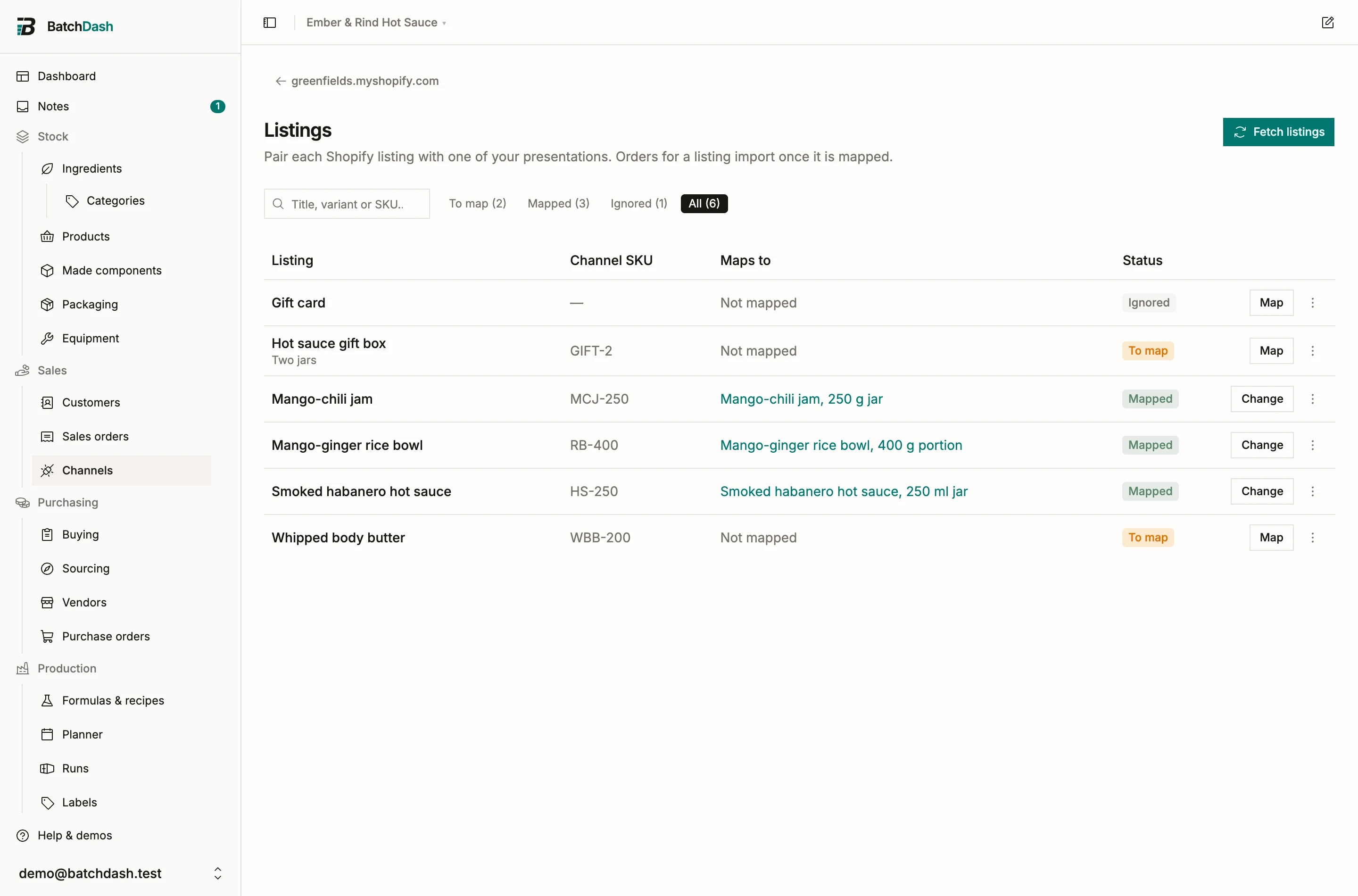
New listings appear here on their own with every pull, and Fetch listings brings them in right now. A listing the shop deleted leaves the queue by itself; its mapping is kept so old orders still know their product.
Map a listing
Section titled “Map a listing”- Click Map on a row.
- Pick the product. The dialog names the listing, its variant and SKU, and what Shopify currently shows in stock, so you can check you are pairing the right two things.
- Click Save mapping.
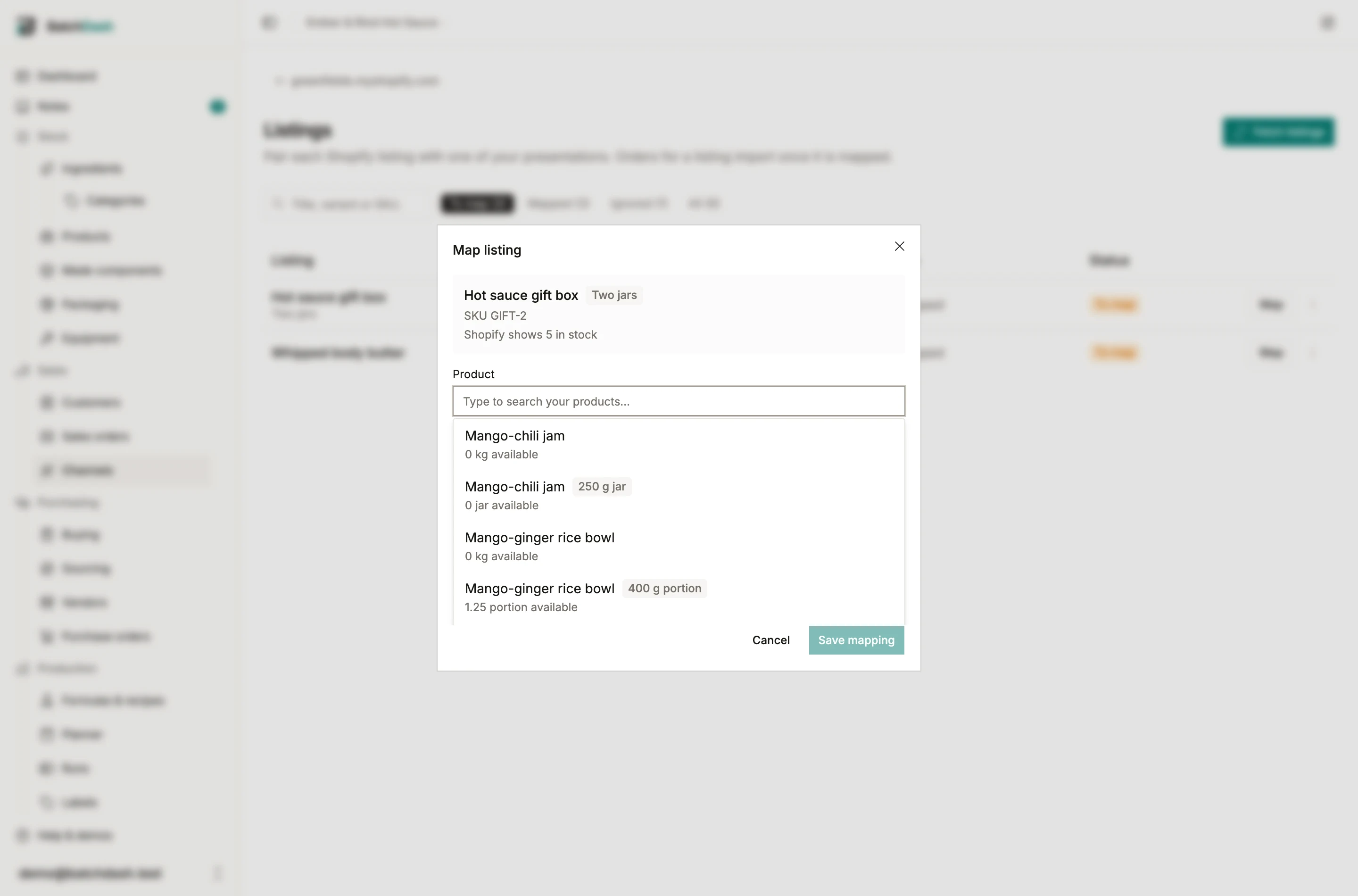
A product with variants gets one row per variant, because a variant is what an order line actually names. Two listings may map to the same product: shops duplicate listings, and the dialog notes it quietly rather than standing in the way.
A listing can map to a sold carton: the shop is offered the full cartons, and its orders arrive in cartons. See selling in packs.
Ignore what is not yours to track
Section titled “Ignore what is not yours to track”Ignore (in the ⋮ menu) is for listings BatchDash should never touch: a gift card, a service fee, someone else’s product. An ignored listing is never imported and never pushed, and an order made only of ignored listings is skipped without a fuss. Stop ignoring brings it back, mapping intact.