
Custom roles and per-person access
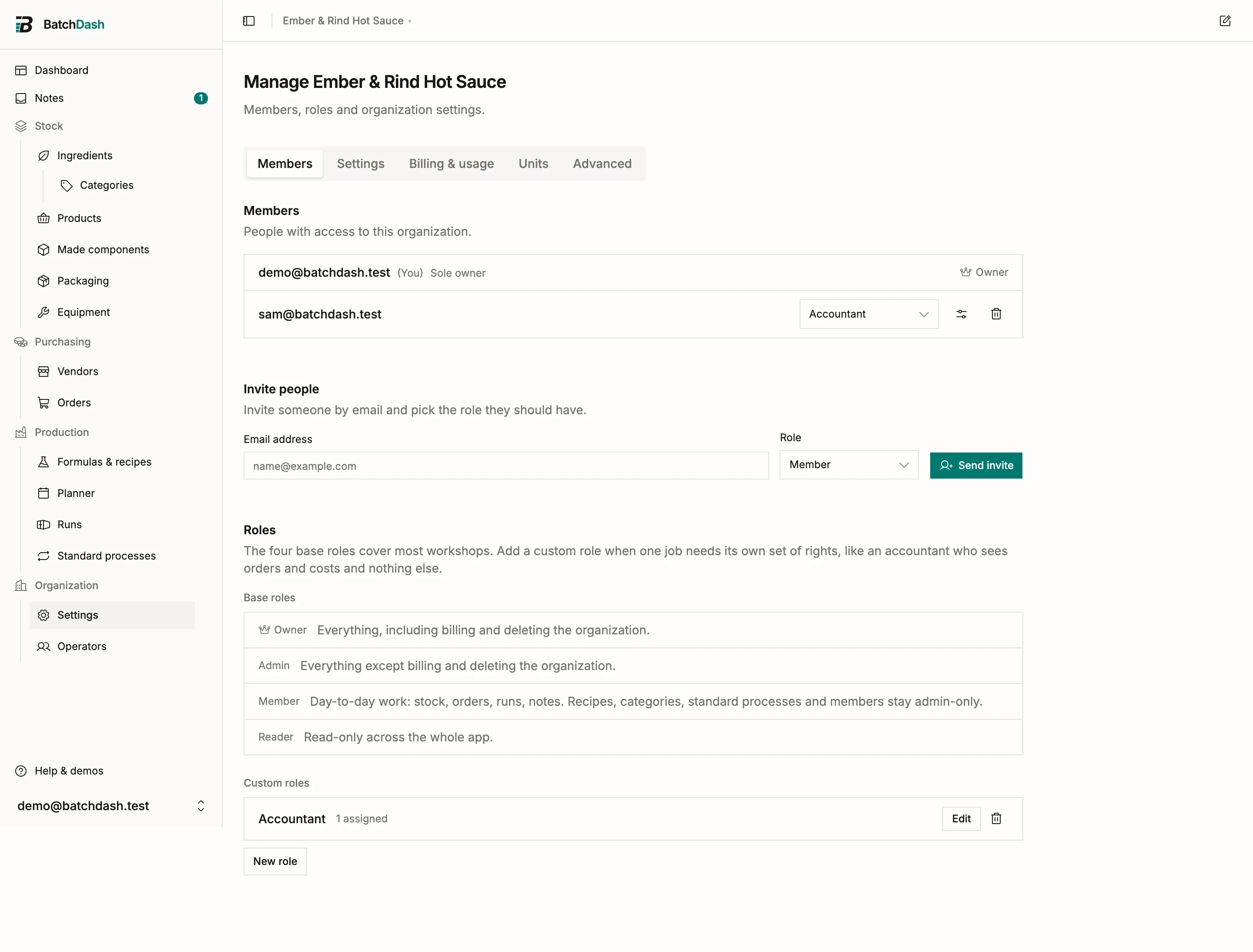
The four base roles fit most workshops. They run out when a job needs its own slice of the app: an accountant who follows the money but has no business editing recipes, or a packing-bench hire who should not see what colleagues earn. That is what custom roles are for, and you build them where you already manage members.
Start from a base role
Section titled “Start from a base role”Open Organization → Settings, stay on the Members tab, and scroll to Roles. The four base roles are listed first with a line each on what they cover. Below them sit your own.
Press New role and name it after the job: Accountant, Shop floor, Bookkeeper. A name that describes the rights instead ages badly, and it tells whoever reads the member list nothing about the person.
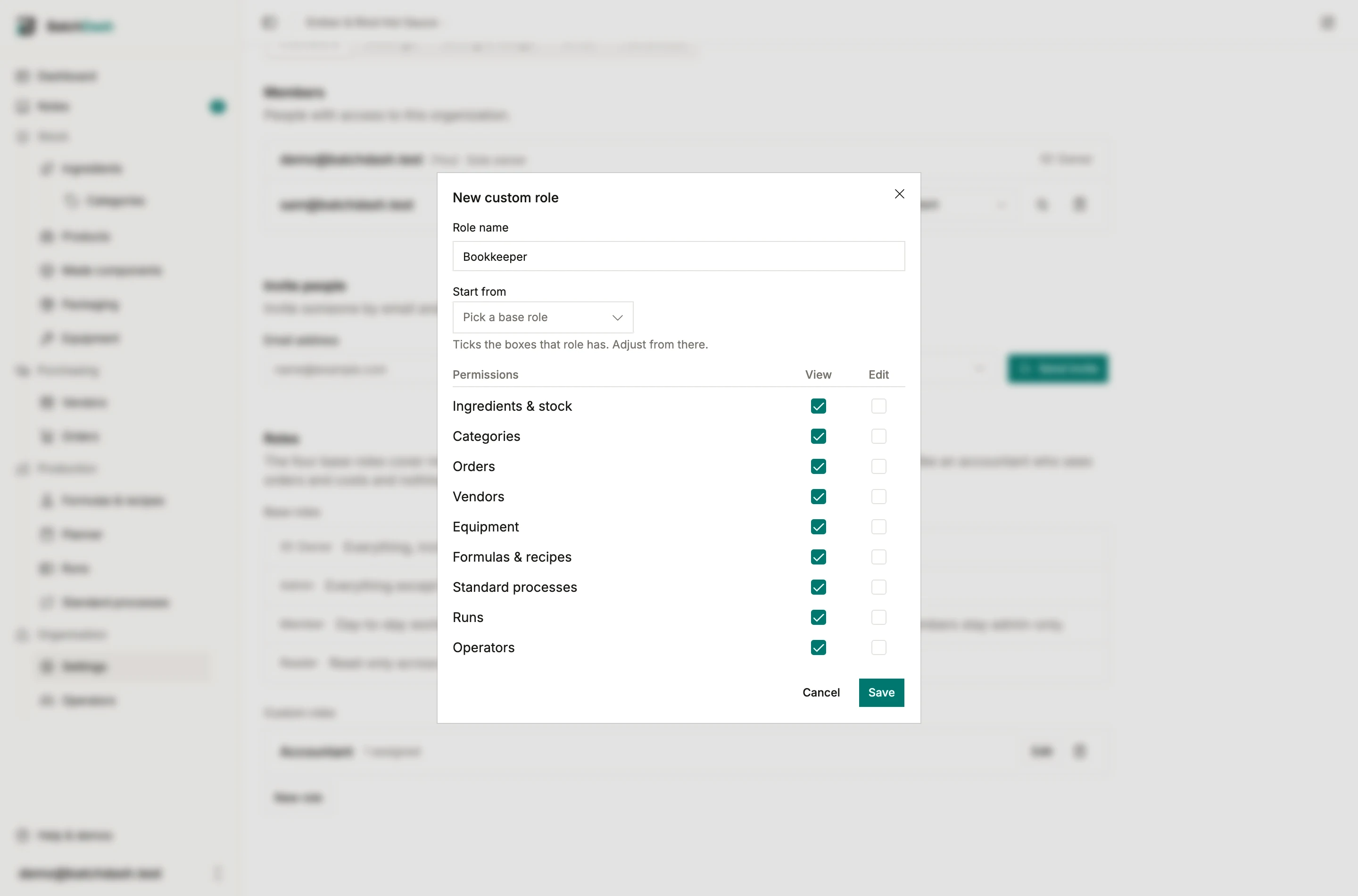
Then pick a base role under Start from. That ticks everything that role has, so you adjust a handful of lines instead of twenty. Each line is one area of the app with two boxes:
- View opens that area’s pages and lists.
- Edit covers creating, changing and deleting in that area.
Ticking Edit turns View on with it. A role that can change what it cannot see would be a trap, so the two travel together.
Two lines control figures rather than an area of the app, and they are why most people come here:
| Line | What turning it off does |
|---|---|
| Cost & price figures | Quantities, orders, recipes and stock stay visible; every amount of money is blanked out, including the CSV export columns. |
| Operator day rates | Hourly costs and the labor totals on the planner disappear. Use it when the schedule is shared but pay is not. |
The figures are removed before the page leaves the server. Nothing is hidden in the browser for developer tools to find.
Decide on batches is a decision rather than an area, so it has an Edit box only. It is the right to release a held batch and to decide what becomes of a batch whose check could not be brought back: release it as is, hold it, discard it or keep going. It also lets someone skip a condition on a critical control point, or go past a condition’s limits. Members hold it. Take it out of a role built for the shop floor when someone else signs batches out: people on that role still work the batch, record its checks and complete it, and the run page tells them who can release it.
Assign it
Section titled “Assign it”A custom role replaces the base one, so it lives in the same dropdown rather than a second setting. You will find your roles listed under the four base ones:
- on a member’s row, under Roles;
- in Invite people, so someone can land on the right access the moment they accept.
Pick a base role again at any time and the custom role comes off. The member list shows whichever applies by name.
Bend the rules for one person
Section titled “Bend the rules for one person”Sometimes one person needs one thing more, or one thing less, and a whole new role would be overkill. Click Adjust access on their row.
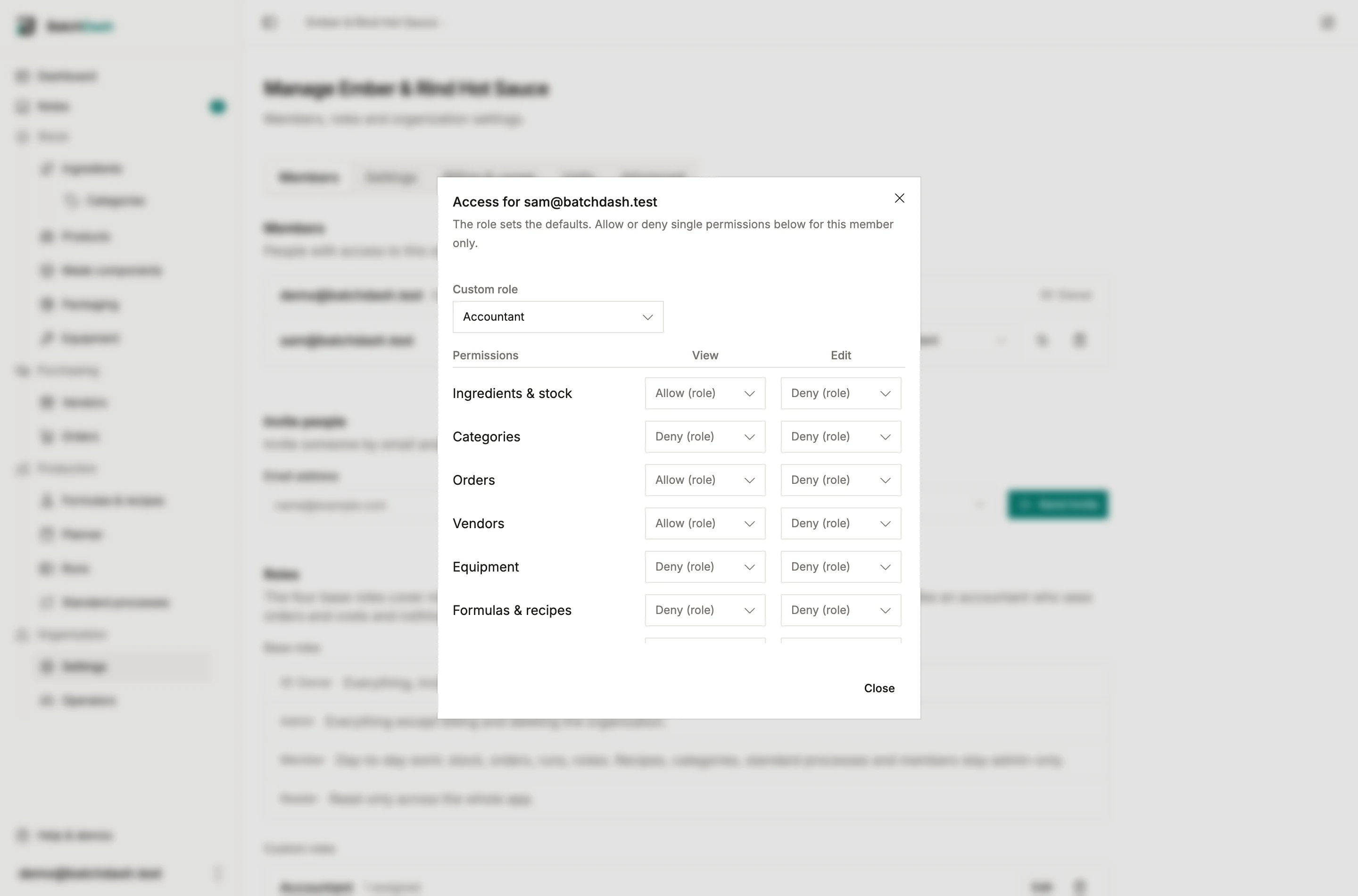
Every line offers three states. Left alone it reads Allow (role) or Deny (role) in grey: that is what their role already decides, shown so you never have to go and check. Set it to Allow or Deny and it turns black, meaning you decided this one for this person. Adjustments apply on top of the role, so changing the role later leaves them in place.
Owners and admins always hold every permission, so they never appear here. Someone has to be able to fix a lockout.
What it cannot do
Section titled “What it cannot do”Managing members and changing organization settings are not on the list. Only the Admin base role gives them. Otherwise a role could be edited to widen itself, and the person holding it would quietly become an administrator.
If your plan changes
Section titled “If your plan changes”Custom roles are part of the bigger plans. If a plan lapses, nobody is locked out mid-shift: anyone holding a custom role works as a plain member until it comes back. Nothing is deleted. The roles keep their rights, the per-person adjustments keep theirs, and both apply again the day the plan does. See billing and plans.
Related: members, roles and invitations.