
Connect your Shopify shop
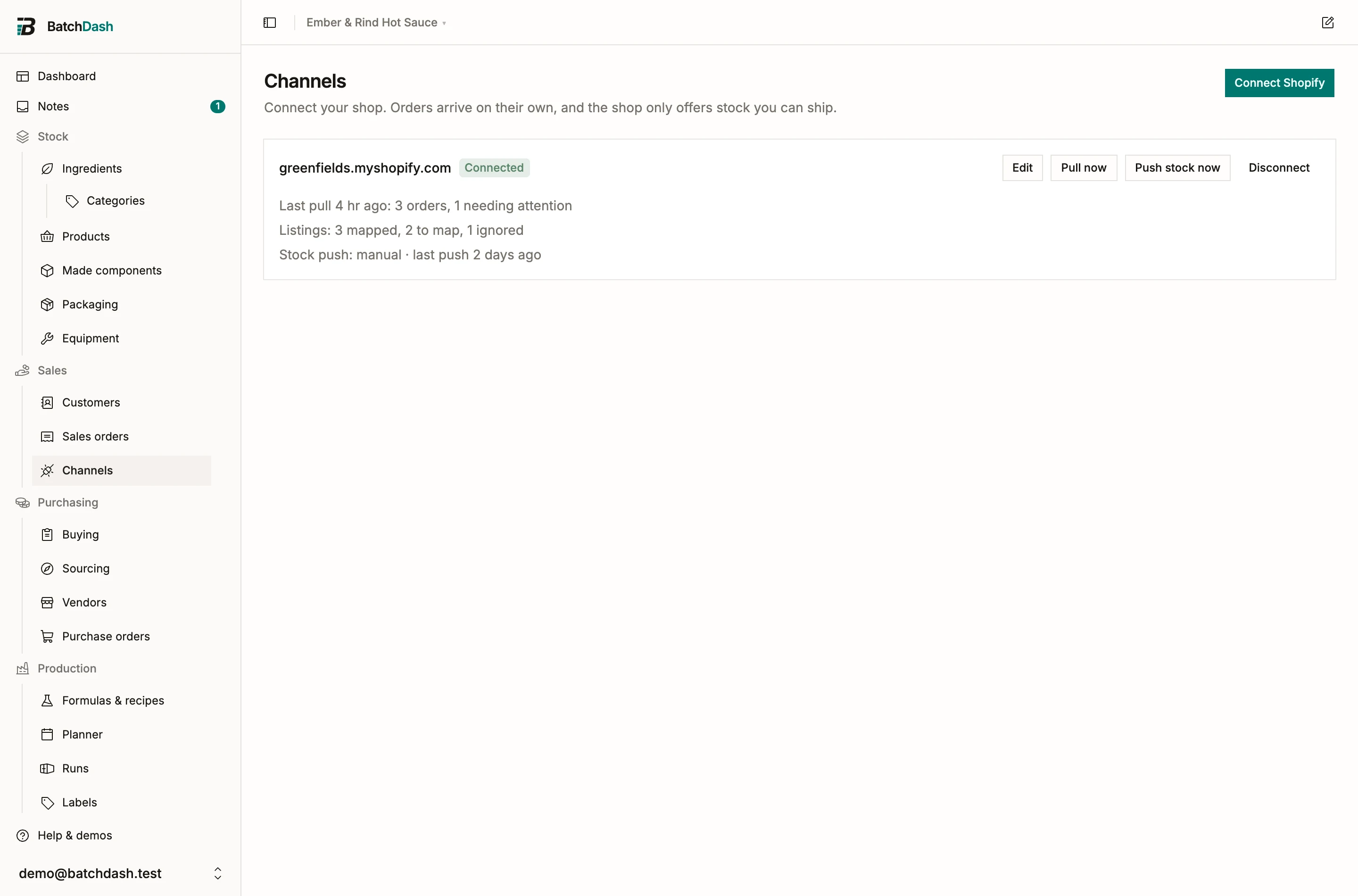
Channels links your Shopify shop to the workspace. Once connected, the shop’s orders arrive on their own as sales orders, and the shop can be told how much stock it may promise. Open Sales → Channels. This module is part of the larger plans.
Connect
Section titled “Connect”- Click Connect Shopify.
- Type the shop address. Only the shop’s own name is typed; the
.myshopify.compart is already there. - Decide whether to check Import the last 60 days of orders as well. The offer is made exactly once, at connection. There is no later backfill.
- Click Continue to Shopify.
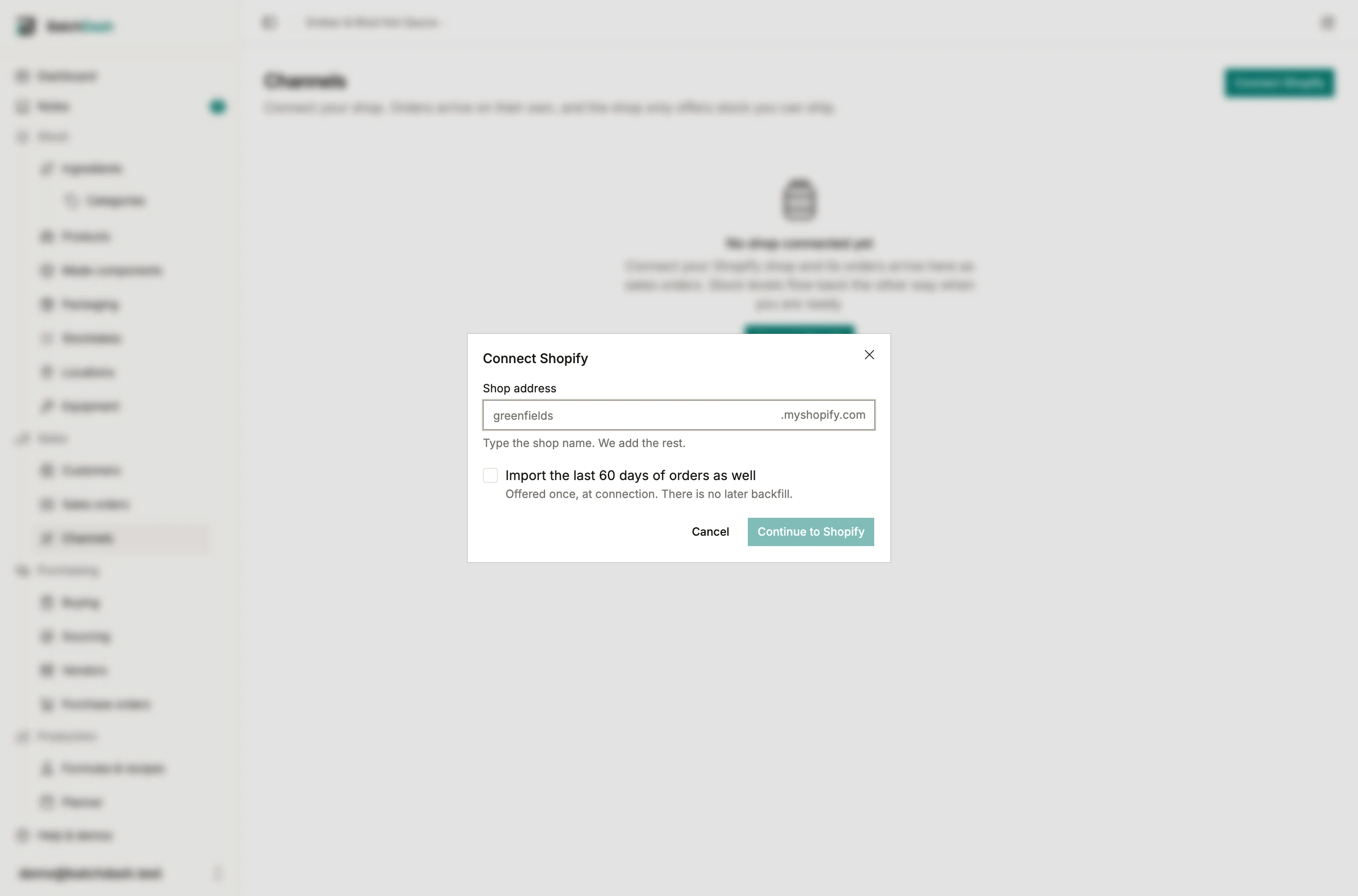
You land on Shopify’s own authorize page and approve the app there. There are no API keys and nothing to copy or paste. Shopify sends you straight back to Channels.
If you close the Shopify page instead, nothing half-exists. The page says “Shopify did not grant access. Nothing was connected.”
One currency per workspace
Section titled “One currency per workspace”The shop must sell in your workspace’s currency. A mismatch refuses the connection and says exactly why:
This shop sells in USD and this workspace works in EUR. BatchDash keeps one currency per workspace, so these orders would arrive as EUR figures carrying USD amounts. Change the store currency on Shopify, or connect this shop to a workspace that works in USD.
That holds even with markets on: a market gives a sales order you write its own currency and VAT rate, and an order that arrives from a shop is a home-market order. Connecting a shop that sells in another currency is a separate piece of work and is not built yet.
The connection
Section titled “The connection”Back on Channels, the shop appears as a card. While your listings load, a banner reads “Getting your listings. Map them so orders can import.” After that the card carries the shop’s whole state: the last pull and what it found, how many listings are mapped, and where stock push stands. Click the shop’s name for the full page.
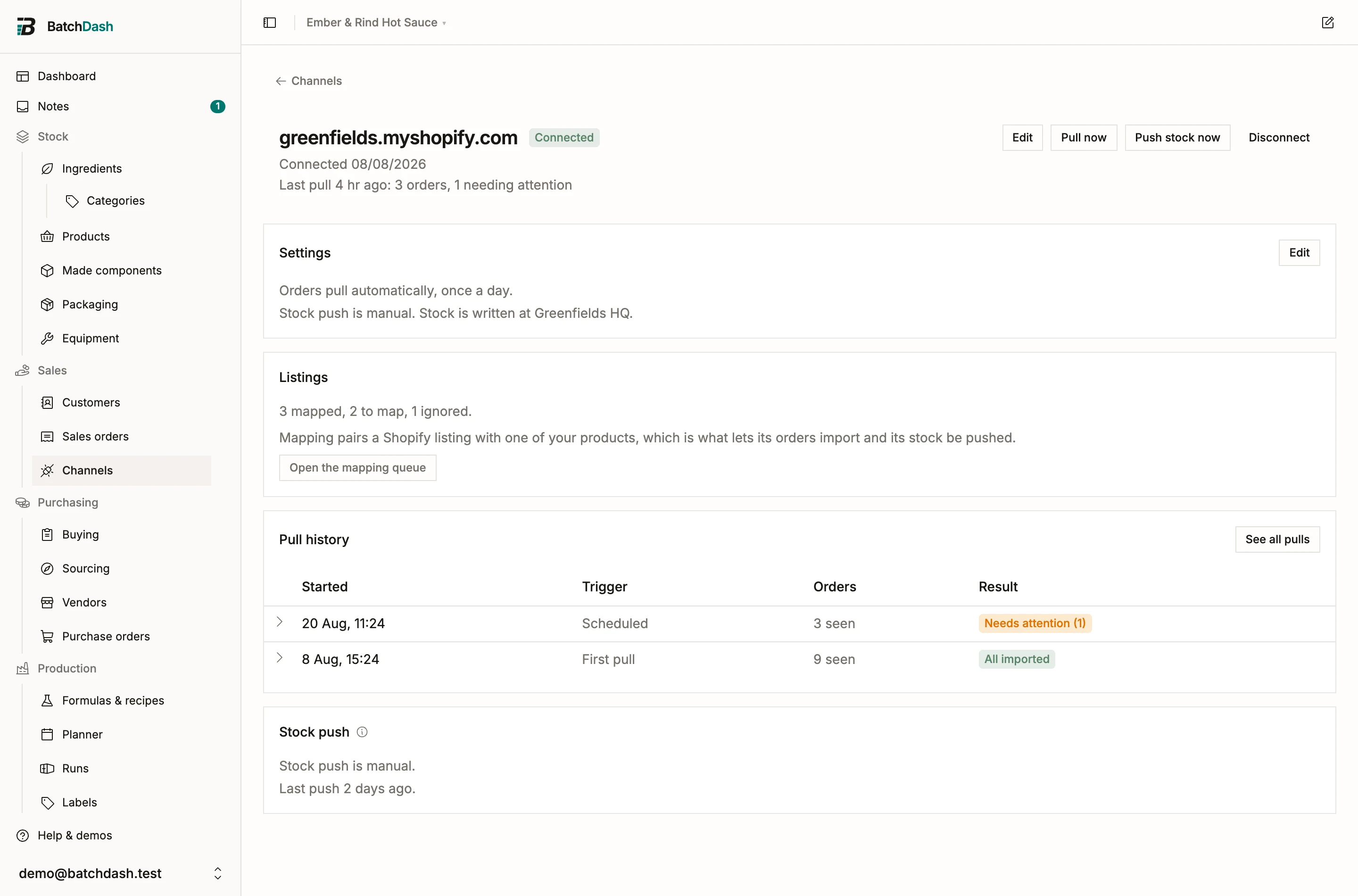
The next job is mapping your listings, so orders have products to land on.
When Shopify stops accepting our access
Section titled “When Shopify stops accepting our access”A password reset or an app reinstall on Shopify’s side can cut the link. The card flips to Attention needed with one sentence: “Shopify no longer accepts our access. Reconnect to resume pulls and pushes.” Reconnect repeats the same approval. Your mappings, settings, orders and history are untouched, and pulls resume where they stopped.
Disconnect
Section titled “Disconnect”Disconnect, in the ⋮ menu on the card or the connection page, asks first, and the promise is exact: “Pulls and pushes stop. Imported orders, customers and pull history stay in your workspace. Your listing mappings are kept in case you reconnect this shop.” Reconnecting the same shop later picks the mappings back up. Connecting a different shop starts clean.
Delete
Section titled “Delete”Delete, in the same menu, is for a shop you are done with. It works on a connected shop too and disconnects it on the way. The dialog says what goes: “The shop leaves BatchDash with its listings, your mappings, the pull history and its settings. Imported orders and customers stay. You can connect this shop again later, and the orders already here will not be imported twice.”
The imported orders keep their Shopify number and link. Their lines become yours to edit, since no pull will bring a change made on Shopify any more. Connect the shop again and it starts as a new connection: the 60-day import is offered again, the listings come back to map, and every order already in your workspace is recognized instead of arriving a second time.
A shop with a pull running waits: “A pull is running on this shop. Delete it once the pull finishes.”
BatchDash stays installed on the Shopify side, as it does after a disconnect. Remove the app from your Shopify admin if you want it gone there too.