
Vendors
A vendor is anyone you buy from: the chili farm down the road, the jar wholesaler, the online spice platform. BatchDash keeps one record per vendor and gathers everything you do with them on a single page.
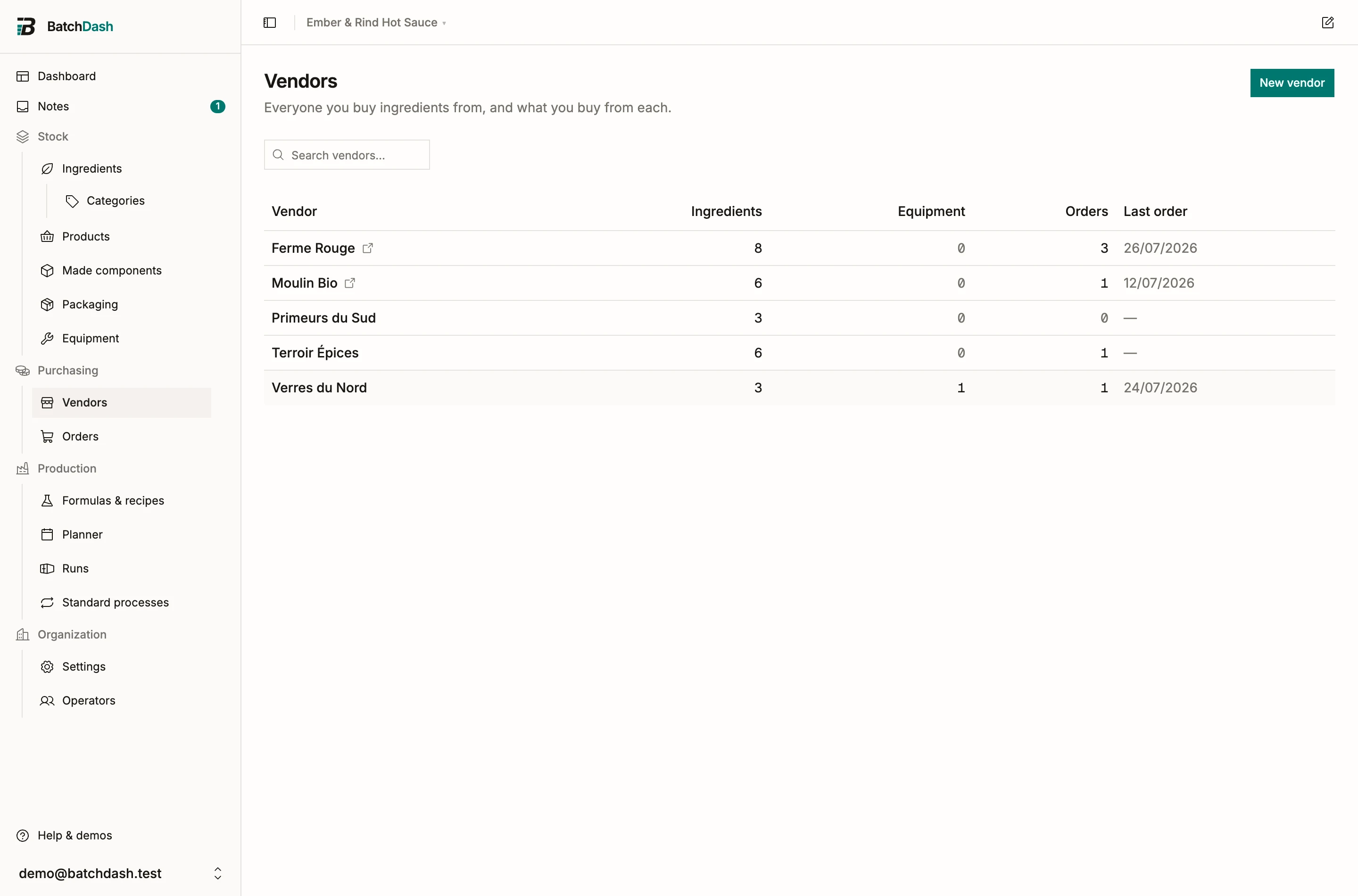
Add a vendor
Section titled “Add a vendor”- On the Vendors page, click New vendor.
- Enter a name. Everything else is optional: Website, the Contact you deal with there with their Email and Phone, and Notes for an account number or a delivery quirk (“closed Mondays”).
- Click Add vendor.
When your plan includes buying in other currencies, a Currency field sits under the name: the currency this vendor invoices in, which their offers and orders are typed in. It opens on your base currency, and it is fixed once the vendor has an offer (on an ingredient or a product), an equipment quote or an order.
You rarely need to do this ahead of time. Typing a new vendor name on a purchase order, on an ingredient’s offer or on a logged delivery creates the record on the spot, and so does adopting a sourcing candidate. When your plan includes buying in other currencies, every one of those dialogs settles the currency: the offer, delivery and adoption dialogs ask outright, and a purchase order gives the new vendor the currency the order itself is typed in. Answer it there: a logged delivery books an order at once, and that fixes the currency.
What a vendor page gathers
Section titled “What a vendor page gathers”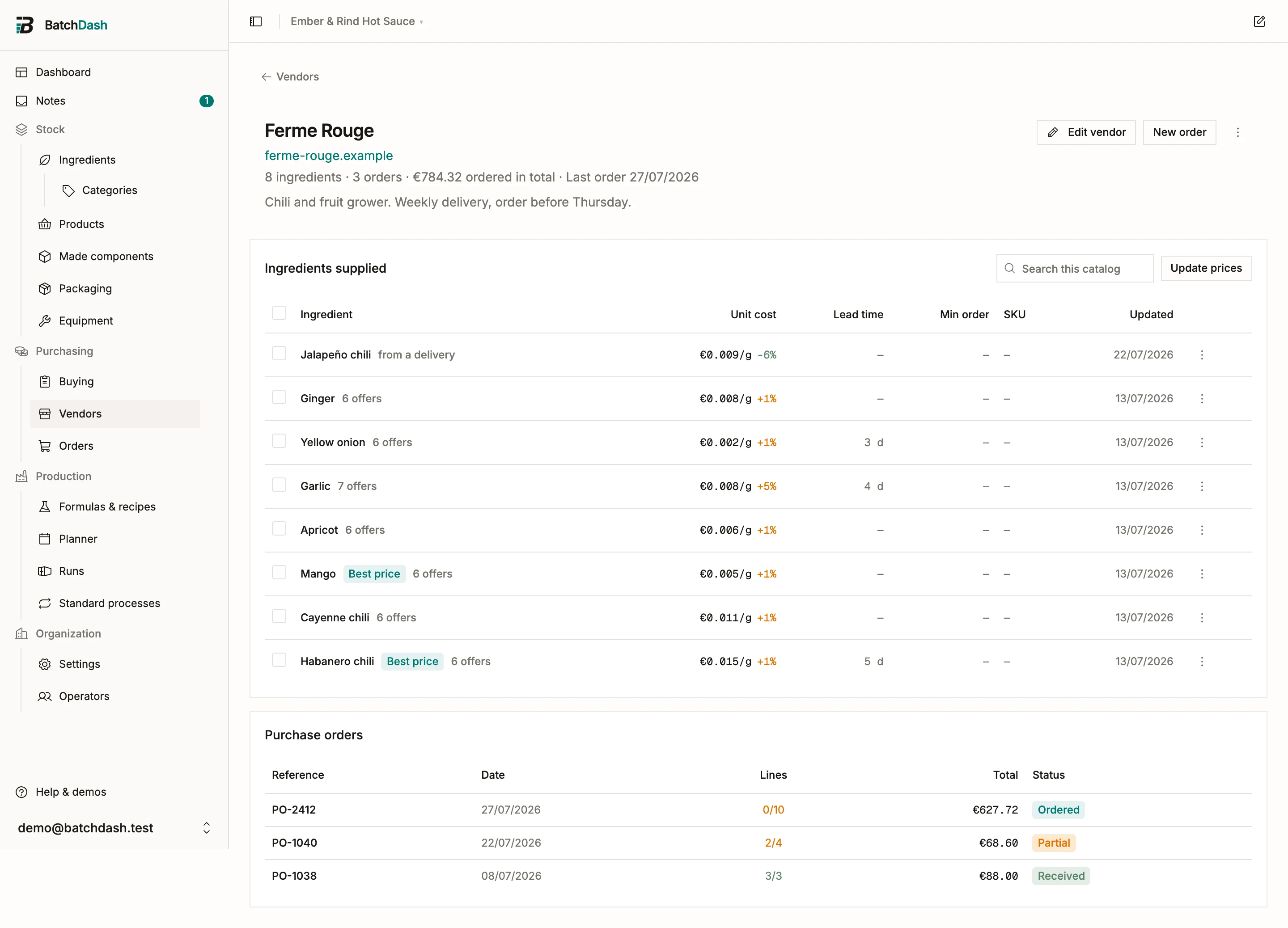
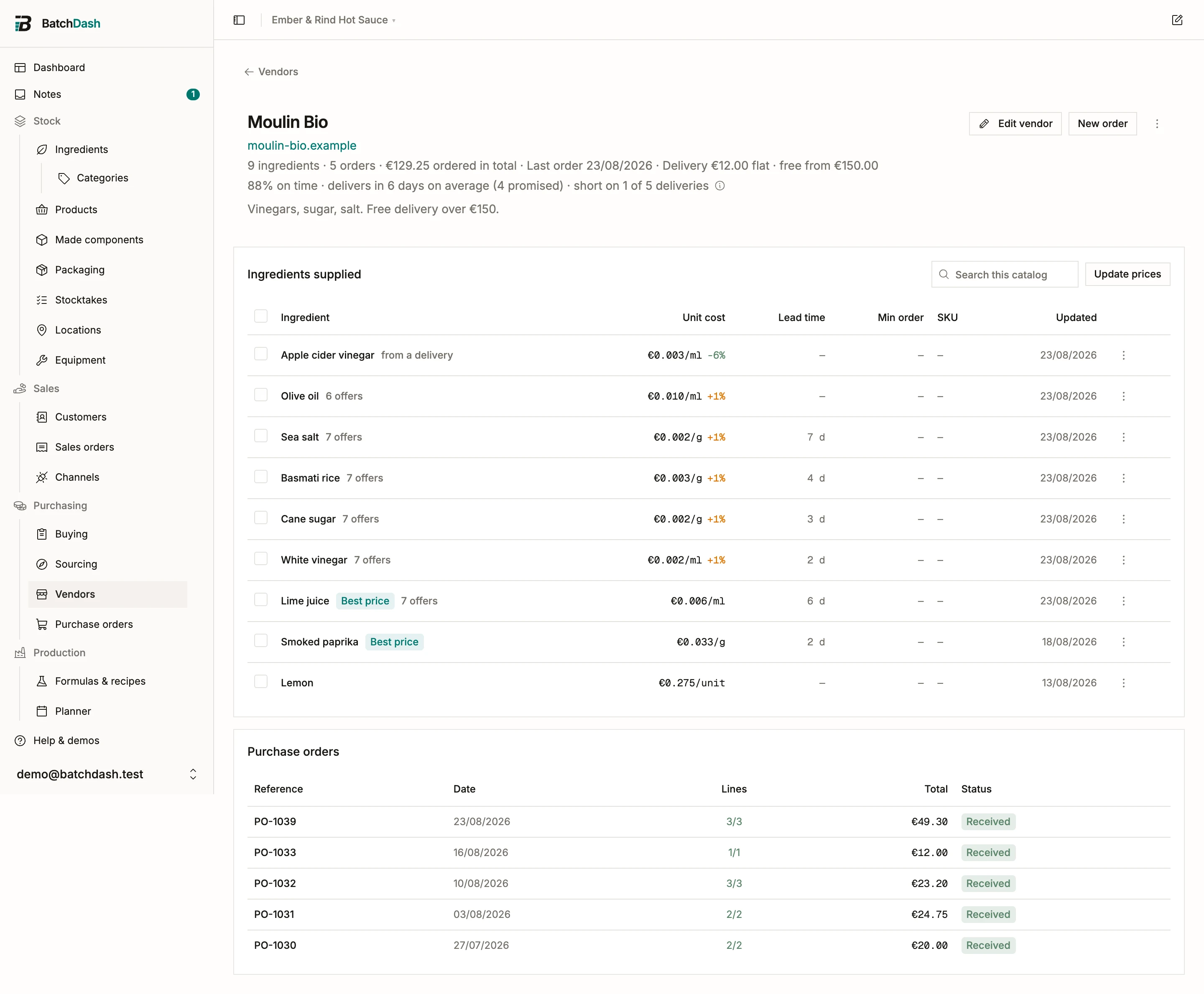
The header shows who you deal with there, how much you have ordered from this vendor in total, and the date of the last order. The email and phone are links, so a short delivery is one tap from the page. Below it, the sections fill in as you work:
- Ingredients supplied: every offer from this vendor, with unit cost, lead time, minimum order and SKU. Prices recorded at receiving land here too, marked “from a delivery”. See vendor offers and price history.
- Products supplied: when your plan includes products you buy ready-made, each product this vendor sells you, at its latest price, with its lead time and the day it was last updated. A co-packer who makes your own recipe shows up here too. See products you buy ready-made.
- Purchase orders: each order with its reference, date, line count, total and status. New order starts one already attached to this vendor. See purchase orders.
- Equipment quotes: prices you have collected for mixers, kettles and other gear. See equipment, units and offers.
A product row’s ⋮ offers the same two ways out as an ingredient’s. No longer supplied takes the product out of Buying and keeps every past price, and Supplied again brings it back. Remove from catalog deletes the vendor’s prices for it, and stays closed once a delivery was logged against them: retire the line with No longer supplied instead. Update prices on the card reprices the products it lists, the way the ingredients’ catalog does (see vendor offers and price history).
What they have actually delivered
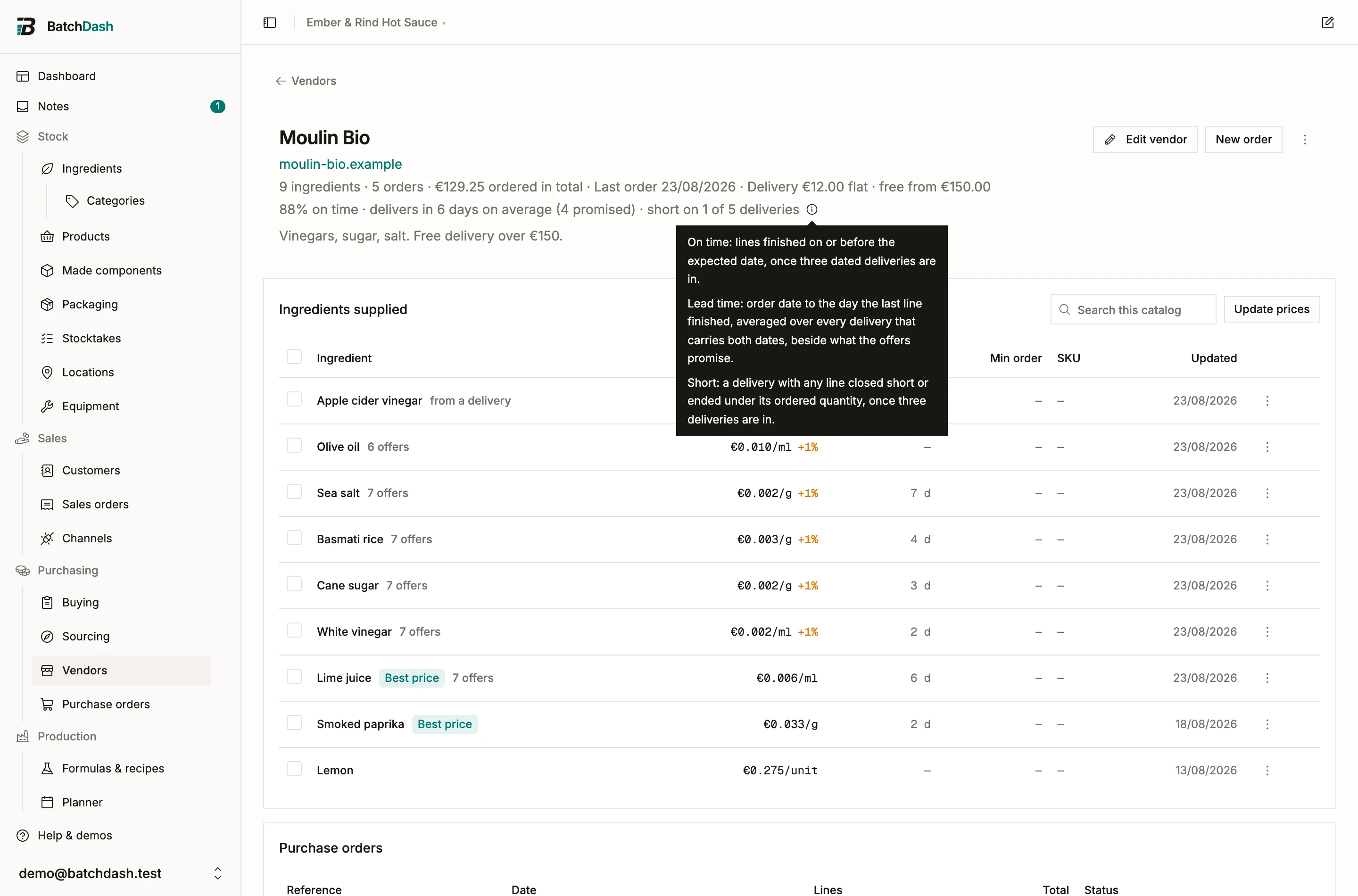
Section titled “What they have actually delivered”Once a vendor has made three deliveries, the header adds a line of what they did rather than what they promised:
94% on time · delivers in 12 days on average (4 promised) · short on 1 of 3 deliveries
Each figure has its own bar and appears only above it, so a supplier you have bought from twice shows nothing. With one delivery, one late crate would read “100% short”, and one good order would read as a perfect record.
- On time counts lines finished on or before the expected date, over deliveries that had one to be judged against.
- Delivers in is the order date to the day the last line finished, averaged over the same deliveries, next to what the offers promise when they state a lead time.
- Short is a delivery where any line was closed short or ended under its ordered quantity. A line a cancel closed does not count: giving up on an order is your decision, not the vendor coming up short.
The ⓘ beside the line says the same thing on the page. The Buying line sheet repeats the delivery half under each vendor, so the comparison happens where the choice is made.
Delivery terms
Section titled “Delivery terms”How a vendor charges carriage, in the shapes their price list already uses:
| Shape | What it means |
|---|---|
| Included, or you collect | No charge. |
| One charge per order | A flat amount, whatever the order. |
| Per pack | One charge per pack of the offer you are buying, not per carrier’s box. |
| One charge per block of quantity | “€18 for every 17 kg”, rounded up. A part-full block still travels, so 20 kg is two charges. |
| Per unit | An amount for each kilo, liter or piece. |
| Bands, by order value | A tariff read against what the order is worth. |
| Bands, by quantity | A tariff read against how much it is. |
| Quoted separately | Not known, the default, and a real answer. |
Every shape that counts a quantity asks what unit it counts in, and every figure below it is read in that unit: the bands’ ceilings, the block size, the per-unit rate. “Bands up to 500” is not a rule until somebody says 500 of what, and a carrier quoting per 17 kg against ingredients booked in grams would otherwise be out by a thousand. Your lines are converted into that unit before the charge is read; a line that cannot get there (jars against a per-kilo charge, with no piece weight recorded) makes the page say nothing rather than guess.
Bands by order value read in your currency instead, which is what the ceiling shows.
Beside the shape sit Free from (an order value above which they deliver free; blank means never) and Minimum order (blank means none).
The header reads it back in one line: “Delivery €12.00 flat · free from €250.00 · minimum €150.00”. Nothing renders while the shape is Not known and neither threshold is set.
Fill it in and Buying starts counting delivery: each vendor card gains a carriage line under its goods total and a landed total beside it, and a draft created from that card arrives with its delivery fee already filled in. Leave it alone and nothing changes anywhere: a vendor whose terms you have not filled in shows no delivery charge.
The terms also put a Delivery on each of the vendor’s offers, worked out for an order of that one pack, so an ingredient is costed delivered before its first purchase. Change the terms and every offer that follows them moves; a delivery typed on an offer stays as typed.
Share the delivery says how each new order from this vendor shares its delivery over the lines: by value, or by weight for heavy goods such as glass. The order can still change it in its fees. See share a fee by weight.
Adopting a sourcing candidate carries the quote’s carriage onto the vendor when the vendor has none yet. It never overwrites terms you already set.
Merge duplicates
Section titled “Merge duplicates”Sooner or later you end up with “Chili Farm” and “The Chili Farm SARL”. To clean up:
- Open the vendor you want to get rid of.
- In the More actions menu, choose Merge into another….
- Pick the vendor to keep and click Merge.
Every offer and order moves onto the vendor you kept, then the duplicate is deleted. This cannot be undone, so check the direction before confirming.
Two vendors that invoice in different currencies cannot be merged, because every figure of one would change currency. They appear greyed in the list, with their currency code beside the name.
Delete a vendor
Section titled “Delete a vendor”Delete vendor (in the same menu) only works when nothing is linked to the record: no offers, no orders, no quotes. If something is, merge instead so the history survives.