
Ingredients
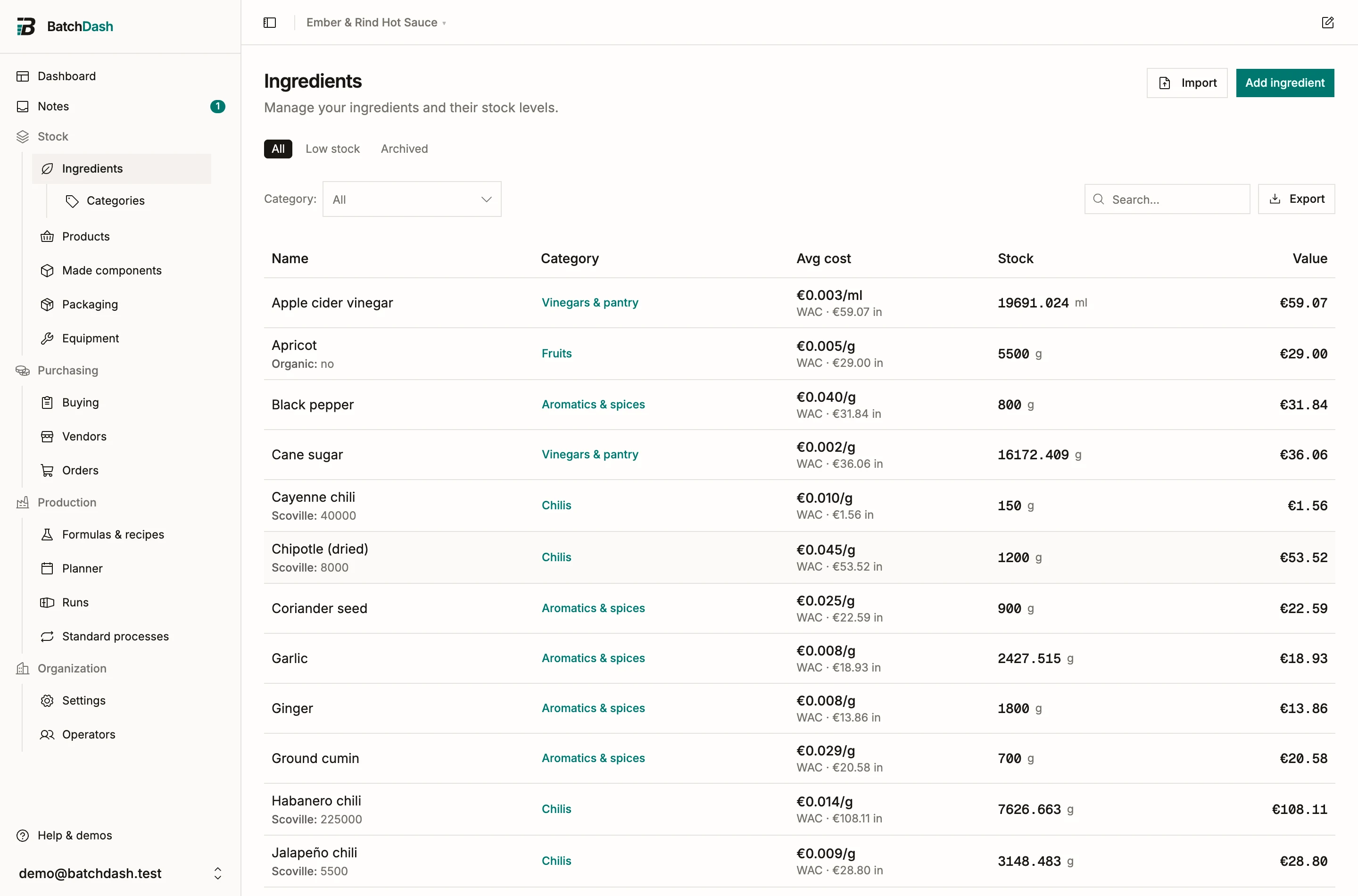
Every ingredient you stock gets a record: a name, the unit you count it in, and whatever else matters to you (category, density, allergens). Formulas, purchase orders, and stock movements all point back to this record, so the ingredient list is where costing starts.
Create an ingredient
Section titled “Create an ingredient”- Open Ingredients and click Add ingredient.
- Enter the name (“Habanero peppers”) and pick the Unit you count it in.
- Fill the optional fields you need: Category, Initial Stock Level, Density (g/ml) if you also measure it by volume, Piece weight if you count it in pieces, Restock threshold. An ingredient stocked in Units / Pieces has a page of its own: Ingredients you count.
- Click Save Ingredient.
Two checkboxes cover the edge cases. Free / no-cost ingredient excludes it from cost calculations (tap water). Unlimited stock keeps it always available, so production planning never flags it as short.
Reading the list
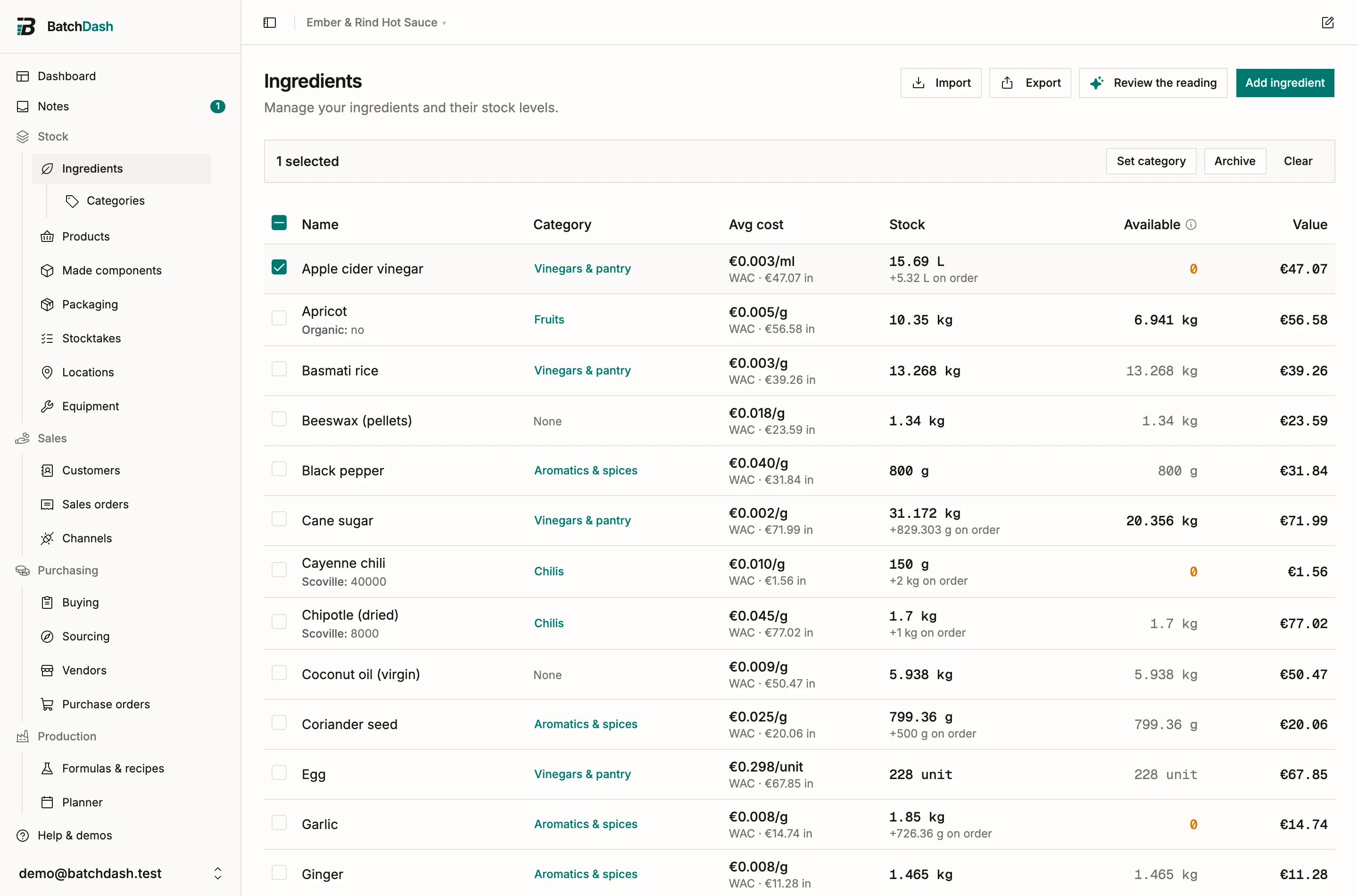
Section titled “Reading the list”Each row shows Category, Avg cost, Stock, Available, and Value (stock times unit cost). Available is what is on hand minus what open batches still plan to use; it reads muted when nothing is reserved, and 0 when planned batches already claim more than the shelf holds. Under Stock, a subline like “+10 kg on order” appears when open purchase orders carry the ingredient. The six words are defined once in Availability. The note under the cost names its source: “WAC” means the weighted average cost of your actual deliveries; “offer” means nothing costed has arrived yet, so the latest vendor offer stands in. With ingredient variants, “made from Cherries” means the pitted cherries are priced from the cherries they are made from, until you stock some at a price. How WAC is computed explains the math.
Once you have a category, the list is laid out By category: a header over each category, in alphabetical order, saying how many ingredients it holds, and the ingredients with no category last. The Category column goes away, since the header already says it. Search and filters narrow the groups too, so a category with nothing matching does not show, and a group that carries over to the next page says “continued” there. The switch at the end of the filter row flips to A to Z, one list by name. The choice is yours alone and kept for this workshop, so a teammate can keep their own.
The footer adds everything up as Total stock value. Filter with the category pills, search by name, or click Export to download the whole filtered list as a CSV. The file uses the same columns the ingredients import understands, plus the derived on_order and available figures, which a re-import simply ignores, so the file re-imports cleanly.
The ingredient page
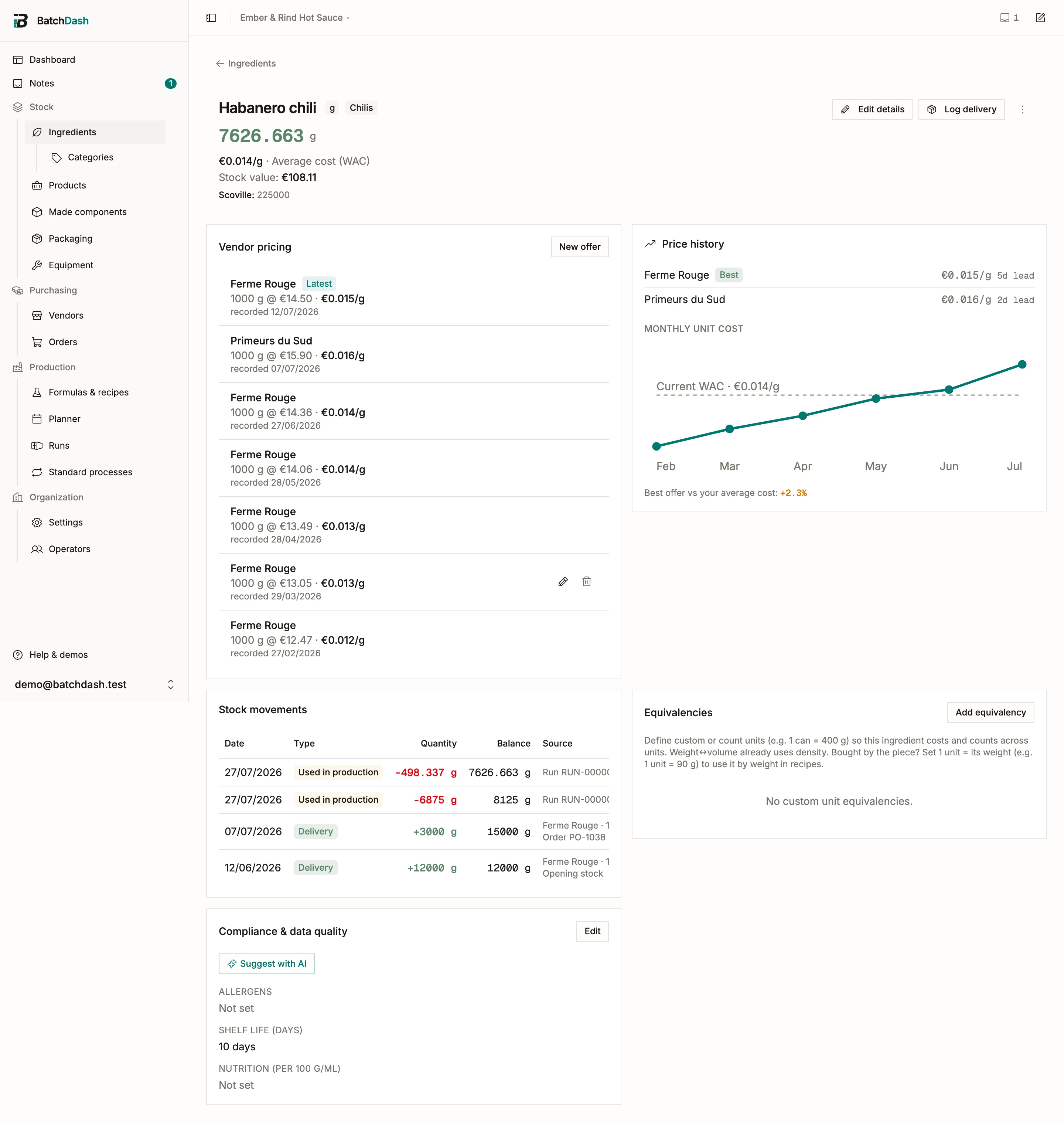
Section titled “The ingredient page”Click a row to open the full record. The header shows current stock, unit cost, and stock value, next to the Log delivery and Record stock buttons (Stock, deliveries and losses covers both). When something is reserved or inbound, a line under the stock figure reads like “3.2 kg available · 1.8 kg reserved by 2 batches · 10 kg on order”. The ⓘ beside it lists the batches holding stock (in queue order, with their dates) and the purchase orders on their way (with vendors and expected dates), each linking to its page. Edit details changes the name, the density or piece weight (whichever the unit calls for), the Smallest amount you can use on a counted ingredient, and the restock threshold.
An ingredient you break down by hand (an egg, a lemon, an unpeeled carrot) also carries its Parts: what it separates into, and in what proportion. See ingredients you break down.
Restock threshold
Section titled “Restock threshold”Set a threshold and the ingredient shows a Low badge as soon as stock falls below it, then Out at zero. The threshold is per ingredient: 2 000 g of habaneros may be plenty while 2 000 g of salt is nearly empty.
With Today and notifications on, an item below its level also shows in the dashboard’s Buy group, and its crossing is told once in the bell.
Merge duplicates
Section titled “Merge duplicates”Sooner or later you have two records for one thing: “Olive oil” and the “Huile d’olive” somebody created from the formula editor because they did not spot the first one. Both have deliveries, both are in recipes, and neither can be deleted.
- Open the ingredient you want to get rid of.
- In the More actions menu, choose Merge into another….
- Search for the ingredient to keep and pick it.
- Read what the dialog says will move, decide any field the two disagree on, and click Merge.
Everything the duplicate collected lands on the ingredient you kept: deliveries, losses and adjustments, vendor offers and their price history, order lines, recipe lines, counts, notes and sourcing records. The average cost is then recomputed over the whole combined ledger, so it reflects what you actually paid across both records rather than either one’s old figure. The duplicate is deleted, and the ingredient you kept records the name it absorbed.
Two ingredients stocked in different units merge fine: the duplicate’s history is restated into the unit of the one you keep, movements and pack sizes together. If there is no way to convert between the two units, the dialog says so and names what to record first (a density, or an equivalency).
A recipe that listed both of them now lists the one you kept twice, once per line, and its cost is right either way. Fold the two lines into one from the formula editor when you next open it.
The dialog refuses a merge it cannot do cleanly rather than doing it badly. The ingredient you keep has to be active, and it cannot be marked free or unlimited while the duplicate carries offers or stock. If a stock count is open on either one, finish or discard that count first.
The duplicate itself may already be archived. The Archived view of the list offers Merge next to Restore on each row, so a record somebody hid instead of merging can still hand its history over without coming back first.
Merging cannot be undone, so check the direction before confirming: the ingredient whose page you opened is the one that disappears.
Several ingredients at once
Section titled “Several ingredients at once”Tick the box at the left of a row to select it; the box in the header takes the whole page. As soon as one row is ticked, the filter row becomes an action bar: “12 selected”, Set category, Fill a field (one value under a category field, see Categories and custom fields), Archive and Clear. Archive asks first (“Archive 12 ingredients?”) and reports after (“12 archived.”); Set category opens a small dialog listing your categories, where “No category” clears it. A row the action could not touch is counted, with the reason (“9 archived. 3 skipped: already archived.”). The selection covers the page you are looking at and clears as soon as you search, filter or turn the page. The boxes are hidden on a phone, where a row is for tapping. The packaging list works the same way, with Archive only.
Archive and restore
Section titled “Archive and restore”Archive ingredient (under More actions) hides a record you no longer buy. Its history stays intact and old orders keep working. The Archived toggle on the list shows hidden records; from there, Restore brings one back and Delete permanently removes it for good. Archived ingredients still count toward your plan’s ingredient quota, so delete the ones you will never need again.
An ingredient with stock history can be deleted when that history is its own alone: opening stock, losses, adjustments, transfers. Delete permanently then asks a second time, saying how many movements go with it; that is how an ingredient brought in by mistake leaves. When a batch used it, an order received it or a stocktake counted it, the history stays: merge it into another ingredient, or keep it archived.
With ingredient variants, a variant that another is made from stays until that link is removed. Archiving Cherries while Cherries · Pitted is made from them is refused with “Cherries · Pitted is made from this. Remove the link first.” The list’s Archive skips such a row and says why (“2 archived. 1 skipped: still used to make another variant.”).
Setting up from scratch? Start with Set up your inventory, then shape your records with Categories and custom fields.