
Exporting your data
Your data is yours to take. Every major list has an export button that hands you a CSV of what the list shows, and Manage organization has one button that builds every list into a single zip. The list exports come with CSV imports; the full export works on every plan, the limited free state included.
Export from a list
Section titled “Export from a list”Export sits in the page heading, next to Import, on Ingredients, Customers, Sales orders, Batches, Vendors and Purchase orders. Products and Recipes hand you two files each, so their button opens a short menu: Products and Stock movements, Recipes and Recipe lines. Every report page carries the same button for the figures it shows.
The file holds the whole filtered list, every page of it: the active search, the pills and the category or location you picked narrow the file exactly as they narrow the screen. The Batches list shows active batches by default, and so does its file; pick the Completed pill to export finished ones.
On a product’s page, the stock activity card carries its own Export: that product’s movements, every one of them.
Money never leaves without permission. A column that holds a cost or a price (unit costs, stock values, sale prices, planned and actual batch costs, order totals) is left out entirely for a member whose role cannot see costs. It is absent, never blank, so a re-imported file can never read an empty cell as “this costs nothing”.
Files that re-import
Section titled “Files that re-import”Where an import exists, the export’s headers are that import’s own field names, so the file comes back in with its columns matched on their own. Export from one organization, import into another, and the columns map themselves.
| File | Re-imports through | What is ignored on the way in |
|---|---|---|
ingredients.csv |
Ingredients | on_order, available, stock_value |
packs.csv |
Packs | on_hand, held |
products.csv |
Products | display_name, status, held, in_packs, unit_cost_source, average_sale_price, margin |
customers.csv |
Customers | other_addresses, wholesale, status |
purchase-order-lines.csv |
Deliveries, received lines only | the order columns; note becomes the delivery’s note |
vendor-offers.csv (in the full export) |
Vendor offers | updated_at, and currency unless your plan includes buying in other currencies |
Two cautions. A purchase-order file lists every line, received or not; delete the rows without a received date before importing them as deliveries, or you post stock that never arrived. And an on_hand column re-imports as opening stock: importing a products file back into the same organization is flagged row by row (“This product already exists.”) rather than doubling anything.
The files and their columns
Section titled “The files and their columns”Each file has one header row. Dates are YYYY-MM-DD, times are UTC, numbers use a dot decimal, and text that starts like a spreadsheet formula is prefixed with a quote so it opens as text. Columns marked with a star are the money columns described above.
ingredients.csv:name, unit, density, piece_weight, piece_weight_unit, divides_into, variant_of, variant, made_from, gives_per_100, gives_low, gives_high, operation, setup_minutes, minutes_per_unit, interchangeable, sourcing, category, stock_qty, on_order, available, unit_cost*, stock_value*(alocationcolumn joins them under a location filter; the eleven variant columns are blank on a plain ingredient and are described in importing ingredients)transformations.csv(in the full export):reference, date, source, source_quantity, source_unit, source_lots, derived, obtained, obtained_unit, minutes, operator, location, lot_code, expiry_date, unit_cost*, labor_cost*, undone_at, notes, one row per recorded transformation, oldest first; the lot codes it named sit in one cell, separated by “ | “, and an undone one keeps its row with the moment it was undoneweighings.csv(in the full export):date, ingredient, made_from, source, reference, pieces, as_bought_g, obtained_g, minutes, estimated, note, one row per weighing, oldest first;ingredientis the variant the weighing teaches andmade_fromwhat went on the scale, both weights in grams whatever the unitproducts.csv:name, code, category, subcategory, format, fill_qty, fill_unit, variant, display_name, gtin, sku, made_or_bought, status, on_hand, held, in_packs, unit_cost*, unit_cost_source*, average_sale_price*, margin*packs.csv:name, format, plural, separable, sold, contents, category, subcategory, sku, gtin, status, on_hand, held, retail_price*, wholesale_price*, one row per pack, separable packs first (the ones holding a product before the cases holding them), then the boxes and kits;contentsreads “12 × Smoked habanero hot sauce · 250 ml jar”, several products separated by “; “; a pack nobody sells has no SKU, barcode or price.in_packsinproducts.csvis how many of the product’s units are in separable packs.product-movements.csv:date, product, format, sku, type, reason, quantity, unit, lot_code, expiry_date, run, assembly, location, unit_cost*, sale_price*, order, customer, note, by, currency(orderandcustomerneed the sales permission;currencyis your own, which every cost and sale price on this file is in)customers.csv:name, contact, email, phone, address, other_addresses, notes, wholesale, status, marketsales-order-lines.csv:reference, order_date, status, paid_on, customer, product, format, sku, quantity, unit_price*, line_total*, shipped_on, shipped_qty, returned_qty, written_off_qty, note, currency, vat_rate_pct, vat_amount*(currencyis what the order is printed in,vat_rate_pctthe rate the line froze;line_totalis the figure that was agreed, andunit_priceis worked out from it when a line was priced as a total, so 2,400 jars for 500.00 reads 0.2083 each)sales-orders.csv(in the full export):reference, order_date, ship_by, customer, status, paid_on, lines, subtotal*, discount*, shipping_charged*, total*, source, external_order, ship_to, notes, currency, fx_rate, base_total*, subtotal_before_vat*, vat_total*(fx_rateis 1 on an order in your own currency;base_totalis what it comes to in it)runs.csv:reference, recipe, code, version, kind, status, scheduled_for, started_at, completed_at, planned_quantity, planned_unit, produced_quantity, produced_unit, yield_pct, lot_code, format, origin, combined_into, planned_cost*, actual_cost*vendors.csv:name, contact, email, phone, website, notes, ingredients_supplied, orders, last_order_date, total_ordered*, currency(currencyis what the vendor invoices in;total_orderedis in your base currency)purchase-order-lines.csv:order, vendor, ordered_on, expected_on, status, material, kind, quantity, unit, total_paid*, allocated_fees*, effective_unit_cost*, received_date, lot_code, note(materialis the item on the line, whatever itskind: an ingredient, a packaging item or a piece of equipment)recipes.csv:name, code, category, subcategory, type, unit, current_version, version_status, batch_size, batch_unit, batch_pieces, expected_yield_pct, portion_size, portion_label, shelf_life_days, date_type, gtin, unit_cost*, cost_unit*, descriptionrecipe-lines.csv:recipe, code, category, subcategory, version, line, ingredient, kind, percent, quantity, unit, substitution, note(the lines of each recipe’s current version)categories.csv(in the full export):list, category, subcategory, items, created_at, one row per category of every list, ingredients then packaging, products and recipes,itemscounting what it holds, archived items left out, a category at the top level counting its subcategories’ too
A category sits in two columns wherever it is written: category holds a category at the top level, or the parent of a subcategory, and subcategory the subcategory’s own name. Each cell is a name taken whole, so a name that holds a slash reads back as one name. That is how products.csv re-imports with its categories (importing products). In runs.csv, combined_into is the reference of the batch a combined batch went into, empty otherwise.
The machine words
Section titled “The machine words”A type, reason, status, kind, origin, list or substitution cell holds a fixed word, in lower case and in English whatever your language, so a filter in your spreadsheet keeps working.
| Column | Values |
|---|---|
Product movement type |
batch_output (a batch booked its output, or an opening stock), draw (taken into another batch), sale, loss, adjustment (a count correction), return, return_write_off, transfer |
Product movement reason |
count_variance, spoilage, breakage, theft, sampling, correction, expiry, production_waste, opening_balance |
Ingredient movement type |
delivery, loss, adjustment, consumption (used by a batch), production_output (made in-house), transformation_out (used to make another variant), transformation_in (made from another variant), transfer |
Ingredient movement reason |
count_variance, spoilage, breakage, theft, sampling, correction, expiry |
Product status, customer status |
active, archived |
Batch status and kind |
planned, in_progress, completed, abandoned; test, production |
Batch origin |
Where the batch came from: manual (a person planned it), rule (a replenishment rule), scenario (an applied scenario) |
Category list |
ingredients, packaging, products, recipes |
Purchase order status |
draft, ordered, partially_received, received |
Sales order status |
draft, confirmed, partially_shipped, shipped, canceled |
Purchase-order line kind |
ingredient, packaging, equipment |
Recipe type, recipe line kind, version version_status |
product, ingredient; ingredient, sub_recipe; draft, experiment, accepted, rejected |
Recipe line substitution |
What the line allows when the variant it names is short: pool (any interchangeable variant of the ingredient, the default), only (this variant only), any (any variant). Empty on a component line |
Ingredient sourcing |
Which price and which first move a batch reads for a variant that can be made: bought, made. Empty without a made-from link |
Weighing source |
Where the weighing came from: hand, transformation (its reference beside it), run (the batch’s reference beside it), delivery |
Product unit_cost_source |
booked (from stock you costed), recipe (estimated from the recipe), parts (estimated from a set’s parts) |
Export all data
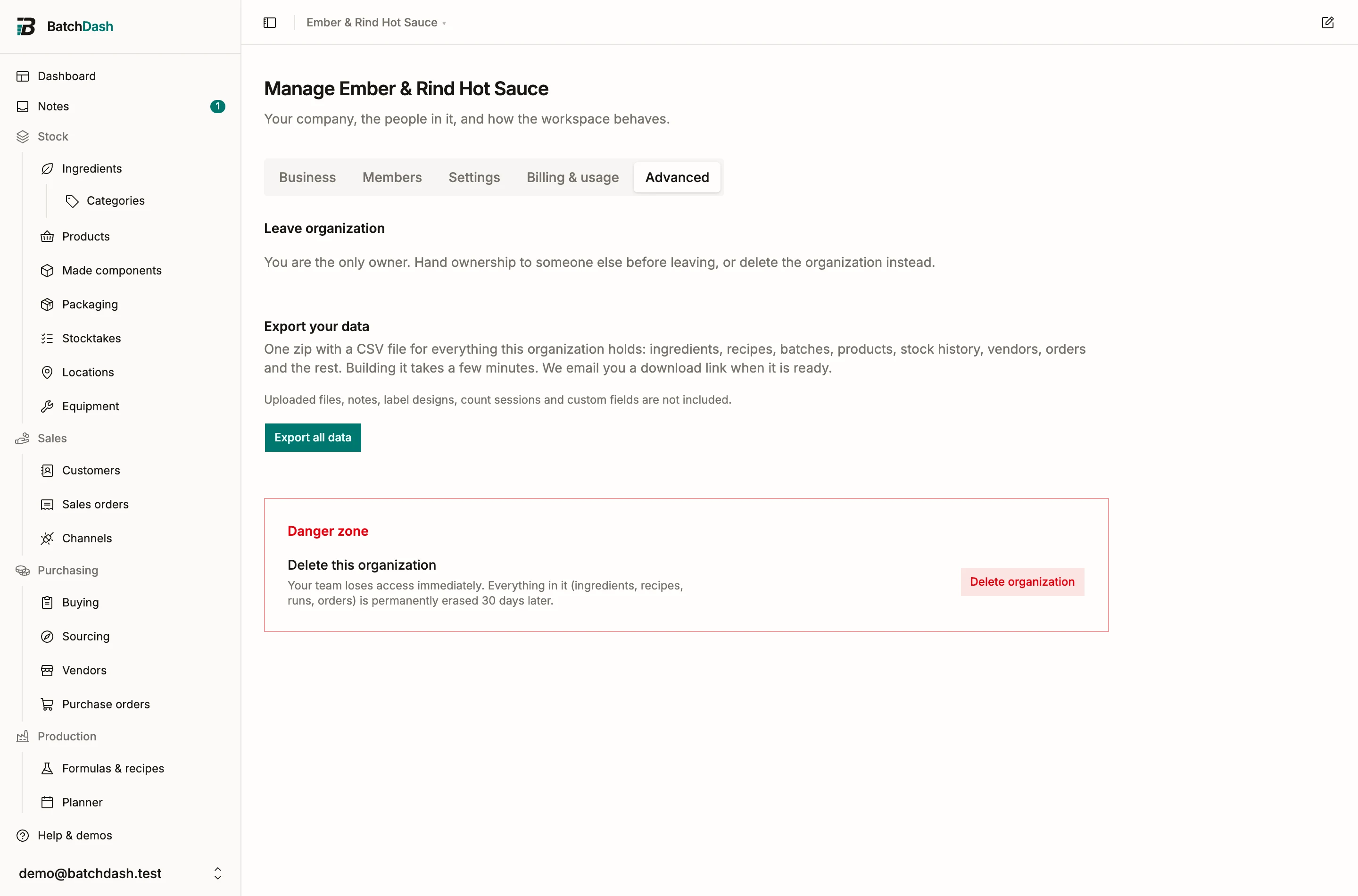
Section titled “Export all data”On Manage organization, the Advanced tab holds Export your data, just above the Danger zone because it is the step before it. Anyone who can manage the organization presses Export all data; the block switches to “Preparing your export” with the time and the name of whoever asked, and building takes a few minutes. When the zip is ready, the person who asked receives an email with a download link, and the page shows the export’s date and size with a Download button. The link works for seven days; after that it says so, and a new export replaces the old one. Only one export builds at a time, so the button waits while one is in progress.
The zip holds one CSV per area, the files above plus the ones no list button serves: packaging, archived ingredients and archived packaging, the ingredient and packaging stock histories, the transformations and weighings of your variants, vendor offers, purchase orders and sales orders as one row per order, categories, equipment, operators and locations. Every batch is in it whatever its status, and every product, active or archived, with its status column saying which. A readme.txt names the organization, the date, each file with its row count, and what was left out.
What is left out: uploaded files (photos, documents, label artwork), notes, label designs, count sessions, sourcing projects and custom fields. Cost and price columns follow the role of the person who ran the export, exactly as on the list buttons, and the readme says which it was; an admin who cannot see costs sees the finished export but no download for a file that contains them.
This is portability. Nothing in BatchDash restores from the zip. If you are about to delete the organization, run the export first and wait for the email; the deletion dialog points here for that reason, and the thirty-day grace window remains the way to get a deleted workspace back.