
Members, roles and invitations
An organization is a shared workspace. Everyone you invite works on the same inventory, recipes and orders; their role decides what they can touch. You manage all of it from Organization → Settings in the sidebar.
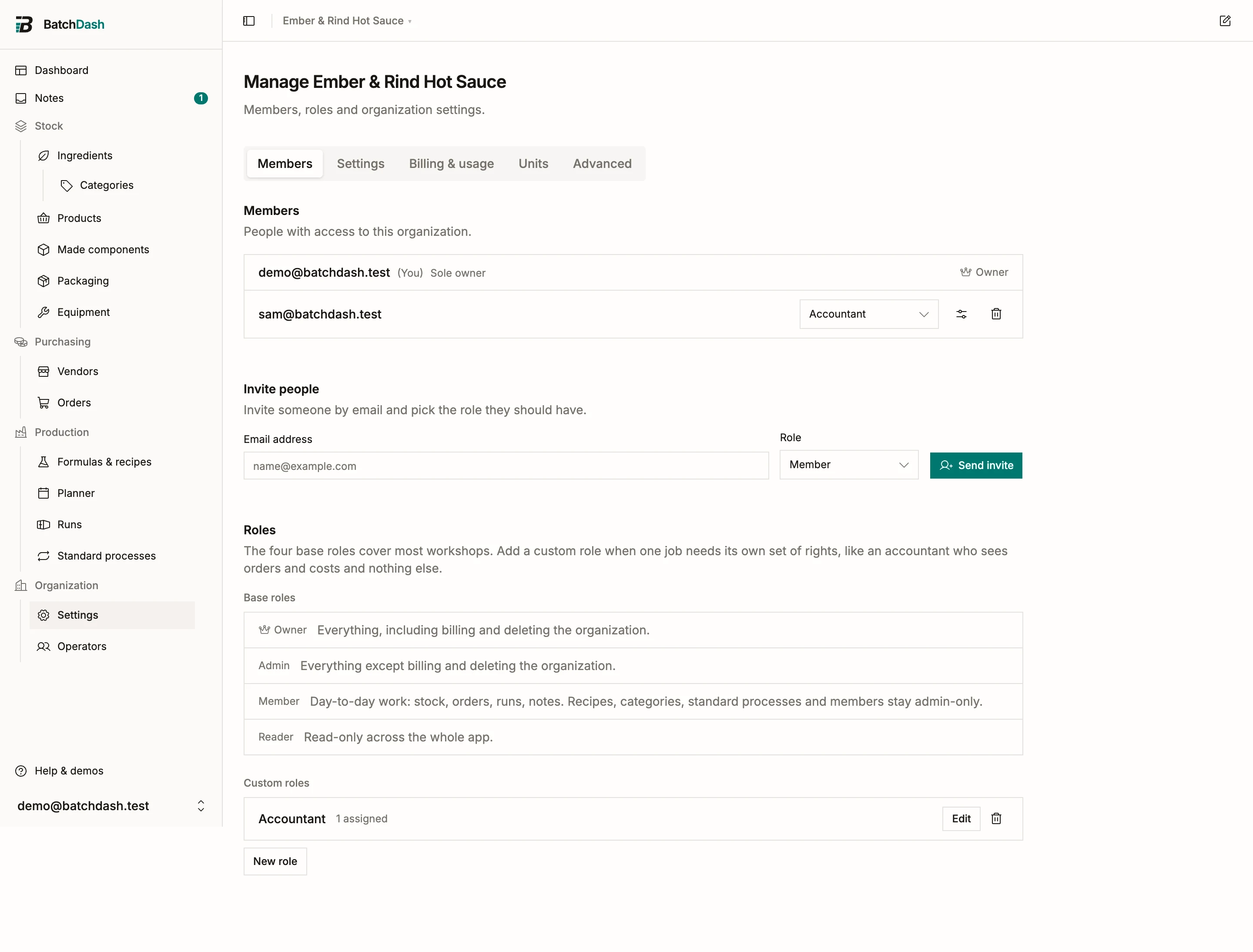
| Role | What it allows |
|---|---|
| Reader | View everything, change nothing. Right for an accountant or an advisor. |
| Member | The day-to-day work: ingredients, deliveries, recipes, runs, orders, and deciding on batches (releasing a held one included). |
| Admin | Everything a member does, plus managing the organization: members, invitations, settings. |
| Owner | Everything, including billing and the danger zone. |
An organization always keeps at least one owner. The sole owner cannot leave or be demoted; promote someone else to owner first.
Need something these four don’t cover, like an accountant who follows the money but leaves recipes alone? Build a custom role, or allow and deny single rights for one person.
Inviting someone
Section titled “Inviting someone”- Open Manage organization and find Invite people.
- Enter the email address, pick the role, press Send invite. Your own custom roles are listed under the four base ones, so someone can land on the right access straight away.
- The person receives an email. They sign in, or create an account with that address, and accept.
Until they do, the invitation sits under Pending invitations, where Revoke cancels it if it went to the wrong address. One thing to watch: your plan includes a number of seats, and pending invitations count toward it. Remove a member or revoke an invitation to free one; see billing and plans for quotas.
Changing roles and removing members
Section titled “Changing roles and removing members”Admins change a member’s role directly in the member list, base roles and custom roles in the same dropdown. Remove cuts their access immediately. The work they did stays: deliveries they logged and runs they completed remain in the history.
Leaving, and leave requests
Section titled “Leaving, and leave requests”Any member can leave from the Advanced tab of the manage page. How that happens depends on one setting, Members can leave instantly, described in organization settings:
- When it is on, Leave organization takes effect at once.
- When it is off, the member presses Request to leave. The request appears under Leave requests on the Members tab, and an admin approves or declines it. The member can cancel their own request while it waits.
Either way, leaving only removes access to this organization. The account itself, and any other organizations it belongs to, are untouched.