Notes and tasks
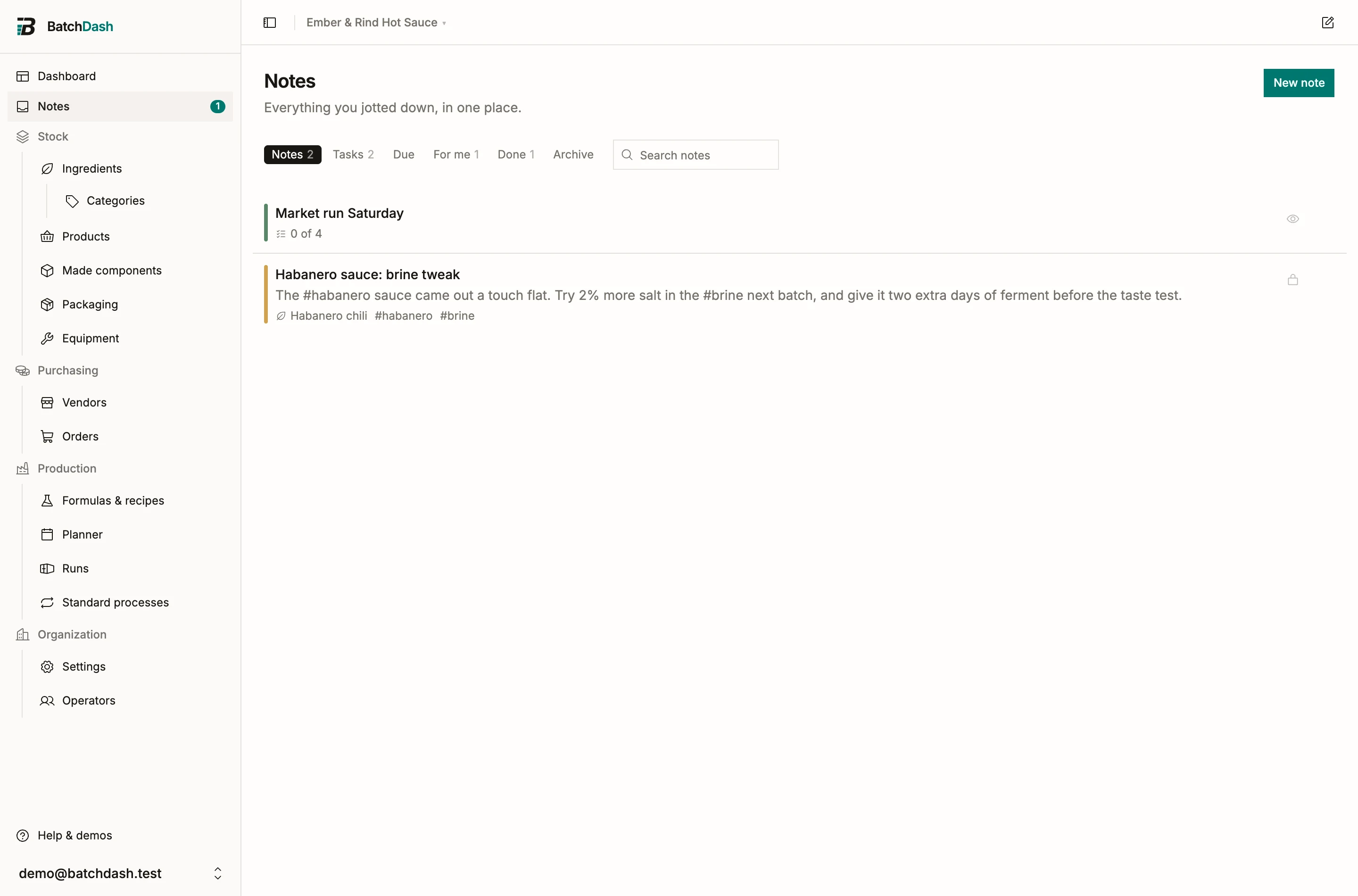
Notes are for the thing you need to write down before it’s gone: a tweak to try next batch, an ingredient running low, a recipe you just made. Type it, press Enter, keep working.
Jot it down
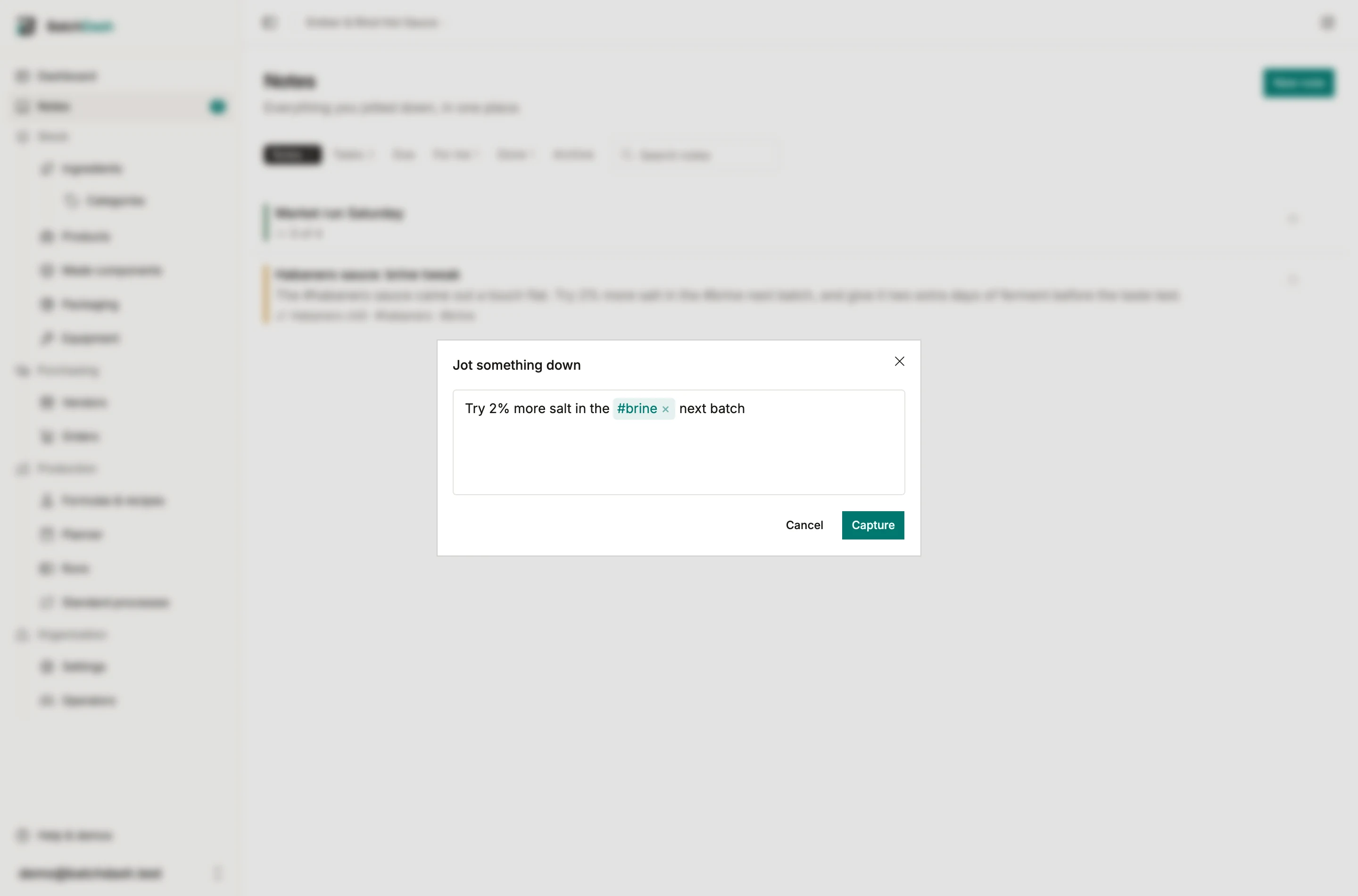
Section titled “Jot it down”Click New note and type. A title is optional and a blank note is fine. Start the line with [] to make it a task, or add a #tag. A small preview shows what it picked up before you save.
Turn it into a task
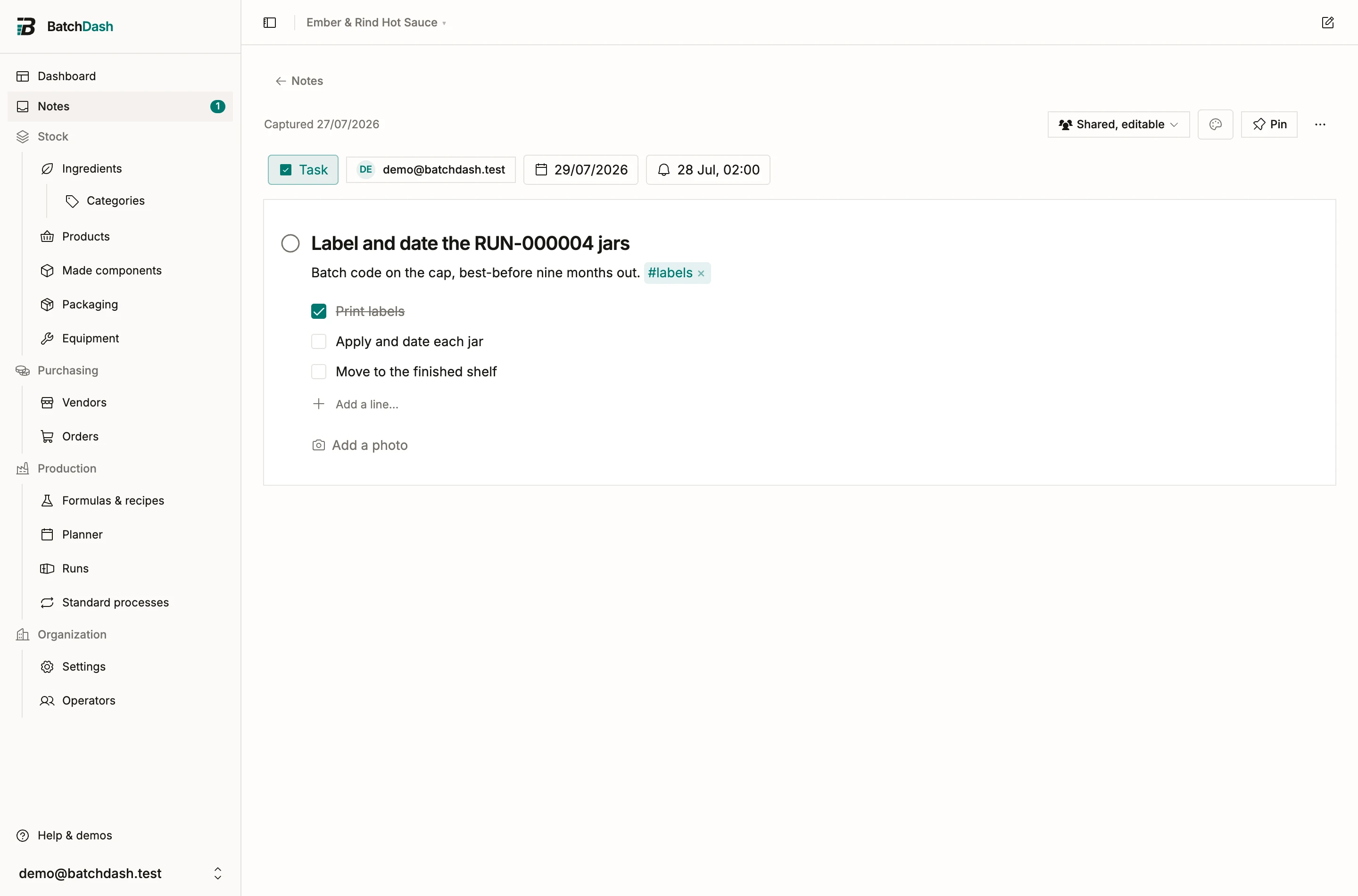
Section titled “Turn it into a task”Open a note and it goes straight into edit mode. Hit Make it a task to give it a checkbox you tick off when it’s done. From the same row you can also:
- set a due date, which turns red once it’s past,
- set a reminder for a date and time,
- assign it to a teammate,
- add a checklist or a photo.
Reminders
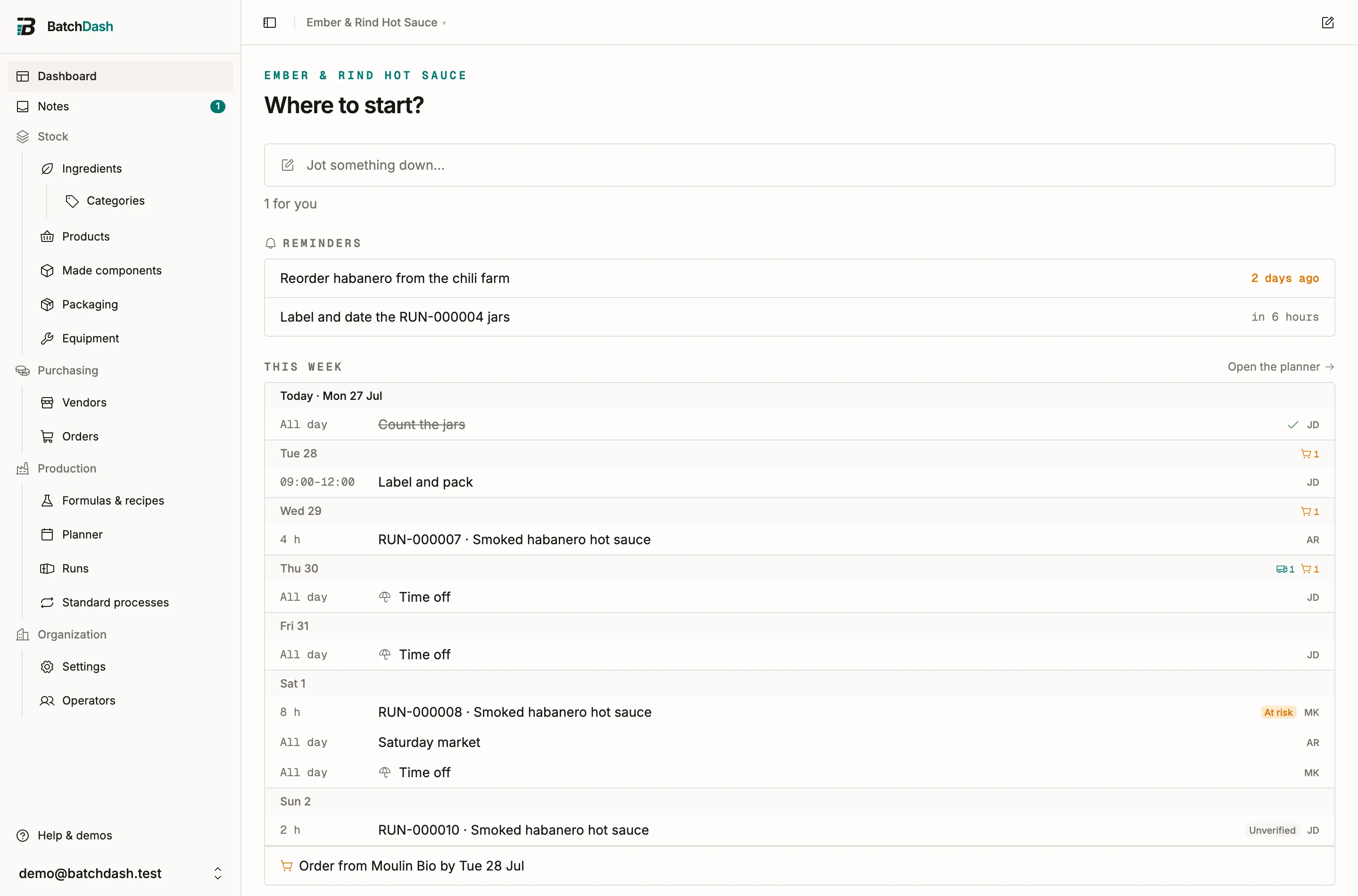
Section titled “Reminders”A reminder is a nudge at a time you pick. Once it’s due, the Notes item in the sidebar carries a count, so it reaches you without going looking. Times show in your own timezone. A reminder and a due date are different things: a due date is when the work is due, a reminder just pings you. Your reminders also gather on the dashboard, soonest first, so what’s coming is the first thing you see when you land. With Today and notifications on, a reminder that came due shows in Today’s For you group instead; upcoming reminders stay on the Notes page.
Filter to find things
Section titled “Filter to find things”The tabs across the top each carry a count:
- Notes: everything that isn’t a task.
- Tasks: what’s still open to do.
- Due: anything with a due date of today or earlier.
- For me: tasks assigned to you.
- Done: what you’ve checked off.
- Archive: put away, and reversible.
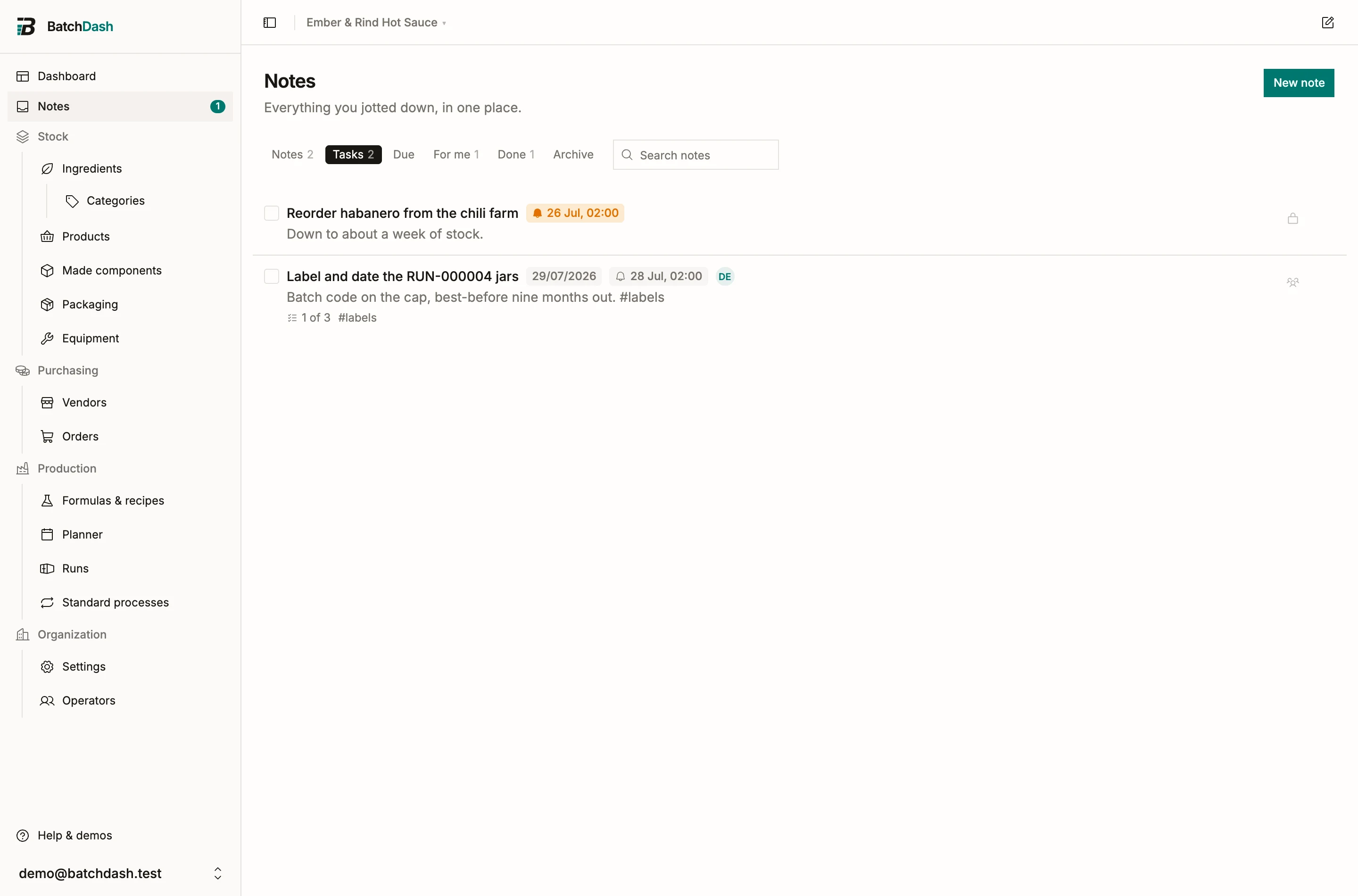
Archiving clears a note out of the way without deleting it, and you can restore it any time.
Who can see a note
Section titled “Who can see a note”A note is private by default, so only you can see it. When it’s team business (a shopping list, a production task), share it with your organization from the visibility control at the top of the note. A shared note can be view-only or open for anyone to edit.
Assign a task to a teammate and they can see it, check it off, and take themselves off it. Only you or an org admin changes who a note is shared with.
Attach a note to a record
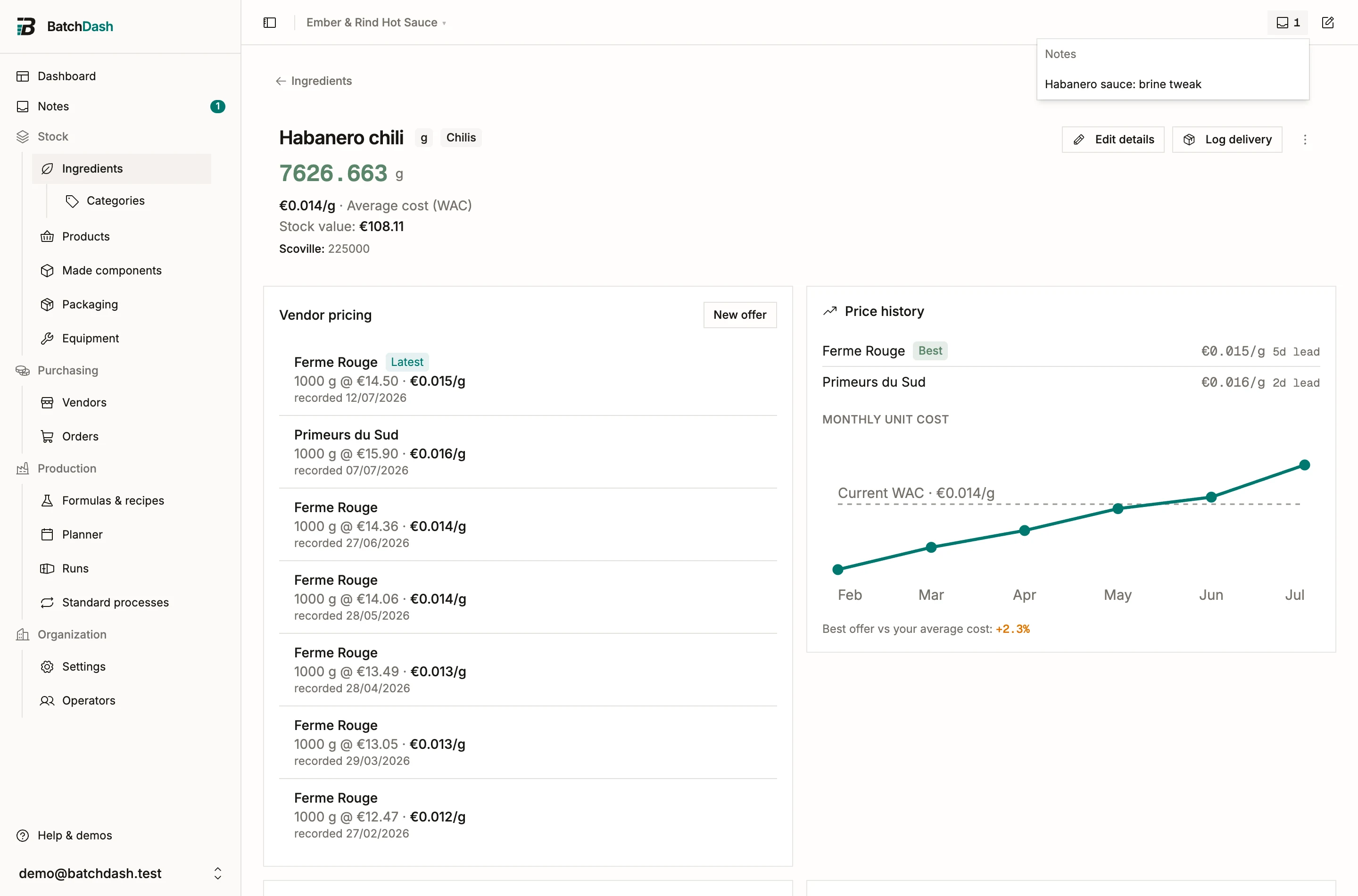
Section titled “Attach a note to a record”Jot a note while you’re looking at an ingredient, an order, a formula or a run (anything with its own page) and it attaches to that record by default. Uncheck Attach to … in the capture box to keep it loose. The note then shows a link back to the record. And whenever you’re on that record, a small notes count in the top bar, next to the capture button, opens the notes attached to it.