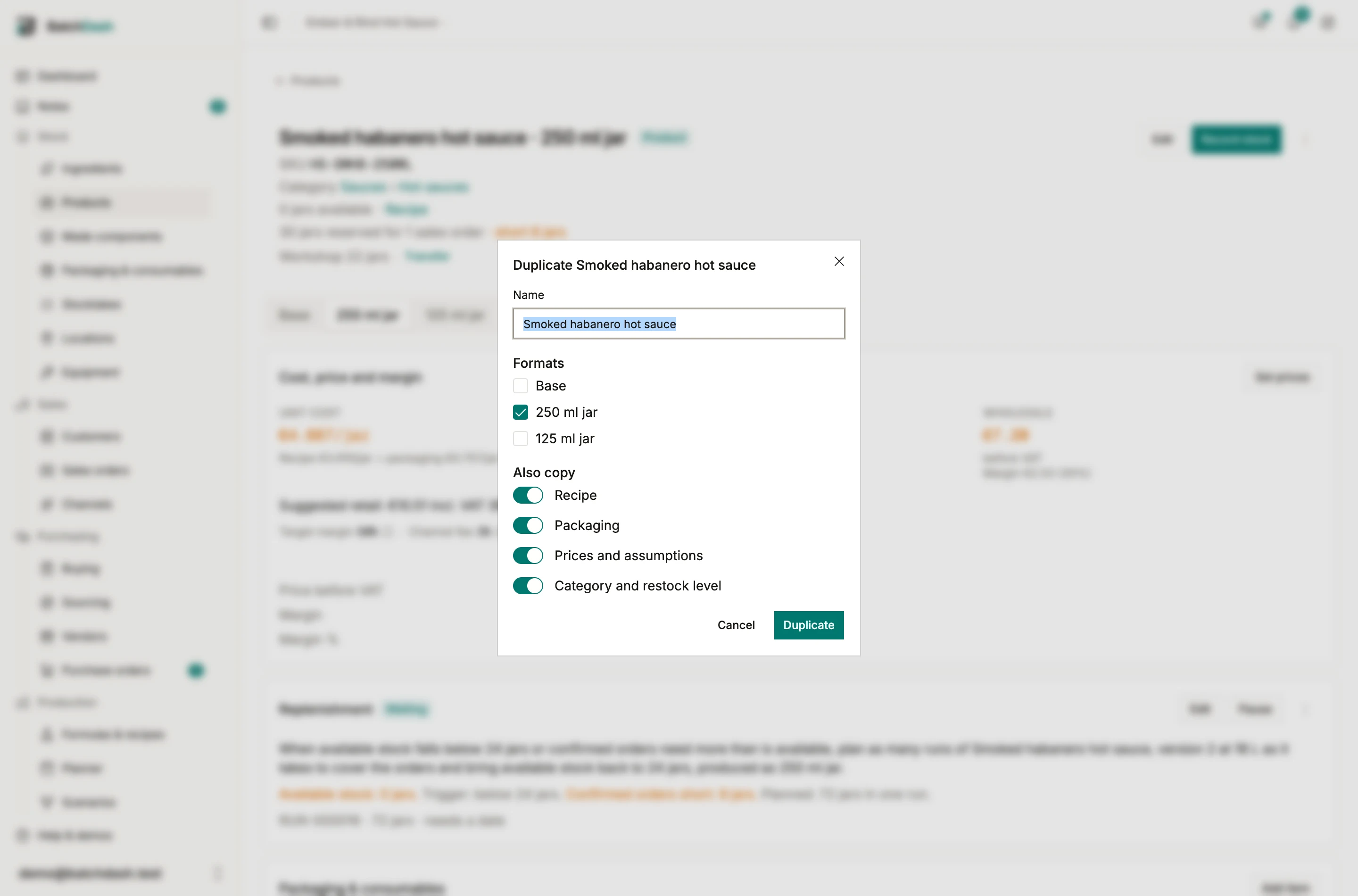
Sellable products
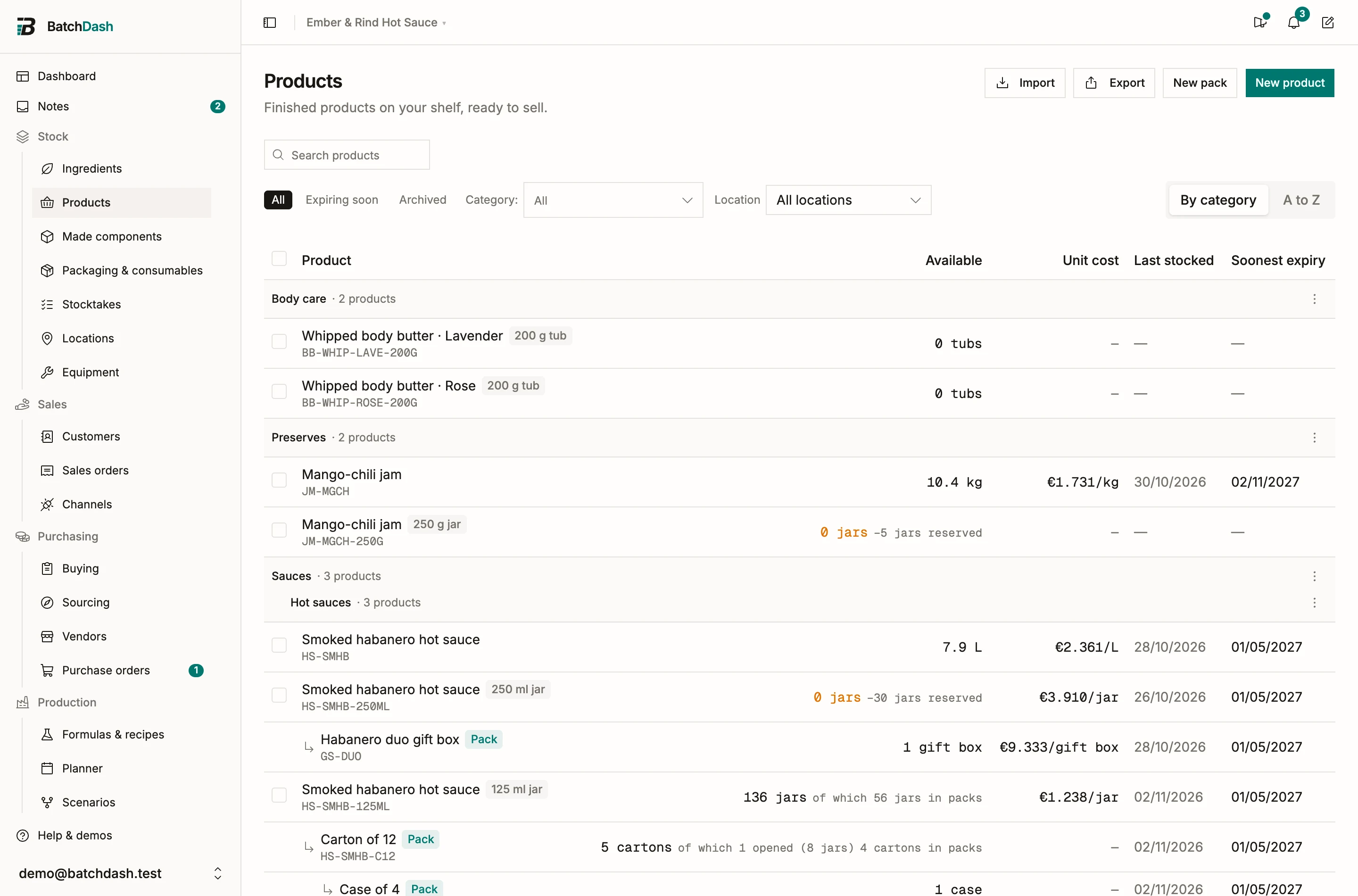
Products lists the finished goods on your shelf, ready to sell, whether your production runs made them, a vendor delivered them, or they were there before you started: what is available to promise, the unit cost, the last batch, the soonest expiry. The Available column is the shelf minus what is held and what open orders reserve; muted counts beside it (“+2 held”, “−30 reserved”) rebuild the physical total, and the six words are defined in Availability. This module is part of the larger plans.
Formats (presentations)
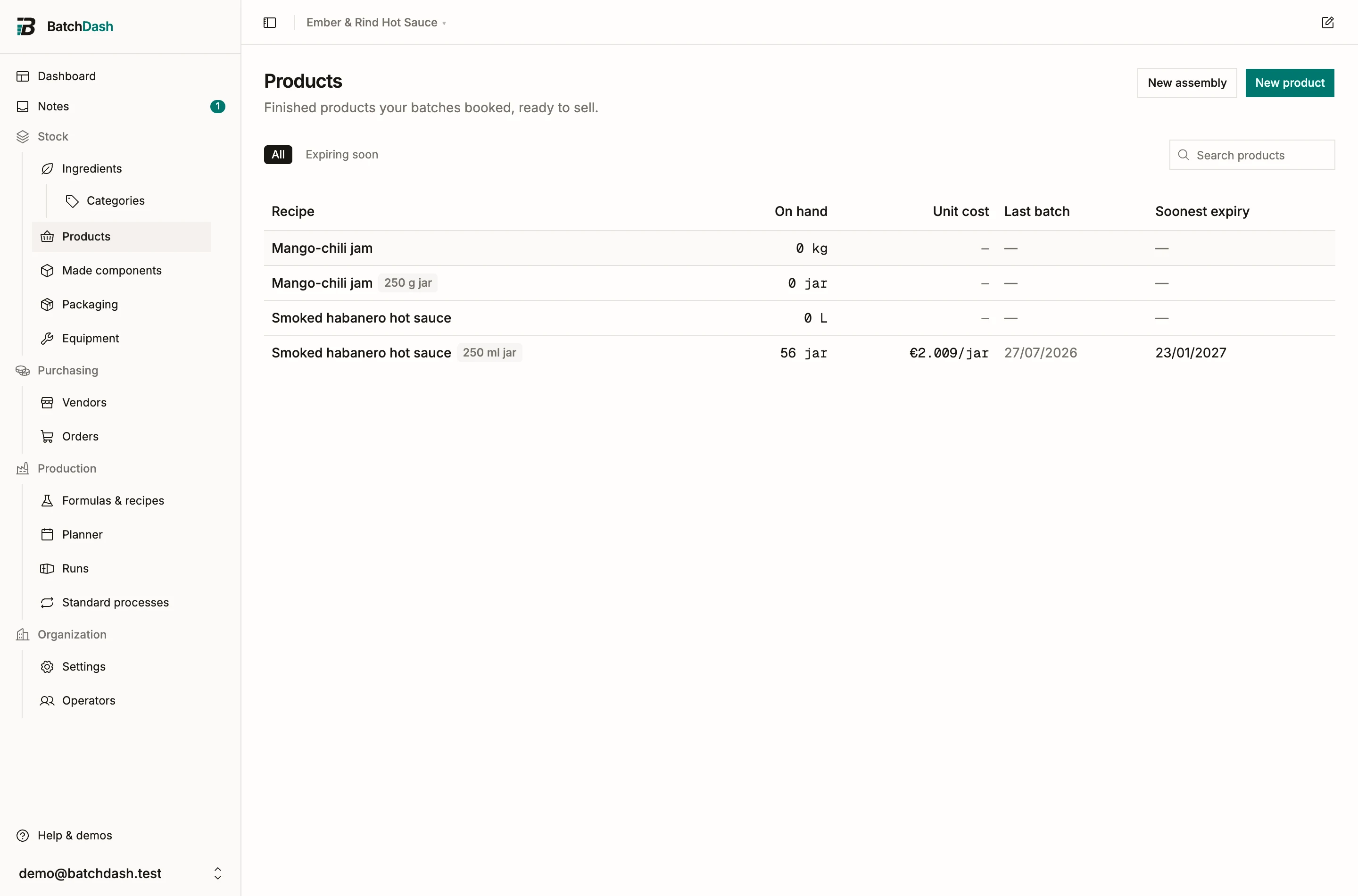
Section titled “Formats (presentations)”A recipe can sell in up to 8 formats. A 250 ml jar and a 1 L pouch are two presentations of the same sauce, each with its own stock count, packaging, and unit cost. Add presentation, in the product’s ⋮ menu, creates one: a format noun (jar, pouch, tube), an optional fill size and unit, and what happens when you produce it:
- Sell all of it: every batch is packaged and sold.
- Fill some, keep the rest as bulk: at completion you say how many you filled; the rest books as bulk in the recipe’s unit, ready for another recipe. A product still waiting for its recipe is not offered this one, with no batch to split.
Each format gets a pill under the header; click one to open its own stock line. When you plan a production run, pick which format the batch produces under Produce as. Edit renames the product, adjusts the format’s fill, and sets its variant and SKU. Add presentation takes the variant too, so two scents created together are told apart from their first pill.
The format noun reads after every count of the product (“87 bottles available”). When the usual plural gets it wrong, fill Plural beside it; the word then reads that way everywhere in your workspace (see plurals).
Naming a format: variant and SKU
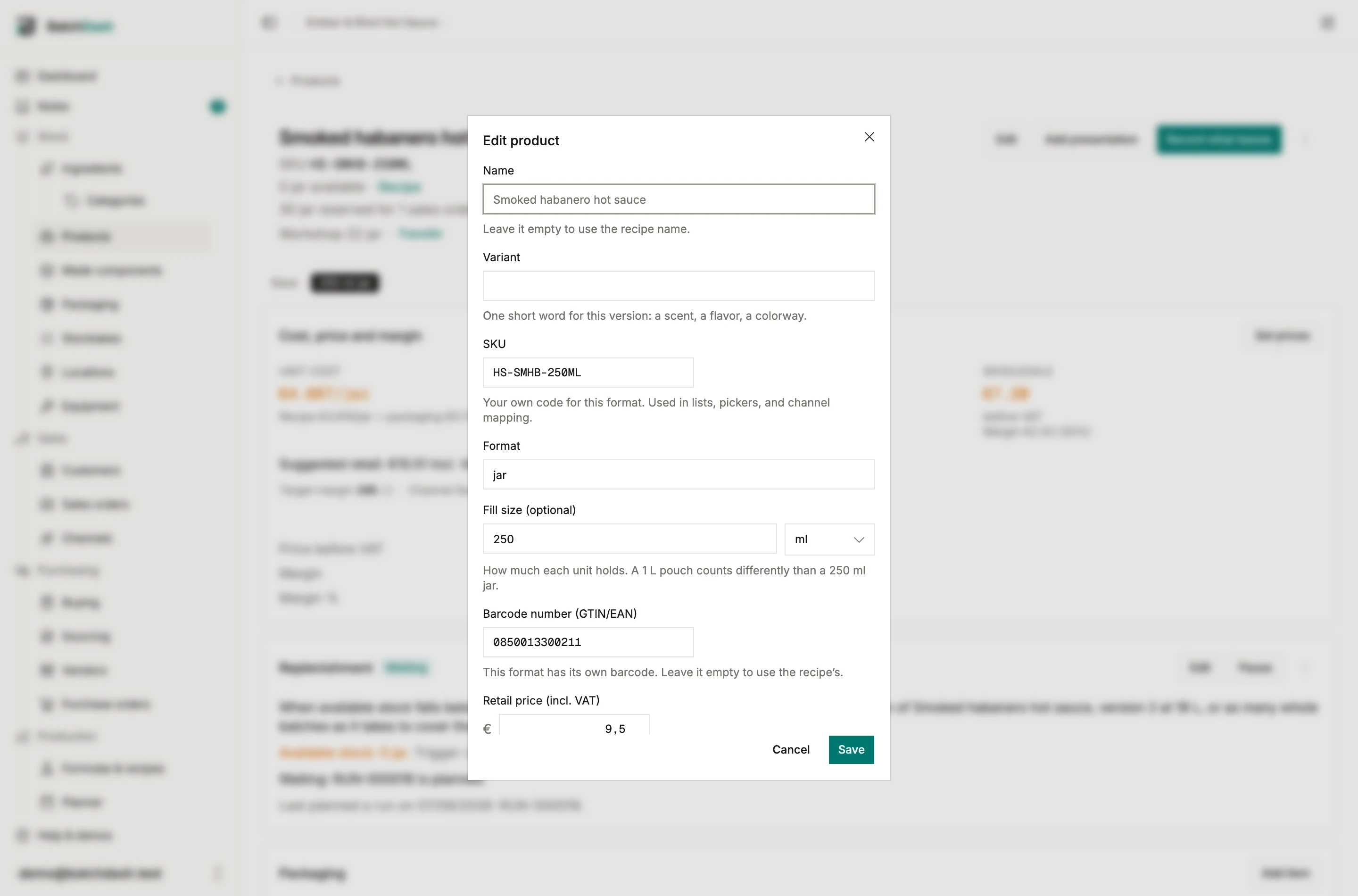
Section titled “Naming a format: variant and SKU”Two fields on Edit tell a recipe’s formats apart without renaming the product. Variant is one short word for the version this format sells: a scent, a flavor, a colorway. It composes after the recipe name wherever the product shows (“Whipped body butter · Lavender”), with the format as a badge beside it. SKU is your own code for the format, unique in your workspace and stored in capitals. Leave the box empty and it shows a suggestion built from the recipe code, the variant and the fill (“BB-WHIP-LAVE-200G”); Use suggestion fills it in, and nothing is ever saved that you did not accept. The SKU reads under the name in the products list, trails the name in every picker, and prints on a label through the SKU field. Search in the products list and in the pickers finds it, and the variant as well.
The SKU here is your code for what you sell. The vendor SKU on an offer is your supplier’s code for what you buy; the two never meet.
A Name of your own still wins whole: type one and it replaces the composed name, badge included. Clear it to go back to the recipe name and the variant. A product with no written recipe behind it (one waiting for its recipe, one you buy ready-made, a pack) has no recipe name to go back to. There the box holds the product’s own name, and it cannot be left empty.
A photo for each format
Section titled “A photo for each format”Photo, at the top of Edit, gives the format on screen its photo: a JPEG, PNG or WebP under 8 MB. It is saved as soon as you pick it. The photo opens the product page, beside the name, and its row in the products list; click it to see it full size. A format without a photo of its own shows its recipe’s presentation photo, marked Recipe photo in Edit, and Replace gives the format its own. Products you buy ready-made and packs have no recipe page, so this is where they get their photo.
Unit cost and margin
Section titled “Unit cost and margin”Cost and margin holds the four figures: Unit cost, Average sale price, Margin, and Margin %. The unit cost is what one unit costs you all in: the batch cost per unit, plus the jar, lid and label counted per unit. When labor, equipment or overhead count for your organization, they are already inside that figure: see what counts in a unit cost. The sale price and the margin come from the sales you record, so the card says what is missing until the first one lands. With pricing on, the card becomes Cost, price and margin: your list prices, a suggested price and the planned margin beside the realized one. Pricing a product walks through it.
Held, pending check
Section titled “Held, pending check”If your organization sets Release batches to hold (see organization settings), a batch that completes without a passing finished-product check books its output as held: made, counted, but not available to sell or draw. The product page says so next to the available figure, with the quantity that is waiting.
Under that line each held batch has a row: its run reference, which opens the run, its lot code and the quantity waiting. Release… on the row releases the batch, with the reason that goes on its record, for anyone who can decide on batches; see releasing a held batch. Until then it is out of the available figure everywhere: the page header, the list, and every picker read only released stock. A connected shop never sees held stock either: stock push only offers what is released.
Packaging per format
Section titled “Packaging per format”Each format carries its packaging set: which items one unit consumes and how many (1 jar, 1 lid, 2 labels). To add one, on the product’s Packaging & consumables card click Add packaging, pick the item and type How many per unit of the format. A recipe is not needed for it.
Used says when the item goes. Per jar (the format’s unit) scales with the units filled. Per batch takes it once a batch, whatever the batch fills: 30 ml of coder ink per batch reads “30 ml per batch” on the card. A per-batch item stays out of the unit cost, and the cost card names it under the figure: “Plus €1.50 of packaging per batch”.
The set is consumed when a production books output in that format. An item counted in pieces goes in whole pieces: half a label per jar over 7 jars takes 3. An item measured in ml, g or kg goes to the decimal: 0.3 ml per bottle over 7 bottles takes 2.1 ml. Low or out-of-stock items are flagged on the product page. Manage the items themselves under packaging.
Recording what leaves
Section titled “Recording what leaves”Stock enters through completed runs, through deliveries of a product you buy ready-made or have co-packed, and through Add stock for what you already had or made without a batch record. It leaves through Record stock, the same dialog an ingredient and a packaging item have. What happened offers:
- Sold some: a quantity plus an optional total price received. Sold prices feed the margin line.
- Lost some, with its Reason: Spoiled for what you had to throw out, Expired, thrown away for an expired batch you binned, Sample or gift for what you gave away. The ledger keeps the reason, so real expiry waste never hides inside spoilage.
- Counted the shelf: type the Counted quantity, what the shelf holds, and the difference is booked. It asks for a Reason too, preset to Correction, so a shelf that came up short says whether that was breakage, theft, or paperwork.
The dialog’s From batch field can name the exact batch the units came from. Picking one pre-fills what that batch still holds, and the movement draws that batch alone instead of the batch expiring first. Leave it on automatic for the everyday sale.
Every movement lands in the product’s ledger with date, quantity, balance, lot, and batch.
Restock level
Section titled “Restock level”Set restock level, in the product’s ⋮ menu, says how low its stock may go. Type 48 and the header reads “Restock below 48 bottles”, with Below it now once what you can still promise drops under it: what is on the shelf, less what confirmed sales orders already reserve.
Below it, a product you make shows under Make on Today, “Lemonade: 32 left, restock below 48”, and the people who manage products hear it in the bell. Click the line to open the product, with Record a production already open when its recipe is still to write. A product a vendor sells you shows under Buy instead (bought products).
A product whose replenishment rule plans its batches has no restock level: the rule’s own threshold says when to make more.
Packs of a product
Section titled “Packs of a product”A product’s Packs card lists the packs that hold it: a carton of 12, a gift box, with how many of each are on hand. A carton keeps its jars in the product’s stock, so the header reads “90 jars, of which 56 in packs”, and each lot says how many of its jars are in packs. New pack on the card creates one with this product inside. See packs.
Correcting an entry
Section titled “Correcting an entry”Wrote the wrong lot code on a batch, or the wrong note on a sale? Correct on the ledger row fixes the paperwork: the lot code, the expiry date, and the note. Each change writes a line under the row saying what it was, what it became, and who changed it.
On a row a production run produced, the lot code and the expiry are shown but locked. The batch record owns them, and that is where to fix them. A row a pack fill booked is locked the same way: its fill record owns the code, and reverting the fill is how you change it. The note stays editable everywhere.
A production is locked the same way, with one exception: its contents cost per unit, which you often learn after the fact. Type it in Correct, or clear it to leave the production uncosted, and the product’s average cost follows.
Apart from that cost, quantity, unit cost, and sale price are never typed over. An entry you typed (stock you added, a sale, a loss, a count correction) is reversed from Correct with Reverse this entry, then typed again (reversing an entry). A batch, a pack fill, a production or a delivery goes back with its own record.
When a batch expires
Section titled “When a batch expires”The list flags an item Expired (or shows an amber date within 30 days) while a batch that still holds stock is past its date. The flag is a to-do, not a verdict: open the product, find the batch in the Batches card, and use Record stock on its row. The dialog opens on that batch with its remainder pre-filled; throw it away with Lost some and Expired, thrown away, sell it off at a discount, or record what actually happened. Once the batch is empty, the flag clears. Because the leave names the batch, a later recall knows those exact units were binned, not sold.
Sold covers the sale that begins and ends at the counter. When anything was agreed before it ships (a shop’s weekly 24 jars, a promise for Friday), record a sales order instead: confirming holds the stock, shipping books this same movement, and the buyer keeps a history. With more than one location, the dialog asks where the units left from and draws that place’s lots; the page header says how much sits in each place.
Lots expiring within 14 days also show in the Check group of Today, and each morning the bell can tell you which lots came within your own window.
Discontinuing a product
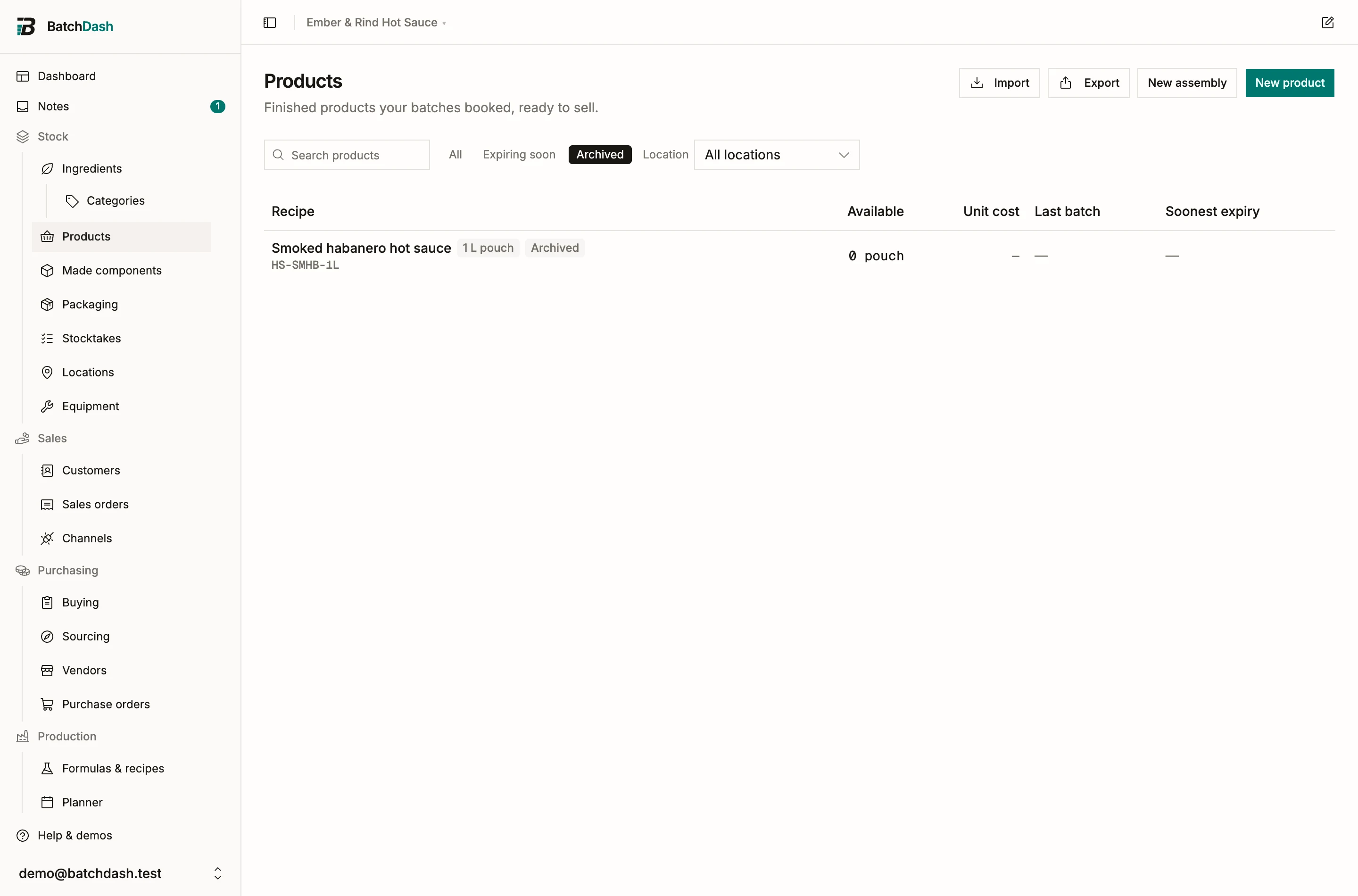
Section titled “Discontinuing a product”A product with stock or history cannot be deleted; it can be archived. The one exception is a product whose history is its own alone (opening lots, lots made without a batch record, losses, adjustments): Delete asks a second time, saying how many movements go with it, so a product brought in by mistake can leave. Archive in the page’s ⋮ menu takes the format out of every picker and out of the default list: the run dialog’s Produce as, the sales-line and channel-mapping pickers, the pack inputs, the label context picker. Its page stays alive: the ledger, the batches and Record stock keep working, so the last cases of a discontinued format can still be sold off or thrown away. A batch already planned into it completes and books as usual.
The Archived pill on the products list shows what you archived, and search finds an archived product only there. An archived format keeps its SKU, so a shop or a spreadsheet that learned the code never lands on a different product. While it still holds stock, a count sheet lists it and the valuation report counts it; once it is empty, both leave it alone. Restore in the same menu brings a format back, as long as the recipe is not already at its eight formats.
Categories
Section titled “Categories”Products sort in product categories of their own, two levels deep, apart from the categories your recipes sit in (Categories). A category belongs to a format, not to its recipe: the 250 ml jar of hot sauce can sit in Hot sauces while the 5 L bucket of the same recipe sits in Wholesale.
- The Category: selector beside the pills narrows the list to one category, subcategories included, or to No category, and Export writes the same rows to both files. If you manage categories, + New category sits at the foot of its list, even before your first one.
- By category groups the list under each category and subcategory, and a group’s name opens the category’s page. A to Z adds a Category column. The layout you pick is remembered for you.
- Tick rows and choose Set category to file several formats at once, with Undo in the toast. To move every format of a product, tick each of its rows.
- Search finds a product by its category’s name too, and every picker that lists products (sales lines, pack parts, scenarios, order lines) shows the format’s category on a second line under the name.
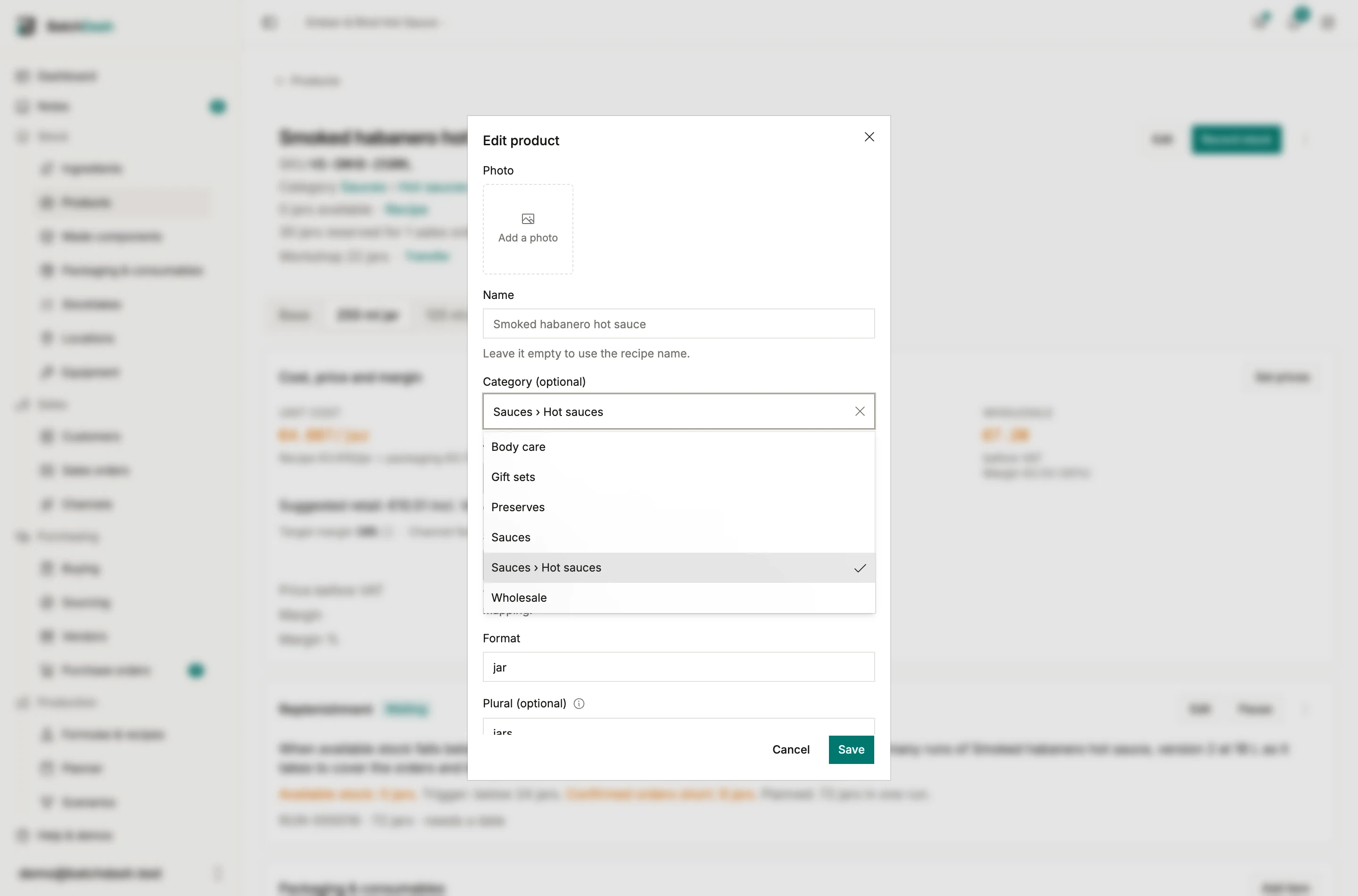
On a product’s page, the category reads under the title and opens its page. Edit carries a Category field that files this format only; its other formats stay where they are. New product and New pack carry the same field, starting in the category the list is showing, and Add presentation starts the new format in the category of the product you added it from. A format created any other way, by a batch booking into a new format or by selling a component as is, starts with no category.
Creating a product before its first run
Section titled “Creating a product before its first run”You do not need a completed batch to set a product up. New product creates the line from a recipe, so you can add formats and packaging first and have the numbers ready when the first real batch books. The recipe can wait as well: tick No recipe yet and the product starts with its name and format, ready for its packaging, stock, a price and sales, while you write the recipe later (a product before its recipe). To sell a product by the carton, or put several products in one box, see packs.
To have BatchDash plan the next batch when a product runs low, set a replenishment rule on its page.
Duplicating a product
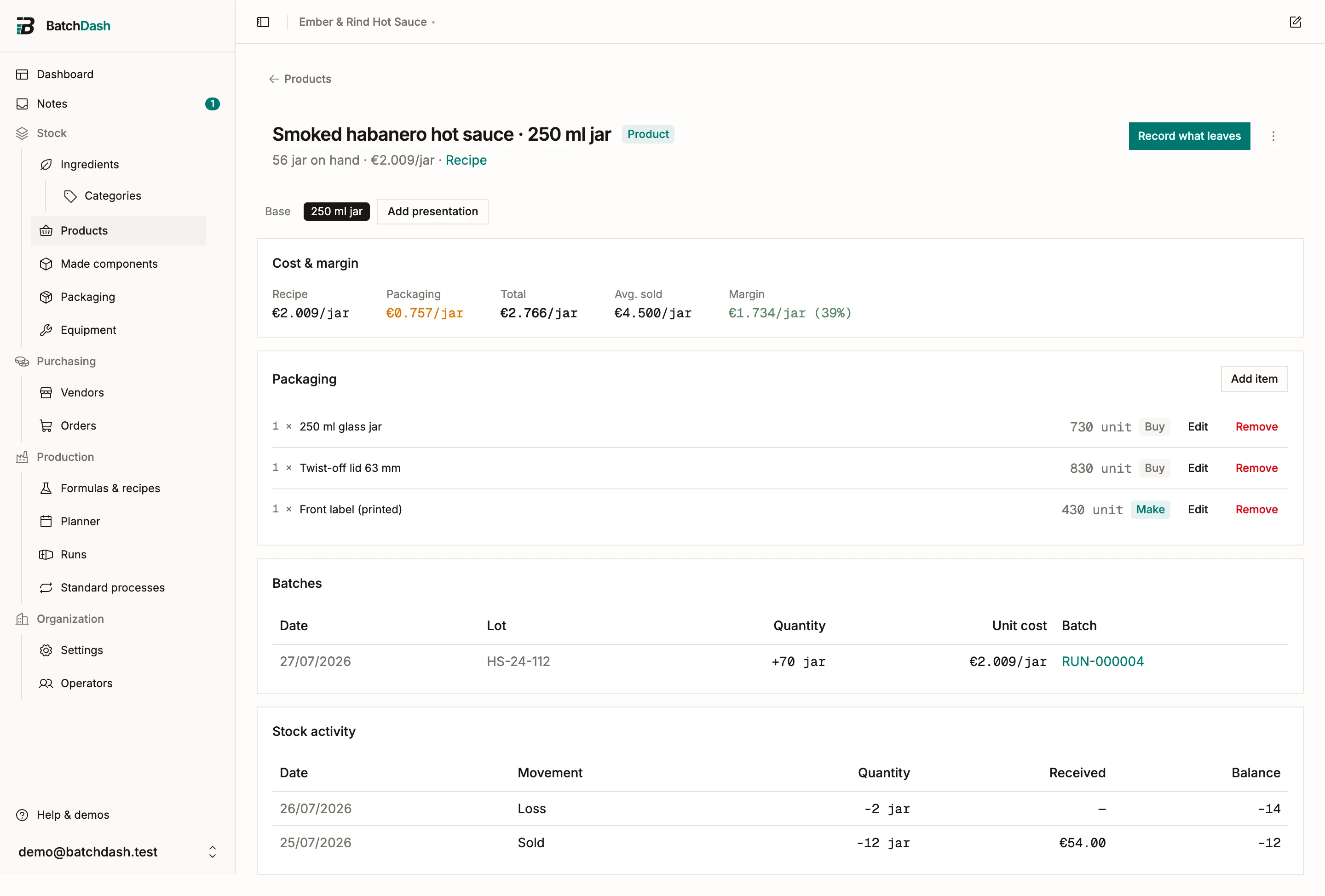
Section titled “Duplicating a product”A product that differs from another by its flavor or scent starts from it. In the product’s ⋮ menu, click Duplicate and type the new name. Under Formats, tick the formats to copy: the one you were looking at is ticked already. Under Also copy, switch off what the copy should not take: Recipe, Packaging, Prices and assumptions, Category and restock level. Click Duplicate and the copy’s page opens.
The copy is a product of its own. It always takes the label name, the shelf life and the photos. Its recipe arrives as a Draft. With Recipe off, or when the original’s recipe is still to write, the copy’s recipe is still to write. The copy has no SKU, GTIN, stock, lots or sales, and no channel links or rules: give it its own codes in Edit. The original’s packs stay with the original.
When a vendor sells it to you, Vendor pricing brings each vendor’s current prices along, one per quantity, and the preferred vendor.