
Fees and landed cost
The sticker price of a jar is not what the jar costs you. Add €30 of shipping to a €100 order and everything in the box just got 30% dearer. BatchDash treats those fees as part of the cost rather than letting them vanish into overhead.
Fee types
Section titled “Fee types”On the order page, the Fees & shipping card takes five kinds of fees:
- Delivery / shipping
- Payment fee (card or transfer charges)
- Platform fee (marketplace commission)
- Other, with a free label for anything else
- Rounding on the invoice, the few cents between an invoice’s lines and its total, plus or minus
Click Edit on the card, enter the amounts and save.
The same dialog carries the VAT the document printed, if it printed any. That figure is not a fee: it changes what the goods cost only when your business recovers it. VAT on what you buy has the whole rule.
How fees spread across lines
Section titled “How fees spread across lines”Each fee is split across the lines in proportion to their value, unless you share it by weight, then folded into each line’s cost.
An example. An order carries €200 of habaneros and €100 of jars, plus €30 of delivery. By value, the habanero line absorbs €20 of it, the jar line €10. Each line shows the result in two columns: Allocated fees (its share) and Effective cost (the unit price with fees folded in).
That effective cost is the line’s landed cost: what the goods actually cost you once they reached your door. The concept has its own article: landed cost.
The divisor is what the line actually bought: the ordered quantity while the line is still open, and what arrived once it was closed short or came in over. A delivery fee the vendor charged in full over a crate that came half empty belongs on the half that came.
So: you order 20 kg, the vendor charges €15 to deliver it, and 12 kg turn up. While the rest is still expected the fee rides on the 20, at €0.75 a kilo. Close the rest and the same €15 sits on the 12 that came, at €1.25, and the ingredient’s ledger gains a line under that delivery: “Cost restated €1.200/kg → €1.700/kg: fees re-spread after the line closed short.” The average cost moves with it, and the row says who moved it.
Share a fee by weight
Section titled “Share a fee by weight”Glass is heavy and cheap. On an order of 500 bottles of 180 g for €200 and 2,000 labels of half a gram for €100, a €60 delivery by value puts €40 on the bottles and €20 on the labels, while the carrier charged for the bottles’ weight.
In Edit on the Fees & shipping card, each fee has a Shared choice beside its amount: by value or by weight. By weight, the bottles (90 kg) take €59.34 and the labels (1 kg) €0.66. The card then reads “Delivery / shipping · by weight”.
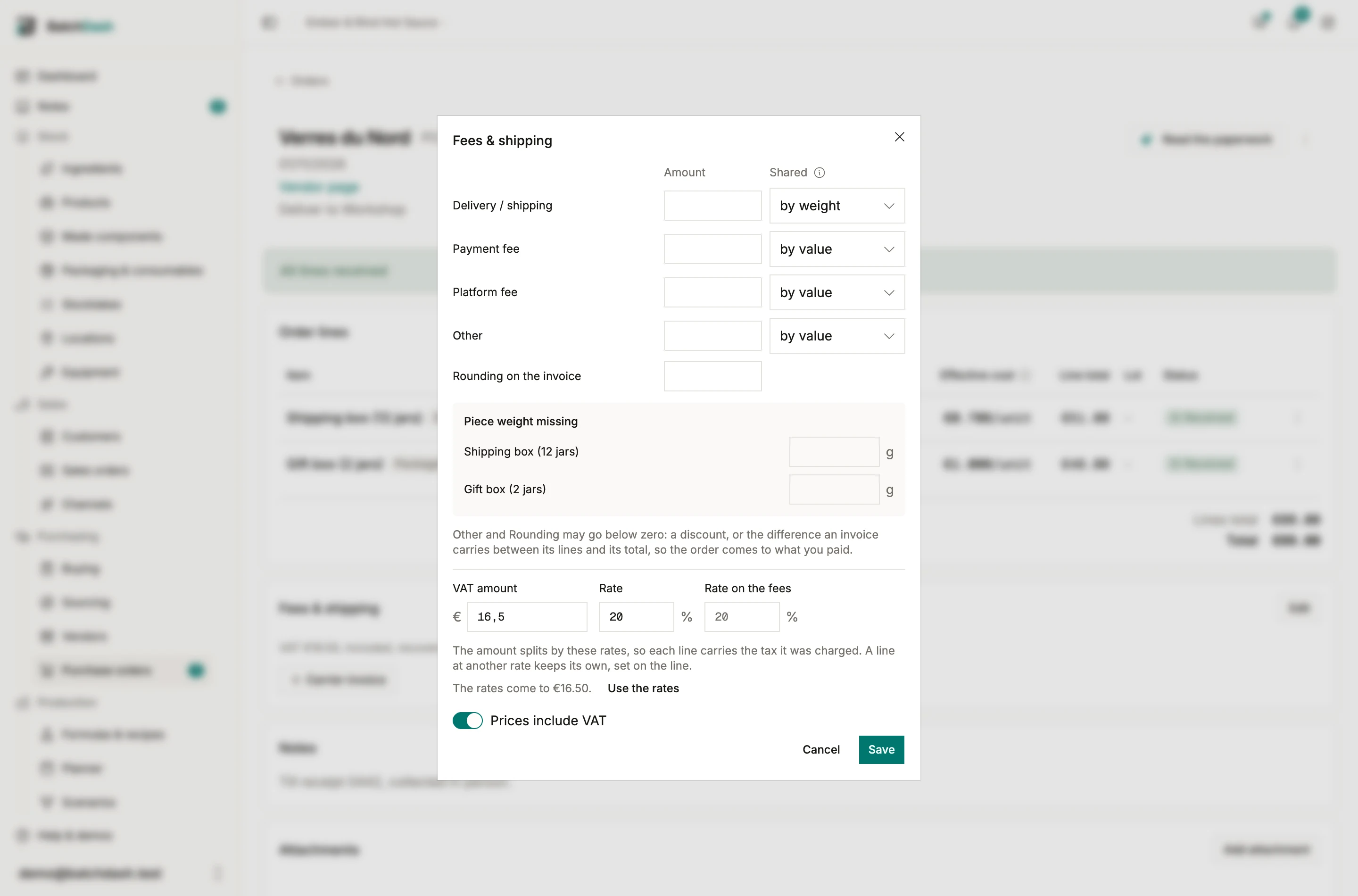
A line in kilos or liters weighs itself. A line counted in pieces weighs through the item’s Piece weight. When the item has none, the dialog asks for it under the fees and keeps it on the item for the next orders. A bought product or a piece of equipment has no weight: it takes its share by value, and the dialog says so.
The rounding on the invoice always follows value. The VAT on a fee follows that fee.
To start a vendor’s orders by weight, set Share the delivery in their delivery terms. Each new order from them shares its delivery that way, and the order can still change it.
Type a line’s share
Section titled “Type a line’s share”When the invoice says which part of a fee is whose (“carriage on the bottles: €45”), open the line’s ⋮ menu and choose Fees on this line. Each fee the line carries has a box. Empty, it keeps the calculated share, shown in gray. Typed, the share stays as typed, and the rest of the fee goes to the other lines. Back to the calculation empties the box, and the Allocated fees column says “typed” under a share that was.
Typed shares can’t come to more than the fee, and when every line has one they must come to the fee exactly. Like the fees, they stay editable once the goods have arrived, and saving re-costs what was booked.
Where it ends up
Section titled “Where it ends up”Nothing moves while the order is a draft. When a line is received, its effective cost enters the ingredient’s weighted average cost, and from there every formula that uses the ingredient. Skip the fees and your recipes look cheaper than they are. Enter them and the margin you read is the margin you get.
A fee the app fills in
Section titled “A fee the app fills in”An order from a vendor with delivery terms takes its delivery fee from them, a draft from Buying included, and the fees card says so: “Delivery / shipping · from the vendor’s terms”. The figure follows the lines: add one or change a quantity and it moves. It is what the terms predict, and the note keeps it from passing for an invoice.
In Edit, the delivery box stays empty while the terms set it, with their figure in gray. Saving the fees without typing there keeps it theirs, so sharing it by weight changes nothing else. Type a figure and it is yours: it stays put as the lines change, even when you typed back exactly what was in gray. Use the vendor’s terms under the box gives it back to them, at what they charge for the order as it stands.
Fees that arrive after the goods
Section titled “Fees that arrive after the goods”The invoice with the real delivery fee usually lands after the crates do, so the Fees card stays editable on a received order. Saving it re-costs every delivery already booked against that order, replays each ingredient’s average cost, and leaves a line under the delivery row in the ledger saying what changed and why. Your average cost catches up instead of staying quietly wrong.
The batches already made from those goods follow too. Each one that used them since is re-costed: its ingredient or packaging lines, its cost, and the cost its product was booked at, which moves the product’s average. A batch that then used that product as a component follows, and so do a transformation and a gift set. The batch record says so under its cost: “Restated on 12/11/2026 after a change to order PO-1040: batch cost €2.40 → €4.80”. What was already sold follows in the cost of goods sold report, which reads the product’s ledger.
Only the change travels. A batch made before the goods came keeps its cost to the cent, and taking the fee off again puts every batch back where it was.
Freight invoiced by a carrier
Section titled “Freight invoiced by a carrier”The bottles come from the vendor and the carrier bills their transport a week later. On the Fees & shipping card, Carrier invoice takes the carrier, the amount, the invoice date, the invoice itself, and what the freight is shared by: by value or by weight, starting from the carrier’s own Share the delivery. The card lists it as “Carriage · Geodis · 12/11/2026” and its ⋮ corrects or removes it.
It lands on the lines like the delivery fee, so everything already received is re-costed, and the batches made since follow. The vendor spend report counts it with the carrier, on its invoice’s date, and leaves the vendor with its goods.
The amount is in the carrier’s currency, which is yours or the order’s. On an order in another currency, freight in yours is converted at the order’s rate.
VAT on what you buy
Section titled “VAT on what you buy”The same dialog carries the VAT the document printed, if it printed any, and what it does to your cost depends on one switch. VAT on what you buy has the whole rule: the switch, the four fields, the worked example, more than one rate on an invoice, and what the reader does with a tax line.
More than one rate on the invoice
Section titled “More than one rate on the invoice”Most wholesalers put food at one rate and everything else at another, on the same receipt: chili at 5.5%, jars and carriage at 20%. The amount stays one figure, because that is what the paper prints; the rates say whose it is. Type the document’s rate in the VAT row, the charges’ rate beside it, and the rate of any line that differs on the line itself: Edit on the line while the order is open, or VAT rate in the line’s ⋮ menu once it has arrived, since the invoice usually lands after the crates. A line at another rate says so on its row: “VAT 20%”.
Each line then carries the tax it was actually charged. Without the rates the amount spreads by line value, which is right on a single-rate document and a few percent out per line on a mixed one: on €100 of chili at 5.5% beside €100 of jars at 20%, the chili reads about 6% cheap and the jars 6% dear. The order’s total is the same either way.
The dialog checks the rates against the amount as you type: “The rates come to €27.50.”, in amber when that is not the amount in the box. A line’s rate is set away from that dialog, so the card repeats the sentence whenever the rates stored on the order do not come to its amount. That is usually a rate typed wrong, or a line still waiting for its own.
Empty the amount and save, and the entry is gone: its rates go with it, the lines’ own included.
Every money box on an order line, a delivery and a reading has a word under it saying which column of the invoice to copy: before VAT when your business recovers VAT, incl. VAT when it does not. Once the order or the reading holds a VAT amount, its own switch decides instead, because the lines have to be what the paper prints: incl. VAT when the prices include it, before VAT when it is added on top.
When the paperwork reader finds a tax line on a document, it fills this row for you and works out from the printed total whether the prices contained the VAT. It reads the rates too, when the document prints a rate column or a code per line.
The row stays editable on a received order, like the fees beside it. Saving a change re-costs every delivery booked against the order and leaves a line under each one in the ledger: “Cost restated €10.810/kg → €10.000/kg after the VAT entry changed.”