
The planner board
The planner is one board for the week: who is doing what, and whether the plan holds. Open it from Production → Planner in the sidebar.
Read the week
Section titled “Read the week”The week view puts people down the left and days across the top. The Unassigned row at the top holds anything nobody owns yet.
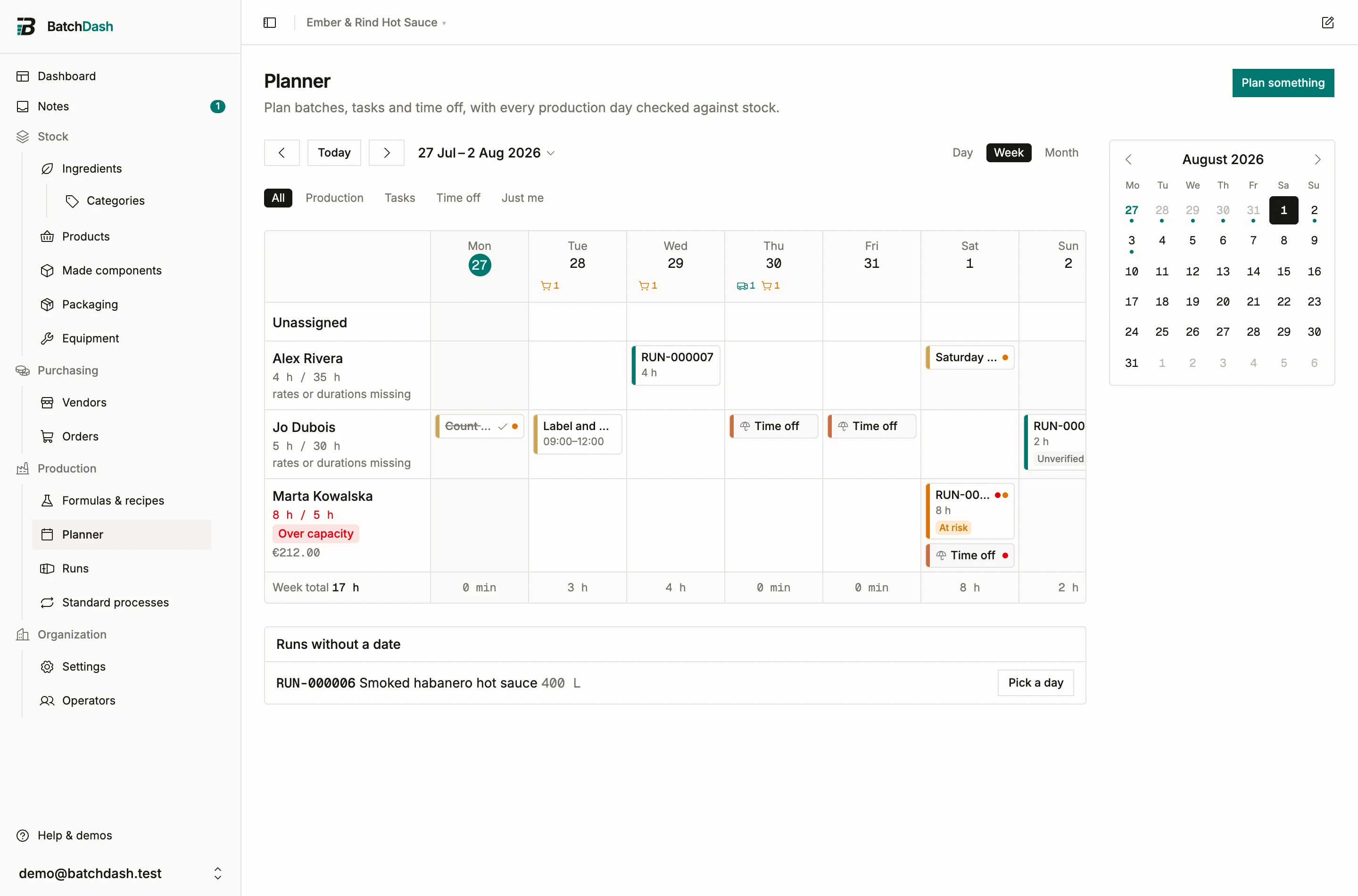
Each card carries what you need at a glance: the title, the time or duration, who is on it, and a colored bar for the kind of work. Small dots flag a problem to look at. A red dot means a hard clash, an amber dot means the day falls outside that person’s working days.
Move something
Section titled “Move something”Drag a card to a different day or a different person’s row. The rule is simple: moving a card reschedules it and keeps whoever is on it. Attribution only changes when you drop it on a different person’s row, which hands it to them, or on Unassigned, which clears it.
Staffing a production card also staffs its batch: anyone you put on the entry appears in the run’s Who worked on it by default. The hand-off is one-way. Take someone off the batch on the run page and they stay off, even though the planner entry still counts them for the board’s workload.
If you plan without a mouse, tab to a card, press space to pick it up, move with the arrow keys, and press space again to drop it.
A drop is also checked against the batches of components a run counts on. Drop a sauce before the mash batch it takes from is ready, or the mash past the day a sauce needs it, and a message says so with the day that works: “RUN-000015 is now before its Fermented chili mash is ready.” Move to Wed 14 Oct puts it there. See batches that wait for another.
Day, week and month
Section titled “Day, week and month”The three view buttons switch how much you see. Switching views keeps the day you were looking at, so you can jump from the month down to one day and back without losing your place.
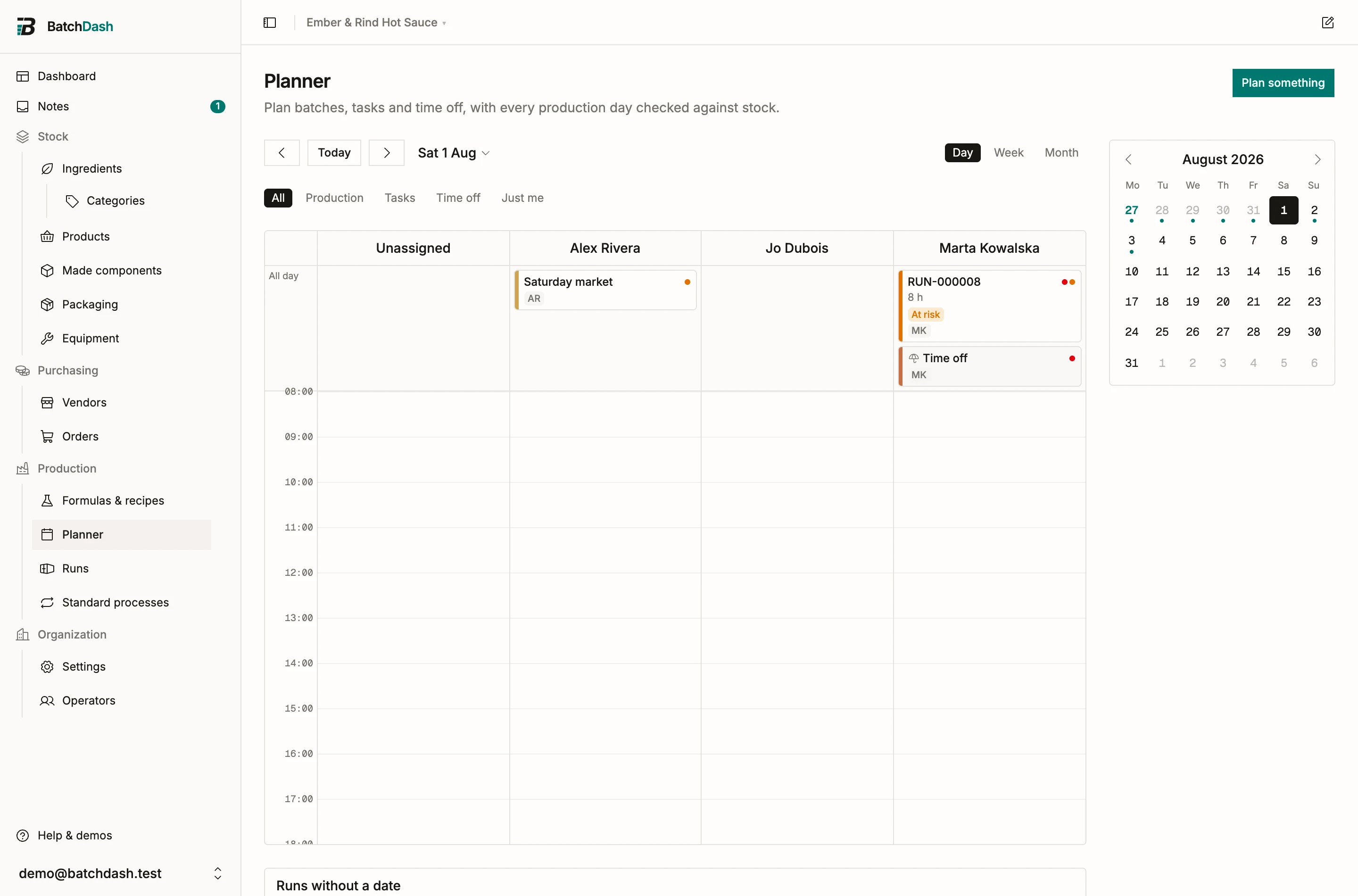
The day view is a time grid, one column per person. Drag a block to move it, drag its bottom edge to make it longer, and click empty time to create something there. Anything without a clock time sits in the All day row at the top, on the person it belongs to.
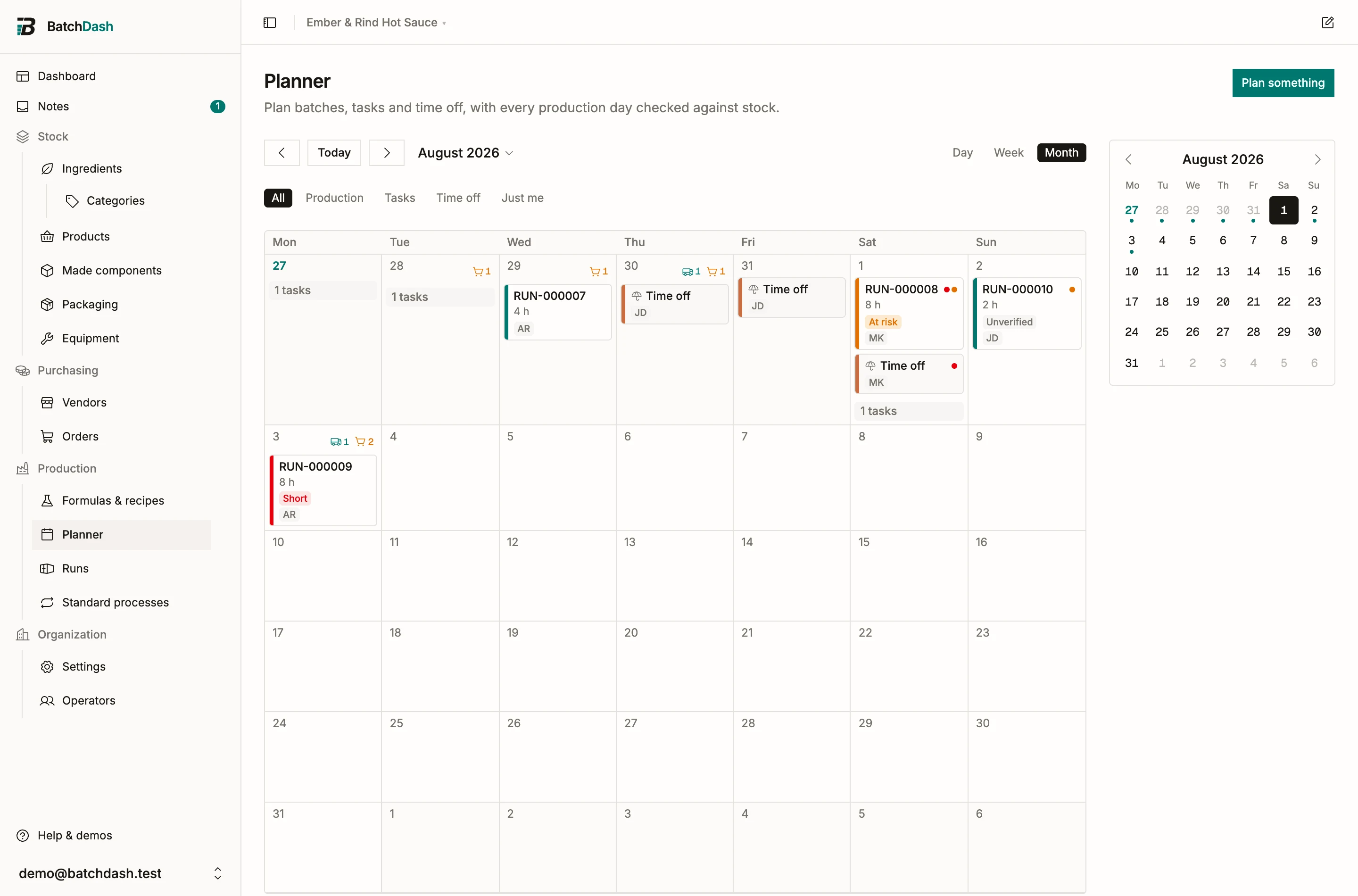
The month view is the wide picture: batches and time off as chips, tasks collapsed to a count per day.
Runs without a date
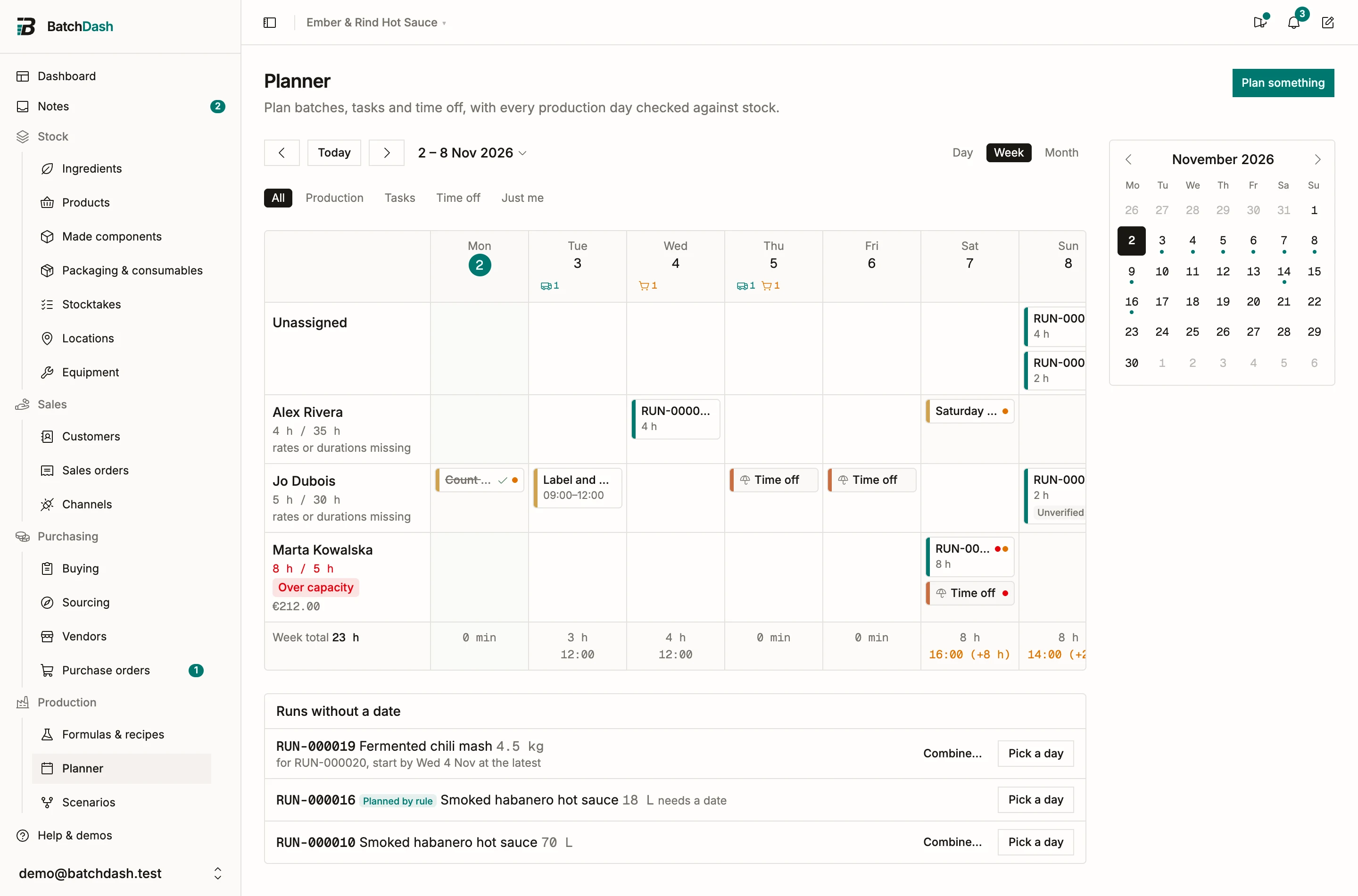
Section titled “Runs without a date”Below the board, Runs without a date holds the planned runs that have no day yet. Drag one onto a day, or click Pick a day to open the editor on it.
A batch of a component that other runs count on says by when it has to start: “for RUN-000015, start by Fri 2 Oct at the latest”. Pick a day then opens on that day. When no day works any more, it reads “for RUN-000015, too late to be ready”. A batch nobody counts on yet, that could take over from a dated run making the component itself, says that too: “could supply RUN-000015 if started by Fri 2 Oct”.
Create something
Section titled “Create something”Click any empty cell to plan on that day and that person. On the day grid you can also drag down a stretch of time to set the hours as you create.
Everything opens the same editor, where you choose what it is:
- Production schedules a batch you already planned. See planning production.
- Task is any other job: prep, packing, a delivery to collect.
- Time off marks somebody away. See tasks and time off.
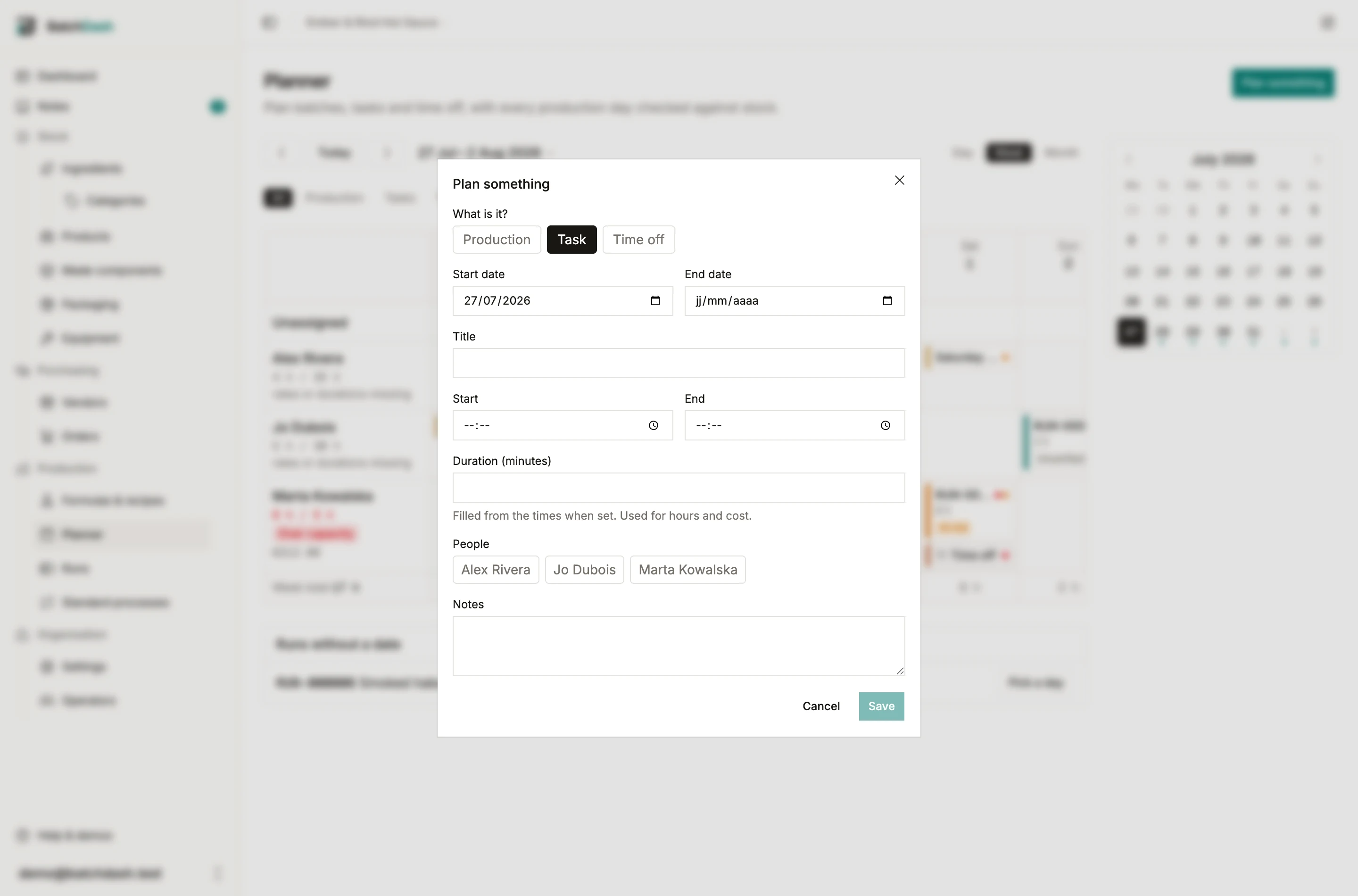
Click an existing card to open the same editor, with Delete and Mark done alongside Save.
Filters
Section titled “Filters”The pills under the date bar narrow the board to one kind of work, and Just me shows only your own entries once your account is linked to an operator.
Who can plan
Section titled “Who can plan”Planner access is separate from the rest of your permissions, so you can let somebody organize the week without opening your costs and stock to them. Owners and admins always have full access. For everyone else, set Planner access per member under Organization → Settings:
- Viewer reads the board.
- Editor plans, moves and deletes entries.
A member with read-only access to the rest of the app can still be a planner editor. It works the other way too: someone who edits recipes every day can be left as a planner viewer.