
A product before its recipe
You sell the lavender balm every week, and its recipe is a page in a notebook. Writing it into BatchDash is an afternoon you have not found yet, while the jars on the shelf need counting today. A product you make can exist before its recipe: it has its format, its lots, its price and its sales from the first day. What reads the recipe (batches, the ingredient list on a label, a batch rule) starts at its first ingredient.
A recipe counts as written from its first ingredient line, and a sub-formula line counts too. Steps, notes or a weighed batch on their own do not, because everything downstream reads the lines.
Where such a product comes from
Section titled “Where such a product comes from”- New product with No recipe yet, the steps below.
- The products import: a row naming a new product you make creates it with an empty recipe.
- A product file of opening stock: a name you do not have yet becomes a product made here, its recipe empty.
- A recipe you started with New formula and made into a product before it had an ingredient.
A product you buy ready-made is another case. It never has a recipe, so nothing on its page waits for one.
Create one
Section titled “Create one”- Open Products and click New product.
- Keep I make it under Where it comes from. That choice only shows when your workspace also buys products ready-made.
- Tick No recipe yet. The recipe picker gives way to the product’s own fields.
- Fill in the Name and the Format (jar, pouch, tube), and if you like the Fill size, a Variant, a SKU and a Barcode.
- Click Create. The product’s page opens.
The ⓘ beside the box sums it up: “The product exists now, with its format. You can add its stock, price it and sell it.” While your workspace holds no product recipe, the box starts ticked, since there is nothing to pick. The product counts against your plan’s formulas and products limit. Creating it takes the right to manage products; writing recipes is a separate right.
Its page while the recipe waits
Section titled “Its page while the recipe waits”Where a product you make links to its Recipe, this one reads · Write its recipe. A teammate who may not write recipes sees · No recipe yet instead.
The stock card is titled Lots, and its Source column says where each lot came from. Empty, it reads “Nothing in stock yet” and offers Record a production, Write its recipe and Add stock, plus Log delivery when a vendor sells the product to you. Add stock takes the shelf lot by lot: On hand before you started for stock that predates BatchDash, Made without a batch record for jars you made before the recipe was written down. See stock without a batch record.
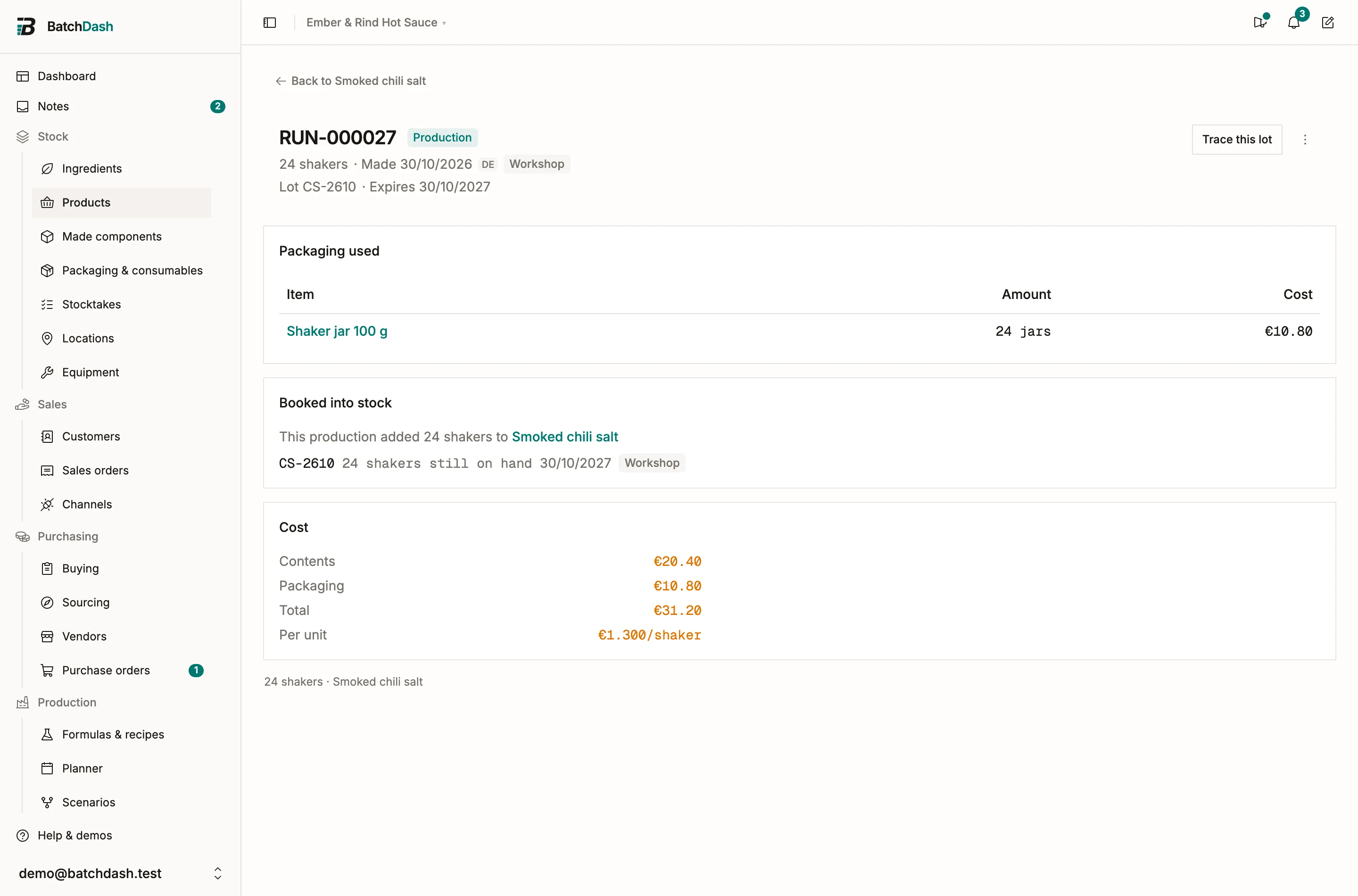
The unit cost comes from the stock itself: productions and lots recorded with a contents cost, or a co-packer’s deliveries. When the product has packaging, the line under the figure splits it, “Contents €2.10 + packaging €0.70”, and never names a recipe cost. Add stock then asks for the contents alone, “Contents cost per jar, packaging excluded”, since the packaging is added on top.
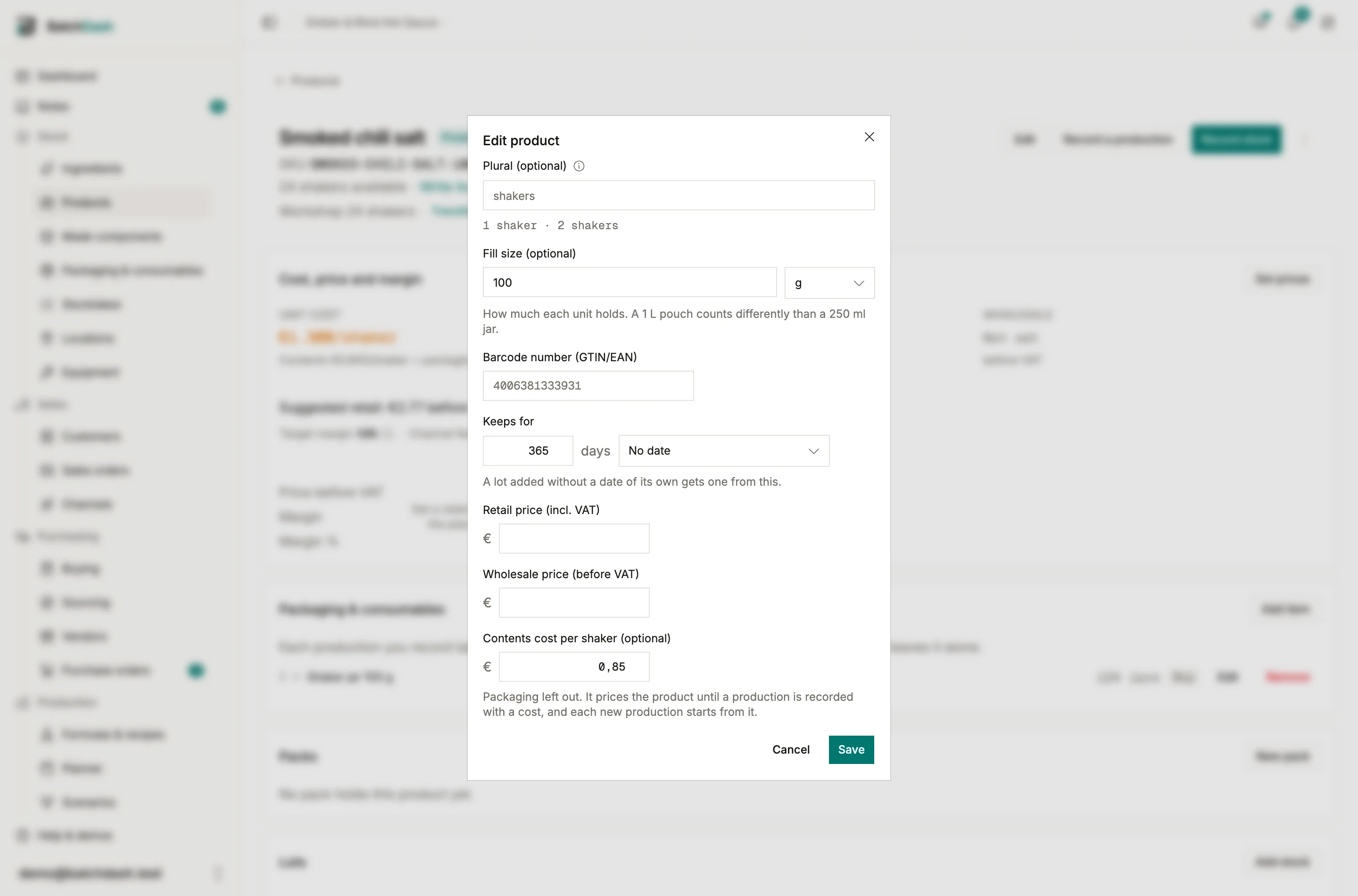
Before anything is costed, give it a contents cost of your own: Edit, then Contents cost per jar, or Set a contents cost under the figure. The product is priced from that day, the line reads “From the contents cost you set. No costed production yet.”, and each new production starts from that cost. With none, the line says “No contents cost yet. Set one, record a production with its cost, or write its recipe.”
The Packaging & consumables card is there from the start. Add the jars, lids and labels it ships in, and their cost joins the unit cost at once. The card says what takes them from stock: “Each production you record takes this packaging from stock. Adding stock or receiving a delivery leaves it alone.”
Edit holds two things a recipe would otherwise carry. Its Name is the product’s own and cannot be left empty; the recipe page opens under that name too. Keeps for and Date type set its shelf life: “A lot added without a date of its own gets one from this.”
Record a production
Section titled “Record a production”Each batch you make goes in through Record a production, in the page header.
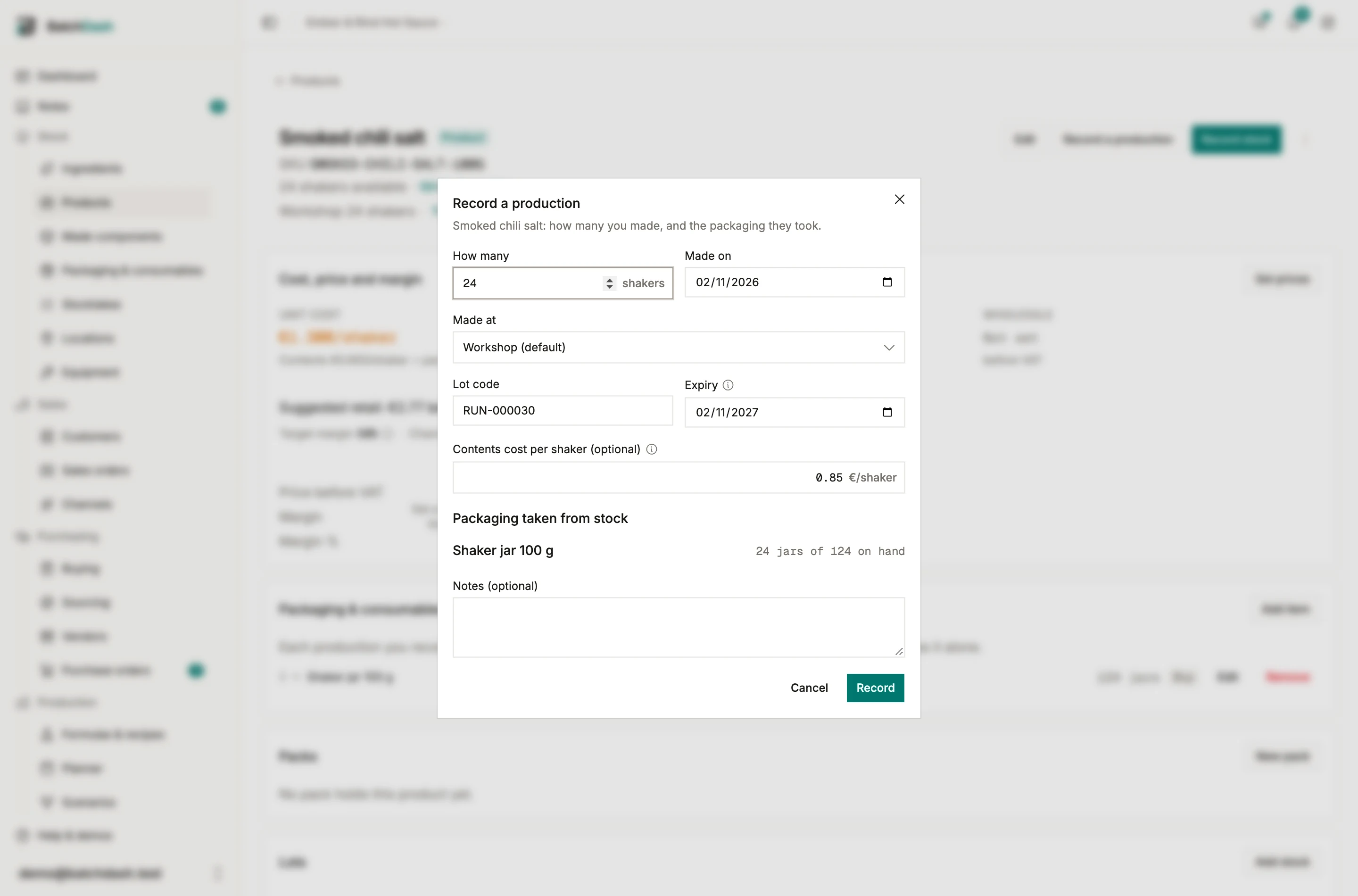
- How many: the units you filled, in the product’s format.
- Made on: today, or the day you made them. The expiry counts from it.
- Lot code comes in as the production’s reference, from the same pattern as your production runs. Type your own if your labels carry one. A code another batch already carries asks you to confirm it.
- Expiry: the day it was made plus the product’s shelf life. Change it if you know better.
- Contents cost (optional): what the contents cost you per unit, leaving the packaging out. Left blank, the product is costed by its packaging alone until you add it with Correct on the production’s row in Lots (correcting an entry).
- Packaging taken from stock lists each item of the format’s packaging set, how many it takes and how many are on hand. An item used per batch, such as coder ink, is taken once whatever the count and marked “once per batch”. When the stock is short, recording asks first, with “Record anyway and let packaging stock go negative”.
- Click Record.
The units go into stock as one lot, and the packaging comes off its own stock at the place you made them. In Lots, the row’s Source reads “Production” beside the production’s reference.
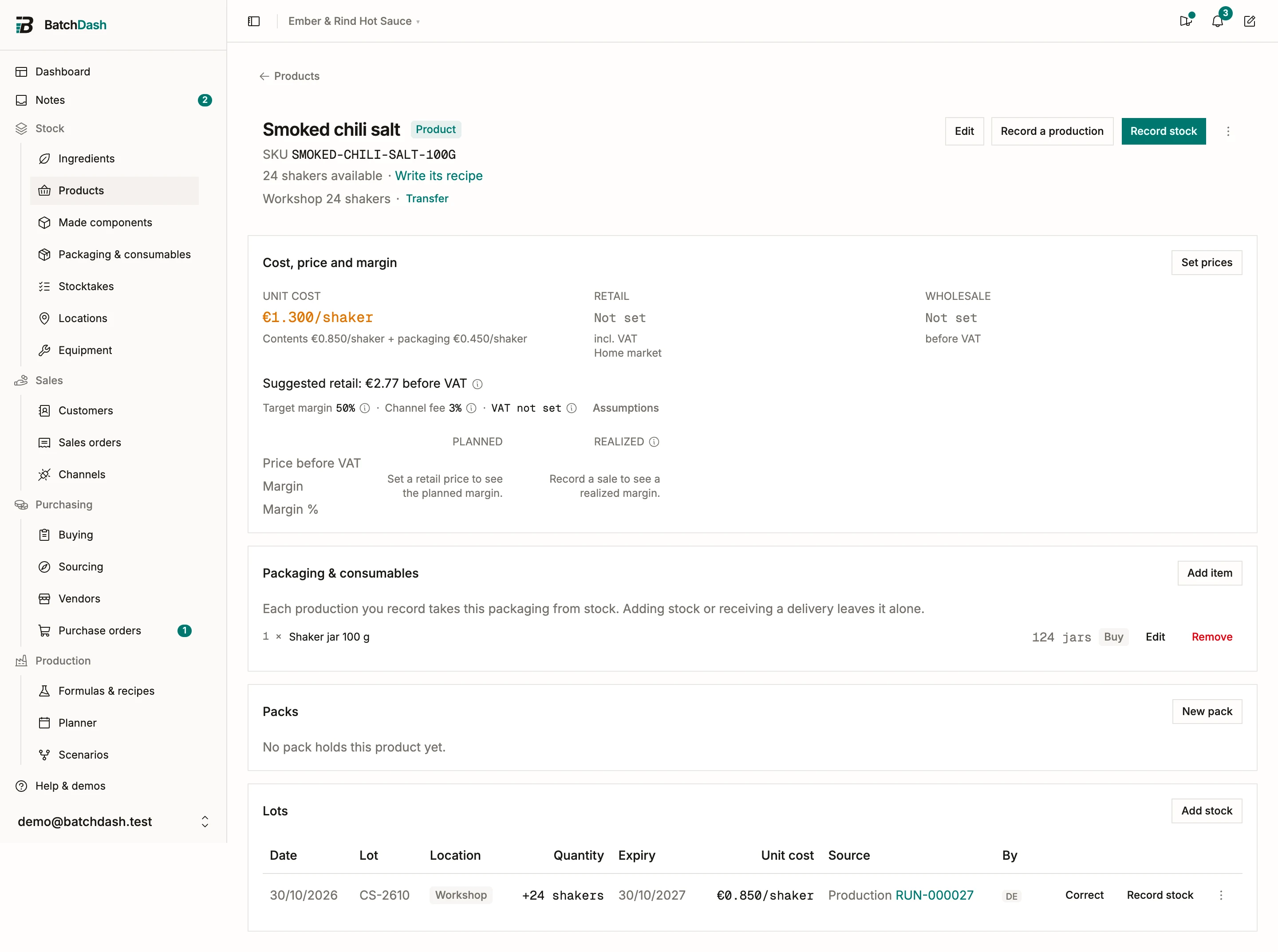
The reference opens the production’s record: what it booked, the packaging it took, and what it cost, contents and packaging. Trace this lot follows its lot both ways. Its ⋮ menu holds Undo: the units come out of stock and the packaging goes back in. Once some of the units have left, Undo asks you to record that first.
Each production counts in the Production output report, on the product’s own row: how many, in its unit, and what they cost.
Print labels, in the ⋮ of a production’s lot, prints its name, format, lot code and best-before. The ingredient list, allergens and nutrition print empty until the recipe has lines, and the label editor says so. Once its recipe has a line, its batches are runs and Record a production steps aside.
When the product has packs, the production dialog ends with Put into packs, the same lines a batch’s completion offers. See put into packs.
What waits for the first ingredient
Section titled “What waits for the first ingredient”- Lists and pickers: the recipe stays off Formulas & recipes, the recipe picker of New product, the New run form and the recipes a scenario offers. You reach it from the product’s page.
- Runs: none can be planned on it (“A recipe with no ingredients cannot be run.”).
- A batch rule: the product has none to set up. When a vendor already sells it to you, its Replenishment card holds the rule that prepares a draft purchase order instead (automatic draft orders). A rule set earlier, on a recipe that has since lost its last line, reads “Paused: this product has no recipe yet.” and picks up again once a line is back.
- Check an order: checks the packaging alone. The shelf comes first, the rest is produced, and the answer says the contents wait for the recipe. Apply orders the packaging it lacks and drafts the sales order, but plans no batch: you record the production once it is made. A product a vendor sells you is checked as bought instead (see the last section).
- Labels: the ingredient list, allergens and nutrition. The rest of a lot label prints.
- Add presentation: the new format skips “Fill some, keep the rest as bulk”, with no batch to split.
Write its recipe
Section titled “Write its recipe”- On the product’s page, click Write its recipe.
- The recipe page opens. Its header reads “Product: Lavender balm”, its back button returns to the product, and a quiet line says “Lavender balm is waiting for this recipe. From its first ingredient it shows in Formulas and can be run.”
- On the bench, click Add ingredient and pick the first one.
Before that line, the page keeps its Recipe sheet and holds back Run this recipe, Try a batch and Print labels. Delete formula is not offered while a product waits for the recipe. To remove both, delete the product from its own page: when its last format goes, the empty recipe goes with it.
The bench works as it does for any recipe; see formula basics.
From the first ingredient
Section titled “From the first ingredient”It is a recipe everywhere. Formulas & recipes lists it with its cost, New run and scenarios offer it, the Replenishment card offers a batch rule, and labels declare it. The product page links to its Recipe, the stock card becomes Batches (Batches and deliveries when a co-packer delivers it too), and Check an order shows. From its first batch, each one takes its packaging from stock. The lots you added earlier stay, each with its source.
Which version is in use? Without versioning, the one you wrote: the cost estimate, the label and the batch rule all read it. With versions on, a version is in use once it is accepted or marked current.
Edit goes back to its usual shape. The name you gave the product is now the recipe’s name, and the Name box holds a format’s own name only if you type one (sellable products). Its shelf life stays as you set it, edited from then on with Edit details on the recipe.
Delivered by a co-packer meanwhile
Section titled “Delivered by a co-packer meanwhile”A co-packer can make it to your recipe before that recipe is written down here. Once their price is on the product’s page (co-packed products), the product is checked like one you buy: Check an order takes the shelf first, then puts the rest on To buy at their price. Log delivery books their lots. Your own batches start when the recipe gets its first line.