
Recipe categories
Forty recipes in one alphabetical list is where it starts to hurt. The hot sauces sit between a body butter and a jam, and the quarter’s question, “how much hot sauce did we make?”, means adding up rows by hand. A recipe category files each recipe in one place, two levels deep, and the Formulas list, the pickers and the reports then read by it.
Recipe categories are one of four lists. Products sort in product categories of their own, filed per format, so a recipe’s category never decides where its products go. Categories covers the four lists and the Categories page.
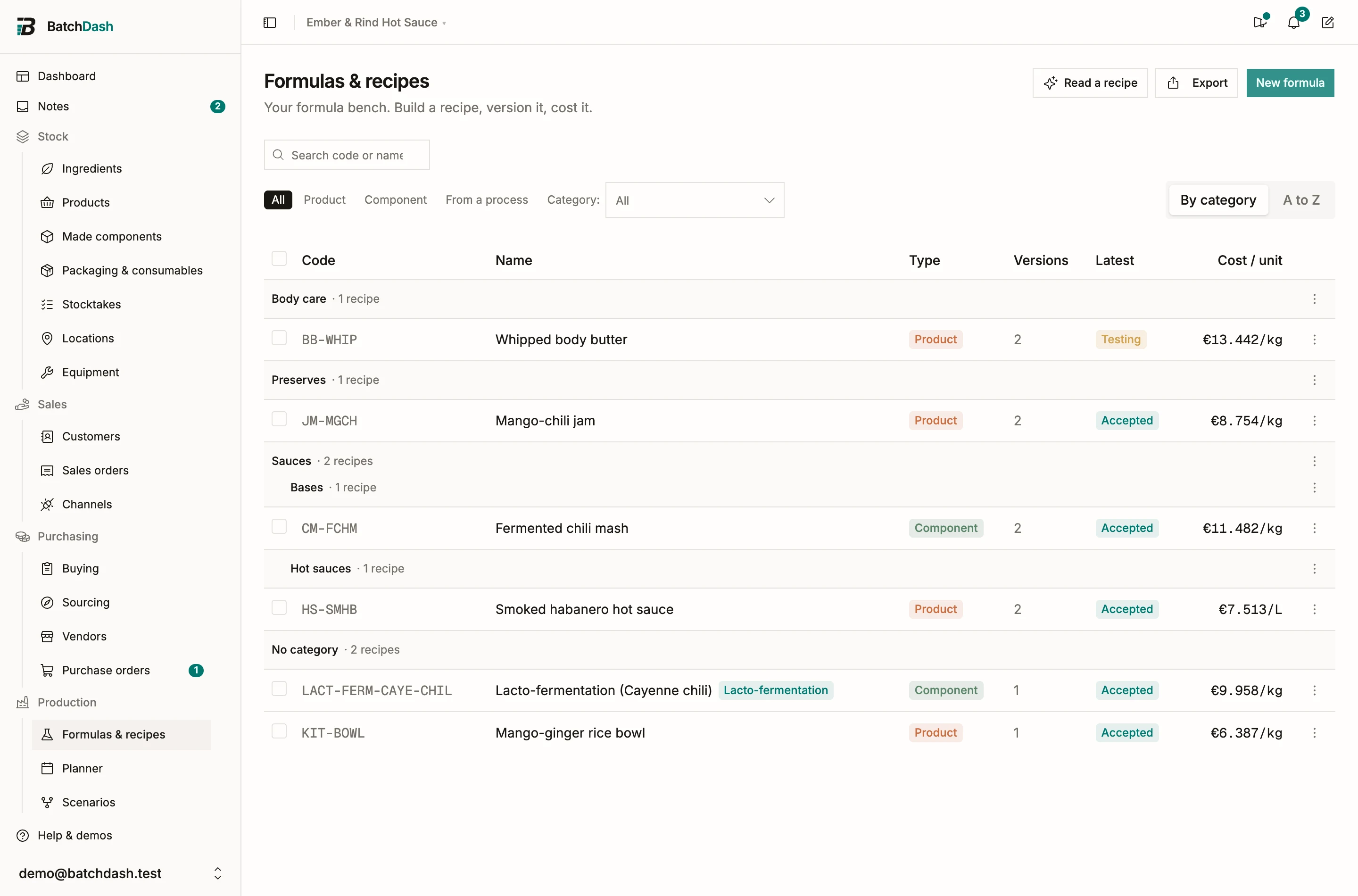
1. Create a category
Section titled “1. Create a category”Open the Category: selector on the formula list and choose + New category, pinned at the foot of its list. It is there before your first category too. The dialog asks only for a name, up to 80 characters, and any character is fine in it, a slash included. The list stays as it was, and the toast’s Open it opens the new category’s page. The Recipes tab of the Categories page holds the same categories.
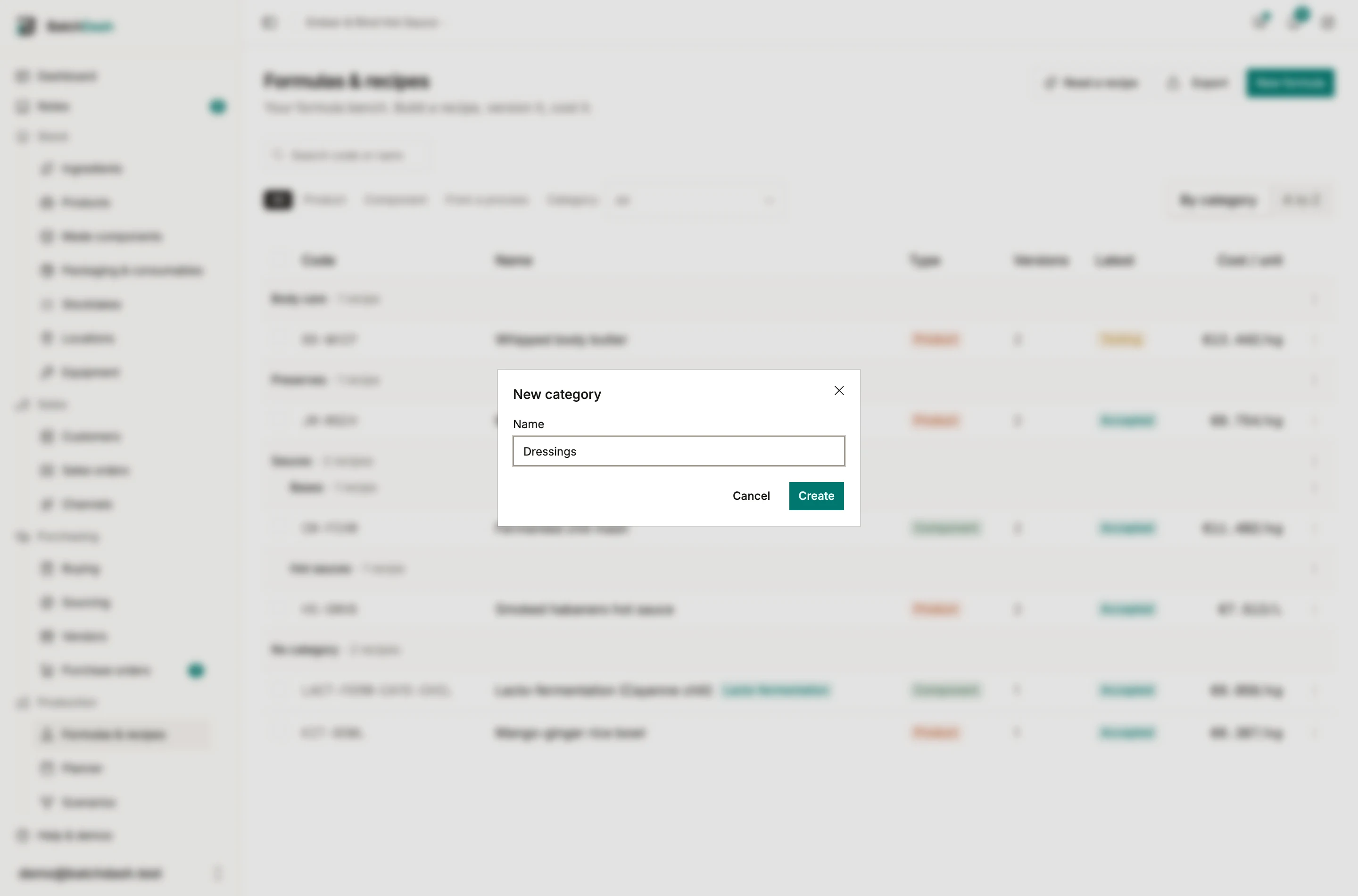
A subcategory starts from its parent: open the ⋮ on the parent’s group row, choose New subcategory, and the dialog says where it goes (“Inside Sauces.”). There are two levels: a category and the subcategories inside it. Names are unique within their level, case and accents aside, so “Bases” can sit under Sauces and under Body care.
2. File your recipes
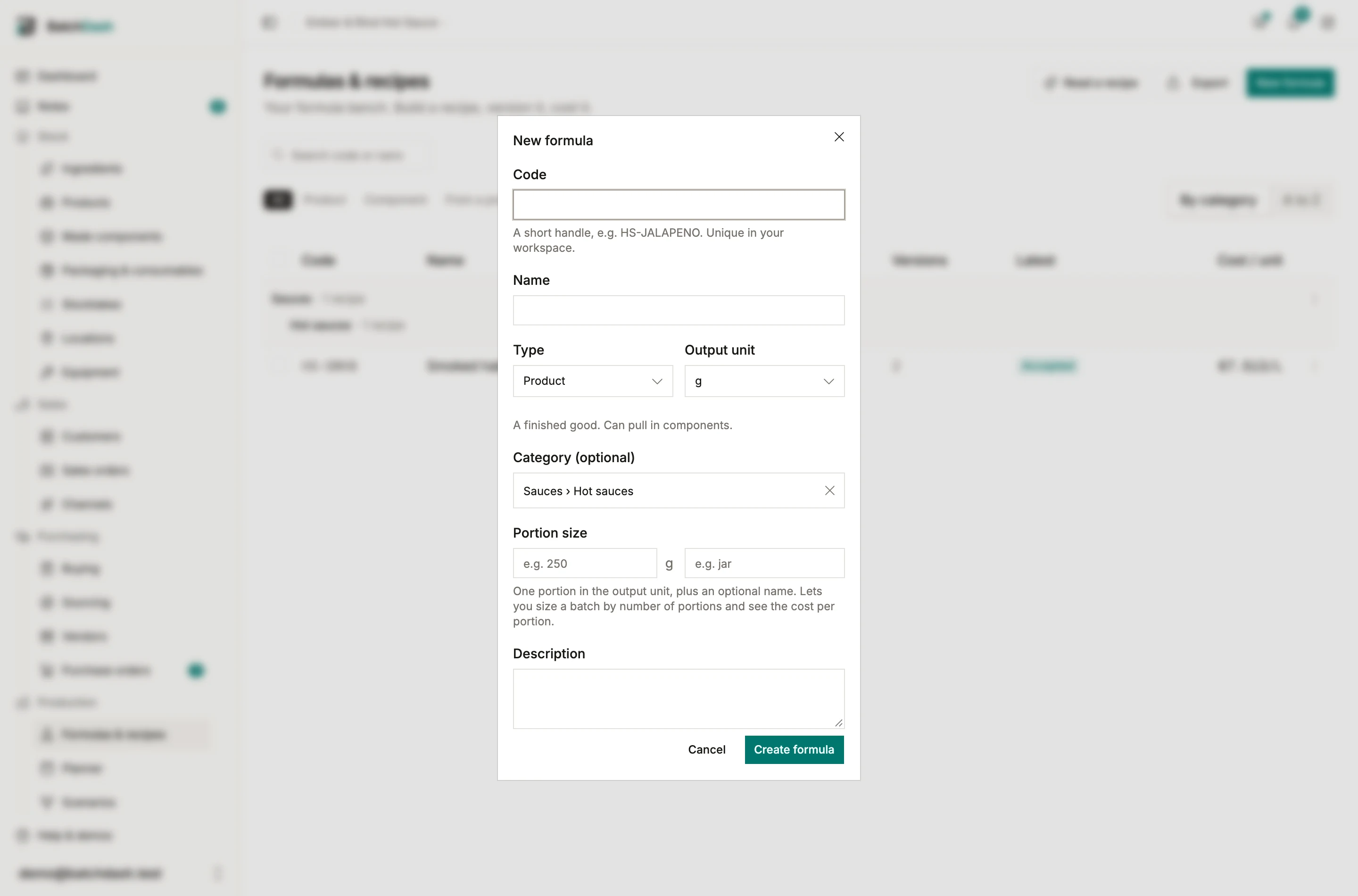
Section titled “2. File your recipes”- New formula and Edit details carry a Category field. Pick a category, or type a new name if you manage categories: the name is created whole, as typed, so “Sauces / Hot sauces” makes one category with that name. A subcategory is made from its parent’s ⋮. When the list is showing a category, a new formula starts in it.
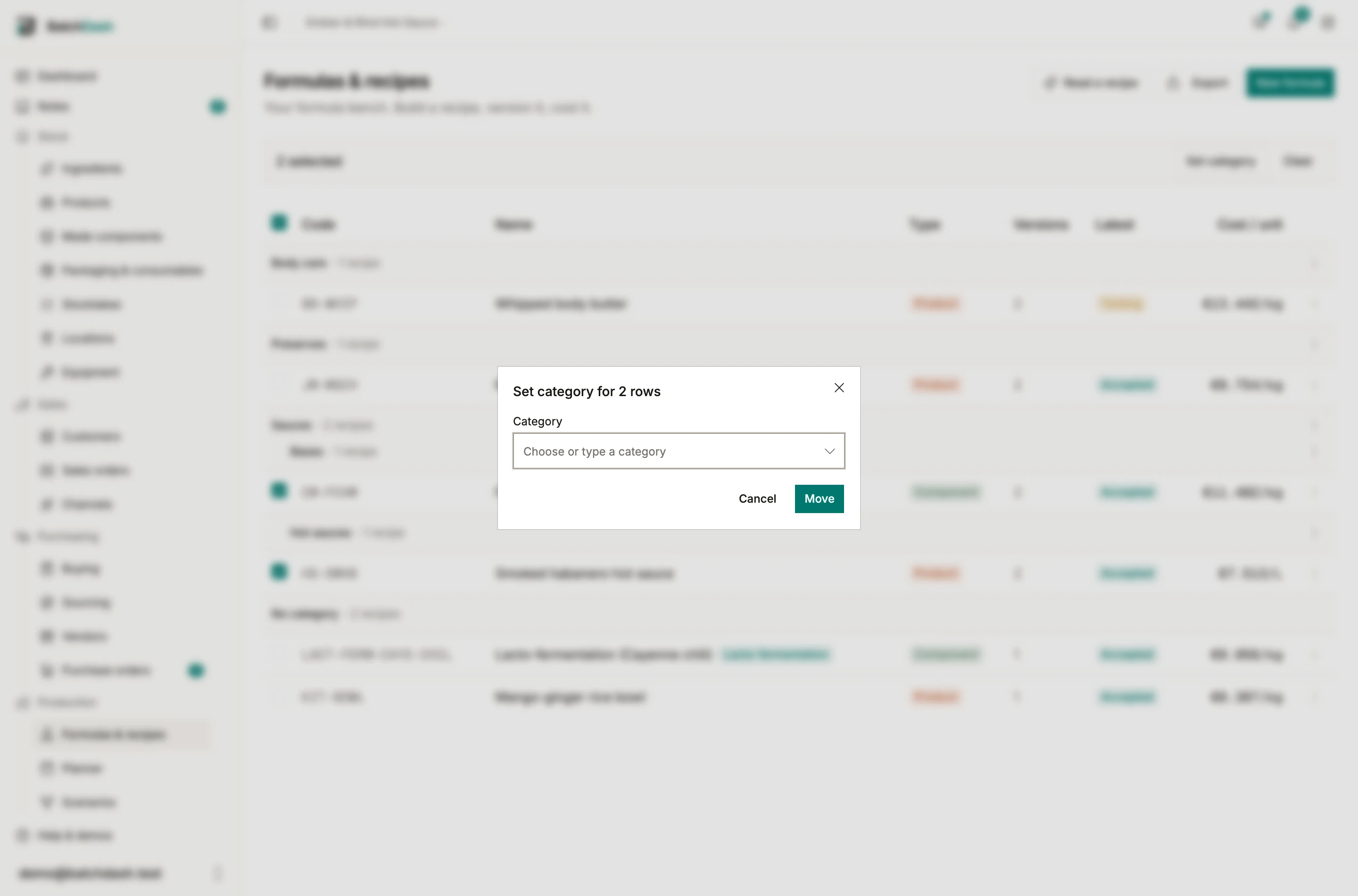
- Tick rows on the list and choose Set category to file several at once. The toast offers Undo.
- Set category… in a row’s ⋮ files one formula.
- On a recipe category’s page, Add recipes files recipes into it and Remove from category takes one out.
The Formulas list holds recipes only. A pack, a product you buy ready-made and a product still waiting for its recipe are filed in product categories, from the Products list or from Edit on their product page. A made component sorts by its recipe’s category, and the Made components list can file them in bulk the same way.
3. Browse and search
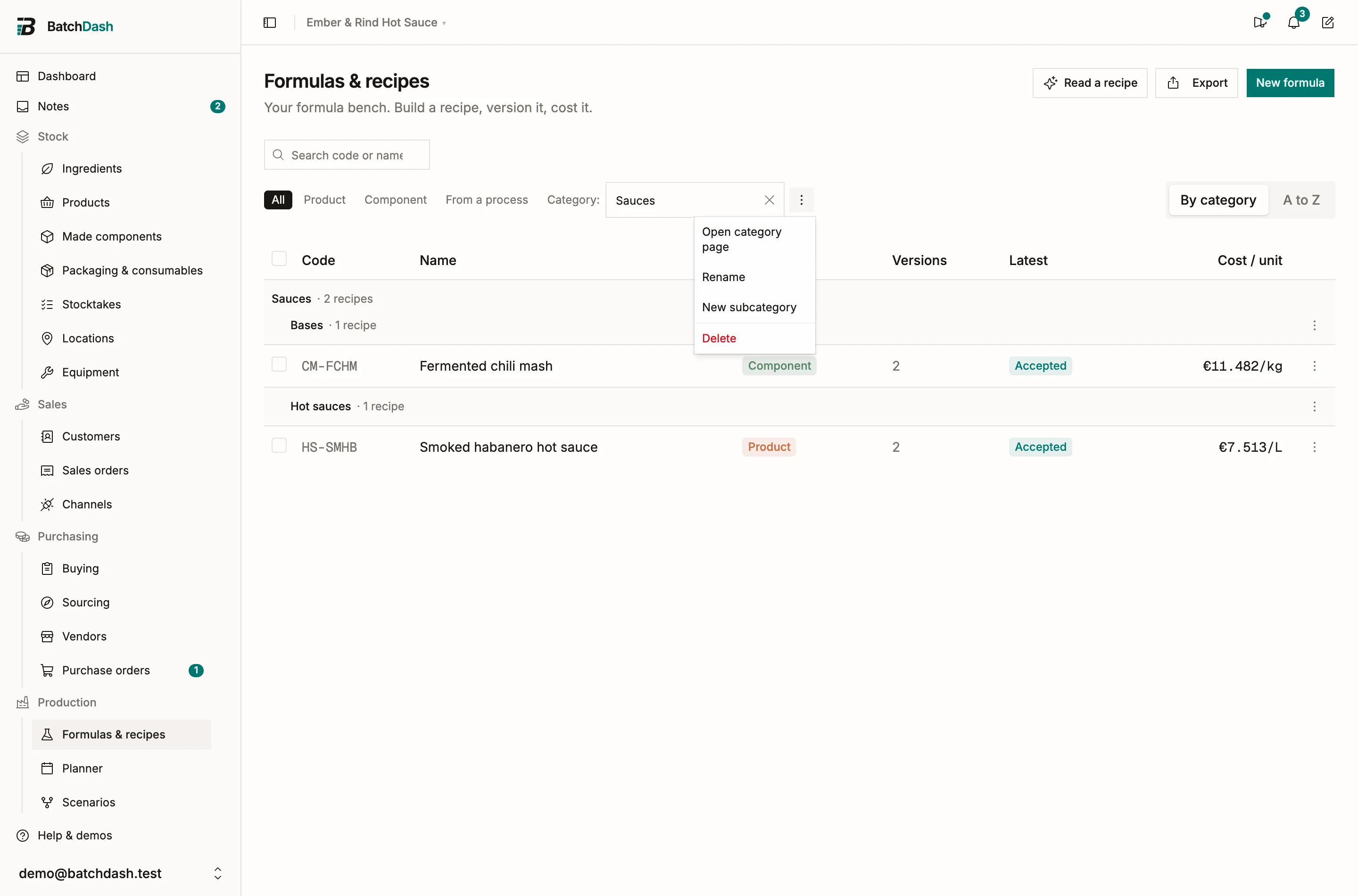
Section titled “3. Browse and search”Pick a category in the Category: selector to see only it. A category includes its subcategories, and No category shows what is left to file. By category groups the list: a row for each category and an indented row for each subcategory under it, each with its count, and a group’s name opens the category’s page. A to Z is the plain list, with a Category column.
Search looks in the category you picked. When nothing matches there, the list says how many formulas match elsewhere and offers to search everywhere.
4. Everywhere else
Section titled “4. Everywhere else”Every picker that lists recipes shows the recipe category on a second line under the name, and typing the category finds what is filed there: “sauces” in New run lists every sauce. The Made components and Runs lists carry the same Category: filter on recipe categories, and their exports follow it. On a formula’s page, the category in the header opens its page.
5. Totals by category
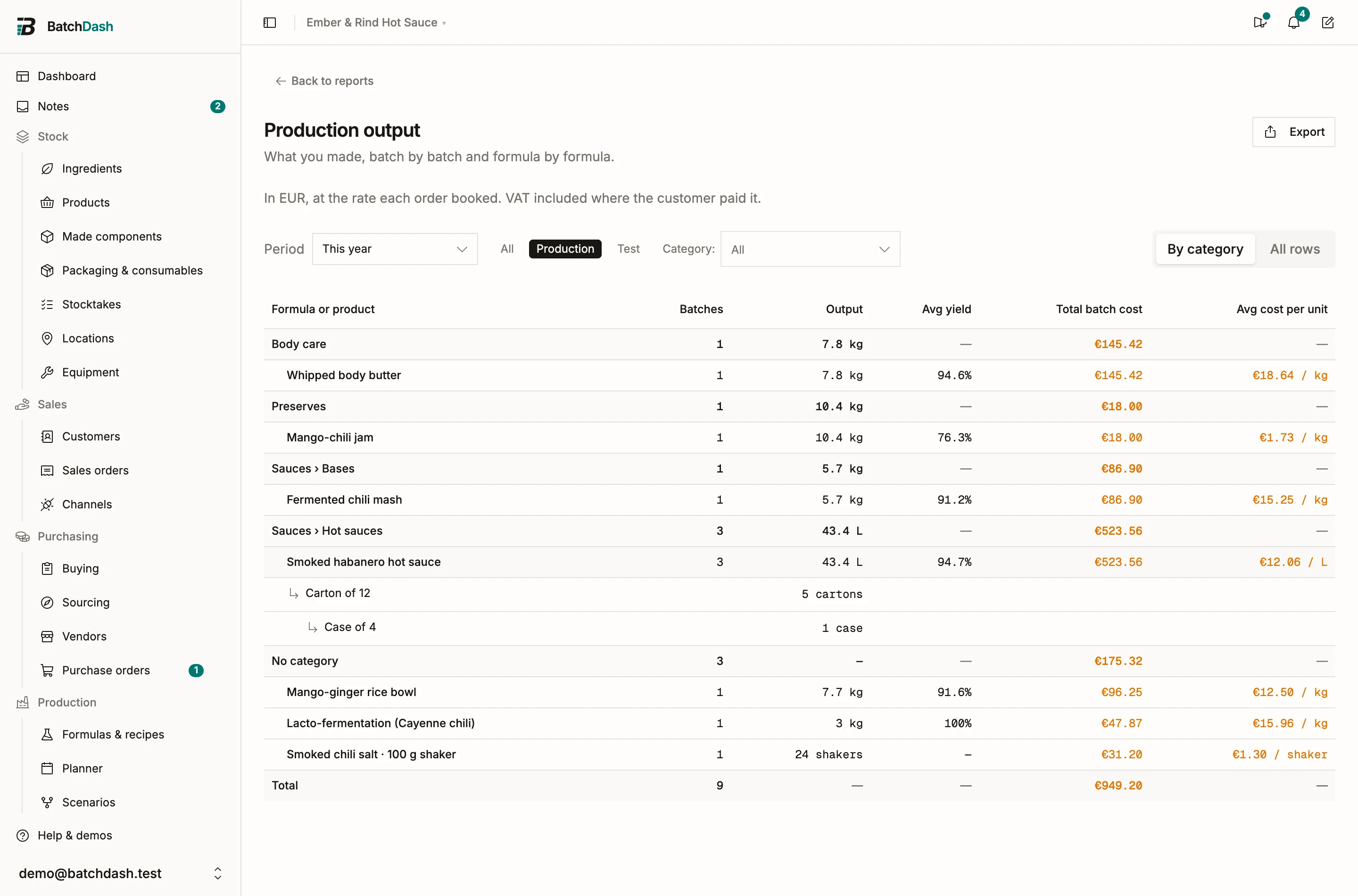
Section titled “5. Totals by category”Production output and Corrective actions group their rows by recipe category, each with its own subtotal, and narrow to one category and its subcategories with the same filter. Inventory valuation lists made components under their recipe’s category. A stocktake can count One category of recipes: the made components of the recipes filed there. See reports and stocktakes.
6. Rename and delete
Section titled “6. Rename and delete”Pick the category in the Category: selector. The ⋮ beside it opens the category’s page, renames it or deletes it, empty or not. While you browse by category, each group row carries the same ⋮. A category keeps the level it was created at.
Deleting a category moves its recipes up a level: a subcategory’s go to its parent, a category’s to No category. No formula is ever deleted. Deleting a category that holds subcategories deletes them too, and the confirmation names each one first and says how many recipes leave.
Limits and rights
Section titled “Limits and rights”- Two levels: a category, and subcategories inside it.
- A recipe sits in one category, or in none.
- A workspace holds up to 200 recipe categories.
- Creating, renaming and deleting categories takes the right to manage categories. Filing a recipe takes the right to manage formulas.