
Sales orders
A sales order is the record of a promise: what a buyer wants, at what price, and what has shipped so far. The quick Record stock flow on a product page stays for the sale that happens in one moment; the order exists for everything agreed before it ships. Open Sales → Sales orders.
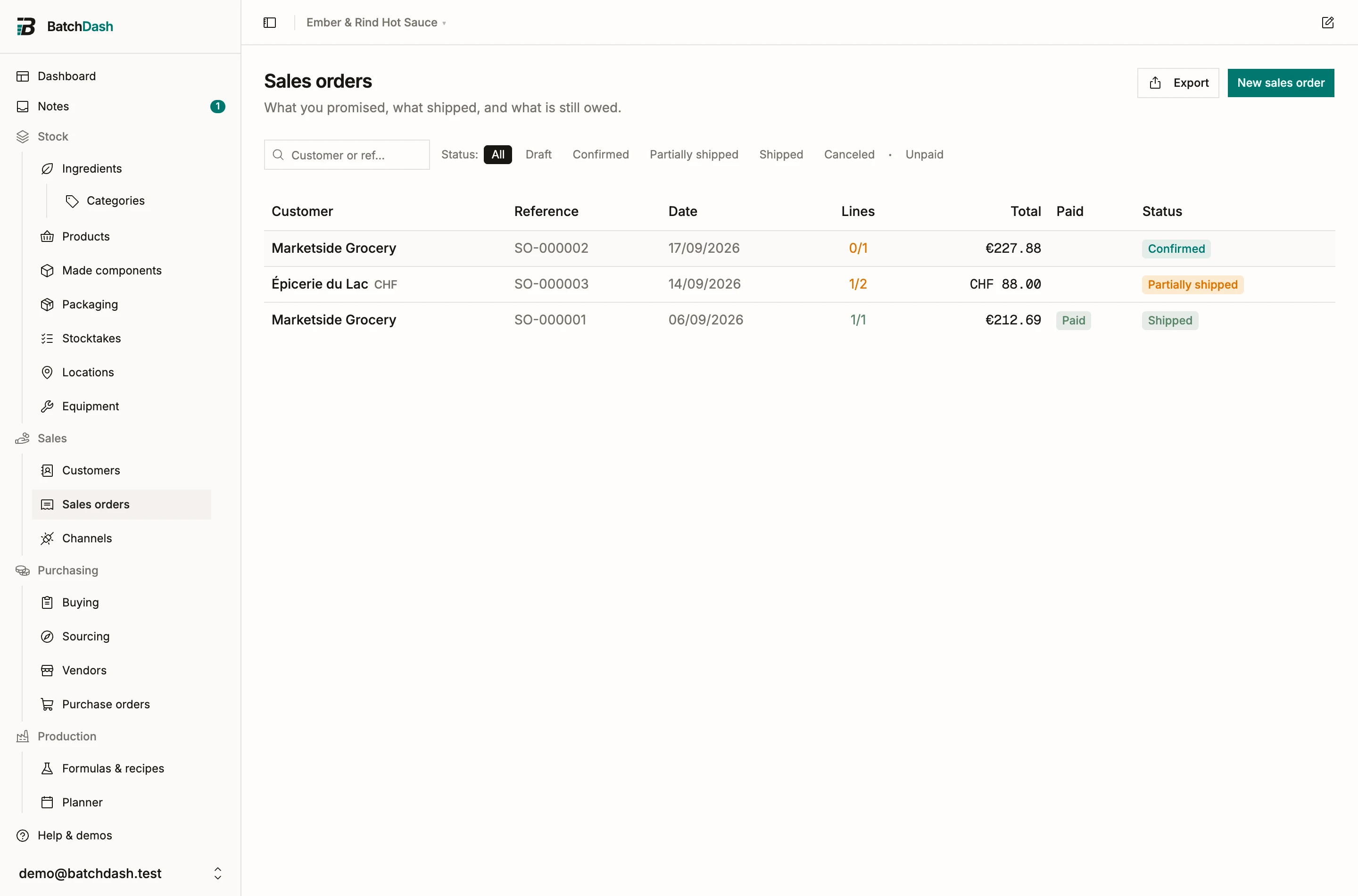
Create an order
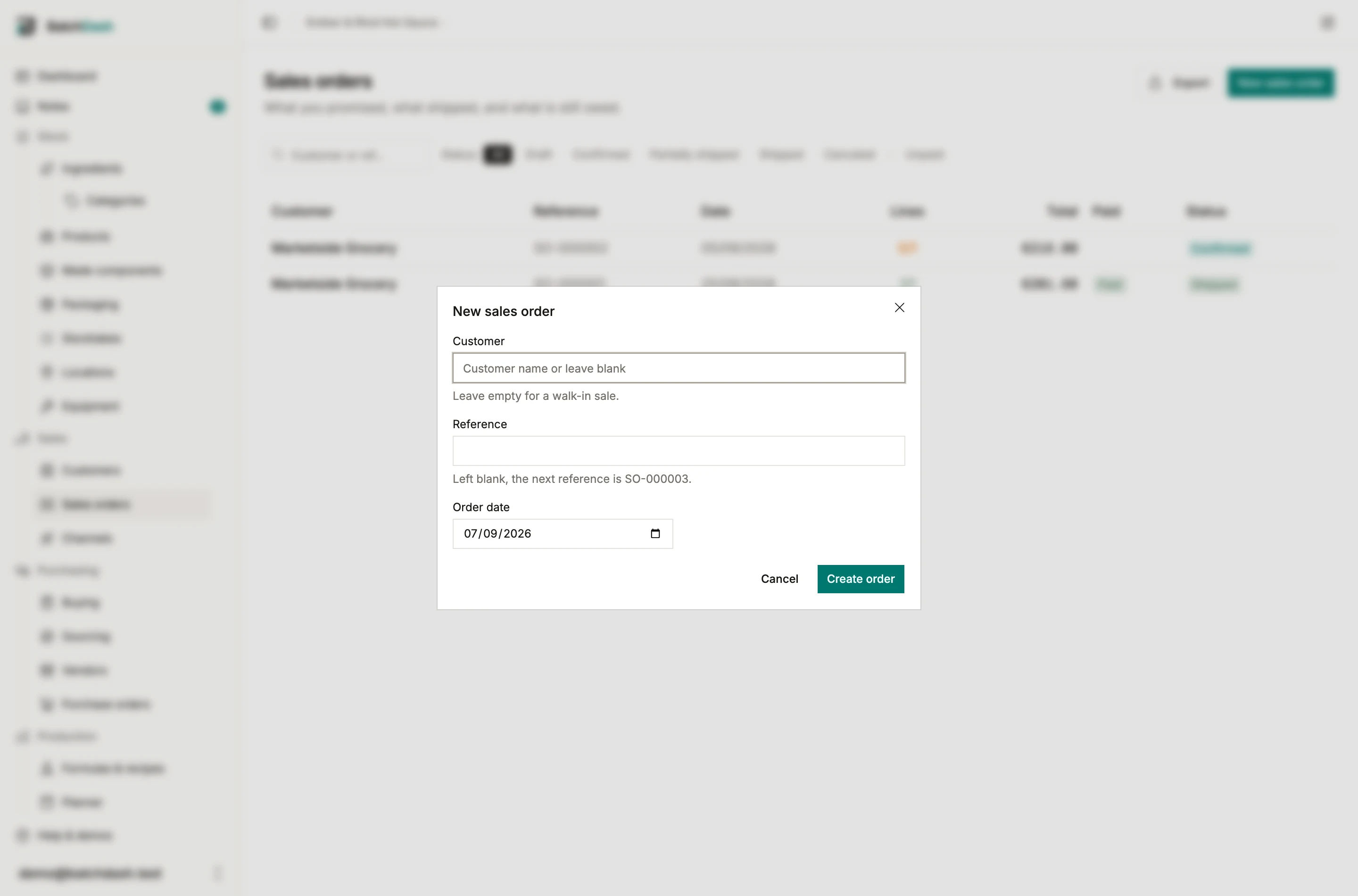
Section titled “Create an order”- Click New sales order.
- Pick the customer, or leave the field empty for a walk-in sale: a market-stall order is real and gets the same document. A name the picker does not know can be created on the spot; once you have declared markets, the dialog then asks which market that new customer belongs to. Somebody already on your list keeps theirs, and you can change it later on the customer’s page.
- With markets declared, pick the one this order sells into. It fills itself from the customer you picked, and it decides the currency every figure on the order is in and the VAT rate each line carries. Home means your own country and your own currency.
- Keep the suggested reference (SO-000001, or your own pattern from organization settings) or type one, set the order date, and save.
You land on the order document. Under the title, beside the dates, it names the market it sells into and the currency when that is not your own (“France market, in EUR”), for everyone who can open the order. Everything else is edited there: lines, ship-to, notes, discount and shipping charged, the ship-by date. The reference can be renamed while the order is a Draft; after that it sits on ledger rows and is frozen.
Add lines
Section titled “Add lines”Add line picks a sellable product, a quantity in its own unit, and a unit price. Each product option shows what is available right now, so a short line is short knowingly. The price prefills from the last order line for the same product, preferring the same customer: Friday’s price is already typed the next Friday, and only from orders in the same currency. A line without a price is legal (a sample riding along with a real order); it stays out of the subtotal and the totals card counts it.
Price the line either way. Unit price and Line total sit side by side and fill each other from the quantity, so “€7.20 a jar” and “€500 for the pallet” are both one figure to type. The box you type in is the one kept: 2,400 jars at €500 works out to €0.2083 each, and a document built back up from that rate would say €499.92, so the figure you agreed is the one on the order, on the invoice line and in the ledger. Under the pair, a small line says which side of the VAT your figures sit on: incl. VAT for a retail customer, before VAT for one on the wholesale tier. The customer’s tier decides it, whichever box you type in, which is how the same €12.00 means two different net amounts on two orders. Reopen a line later and it opens on the figure you agreed: a pallet priced at €500 stays €500 when you fix its note or its count, and the price per jar beside it moves instead.
Under the price, the line says which VAT rate it carries and where that rate came from: the market’s, the product’s own, or your default. Change replaces the sentence with a field when one line is taxed differently. The rate is frozen the moment the line is added, so moving a market’s default next month leaves every document that already exists exactly as it was. Open such a line later and it reads “set on this line”: the figure is the line’s own, whatever the market says today. Empty the field to go back to the usual rate. Swap the product and the line takes the new product’s rate.
The market itself is fixed as soon as one line carries a price. Until then the Edit dialog can still move the order; after that it reads “France · fixed by the lines”, because moving it would relabel a figure somebody agreed to.
A product sold in cartons offers them in the picker under its format: type the line in cartons, at the price per carton. A customer who buys a format only by the carton sees that carton alone. See selling in packs.
Confirm, and what Reserved means
Section titled “Confirm, and what Reserved means”Confirm turns the draft into a commitment. From that moment until each line ships, the unshipped quantities count as Reserved on their products: the product page shows a line like “30 reserved for 1 sales order” next to its stock figure, linking back to the open orders. Nothing is subtracted from stock; reserved is computed from the open orders themselves, so it can never drift.
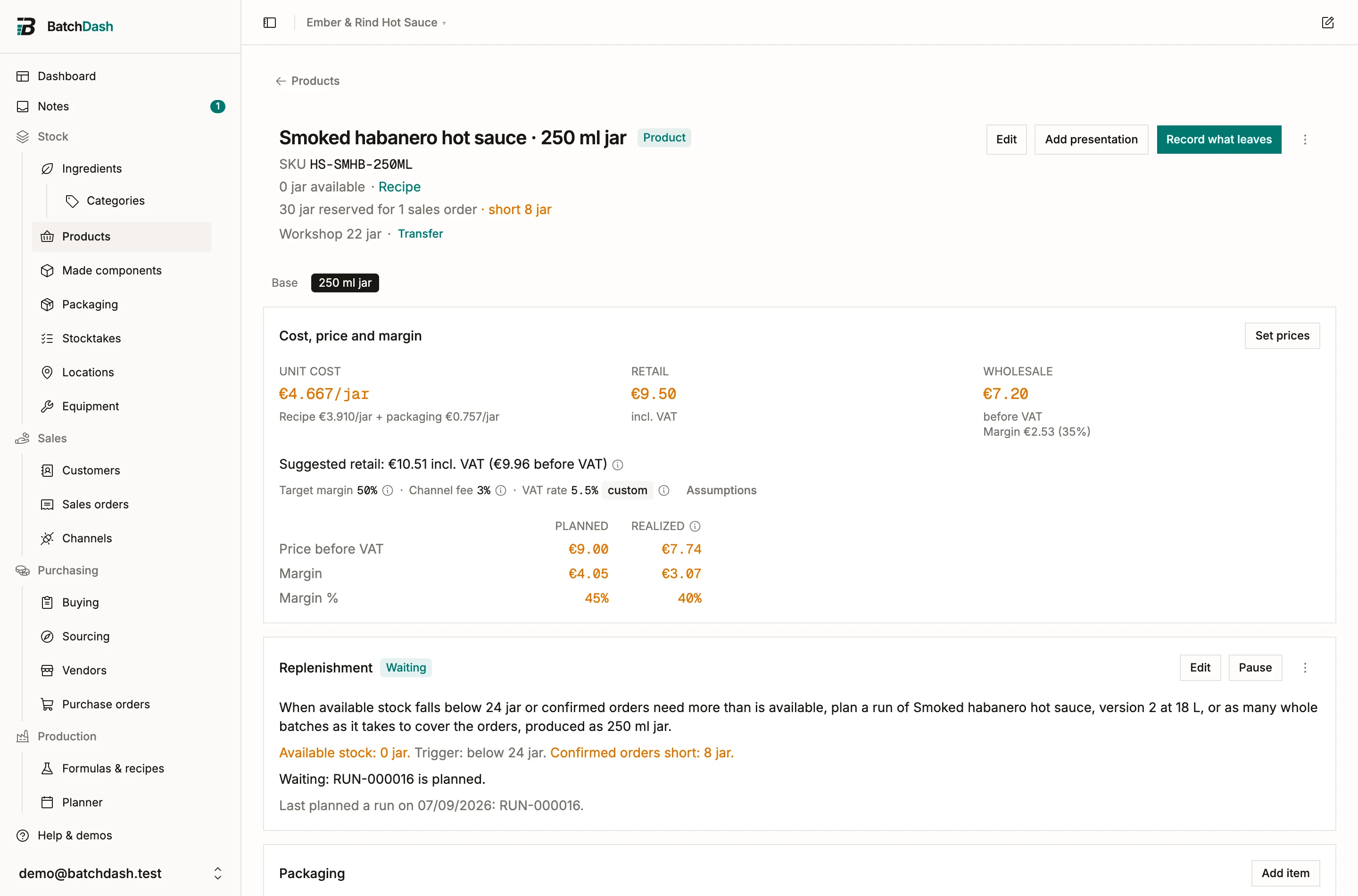
You can confirm more than you have. The order says how many lines are short, the product page adds an amber “short {qty}”, and the missing amount is recorded as demand: the number that tells you what to make or buy next. Held stock (a batch waiting on its release check) is never reserved and never ships.
The document page
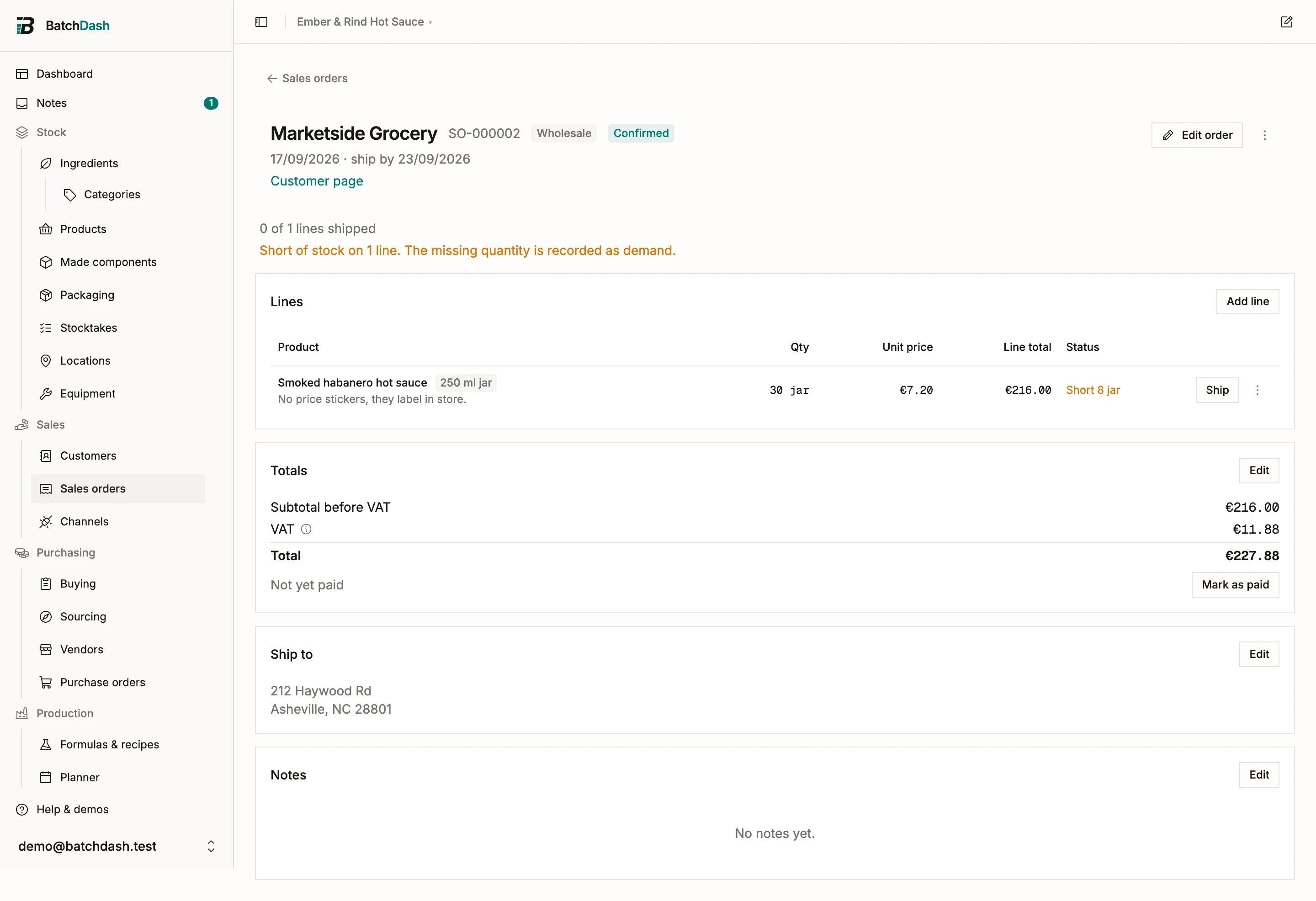
Section titled “The document page”The order page reads top to bottom: the lines with their per-line state (Reserved, Short, Shipped, Returned), the totals card, the ship-to address, the notes. A state line under the header counts shipped lines. Statuses derive from the lines; nobody sets them by hand. Cancel (Draft and Confirmed only) releases whatever was reserved and keeps the document readable.
Totals and the paid flag
Section titled “Totals and the paid flag”The totals card sums the priced lines, then applies an order-level Discount and Shipping charged, both plain amounts. Where the lines carry VAT it also reads Subtotal before VAT and VAT, and the last row says Total, VAT included. A retail line is typed with VAT in it, so the split takes it back out; a wholesale customer’s line is typed before VAT and the tax rides on top. The discount comes off the total, after VAT. When the order is in another currency, a Booked at row under the total says what it comes to in your own; markets and VAT on sales orders walks through both.
An order that sells into another currency carries a Booked at row under the total: the rate it converts to your own books at, where that rate came from, and what the order comes to in your currency. Edit offers the published rate, a rate you type off your bank, or the amount the bank actually credited. The rate is fixed by the first shipment, because a sale already on the ledger cannot be re-booked. Without a rate nothing can ship, and both Ship buttons say so. Mark as paid stamps a date and a green badge on the order; Mark as unpaid takes it back when a payment bounces. Paid is a flag, not a status: an unshipped order can be paid and a shipped one can still owe you. The Unpaid filter on the list is the end-of-month chase list. A shipped order that is not paid also shows in the Chase group of Today.
To ship the lines, see shipping and returns.
Orders can also arrive on their own: connect your Shopify shop and every online order lands here as a Confirmed sales order, stock already reserved, with the shop’s order number linked.