
Purchase orders
A purchase order records what you bought, what you paid and what has arrived. It is also where your costs start: when a line is received, its cost flows into the ingredient’s weighted average cost. See receiving.
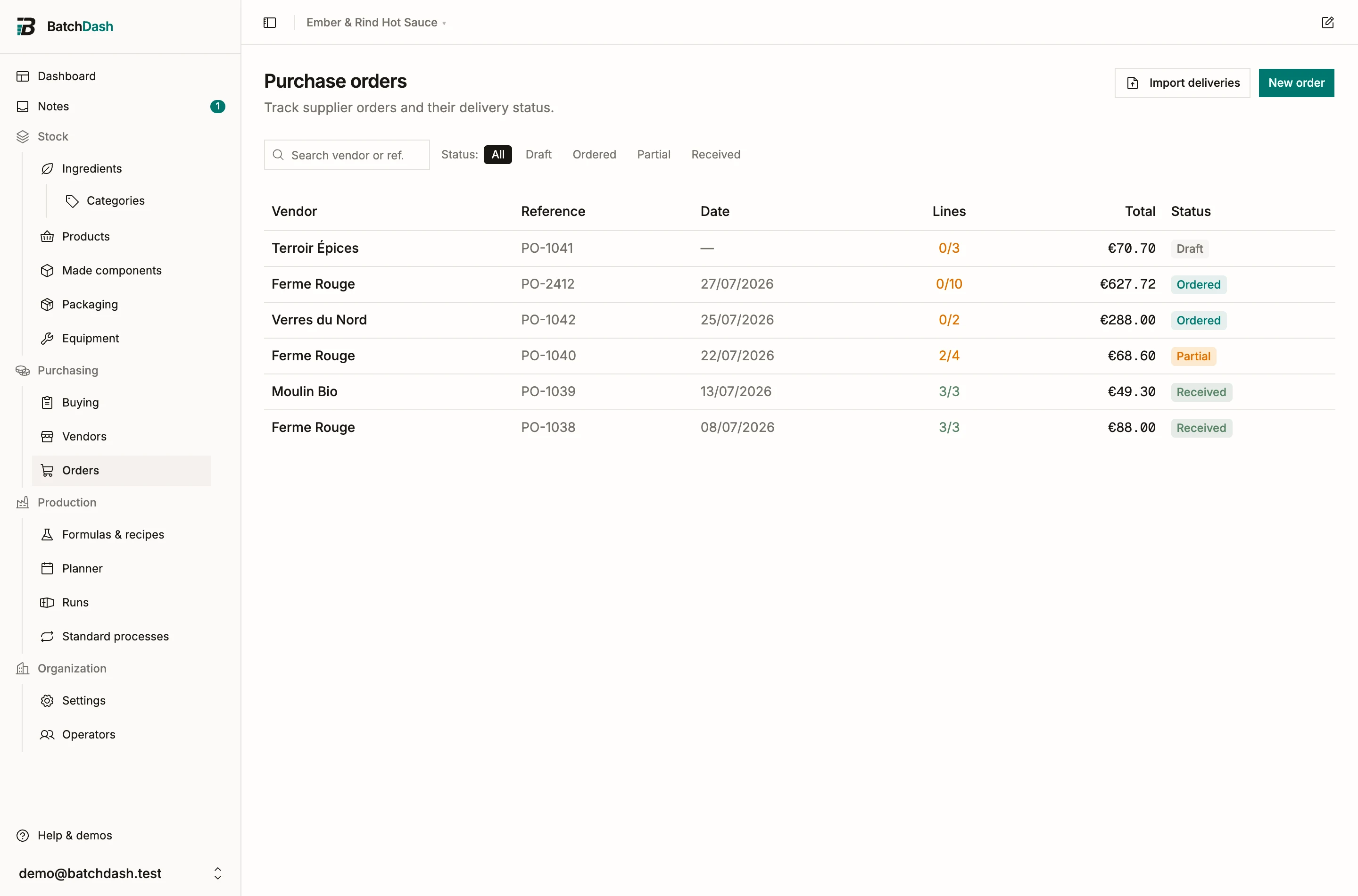
Create an order
Section titled “Create an order”- On the Purchase orders page, click New order.
- Type the vendor’s name. If it is new, the vendor record is created along with the order. See vendors.
- Add the invoice or PO reference, the order date and, if you know it, the expected delivery date.
- Click Create order.
Add lines
Section titled “Add lines”Each line is one item on the invoice. Click Add line, pick an ingredient (or type a new name to create it), then enter the quantity and the Total paid for that line. The unit price is derived for you: 12 kg of habaneros at €66.00 reads back as €5.50 / kg. You copy the number straight off the invoice; the division happens for you.
When the vendor sells it in packs you already recorded as offers, click Add from offers instead. It lists the vendor’s current offer for each ingredient. Type how many packs of each and the lines arrive priced: 4 bags of 5 kg at €120.00 make a line of 20 kg for €480.00. An ingredient already on the order takes the packs on its own line rather than a second one.
The quantity carries a unit, so a line reads the way the invoice does. An ingredient stocked in Units / Pieces with a Piece weight can be ordered by weight: type 25 kg of lemons and the line reads back “25 kg (294.118 unit)” at €3.200/kg. The pieces are what arrives on the shelf when you receive it; the kilos are what you asked the vendor for, and both stay on the line. Without a piece weight the unit choice does not appear, and the line says so: Add a piece weight to Lemons to order it by weight.
A line does not have to be an ingredient. When you type a new name, you choose what it is:
| Kind | What happens |
|---|---|
| Ingredient | Stocked in your inventory, usable in recipes. |
| Packaging | Jars, lids, labels, boxes. Stocked and costed like an ingredient. |
| Supply | Tape, mailers, gloves. The spend is recorded without tracking stock. |
| Equipment | Each one received joins your equipment as an owned unit, at its landed cost. |
See equipment, units and offers for what happens to equipment lines after receipt.
Products you buy
Section titled “Products you buy”When your plan includes products you buy ready-made, a line can also be a product: one you buy ready-made, or one of your own recipes that a co-packer makes for you, once they have given you a price. It sits in the same picker with a Product badge, and it is ordered in the unit it is stocked in: 24 bags, never kilos. The line reads as the product and its format, “Corn tortilla chips · 150 g bag”. An order never creates a product. A typed name that is really a product is created on the Products page first, and then it shows up here. See products you buy ready-made and co-packed products.
Add from offers lists the vendor’s current offer for each product beside the ingredients, and Order again repeats a product line at that offer. A product archived since, or one made here that no vendor quotes any more, is left out and named in the toast with the rest.
Delivery terms charged per pack see a case of twelve jars as one pack. Terms charged by weight make no claim on a line counted in jars, so the order’s delivery fee is left for you to type.
A product line already on an order stays receivable if products you buy are later taken out of your plan: the goods are on their way either way.
Statuses
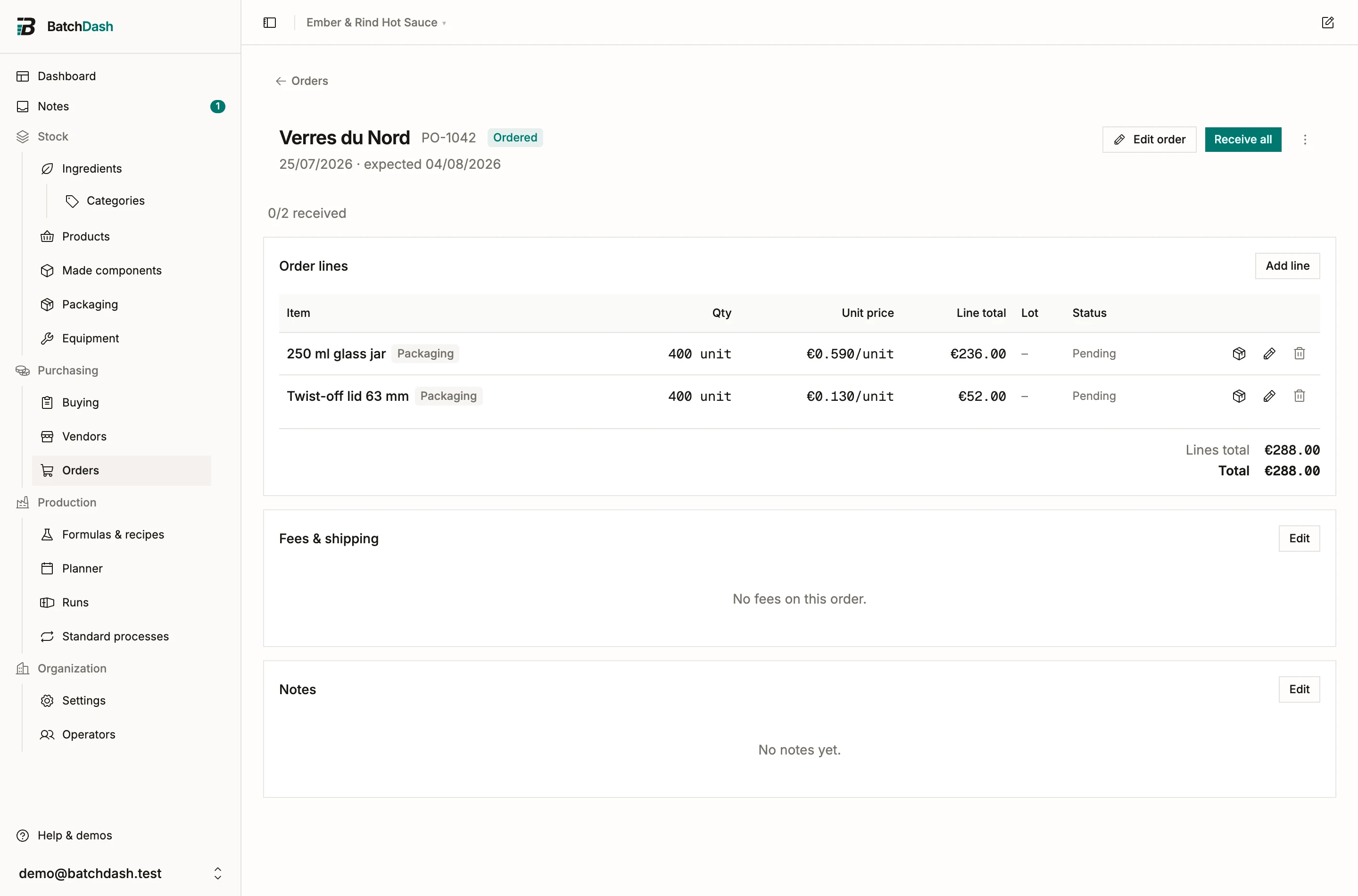
Section titled “Statuses”An order moves through five statuses:
- Draft: you are still assembling it.
- Ordered: sent to the vendor. Click Mark as ordered when it goes out.
- Partial: some lines have been received.
- Received: every line is in.
- Canceled: you gave up on what had not arrived.
The filled button in the order header is whatever step the order is on: Mark as ordered while it is a draft, Receive all once it has gone out. Partial and Received update on their own as you receive lines.
A draft can also come from a rule. A product you buy can carry one that prepares its order as a draft when it runs low; that draft wears Prepared by rule, and the list’s filter of the same name shows only those. See automatic draft orders.
The expected date, and what is late
Section titled “The expected date, and what is late”The expected delivery date is optional, but it is the one field that makes the list work for you rather than the other way round. Fill it in and the orders list shows “Expected 12/09/2026” under the order date. Once that day has passed on an order still waiting for goods, the line turns red.
Marking an order as ordered proposes one, when the vendor gives it something to go on: their own average from three deliveries (“Usually arrives in 12 days”), or the lead time their offers state (“Promised in 5 days”). The date is filled in and one click keeps it. Clear the field and the order goes out with no promised day. Nothing is written until you press the button, because Overdue reads exactly this column.
The Overdue pill at the end of the status row collects them: orders that are Ordered or Partial and past their expected day. It replaces the status pills rather than narrowing them, since it already means those two. An order with no expected date is never overdue and never appears there.
A late order also shows in the Chase group of Today, and the bell tells you the morning it turns late.
Order again
Section titled “Order again”The weekly order is the one the buying list cannot see: nothing is short yet, nothing is planned, you simply buy the same twelve things from the same supplier every Tuesday. Order again, in the ⋮ of any order past Draft, makes a new draft for the same vendor with the same quantities, and lands you on it.
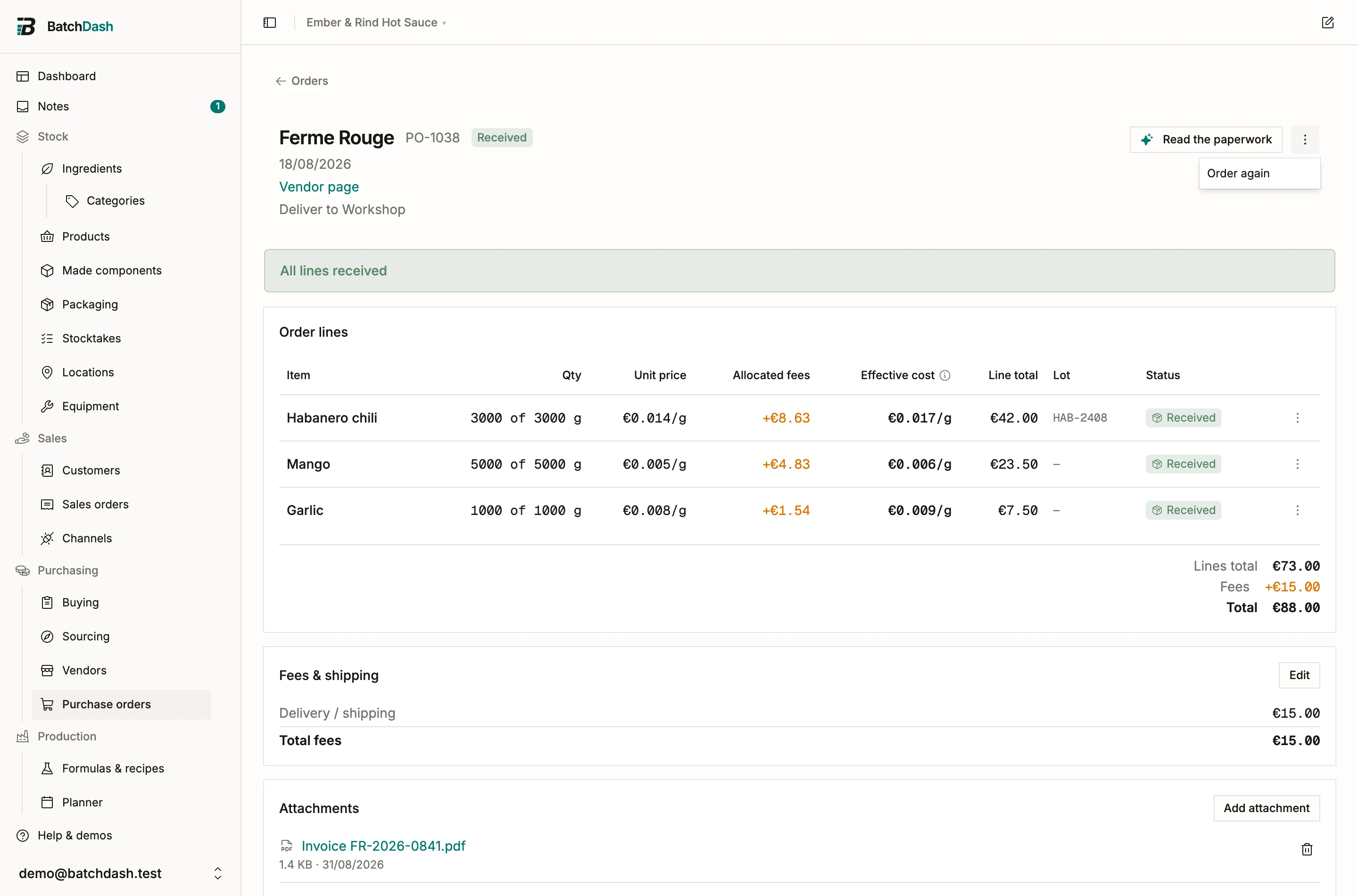
Prices come from the vendor’s newest figure for each ingredient. When that is a live offer the line says “current offer”; when it is the price a delivery recorded, or the vendor has no offer on file at all, the line says “price paid last time”. A repeat at a stale price would write a false price into your history the first time it is received, so the note is there to be checked. Typing your own price removes it.
Anything this vendor no longer supplies is left out and named in the toast, so you find out here rather than at the loading dock. The reference, the notes and the fees are not carried over: they belonged to a different order.
Cancel an order
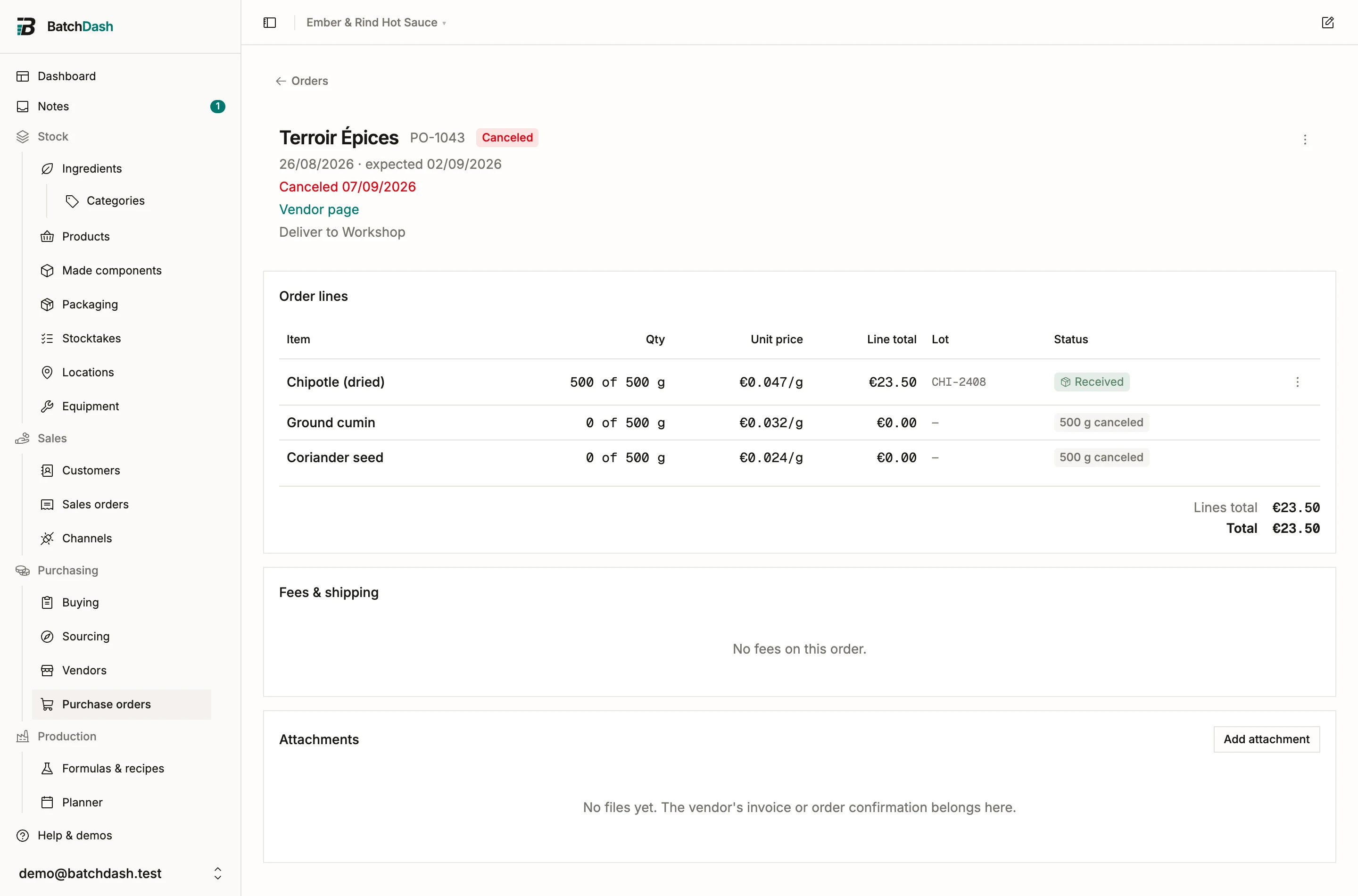
Section titled “Cancel an order”Delete order is for drafts. Once an order has gone to a vendor it is a record of a decision, and deleting it would take the spend, the prices it set and the deliveries booked against it with it. So a sent order is canceled instead: Cancel order, in the ⋮ menu.
The confirmation says what it will do before you agree to it: how many open lines close, and how many received deliveries stay exactly as they are. Nothing is deleted. Whatever arrived keeps its stock, its cost and its place in the ledger; only what was still expected is given up on. The ingredients drop out of On order the same minute, and the vendor’s total holds what actually arrived.
Canceling changes what the fees ride on. An order that ordered 20 kg and received 4 spread its delivery fee over the 20 until you gave up on the rest; now the whole fee sits on the 4 kg that came, and the ingredient’s ledger carries a line saying the cost moved and why. See fees and landed cost.
Whether there are fees at all is your call, because the order cannot know what the vendor will do. The confirmation asks whether the vendor still charges them. Keep them and they stay on the order and count as spend with that vendor. Drop them and they come off the order; reopening it later does not bring them back. With a delivery already booked the box starts ticked, since the carrier did come. With nothing received it starts empty.
Changed your mind? Reopen order puts back the lines the cancel closed and returns the order to Ordered, or to Partial if a delivery had already come in. A line you closed short by hand before canceling stays closed: that was the vendor coming up short, which the reopen has no business undoing.
Attachments
Section titled “Attachments”The Attachments card holds the paperwork: the vendor’s invoice, the order confirmation, a photo of the delivery note you took on your phone. PDF, JPEG, PNG or WebP, up to 8 MB each.
Files are private. The name in the list is a link that goes through BatchDash and checks it is yours before it hands over a byte, so there is no URL anyone could guess or forward by accident. What a file is comes from the file itself, not from what it is called: a page of HTML renamed to .pdf is refused.
You can add a file at any status, Received and Canceled included. Paperwork trails the goods, and the invoice usually turns up a week after the crates do. Deleting a draft takes its files with it.
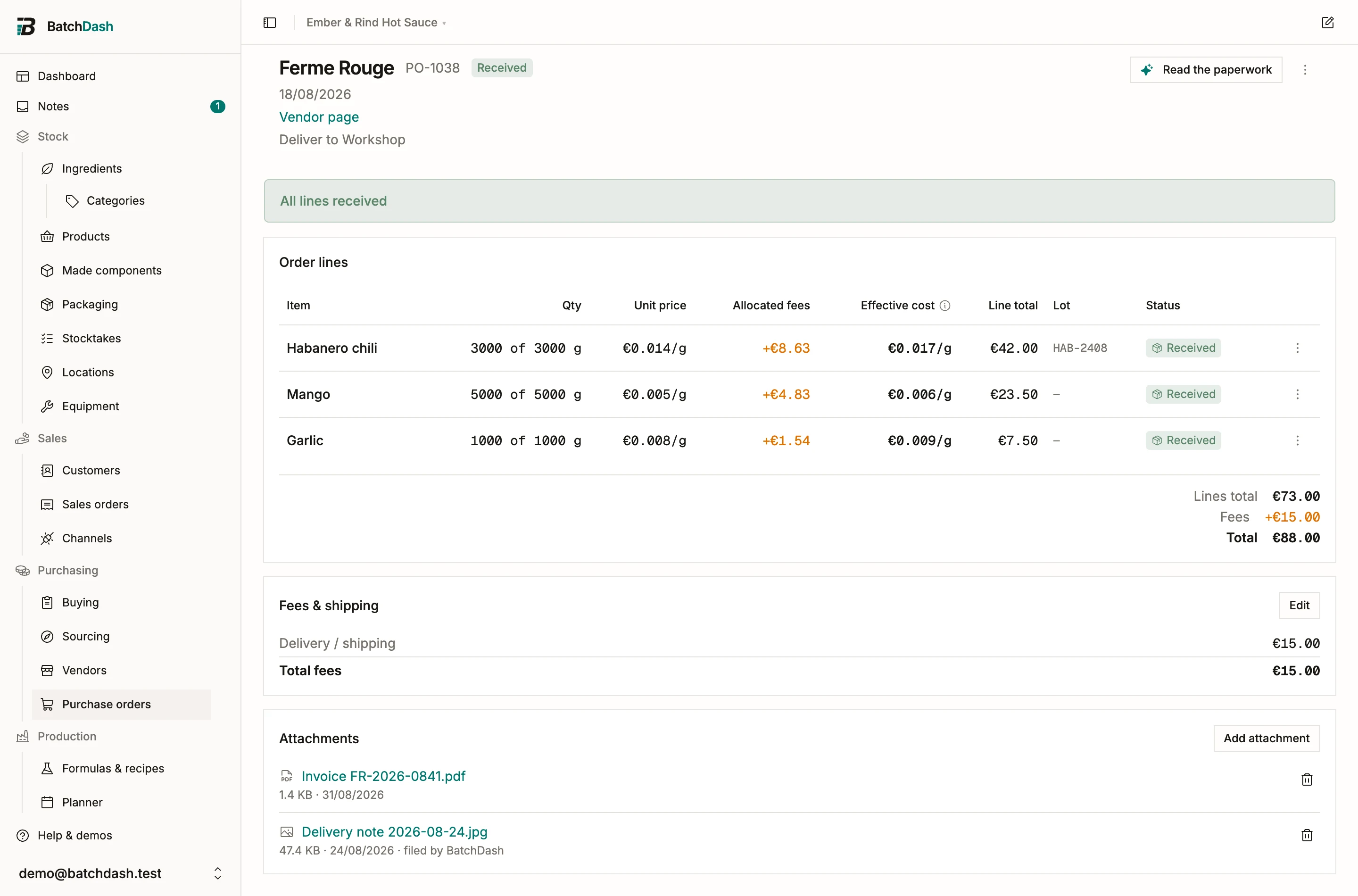
Attachments count against your storage, alongside your photos. Deleting one frees the space right away. See plans and limits.
Notes and fees
Section titled “Notes and fees”The Notes card holds anything worth remembering about this order (“driver delivers to the back door”). The Fees & shipping card carries delivery, payment and platform fees; they spread across lines and end up in your ingredient costs. It also carries the VAT the document printed, which comes off those costs when your business recovers VAT. See fees and landed cost.
Orders in another currency
Section titled “Orders in another currency”When your plan includes buying in other currencies, each vendor carries the currency they invoice in, and a new order for them opens in it. The order’s Currency field can still be changed for a one-off invoice until the first line is added. After that, the lines fix it.
Every figure on the order is then what the invoice says, in its currency, with the same money in your base currency in small type beside it. The Booked at card, under the fees, names the rate between the two. It starts on your workspace’s reference rate for the order’s date, and Edit offers three ways to set it:
| Choice | What the order is booked at |
|---|---|
| Reference rate | The latest rate published on or before the order’s date. An order dated on a Sunday books Friday’s. |
| Typed rate | A rate you type, such as the one on your bank statement. |
| Amount paid | What your bank took, fees included. The rate follows from it, and the lines share that amount to the cent. |
Deliveries are costed in your base currency at that rate when you receive them. Change the rate after the goods have arrived and every delivery on the order is costed again; the ingredient’s ledger says so on each one.
When no rate is on file for that currency on or before the order’s date, the card says so, and Receive stays disabled until you type a rate or enter the amount paid.