
Print labels for a batch
Printing takes a template and a record, fills one with the other, and hands you a PDF. The browser’s own viewer prints it; paper and scale are chosen there, as with any document.
Where it is
Section titled “Where it is”Wherever the record is. A completed batch’s Label data page has the Print labels button, and so do a stock lot’s row, an ingredient’s page and a recipe’s. Every product’s lots have it. One still waiting for its recipe, or one you buy ready-made, prints its name, format, lot and best-before, its ingredient list empty. A recipe offers it on its page from its first ingredient line, and the dialog’s picker offers every product, made or bought. The template gallery and the editor print too, and let you pick the record from the dialog. Whichever door you use, the same dialog opens.
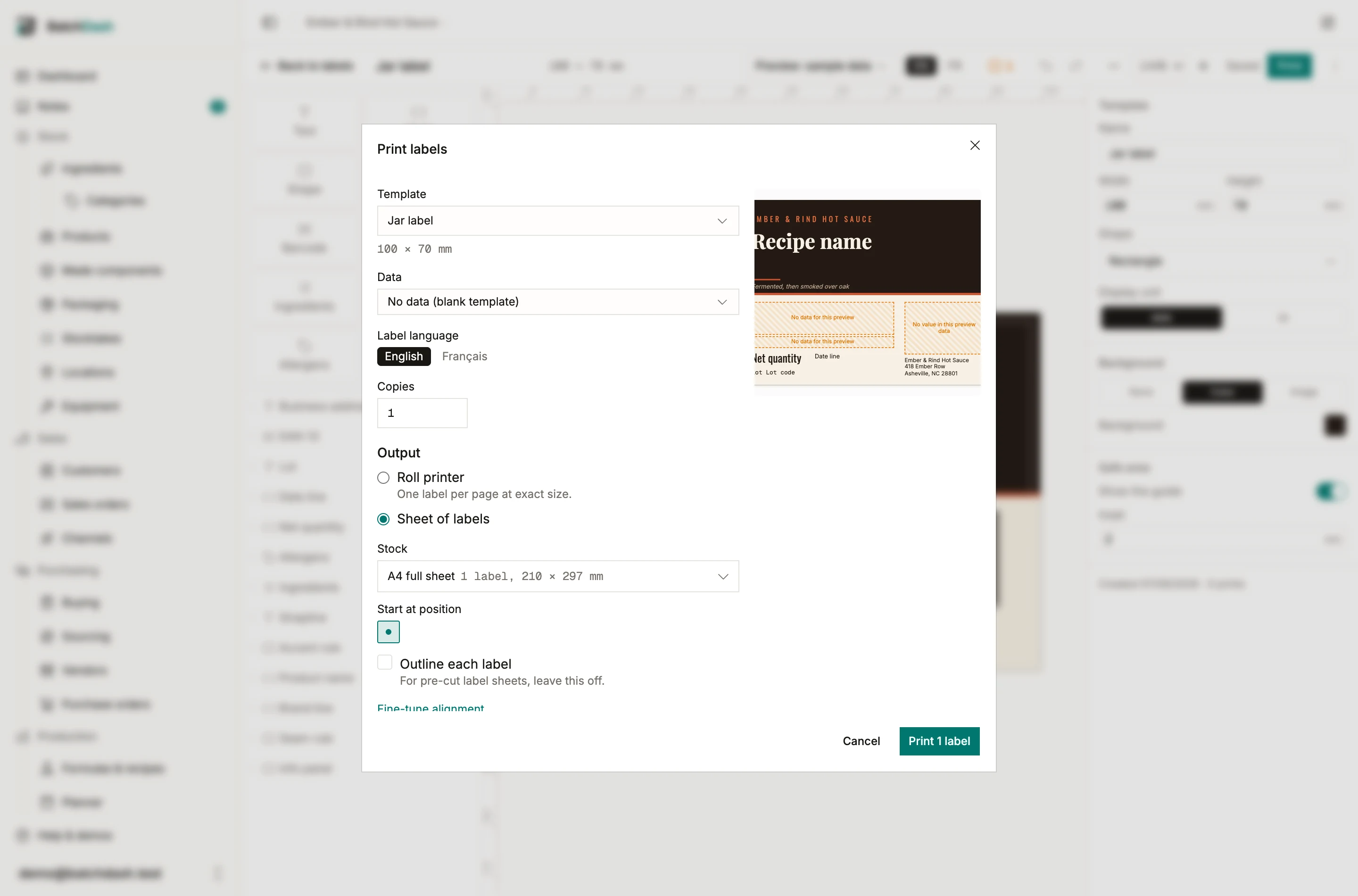
Choose the data and copies
Section titled “Choose the data and copies”The dialog names what it will print from. Opened from a batch, that batch is fixed; opened from a recipe, you also pick which sale format, because each format carries its own barcode and fill. Label language decides how dates and block headings print, whatever language your screen is in: a French jar prints French from an English session.
Copies default to what the batch packaged. The preview on the right is the actual label, drawn by the renderer that will produce the PDF, and the dialog restates the editor’s warnings so a missing lot code is read here rather than on the sticker.
Roll or sheet
Section titled “Roll or sheet”Roll printer puts one label per page at exact size, which is what a label printer feeds.
Sheet of labels lays copies onto the stock you buy. The common die-cut sheets are built in, and you can measure your own under Manage organization → Settings → Labels. Click the first free cell on the miniature sheet and a part-used sheet carries on where it stopped. Two aids for real printers: outlines draw a faint cut line for plain paper tests, and alignment nudges the whole grid by a millimeter or two when your printer feeds paper slightly off. The alignment figure is remembered per sheet, on this browser, because it belongs to the machine in front of you.
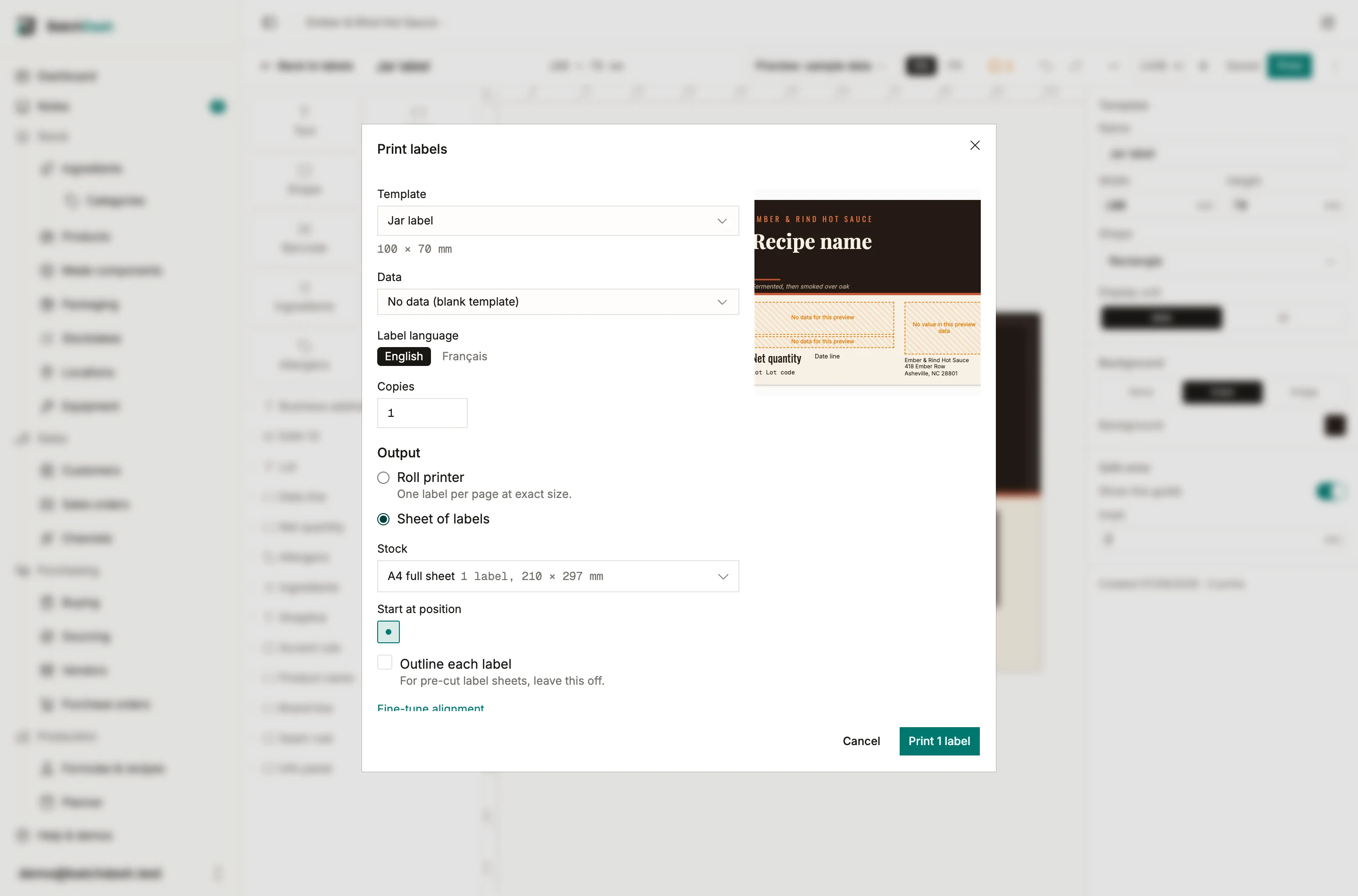
One label per pack
Section titled “One label per pack”A separable pack, a carton of 12, prints a label of its own: what it holds (“12 × 250 ml”), the lot and best before of the batch inside, and the pack’s GTIN as an ITF-14 or inside a GS1-128 with the lot and the date. The Pack label starter in the gallery is laid out for it. Print it from a packing record, for every pack it filled or one line at a time, or from a pack lot’s ⋮ menu: the dialog prints one label per pack, “6 labels, one per pack”, and the case gets its own.
Numbered labels
Section titled “Numbered labels”A template that carries the label counter prints a series: Start numbering at decides where it begins, and the dialog states the exact range before you print, “Labels number 41 to 60.” A print service cannot do this; that is what the export page is about.
The print log
Section titled “The print log”Every print and export lands in the log, on the gallery’s Print log page: when, which design, which record, how many, by whom. A batch page shows its own line, “Labels printed: 72 (3 jobs)”. The log is a record, so nothing in it can be deleted; the PDF itself stays downloadable for a couple of days and can always be regenerated by printing again.