
Categories
Eighty products in one alphabetical list, and the question “how many hot sauces do we have on the shelf?” turns into scrolling. A category files each item in one place, and the lists, the dialogs, the reports and the stocktakes read it from there. Ingredients, packaging, products and recipes each sort in categories of their own.
1. Four lists
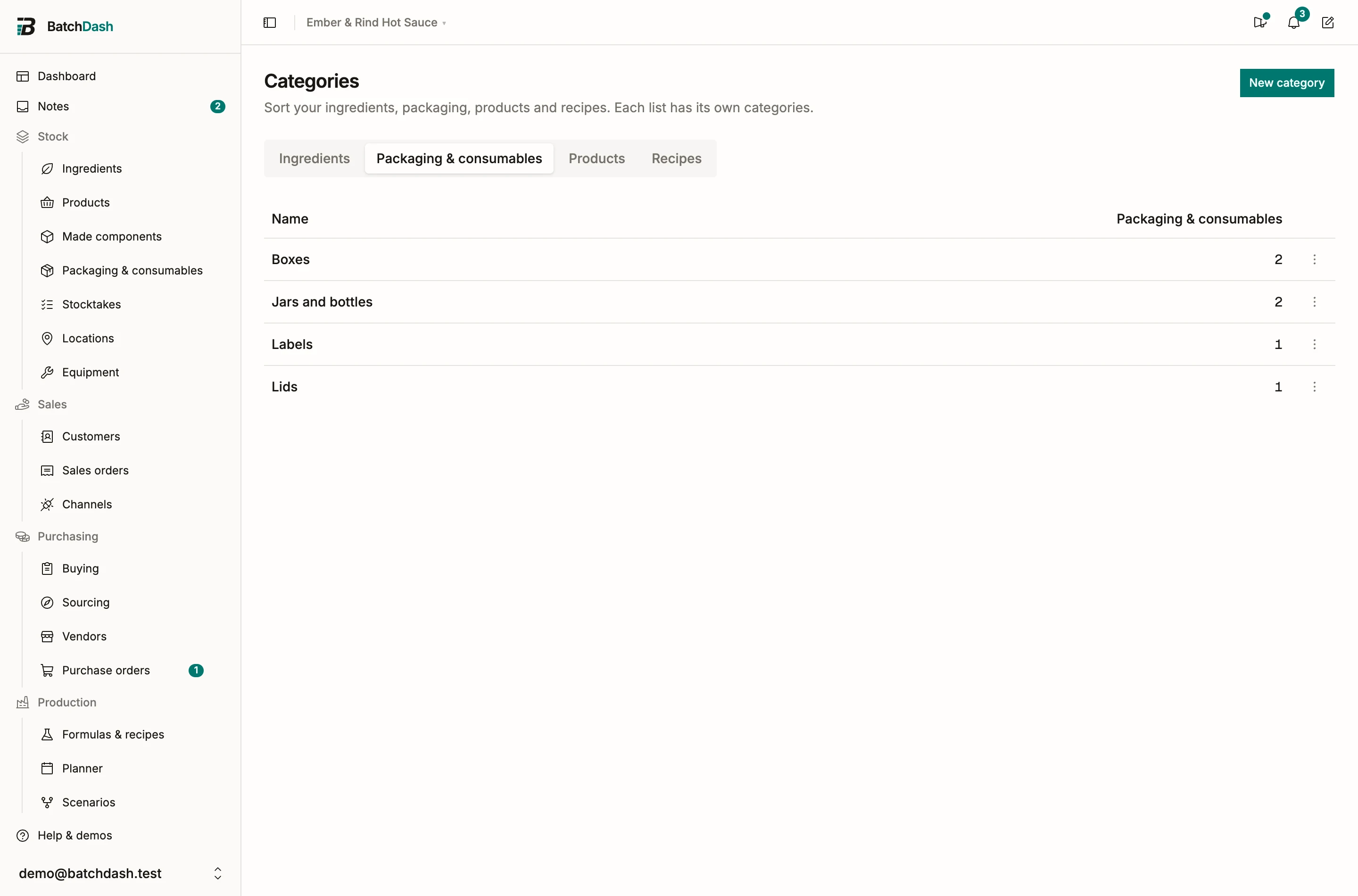
Section titled “1. Four lists”Each list has its own categories, and an item only ever sorts in its own list’s:
- Ingredients: one level. An ingredient category also gives its ingredients their custom fields.
- Packaging & consumables: one level. Jars and bottles, lids, labels, boxes.
- Products: two levels, a category and the subcategories inside it.
- Recipes: two levels, filed from the Formulas list. A made component sorts by its recipe’s category.
A product’s category belongs to its format. The 250 ml jar of hot sauce can sit in Hot sauces while the 5 L bucket of the same recipe sits in Wholesale, and the recipe itself has a recipe category of its own. “Sauces” can be a product category and a recipe category at once: they are two categories that never meet.
2. The Categories page
Section titled “2. The Categories page”Categories is the first entry under Organization in the menu. It has a tab for each list your workspace keeps: a workspace that tracks no packaging has no Packaging & consumables tab. A tab lists its categories, each with how many items it holds, archived ones left out. A product or recipe subcategory sits indented under its parent. A row opens the category’s page.
New category asks for a name, up to 80 characters. Any character is fine, a slash or a “›” included: “Fruits / vegetables” is one category with that name. On the Ingredients tab, Start with the fields of copies another category’s fields into the new one.
The ⋮ at the end of a row holds Rename, New subcategory (on a product or recipe category at the top level) and Delete.
3. A category’s page
Section titled “3. A category’s page”What the page shows depends on the list:
- An ingredient category’s page holds its fields and the table of their values. See categories and custom fields.
- A packaging category’s page lists its packaging items, with what is on hand and their unit cost.
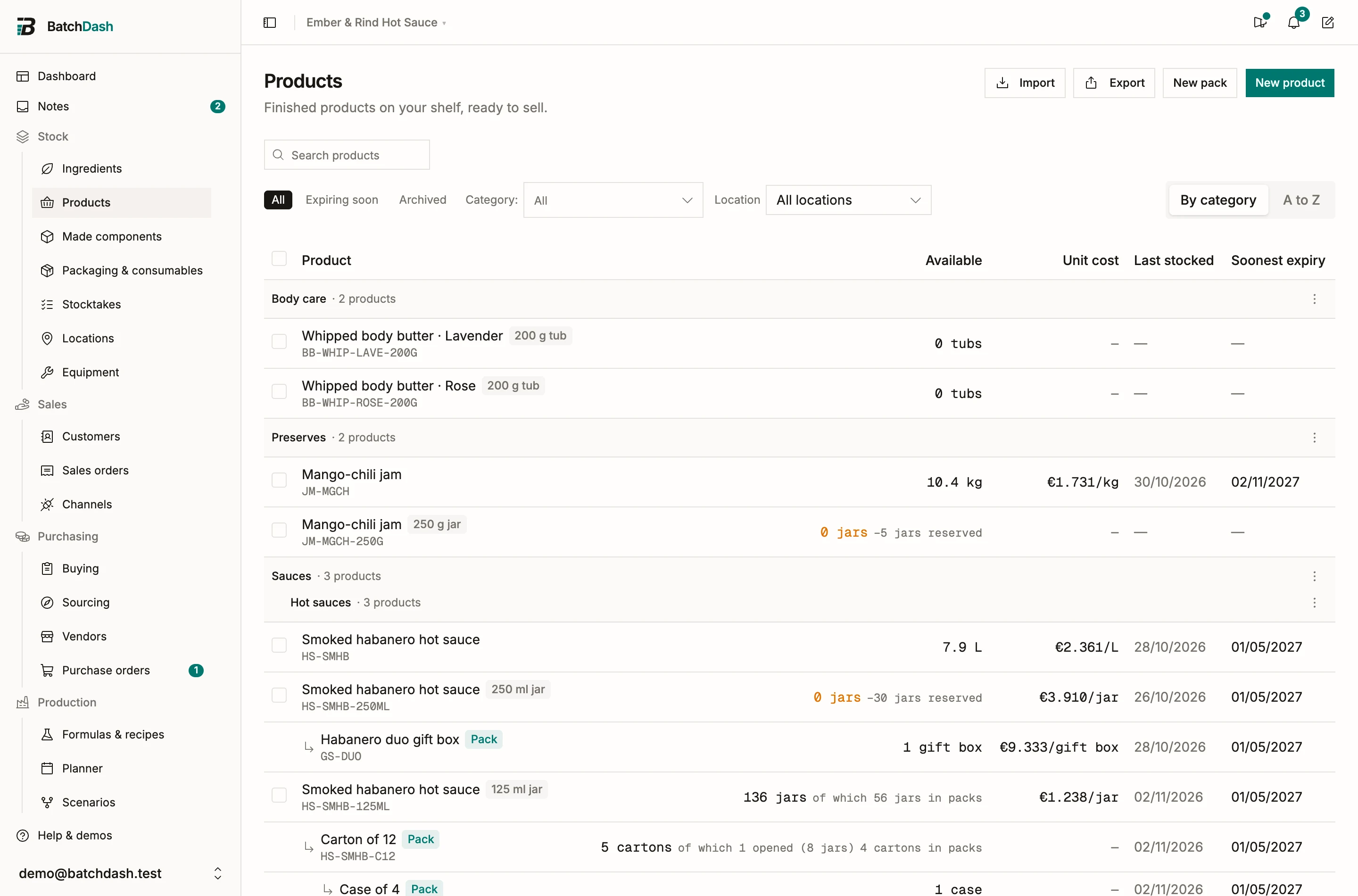
- A product or recipe category’s page lists what it files: its own items first, then each subcategory’s under that subcategory’s name. A category at the top level also shows its Subcategories, with New subcategory.
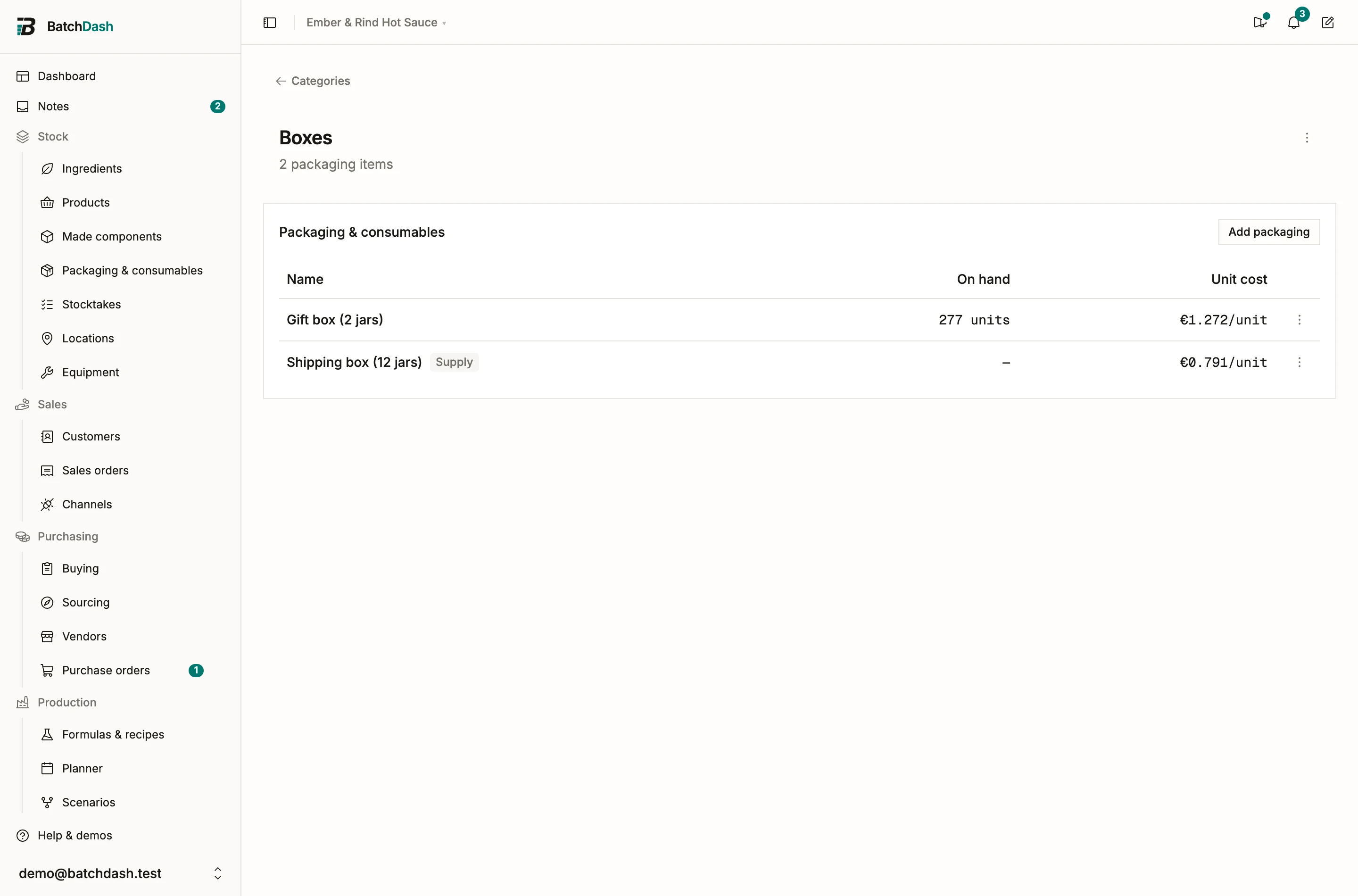
Add packaging, Add products or Add recipes opens a picker with two tabs: No category, and In another category, where each item says where it is now. Anything with no category just joins. An item filed elsewhere leaves its category, and the dialog names each move before anything changes. Remove from category in a row’s ⋮ takes an item out, and the message offers Undo. From a subcategory, the item goes up to the parent category.
The ⋮ in the page header renames the category, adds a subcategory or deletes it.
4. On a list
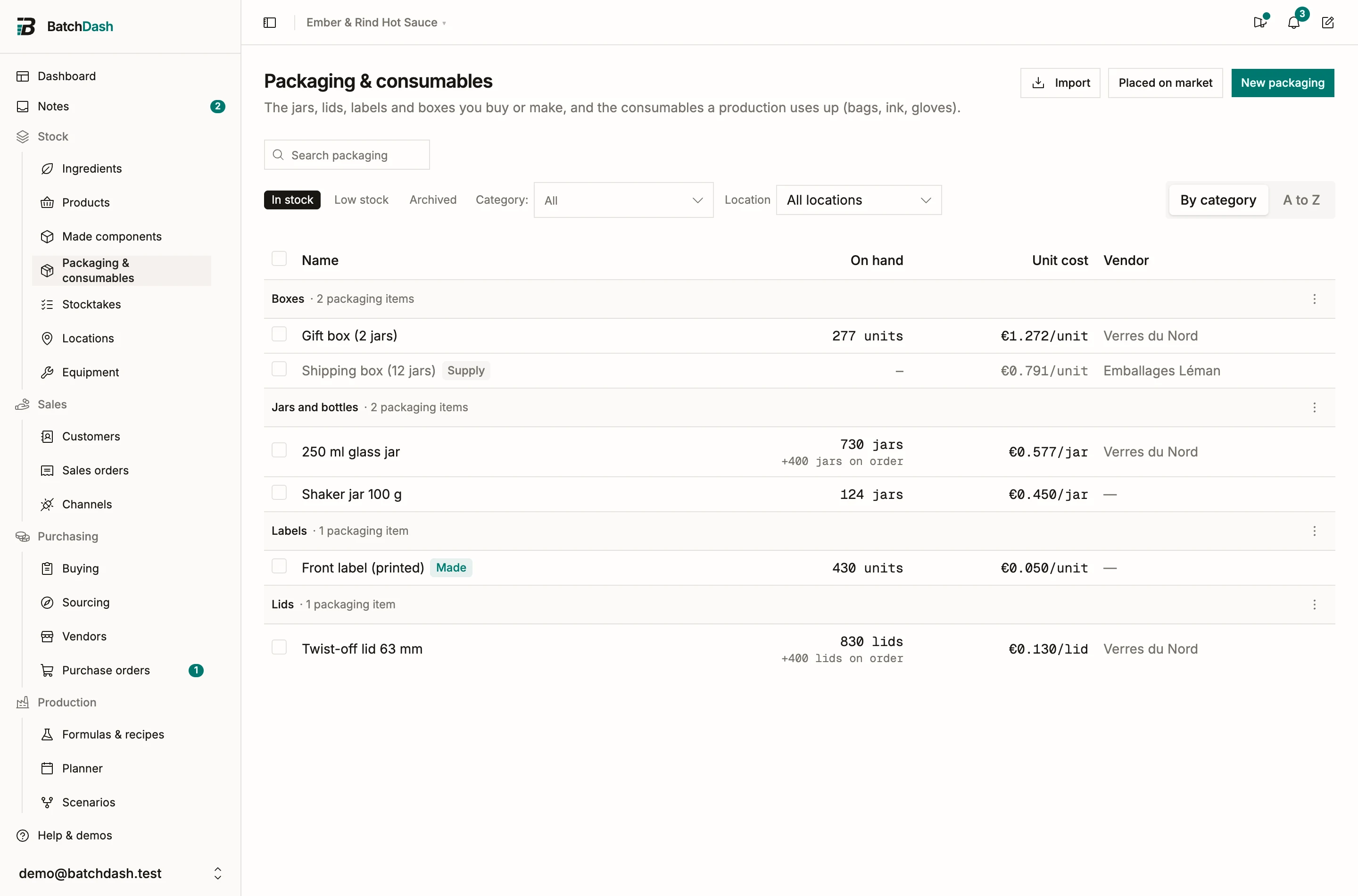
Section titled “4. On a list”Ingredients, Packaging & consumables, Products, Made components and Formulas carry the same controls:
- The Category: selector narrows the list to one category, subcategories included, or to No category. If you manage categories, + New category sits at the foot of its list, even before your first category, and the ⋮ beside the selector renames or deletes the category you picked.
- By category groups the rows under each category, and a group’s name opens the category’s page. A to Z is the plain list with a Category column. The layout you pick is remembered for you on each list.
- Tick rows and choose Set category to file them in one go. The message offers Undo. On Made components, a component sorts by its recipe, so the ticked rows file their recipes, each once.
- Search finds an item by its category too: “sauces” lists what is filed in Sauces.
5. Filing from a dialog
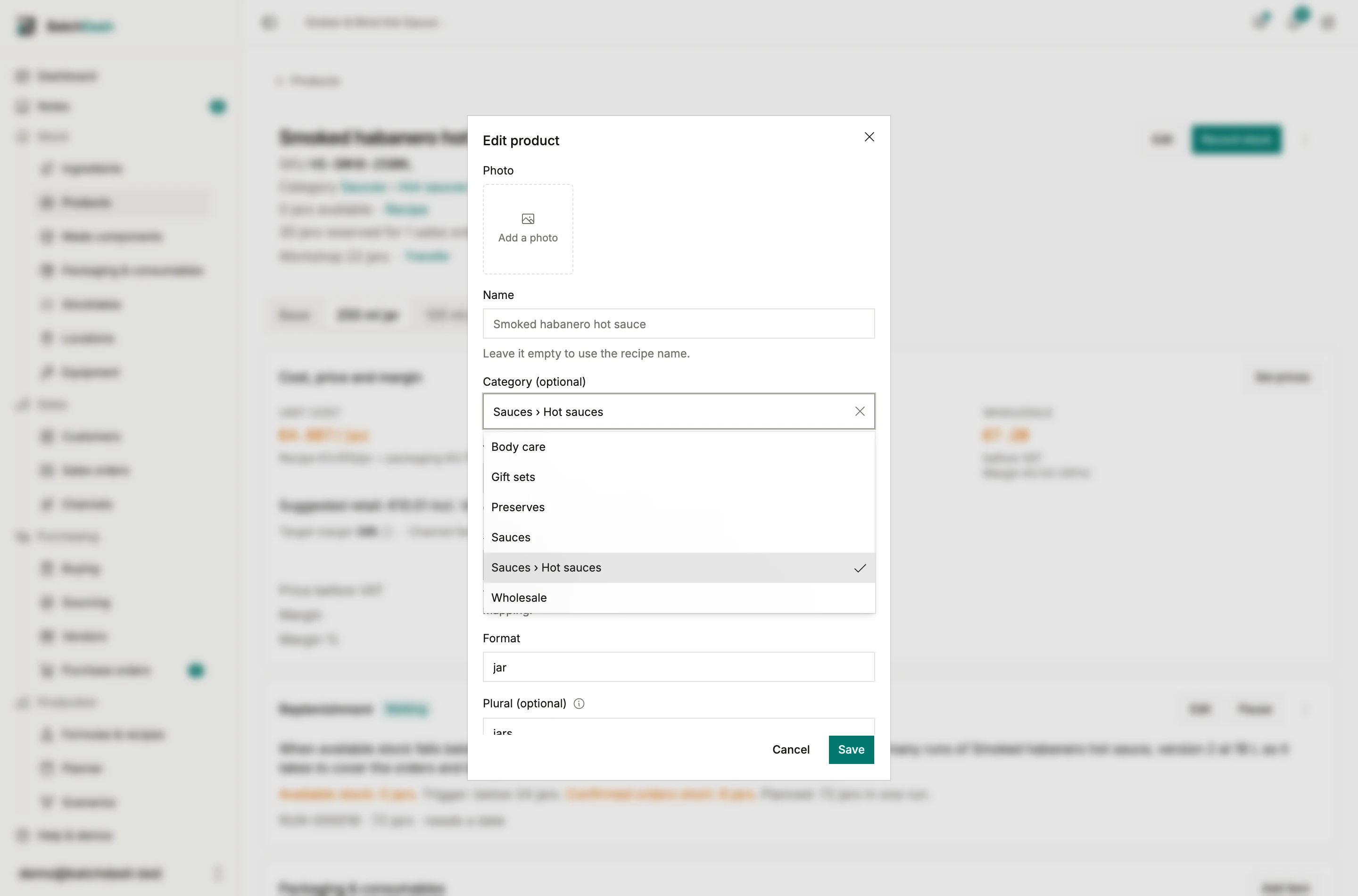
Section titled “5. Filing from a dialog”New and Edit on an ingredient, a packaging item, a product, a pack and a formula carry a Category field. When the list is showing a category, a new item starts in it. Type a name that does not exist yet and, if you manage categories, Create “…” makes it with the whole name as typed. A subcategory is made from its parent’s ⋮, never by typing a path.
On a product’s page, Edit files that format only, and its other formats stay where they are. Add presentation starts the new format in the category of the product it was added from.
6. Deleting a category
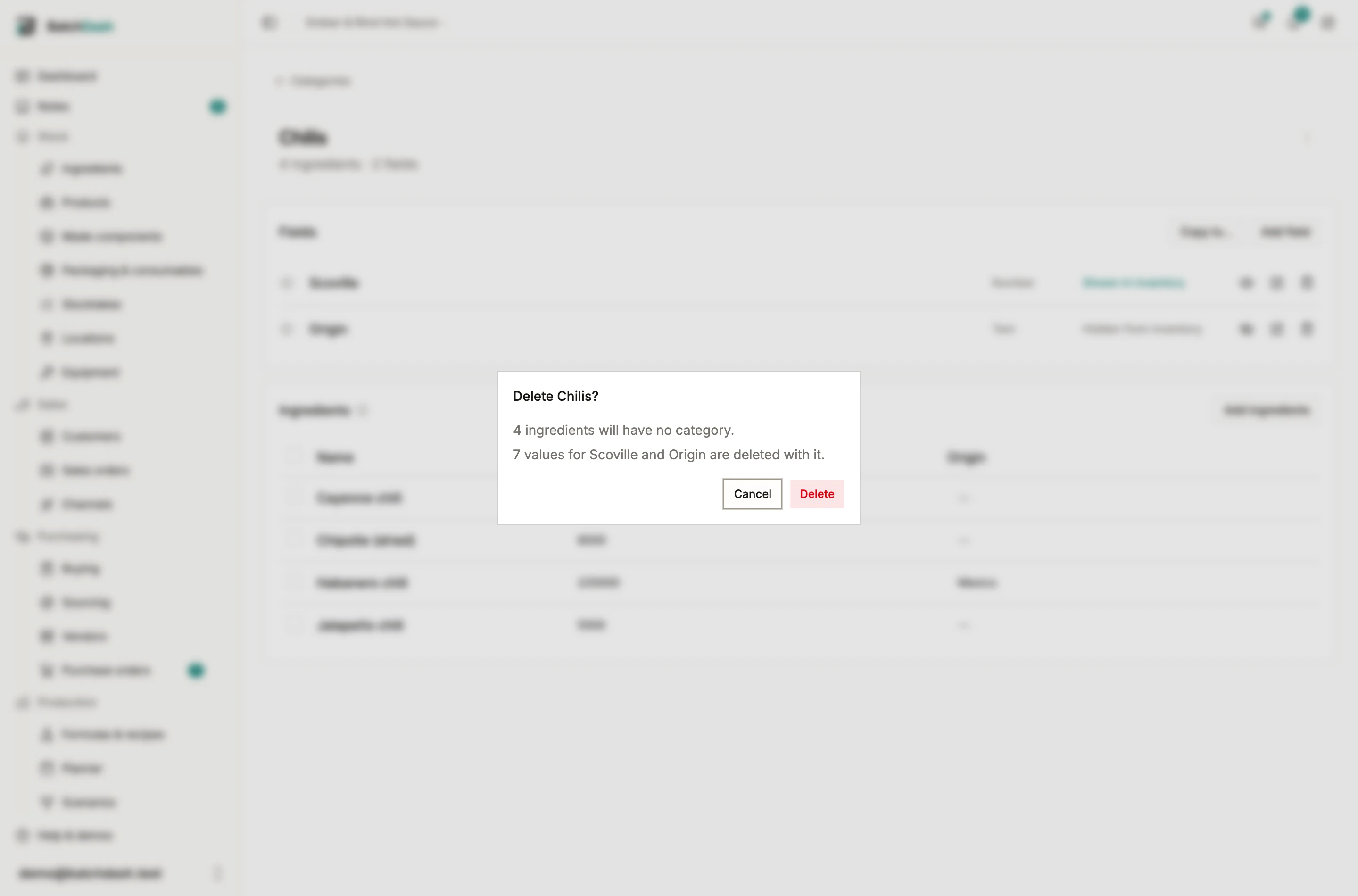
Section titled “6. Deleting a category”Deleting a category deletes only the category: no ingredient, packaging item, product or recipe is ever deleted with it. Before you confirm, the dialog says what changes:
- how many items will have no category, archived ones counted among them;
- for an ingredient category, how many values of its fields are deleted with it;
- for a category at the top level, the subcategories deleted with it;
- for a subcategory, that its items move up to its parent.
7. Counting one category
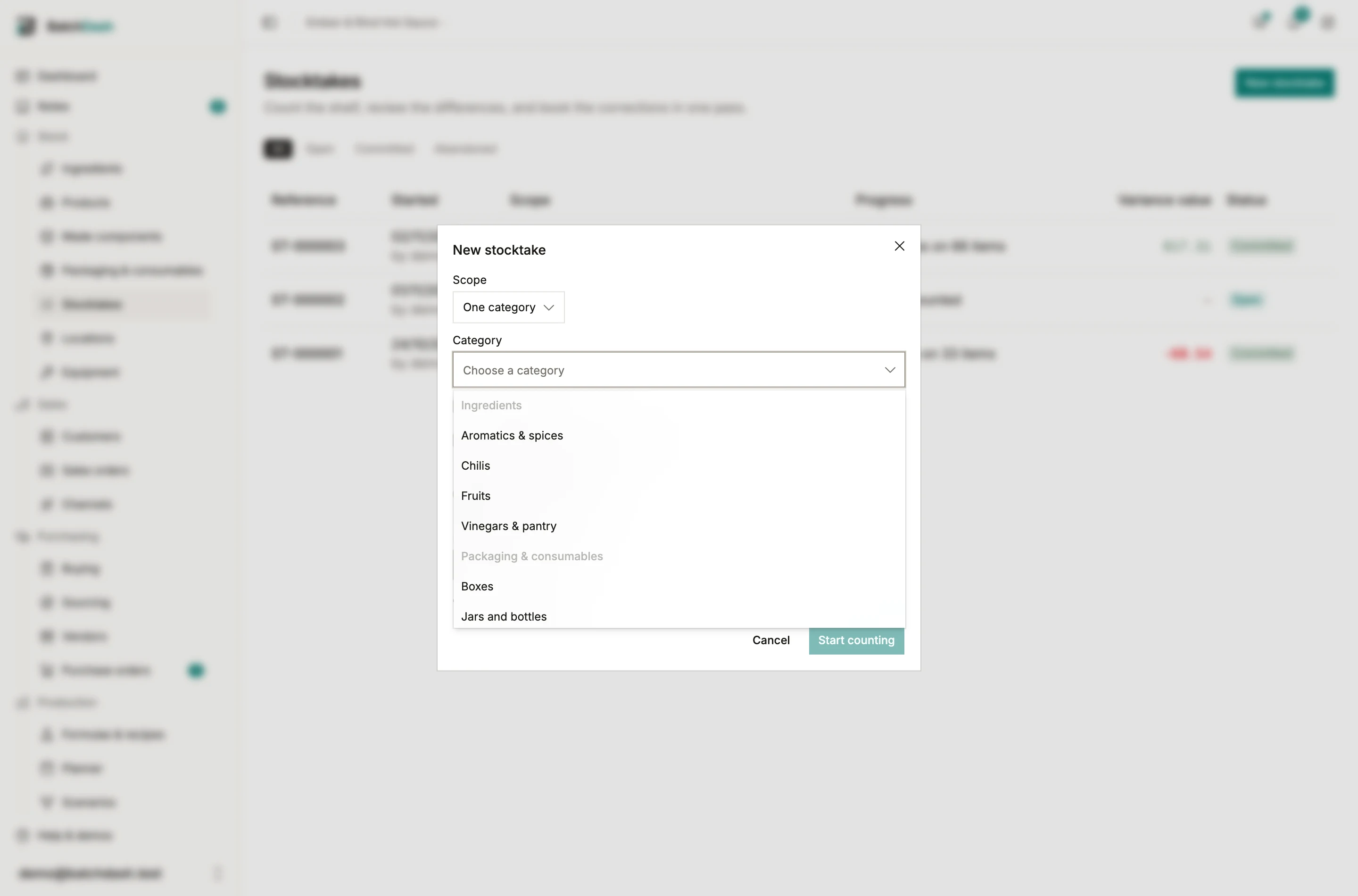
Section titled “7. Counting one category”A stocktake can count One category of any list: the ingredients or packaging items filed there, the product formats filed there, or the made components of the recipes filed there, subcategories included. Only low stock narrows an ingredient or packaging category; products and made components carry no restock level.
Limits and rights
Section titled “Limits and rights”- Ingredients and packaging: one level. Products and recipes: a category and its subcategories.
- An item sits in one category of its list, or in none.
- A workspace holds up to 200 categories in each list.
- Names are up to 80 characters, any character, and unique within their level, case and accents aside.
- Creating, renaming and deleting a category takes the right to manage categories. Filing an item takes the right to manage its list: ingredients, packaging, products or formulas.