
Audit documents
An organic inspector asks for every purchase of the year with the vendor’s certificate valid on the day it came in. A recall test asks for one lot’s trace, both ways, with every paper along it. A cosmetic file wants everything about one product. Audit documents prepares that in one ZIP, with an index that says which document covers which lot and receipt.
Prepare the ZIP
Section titled “Prepare the ZIP”- On the Documents page, open Export → Audit documents…. From a lot’s trace, the same menu prepares that lot’s audit documents, at the steps shown on the page.
- Pick What it covers:
- Every document.
- A vendor, An ingredient or packaging item or A product: type a few letters and pick it. Change picks another.
- A lot and its trace: type the Lot code, then how far to follow it, Where it came from and Where it went, from 1 to 5 steps.
- Pick the Period: Last year, This year, Last 12 months, or your own days in From and To. A lot’s ZIP has no period: its trace decides.
- If you manage documents, tick Include documents in limited access when the inspector needs them.
- Click Prepare the ZIP.
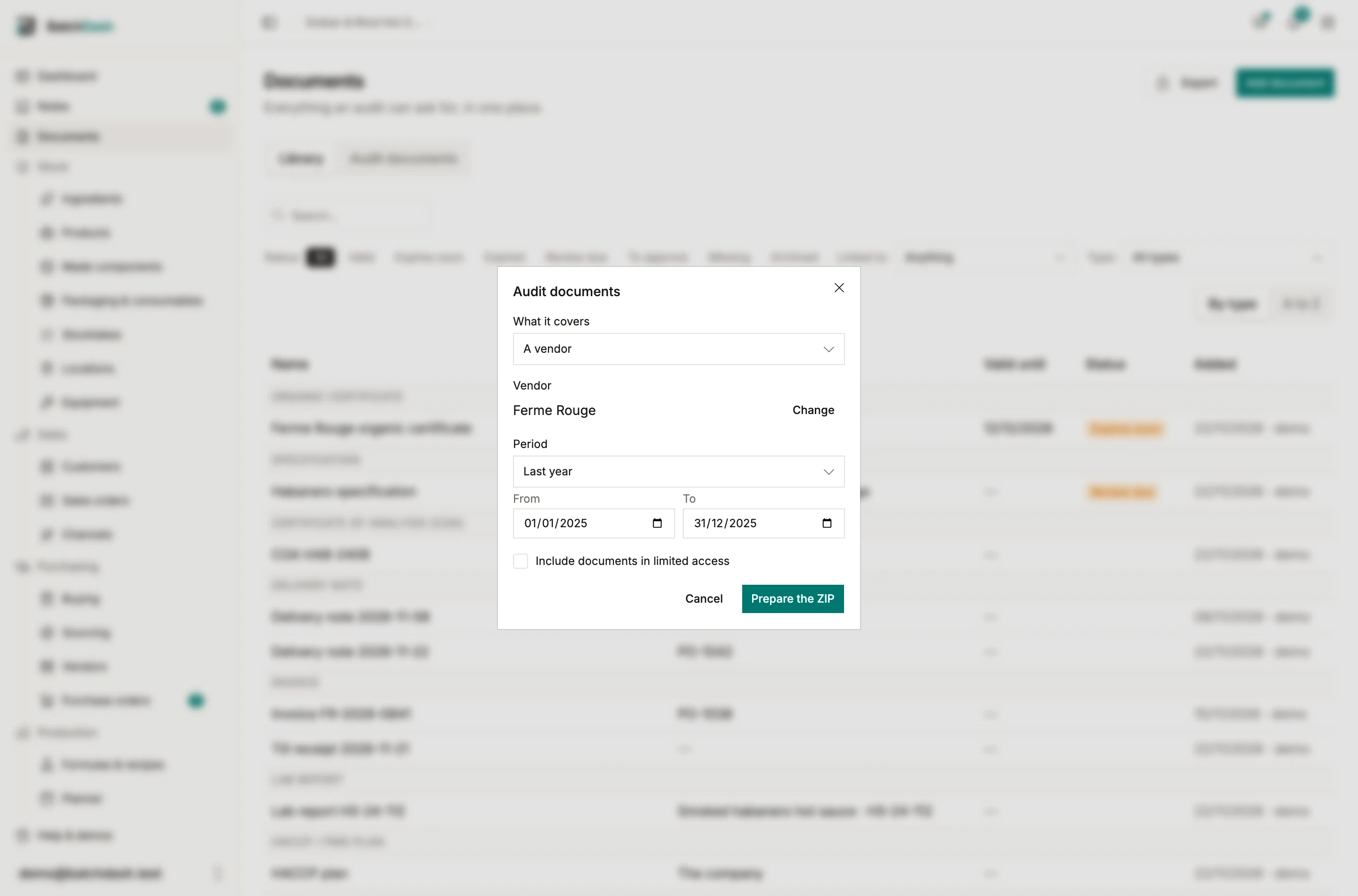
The ZIP is built in the background. The page opens the Audit documents tab, and the bell tells you when the ZIP is ready.
What goes in
Section titled “What goes in”- Every document: the documents in force during the period, and those of the lots received, made or shipped in it, of their batches and of their orders.
- A vendor: its own documents and those about the items it sells, the documents of the lots it delivered in the period, and those of their purchase orders.
- An ingredient or packaging item: its documents, its vendors’ documents about it, the documents of the vendors that delivered it in the period, and those of its lots received in the period.
- A product: its documents and its recipe’s, the documents of the ingredients and packaging its recipe uses with their vendors’, and those of its lots made or shipped in the period, with their batches.
- A lot and its trace: the documents of every lot, batch and order along the trace, and, for each lot received along it, the vendor’s documents valid that day.
Which version goes in depends on what the document is about. A document about something that happened on a day (a lot received or made, a batch, an order) goes in at the version it kept that day: the one picked when the lot was received, else the newest valid on the day. A document about a record (the company, a vendor, an ingredient, a product) goes in at every version in force on at least one day of the period. The Ferme Rouge certificate for 2025 and the one for 2026 both go into a ZIP from July 2025 to June 2026. An archived document goes in when it was in force then.
What the ZIP holds
Section titled “What the ZIP holds”Each type has its folder: “Organic certificate”, “Certificate of analysis (COA)”. A document with two versions in the ZIP has both, “v1” and “v2” after its name. Then four files, in the language of whoever prepared it:
index.csv: one row per file, with the document, its type, version, issuer, number, dates, who approved it and when, what it is linked to, and Lots and receipts, the lots and receipts of this ZIP it covers.index.html: the same list to open in a browser and print, each name linking to its file. Files in this ZIP lists the other files with their number of rows. With no document at all, it says so in one line.receipts.csv: one row per receipt of the scope and period, with the item, the vendor, the lot, the order, the documents filed on the lot, each document the vendor was required to provide and how it stood that day (“Organic certificate: valid”, “Allergen statement: missing”), and who checked the documents and when.trace.csv, for a lot: its trace, as the trace page exports it.
A vendor’s certificate covers a receipt when the item received asks its vendors for that type of document. See required documents.
Each document’s history gets a line: included it in the audit documents “Ferme Rouge · 2026”.
The Audit documents tab
Section titled “The Audit documents tab”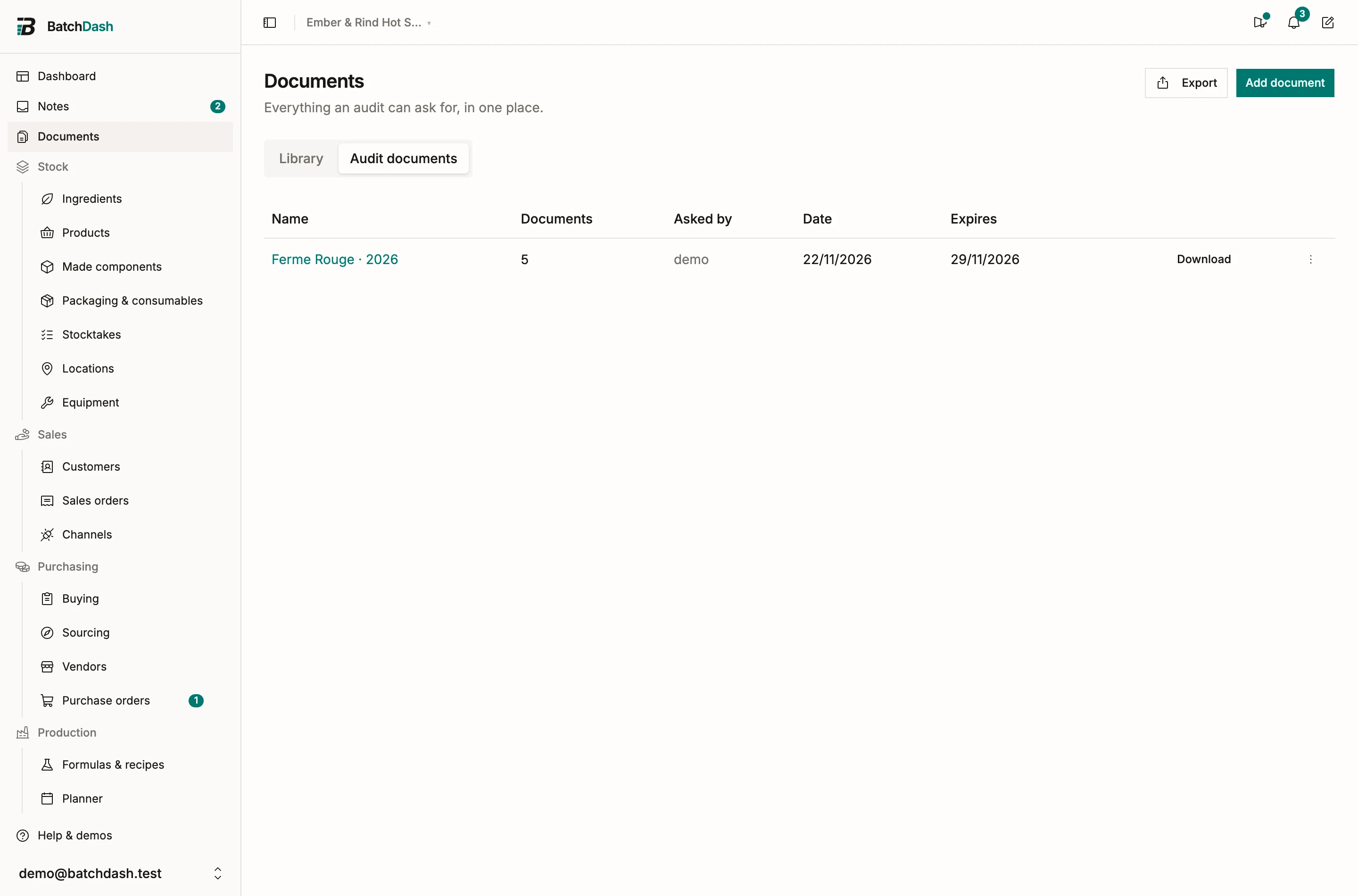
The Audit documents tab on the Documents page lists every ZIP prepared, newest first, 50 a page:
- Name opens what the ZIP covers: the vendor, the item or the product, or the lot’s trace at the steps it was prepared with.
- Documents counts the documents in it.
- Date and Expires show the day; hover them for the time.
- Download works for 7 days. Otherwise the row says why: Preparing…, Failed, Link expired, Withdrawn: a document in it was deleted, or Holds what you cannot see when it carries a document in limited access, or customers you cannot see on a lot’s trace.
Preparing the same ZIP again replaces the older one: the same vendor, item or product over the same period, or the same lot at any number of steps. The older one leaves the list with its file, unless it holds documents in limited access and the new one holds none. ⋮ → Delete… removes a ZIP and its file; the documents stay in the library. The person who prepared it can delete it, and so can anyone who manages documents.
You can have one ZIP being prepared at a time. A period covers ten years at most.