
Asking support
When something goes wrong, or you cannot find how to do a thing, write to us from inside BatchDash. The request carries the workspace it is about and the page you were on, so we start from what you saw.
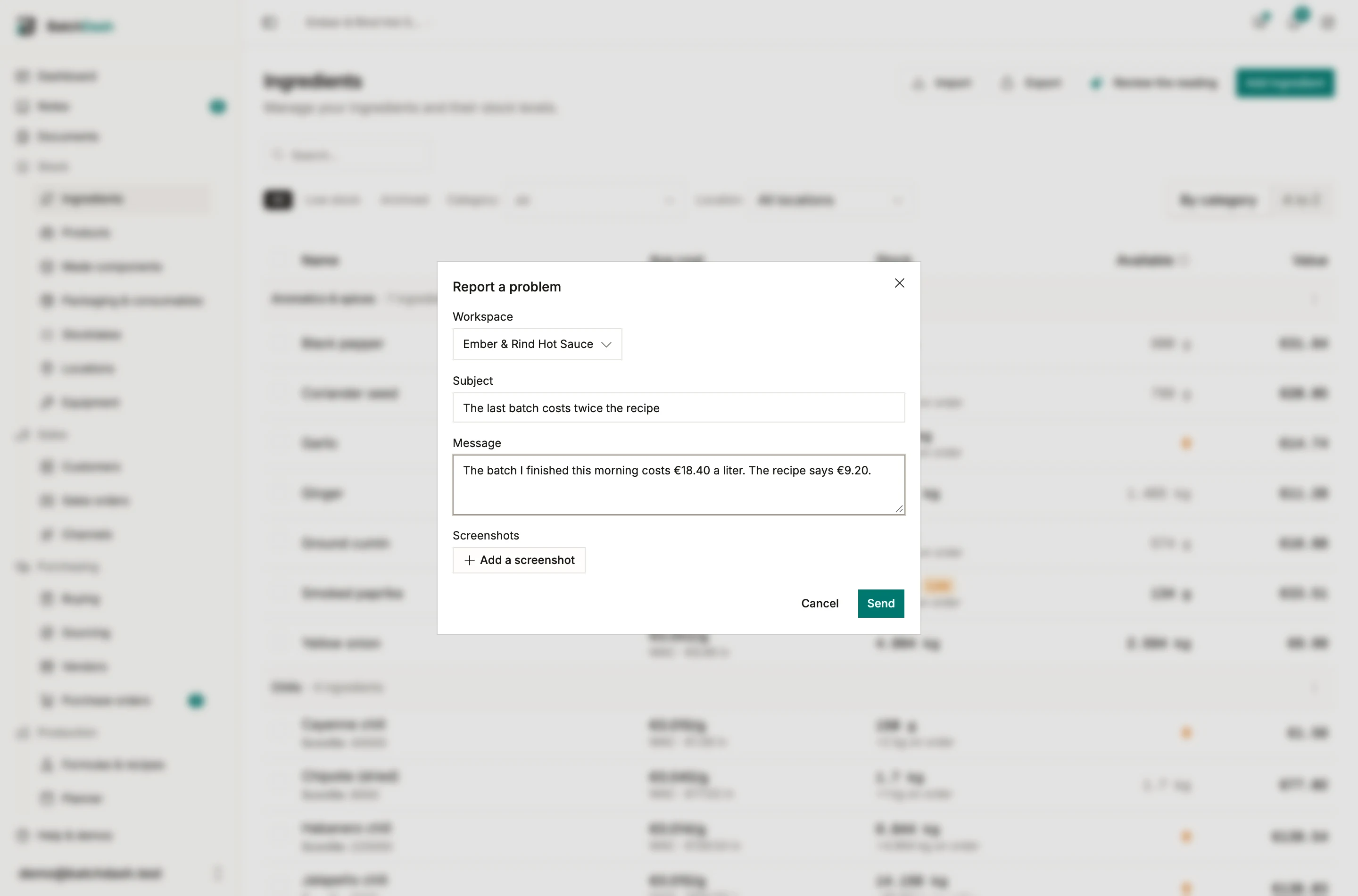
Report a problem or ask a question
Section titled “Report a problem or ask a question”- Open Help & demos at the foot of the sidebar.
- Press Report a problem or Ask a question.
- Check the Workspace. It is the one open now; pick another of yours if the request is about it, or Not about a workspace.
- Write a Subject and your Message. For a figure that looks wrong, give the one you expected and the one you got.
- Add up to three Screenshots when a picture shows it better.
- Press Send.
The request opens on its own page. Your requests, in Help & demos, lists every request you sent.
If your workspace is waiting for a plan, the sidebar is gone: Support at the top of the page leads to your requests, and New request there opens the same form.
Read the answer and write back
Section titled “Read the answer and write back”When we answer, you get an email with a button to the request. If the request is about a workspace with notifications, the bell tells you too. The request’s status says whose turn it is: Waiting for support, Answered or Closed.
To write back, type in the box under the conversation and press Send. When your problem is solved, Send and close sends your last message and closes the request. A closed request takes no more messages: for anything new, start a new request.
When we have answered and you do not write back within 10 days, the request closes and you get an email saying so.
What the request keeps
Section titled “What the request keeps”Each request keeps your account, the workspace you chose, the page you were on and the record it showed, and your browser. The other members of the workspace do not see it.
Screenshots are deleted 30 days after they were sent, or sooner once your request is closed. The conversation then shows where one was. Requests and their messages stay as long as your account exists: see the privacy notice.