
Required documents
An organic workshop has to hold a valid organic certificate from every vendor, on the day each delivery comes in. A required document says that once, and BatchDash points at what is missing: on the record, on the order, in the receiving dialog and in Today. A gap is a warning. It never stops an order from being sent or a delivery from being received.
Set what a record needs
Section titled “Set what a record needs”- Open the record’s page: a vendor, an ingredient, a packaging item, a product, a piece of equipment, an operator, a location, or the company.
- On its Documents tab, open ⋮ → Required documents….
- Pick the Document type and Where it must be:
- On the record: a document of that type linked to the record, valid today. A packaging vendor’s insurance certificate, a mixer’s calibration certificate.
- From the vendor, at each delivery: each vendor of the item holds a document of that type, about the item or about itself, valid on the day each delivery arrives.
- On each lot received: every delivery of the item carries its own document of that type, a certificate of analysis for example.
- Click Add. Close when you are done.
The two delivery choices exist only for ingredients and packaging items. The cross at the end of a line removes it.
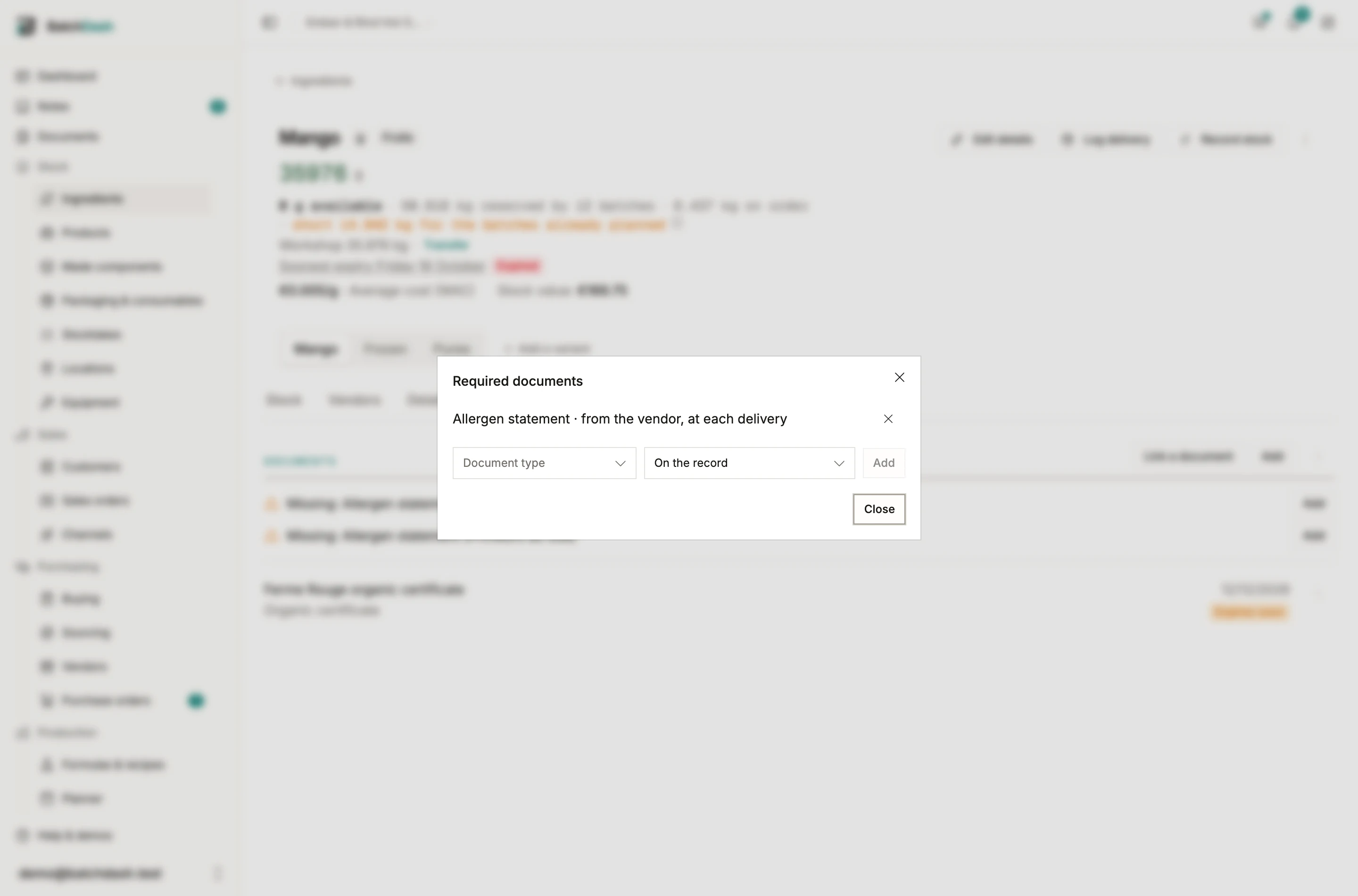
A whole category can carry them too: on the category’s Required documents tab, Edit sets them for every ingredient in it. The item’s dialog then lists them under From the category, beside those Required here.
What counts as provided
Section titled “What counts as provided”- On the record: a document of the type linked to the record, or to one of its vendors about it, valid today and not archived.
- From the vendor: today, each vendor that has an offer for the item, before its next delivery; for a past delivery, the version that was valid that day, even if the document has been archived since.
- On each lot: any document of the type linked to the lot, whatever its dates.
Deliveries received before the requirement was set are not checked against it.
Where a gap shows
Section titled “Where a gap shows”- On the record’s Documents tab, one line per gap: “Missing: Allergen statement”, “Organic certificate: expired on 30/04/2026”, or “provided, in limited access” when the document that covers it is in limited access.
- On a purchase order, under each line whose vendor misses a document for the day the order is expected.
- In the receiving dialog: “Missing for this delivery: …”. You can attach the document right there. See receiving.
- In the Lots in stock section of the Stock tab, on the lots that lack their own document.
- On the Documents page, the Missing filter lists every gap of the workspace: the record, the required document and where it is missing.
- In Today, under Check, for the people who manage documents: “3 required documents missing”.
Fill a gap by adding or linking the document where it belongs; the line goes the next time the page opens.
A customer’s own list
Section titled “A customer’s own list”A customer can ask for its own set of documents with each shipment. Its Required documents… offers In its customer documents only, and those types come first when you prepare documents for its orders. See customer documents. They are never shown as a gap.