
Customer documents
A shop that buys your sauce wants the certificate of analysis of each lot it received, the product’s allergen statement and your organic certificate. Customer documents on the sales order gathers them into one ZIP, with an index. You send it yourself, by email or however the customer likes.
Prepare the ZIP
Section titled “Prepare the ZIP”The Customer documents section appears on a sales order’s Documents tab once a line has shipped.
- Click Prepare… in the section.
- The dialog lists the documents that can go, in four groups:
- Shipped lots: each lot’s own documents, under the lot’s code. A lot with nothing on file says so (“HS-24-112: no documents”).
- Products: the documents of the products shipped and of their recipes.
- Company: your company’s documents.
- Added: what you add from the library.
- Tick what goes. The lots’ documents start ticked. For the products and the company, the types the customer asks for start ticked. For a customer that asks for nothing, the usual ones do: product specifications, allergen statements, label proofs and lab reports for the products, organic certificates, certifications and insurance certificates for the company.
- Add a document from the library finds any other document by name. Add puts it in the list, ticked.
- Click Download the ZIP. The count and the size of what is ticked show at the bottom.
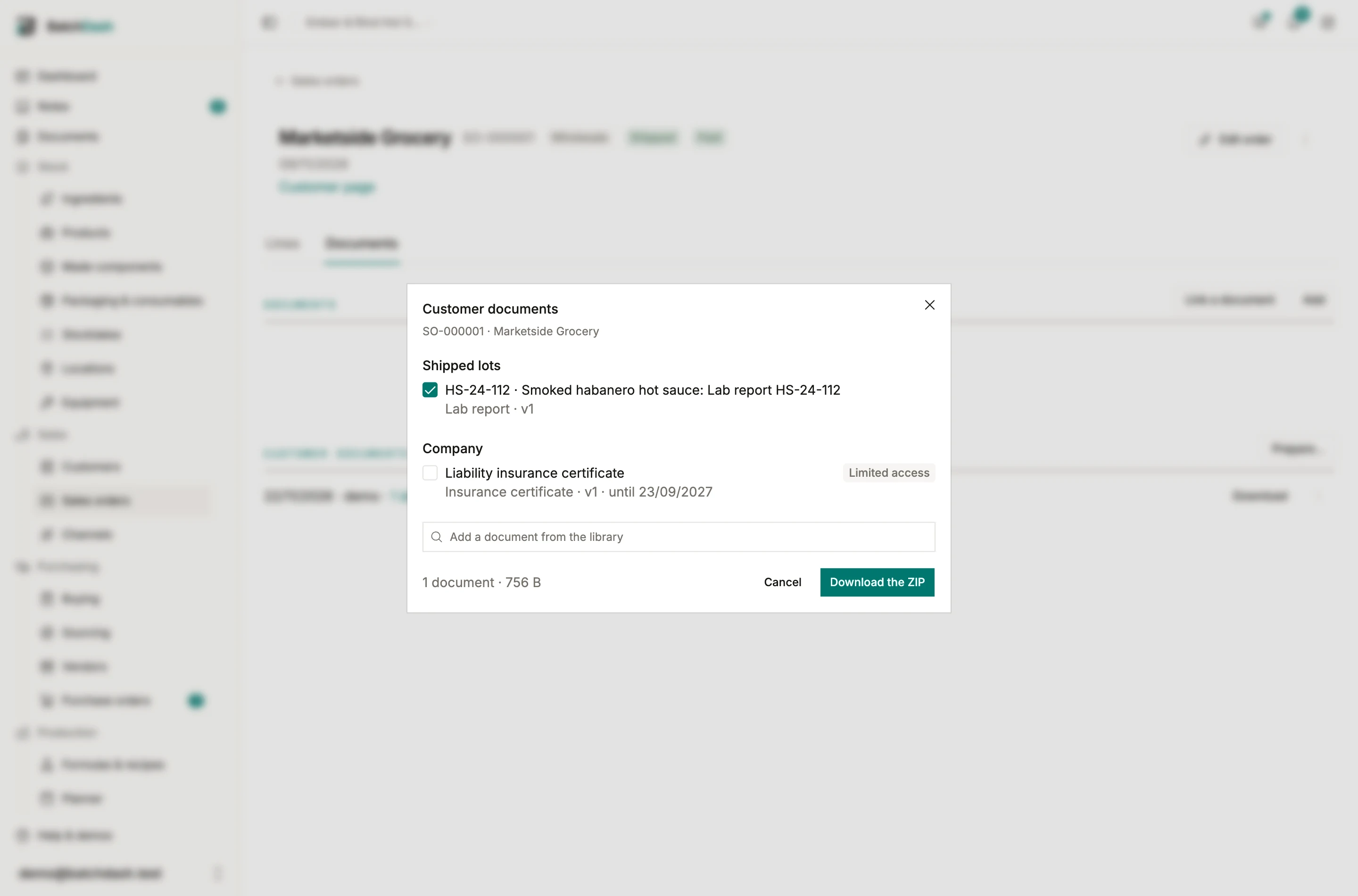
Some documents cannot go, and their row says why: an archived document, a version still waiting for approval (To approve), a document past its date (Expired on…). Documents in limited access are listed unticked for the people who can manage documents. Everyone else sees only how many there are (“1 document in limited access”).
When the customer asks for a type and nothing on the order covers it, a line says so: “Asked for by Marketside Grocery, missing: Certification”.
What the ZIP holds
Section titled “What the ZIP holds”The ZIP is named after the order, “Documents SO-000001.zip”. Each lot’s documents sit in a folder named after it (“Lot HS-24-112”), the products’ in a folder per product, the company’s at the top. Each file takes the document’s name and the right extension.
Two files list it all, in your language:
index.htmlopens in a browser and prints. Each name links to its file in the ZIP. Under the list, Files in this ZIP namesindex.csvand its number of rows.index.csvis the same list for a spreadsheet: document, type, version, valid until, lot, product and file.
Each document’s history gets a line: “included it in the customer documents of SO-000001”.
Large ZIPs, and how long they last
Section titled “Large ZIPs, and how long they last”Up to 50 files and 25 MB, the ZIP downloads at once. A larger one is built in the background: the button reads Prepare the ZIP, and the bell tells you when it is ready.
The section lists the ZIPs prepared from the order, newest first: the day, who prepared it, and how many documents went in (click the count to see them). Download works for 7 days, then the row reads Link expired. A newer ZIP replaces the older one, which reads Replaced by a newer one. A ZIP holding documents in limited access is only replaced by one that holds some too. Deleting a document that was in a ZIP withdraws the ZIP: its row reads Withdrawn: a document in it was deleted.
⋮ → Delete… removes a ZIP and its file; the documents stay in the library. The person who prepared it can delete it, and so can anyone who manages documents. A ZIP still being prepared cannot be deleted.
A ZIP holding a document in limited access downloads only for the people who can manage documents, and only they see that document’s name in its list. Limiting a document later does the same to the ZIPs already holding it.
A customer’s own list
Section titled “A customer’s own list”On the customer’s page, ⋮ → Required documents… on its Documents tab sets the types it asks for, with In its customer documents. Those types then start ticked on each of its orders, and a missing one is named in the dialog.