
The document library
Documents in the sidebar is the library: every paper an inspector, a customer or a supplier audit can ask for, filed once and linked to the records it is about. The Ferme Rouge organic certificate sits in the library, on Ferme Rouge’s page, and on the pages of the habanero and the mango it covers.
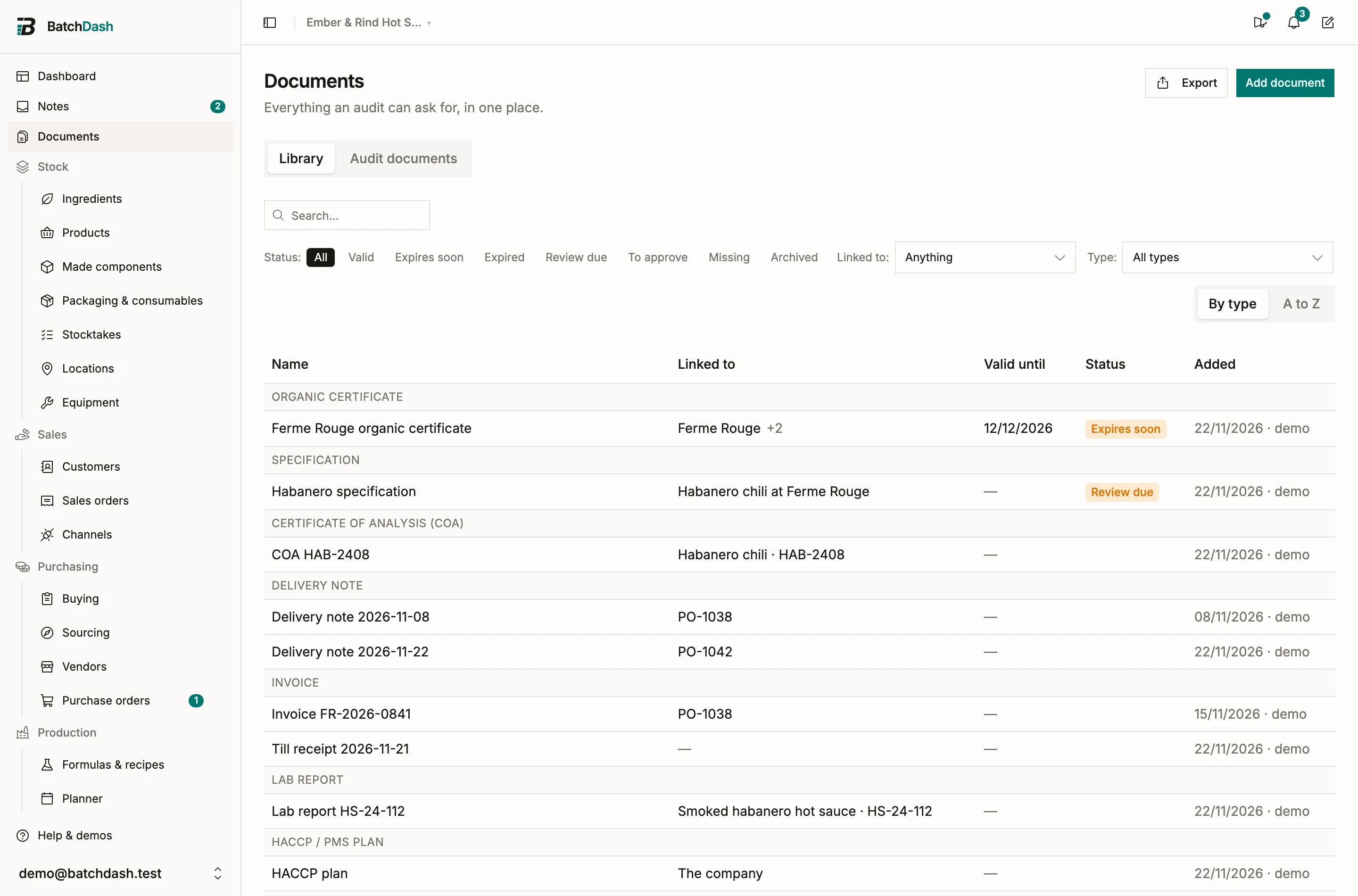
The list opens By type, in the order of the types; A to Z lists them by name. Above it, the Status pills narrow it to Valid, Expires soon, Expired, Review due or To approve, Missing lists what your records lack (see required documents), and Archived shows what you put away. Linked to keeps the documents of one kind of record, the vendors or the equipment for example. The search reads the name, the file name, the issuer and the number.
Add a document
Section titled “Add a document”- On the Documents page, click Add document. From a record’s page, click Add on its Documents tab instead: the document is then linked to that record from the start.
- Pick the File: a PDF or an image, up to 8 MB.
- Pick its Type. A type you do not have yet is one click away: New type… and its name.
- Give it a Name (“Ferme Rouge organic certificate”), then what the paper says: Valid from and Valid until, the Issuer (Ecocert), the Number, and a Note if it needs one.
- Click Add.
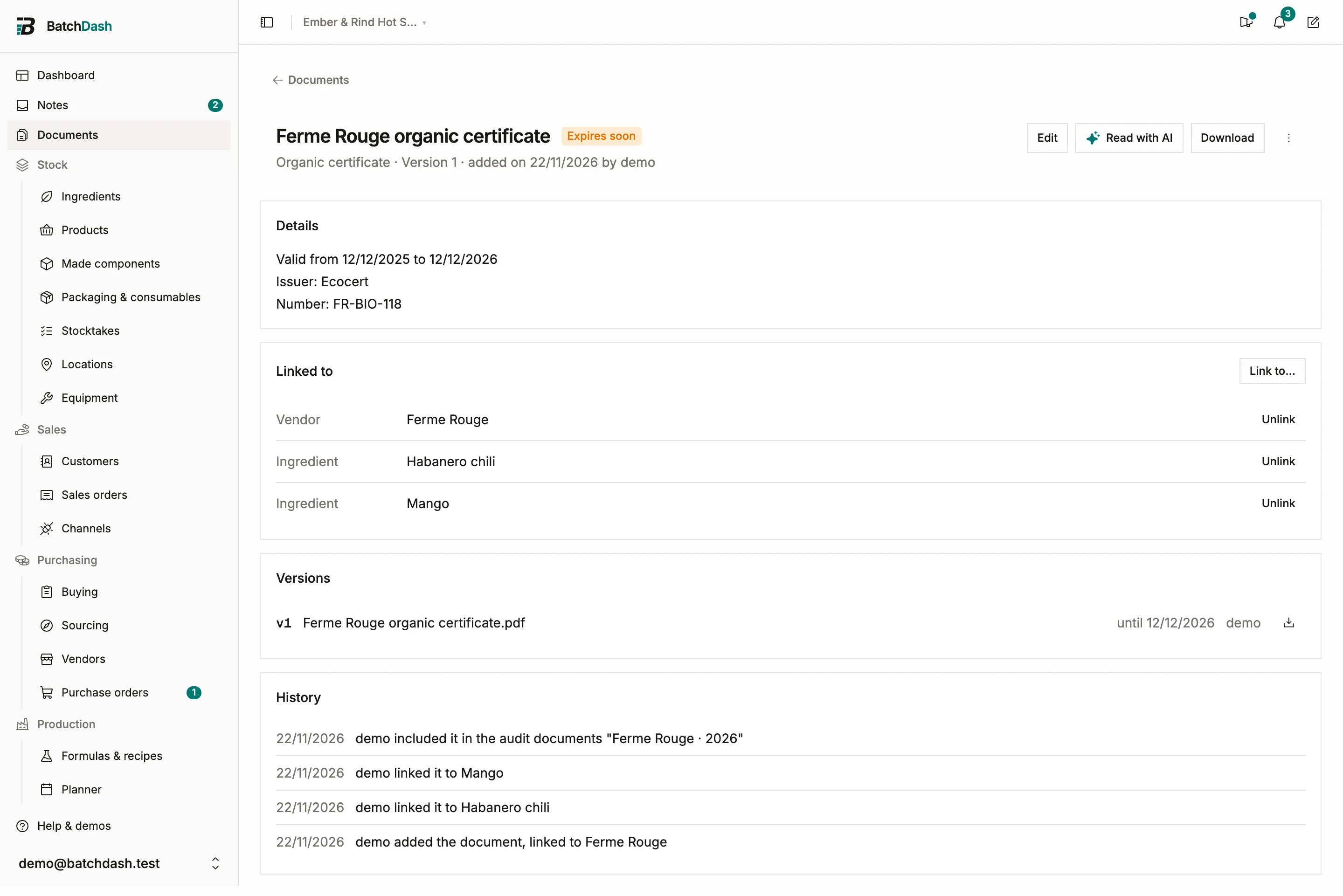
A document added from the Documents page is linked to the company. Files count against your storage, alongside your photos.
The library starts with a catalog of types, grouped by where they come up: vendors and ingredients (organic certificate, specification, safety data sheet, allergen statement…), receipts (certificate of analysis, delivery note, invoice…), products, company and site (HACCP plan, insurance certificate…), equipment and people (calibration and training certificates). Each type knows whether its documents carry a validity date, how often they are reviewed, and whether each version must be approved.
Change them in Organization → Settings, tab Settings, under Documents. New type adds one of your own; its dialog sets the same things: Documents of this type have a validity date, Review every so many months, Each version must be approved, and New documents get limited access. Hide takes a type out of the Add dialog without touching the documents that use it.
Link it to records
Section titled “Link it to records”A document can be linked to as many records as it is about. The Documents tab on a record’s page lists that record’s documents, with their type and validity:
- Link a document searches the library and links one already filed.
- Add files a new one, already linked to the record.
- Each row’s ⋮ opens it, downloads it, or unlinks it from this record.
On an ingredient’s Documents tab, the documents its vendors sent about it sit under At Ferme Rouge, one heading per vendor. On a vendor’s Documents tab, the same documents sit under the ingredient they are about. The company’s own documents are on the Business tab of Organization → Settings, under Company documents.
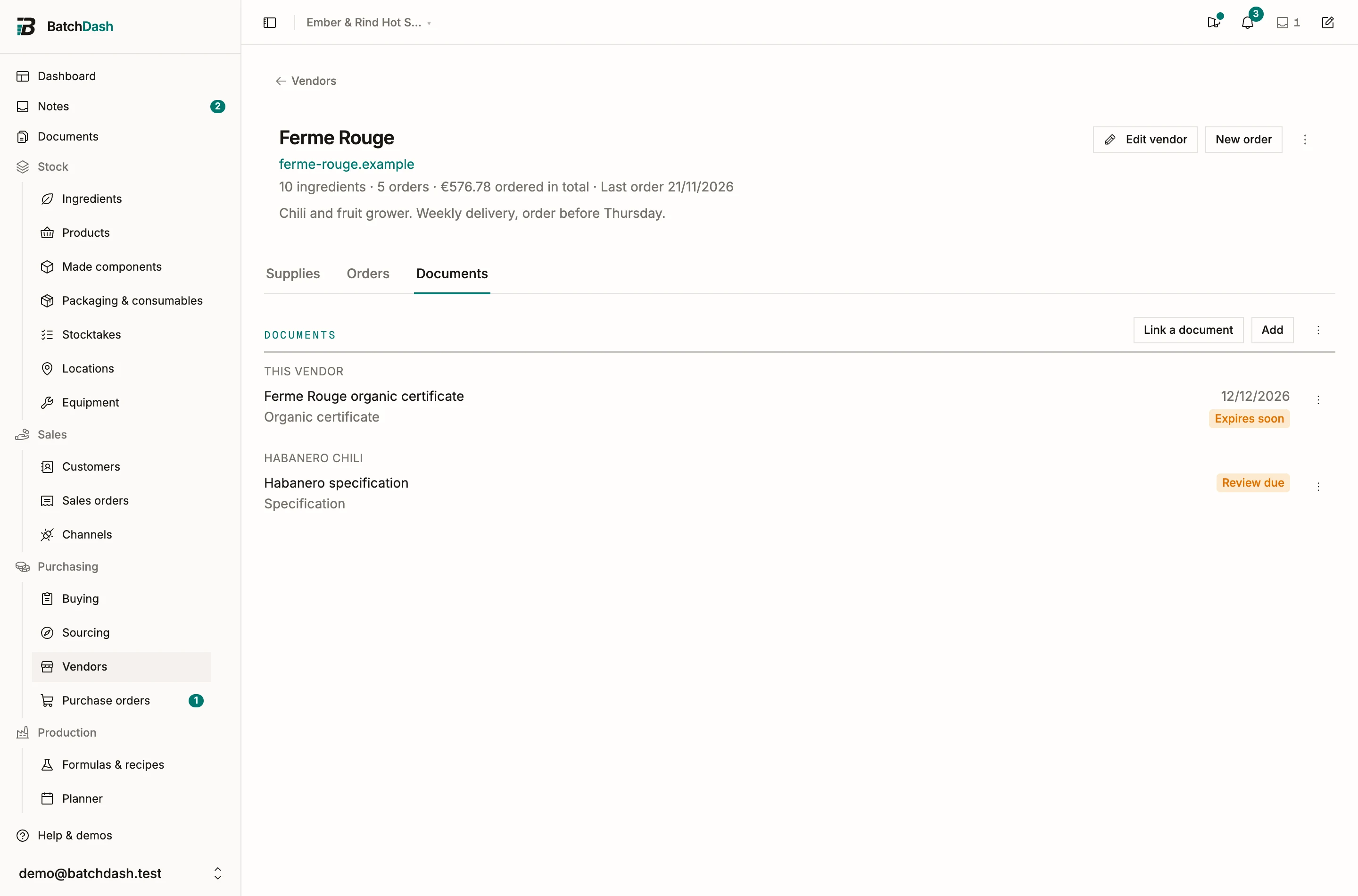
On the document’s own page, the Linked to card lists every record it is linked to. Link to… picks a kind of record and finds one by name; Unlink takes one off. Deliveries, batches, orders and sales orders take documents too: see receiving and the trace.
Versions
Section titled “Versions”The certificate gets renewed every year, and the new one replaces the old. Click Edit on the document’s page, pick the New file, change the dates, and save: that adds version 2. The Versions card lists each version with its dates, who added it and when, and a download. The older ones stay: a lot received last spring still points at the certificate that was valid the day it came in. ⋮ → Delete this version removes one with its file.
Dates and statuses
Section titled “Dates and statuses”Each document wears the status of its version in force:
- Valid: inside its dates, or with no dates at all.
- Expires soon: its last valid day is within 30 days.
- Expired: its last valid day has passed.
- Review due: its next review is within 30 days, or past.
- To approve: a version waits for someone to approve it.
The people who manage documents get Document expiring in the bell 30 days before a document’s last valid day, then on the day, and Review due 30 days before a review. The same documents are listed under Check in Today until someone deals with them.
Review and approval
Section titled “Review and approval”A type with Review every set gives each new version a Next review date. Once you have read the document again and it still holds, click Reviewed… on its page. The next review starts from today and the type’s interval; change the date if you agreed another one. The history keeps who reviewed it and when.
A type marked Each version must be approved (the HACCP plan, procedures, product specifications) keeps the approved version in force while a new one waits. The page says New version to approve, and Approve asks once: “It becomes the version in force. Your name and the date go on it.” Anyone who manages documents approves, including the person who added the version. Until a first version is approved, the newest one counts and is marked To approve.
Limited access
Section titled “Limited access”Tick Limited access on a document only the managers should open: an insurance certificate, a training certificate. Only members who can manage documents see it, in the library and on every Documents tab. A requirement it covers reads “provided, in limited access” for the others, without its name. Types such as insurance certificates start new documents in limited access; their settings say so.
Archive and delete
Section titled “Archive and delete”⋮ → Archive puts a document away: it leaves the list and the records’ Documents tabs, and waits under Archived. Restore brings it back.
⋮ → Delete removes it for good with every version and file. The warning names the records it is linked to: the records stay and only the links go. Who may delete is a setting of each role, Delete documents: None, Their own (documents where that person added every version) or All. See custom roles.
Read a document with AI
Section titled “Read a document with AI”The AI reads a certificate or a specification and proposes its type, issuer, number, dates and the records to link it to. You keep what is right.
- In the Add dialog, click Add and read with AI instead of Add. On a document already filed, Read with AI on its page reads the version in force, and Save and read with AI in the Edit dialog reads the new file you just picked.
- The AI reading card shows each field it read beside what the document says now, ticked where your field is empty or already agrees. Link to proposes the records it recognized; names it could not match are listed under Not found.
- Keep the checked fields writes what is ticked. Ignore keeps the document as it was.
The reading takes a few seconds. Leave the page meanwhile and the bell tells you when it is ready; Today lists it under Check until you deal with it. Each reading counts one AI reading in your plan’s month, shared with quotes read in Sourcing and paperwork read on orders. The buttons gray out when none are left.
The history
Section titled “The history”The History card says who added the document and each version, changed its details, linked or unlinked it, reviewed or approved it, kept fields from an AI reading, and put it in a ZIP for a customer or an audit.